The Classroom Dashboard serves as the central hub for managing a specific class. When a teacher selects a classroom, it loads all related data—students, subjects, schedules, attendance, and grades—into one unified view. All actions apply only to that class, preventing data mix-ups. The dashboard updates in real time, giving teachers instant clarity on class performance and areas that need attention.
Steps To access the Classroom Dashboard:
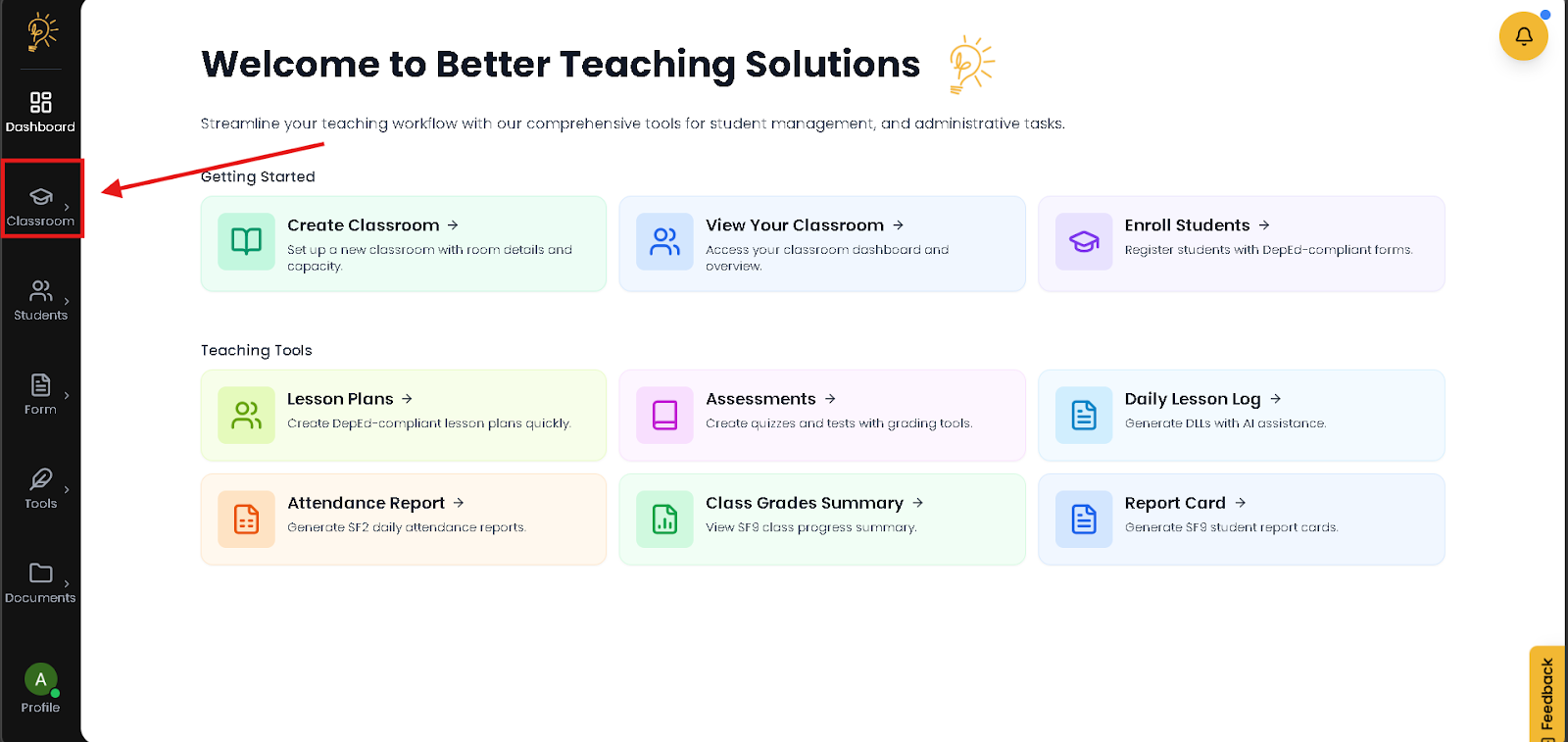
Step 1. Locate the Side Panel On the left side of your screen, navigate to the main menu panel and Click the Classroom icon
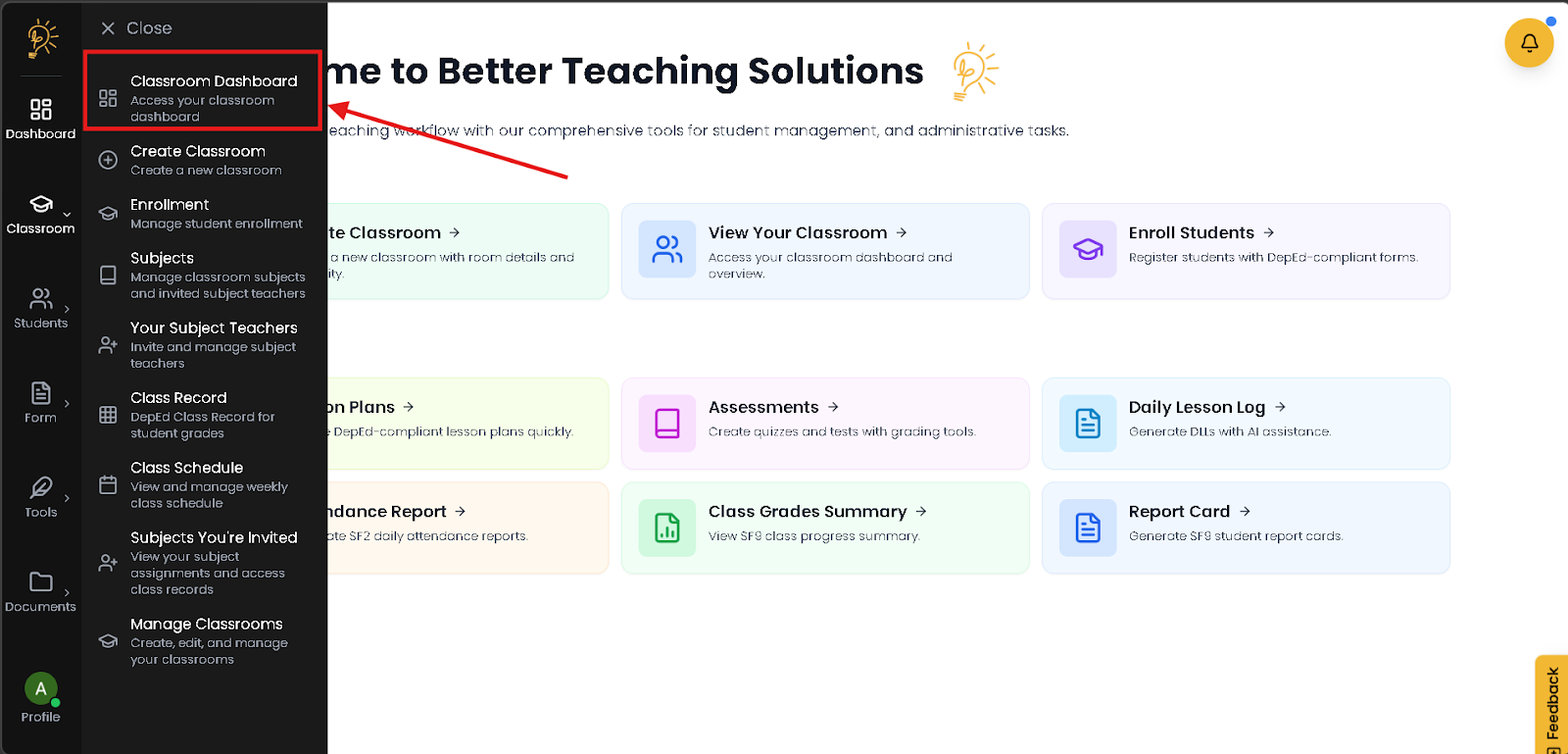
Step 2: Navigate your way onto the Classroom Dashboard. Click the first icon.
This is how your Classroom Dashboard looks!
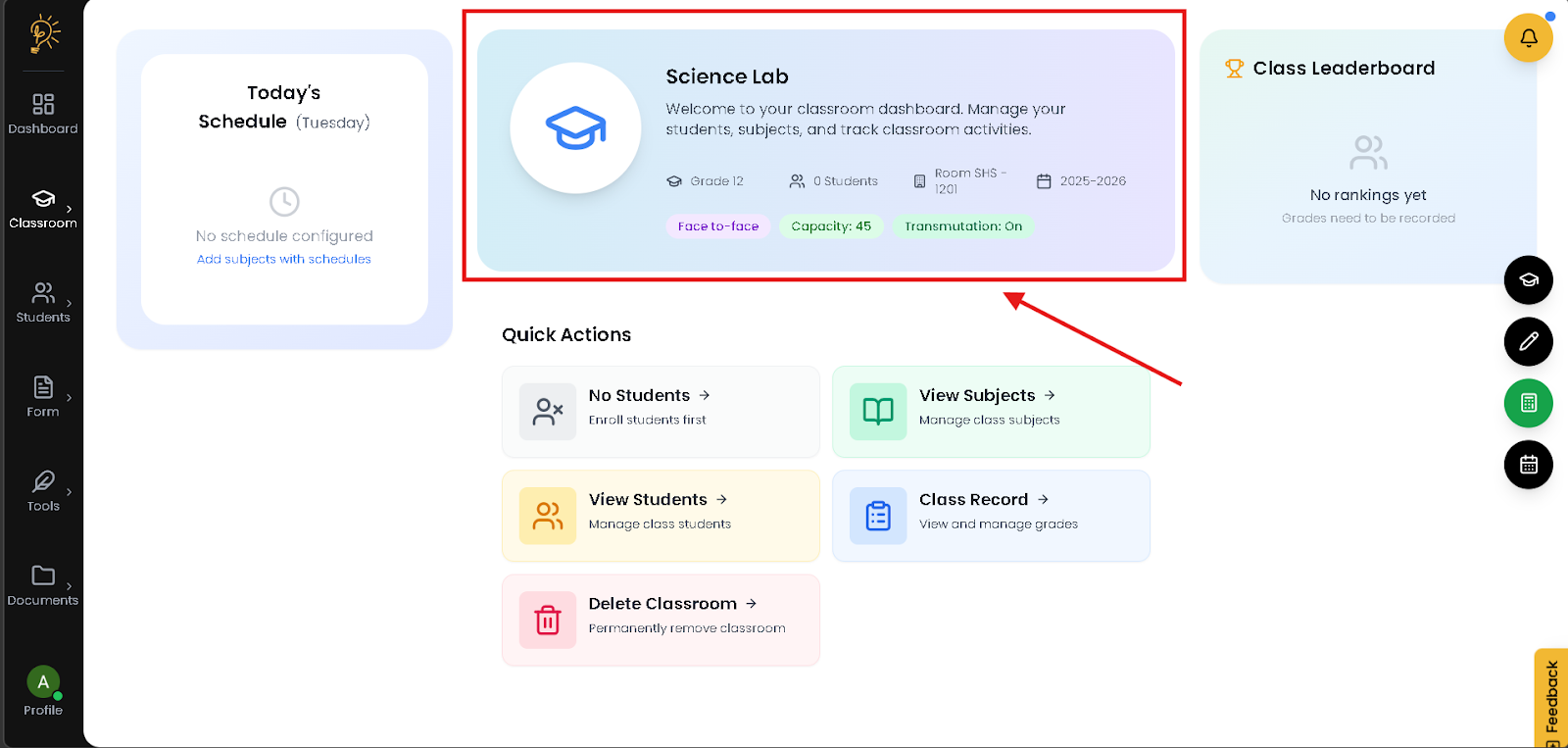 When you open a classroom, you work inside a focused space where all related students, subjects, attendance, and grades are already organized for you. As you record attendance or enter grades, the system updates everything instantly within the same view, so you don’t need to switch pages.
Because you are working within one selected classroom at a time, your actions stay contained to that class. This helps you avoid mixing records between sections or school years and allows you to manage everything from one screen without jumping between multiple menus.
Today’s Schedule
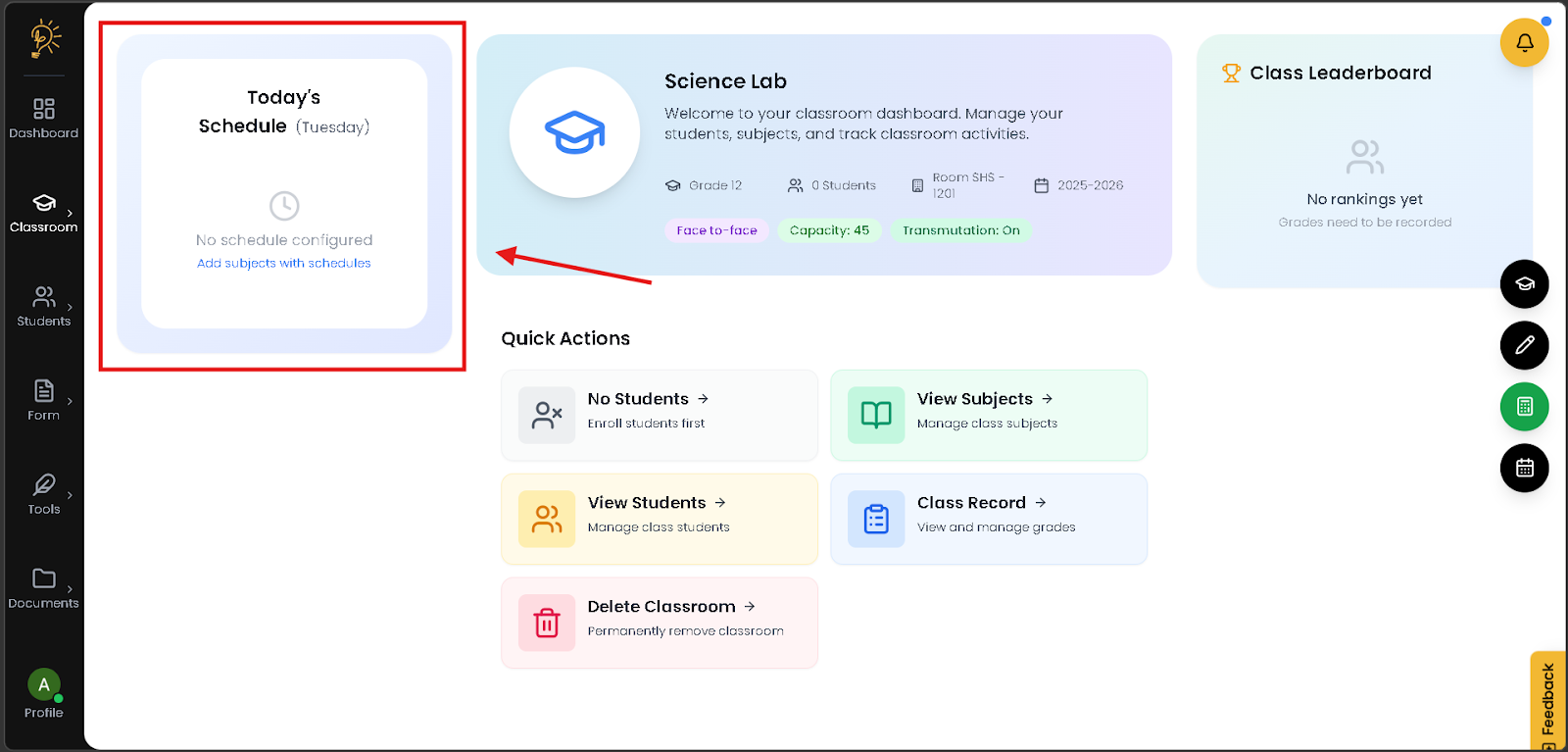
When you open the dashboard, you immediately see what subjects you are scheduled to teach for the day. The list is already arranged in order, so you can quickly confirm your classes without checking another planner.
If there are no scheduled classes, the dashboard clearly tells you. This helps you stay organized, avoid missed sessions, and move through your day without switching between tools.
Class Leaderboard (Performance Overview)
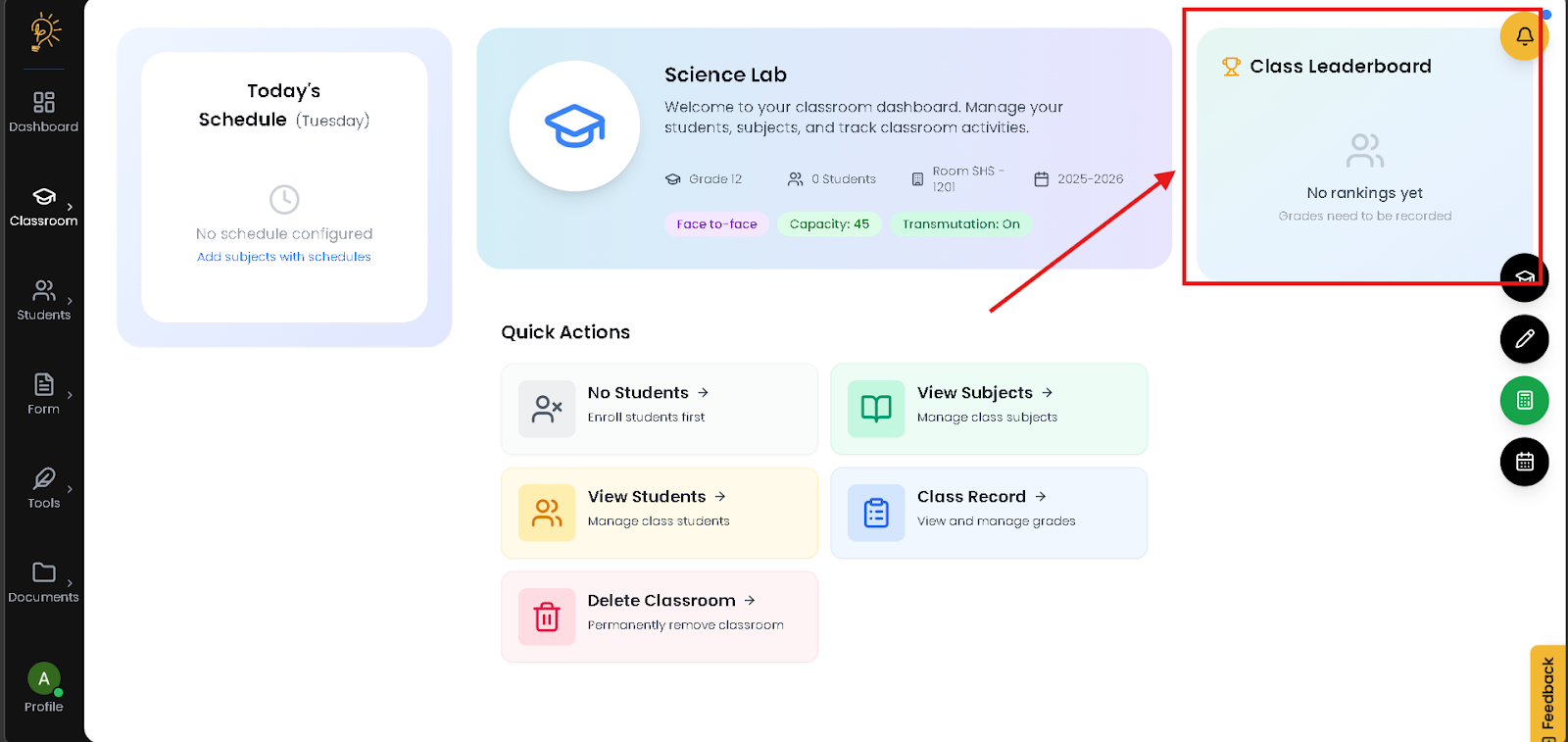
When you enter grades in the Class Record, the Class Leaderboard automatically updates each student’s General Average and ranks them accordingly. You can instantly see overall class performance as scores change, giving you a live view of academic standing.
Instead of computing averages manually or reviewing multiple grade sheets, you can quickly identify performance trends and students who may need additional support. This allows you to respond faster and make informed instructional decisions without extra calculations.
Quick Actions Overview
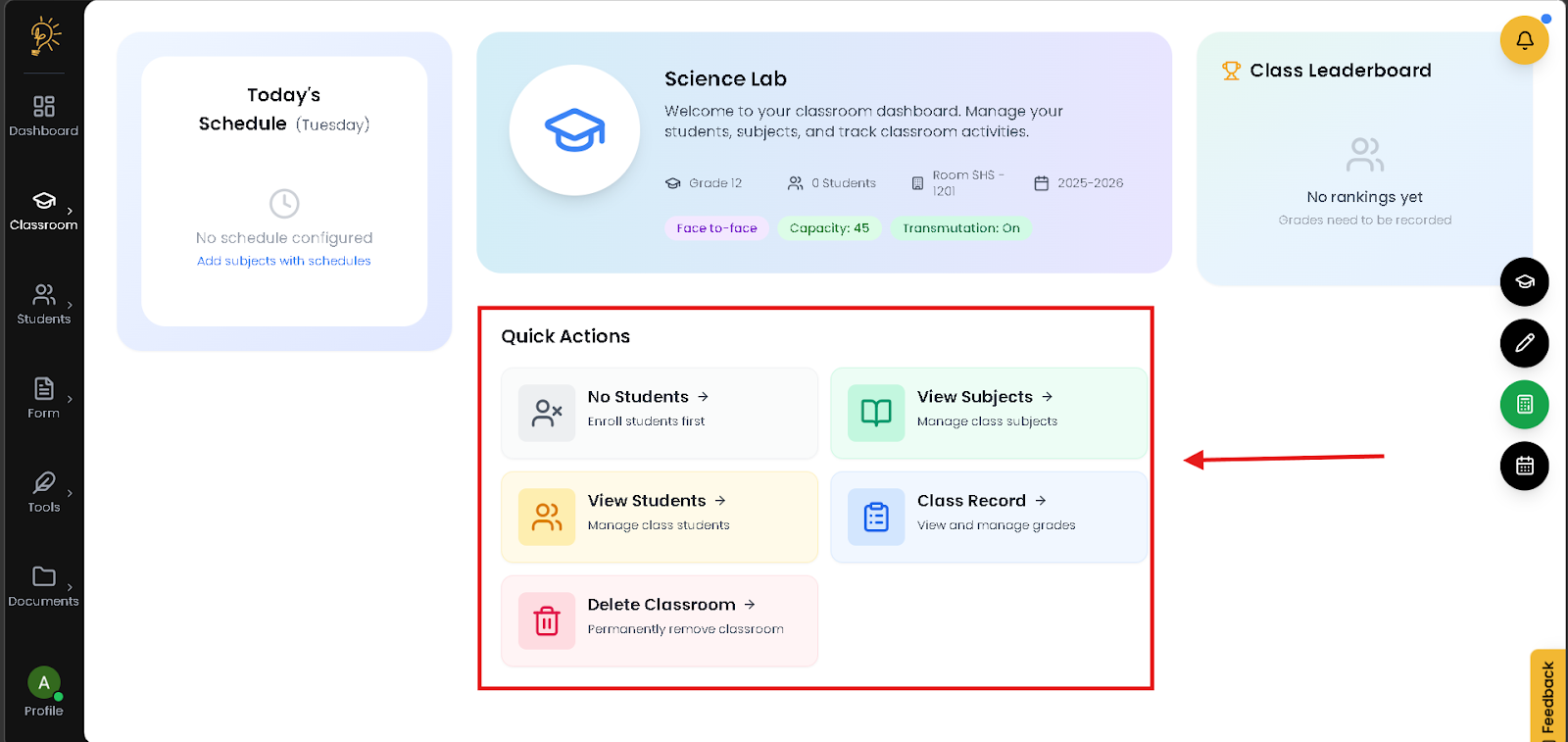
With Quick Actions, you can access essential classroom tasks—such as managing students, subjects, attendance, and the class record—in just one click. The available actions automatically adjust based on your classroom’s current setup, so you always see what needs attention.
Instead of navigating through multiple menus, you can complete daily tasks from one central area. This helps you avoid missed steps and manage your class more efficiently and consistently.
Side Right Panel Controls (Switch Classroom, Edit Classroom, Transmutation, Configure School Year)
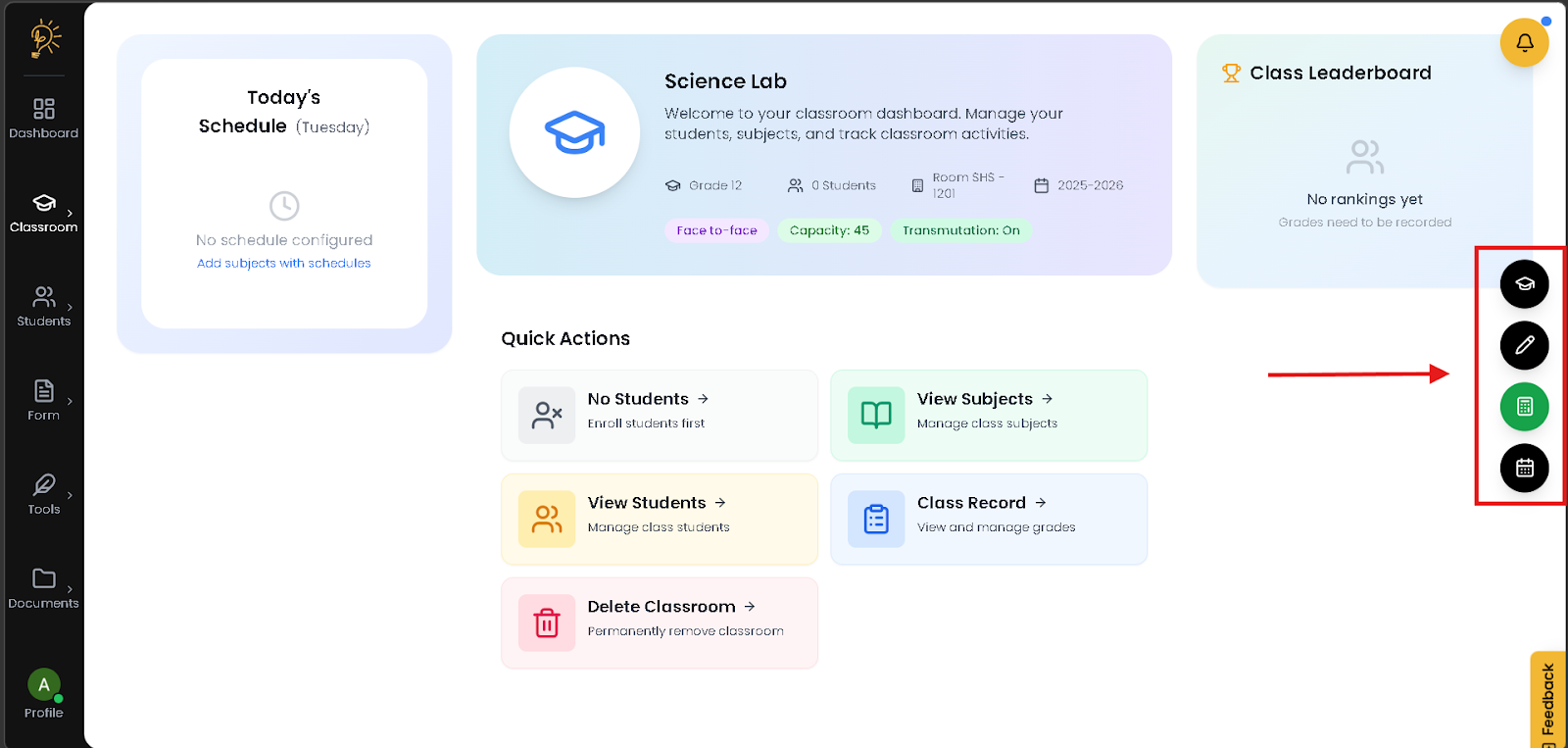
From the Side Right Panel, you can manage important classroom settings without leaving the Classroom Dashboard. These controls remain visible while you work, allowing you to make quick adjustments without interrupting your workflow.
A. Switch Classroom
Use this to move between your classes instantly while staying on the same page. When you switch, the dashboard loads the correct students, subjects, grades, and settings for that class.
B. Edit Classroom
Use this to update classroom details such as grade level, section, or room. Any changes you make are reflected immediately across schedules, records, and reports.
C. Grade Transmutation
Use this to control how raw scores are converted into final grades. When adjusted, all grade computations update automatically across the class record and leaderboard.
D. Configure School Year
Use this to ensure all attendance, grades, and records are saved under the correct academic year. This helps prevent data from being recorded in the wrong school year.
Author
Better Teaching Solutions
Making teaching easier, giving more time for our hard working teachers!