How to Use the AI Daily Lesson Log (DLL) Generator in Better Teaching Solutions?
Learn how to navigate and generate a DepEd-compliant Daily Lesson Log (DLL) using the AI-powered DLL Assistant in Better Teaching Solutions. This step-by-step guide walks you through setting your classroom context, selecting competencies, generating a full weekly log, and reviewing or exporting your submission-ready document in minutes.
Navigate to your way to your DLL
- Go to the Sidebar Menu.
- Click Tools.
- Select DLL Assistant.
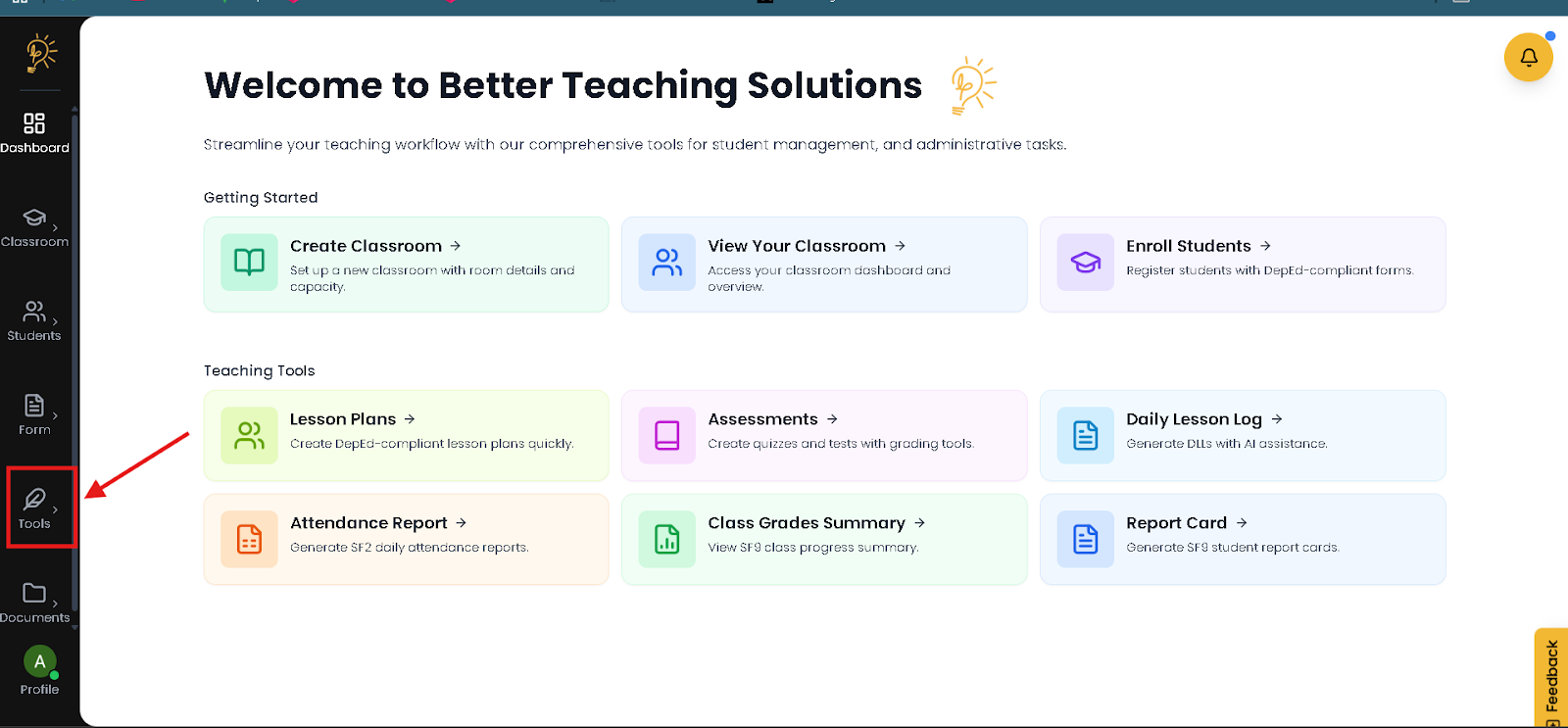
- Open the Tools section from the sidebar to access planning features.
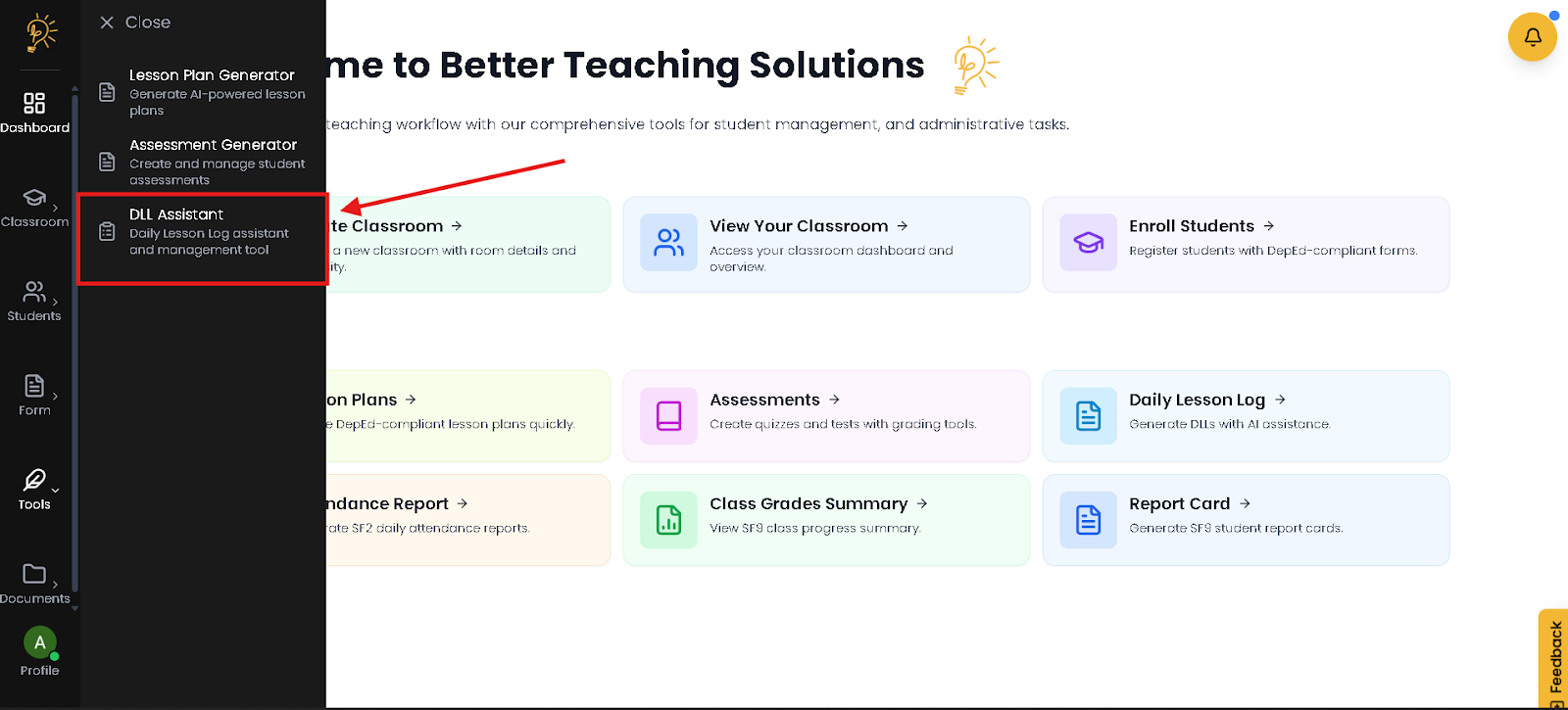
- Select DLL Assistant to open the AI Daily Lesson Log generator.
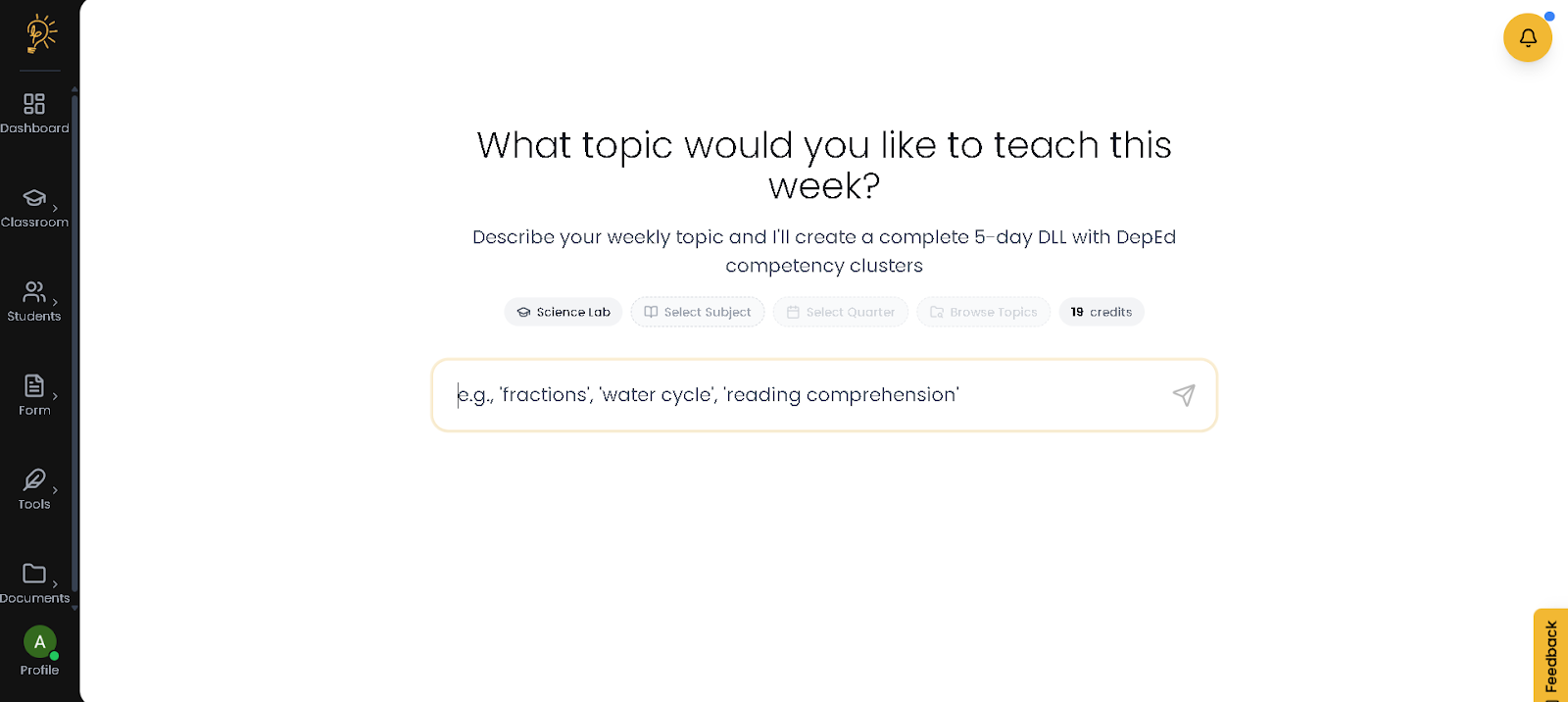
- This is the DLL workspace where you set your classroom context and enter your weekly lesson topic.
How to Generate a DLL (Step-by-Step)
Step 1. Before typing your topic, you must tell the AI who you are teaching.
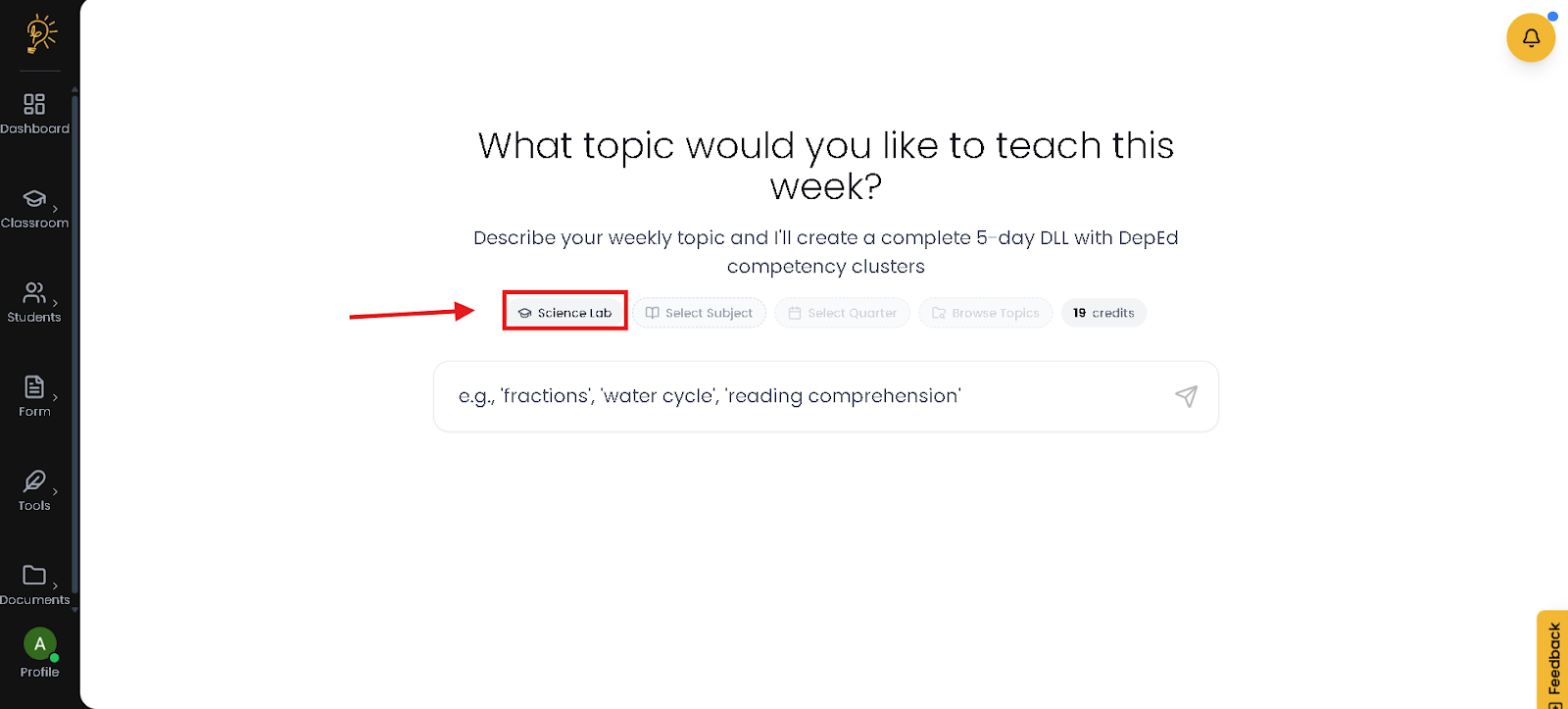
- Click "Select Classroom": Choose the section you are teaching (e.g., "Grade 5 - Rizal").
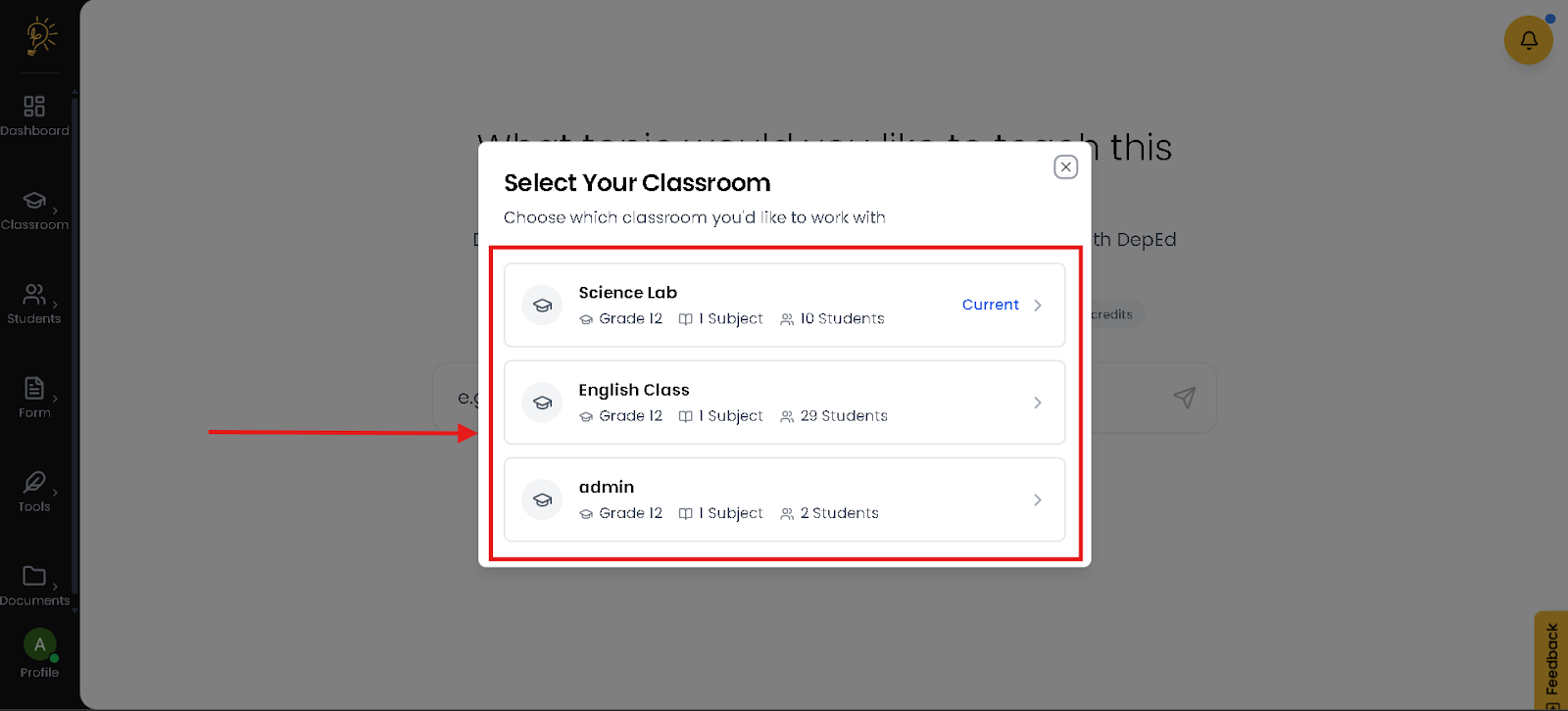
- From the list, select the correct classroom (e.g., Grade 5 – Rizal). All generated entries will be saved under this class.
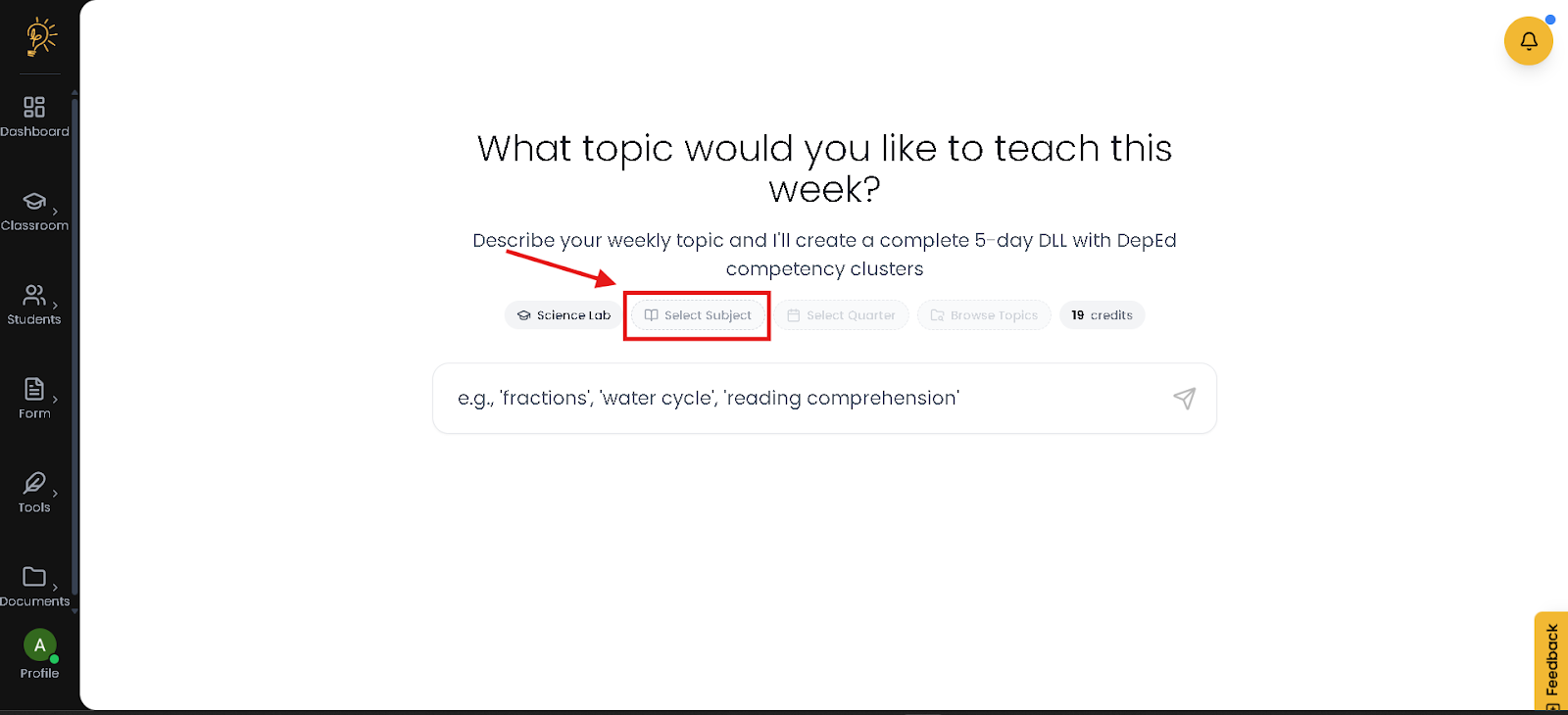
- Click "Select Subject": Choose the subject for this specific log (e.g., "Mathematics").
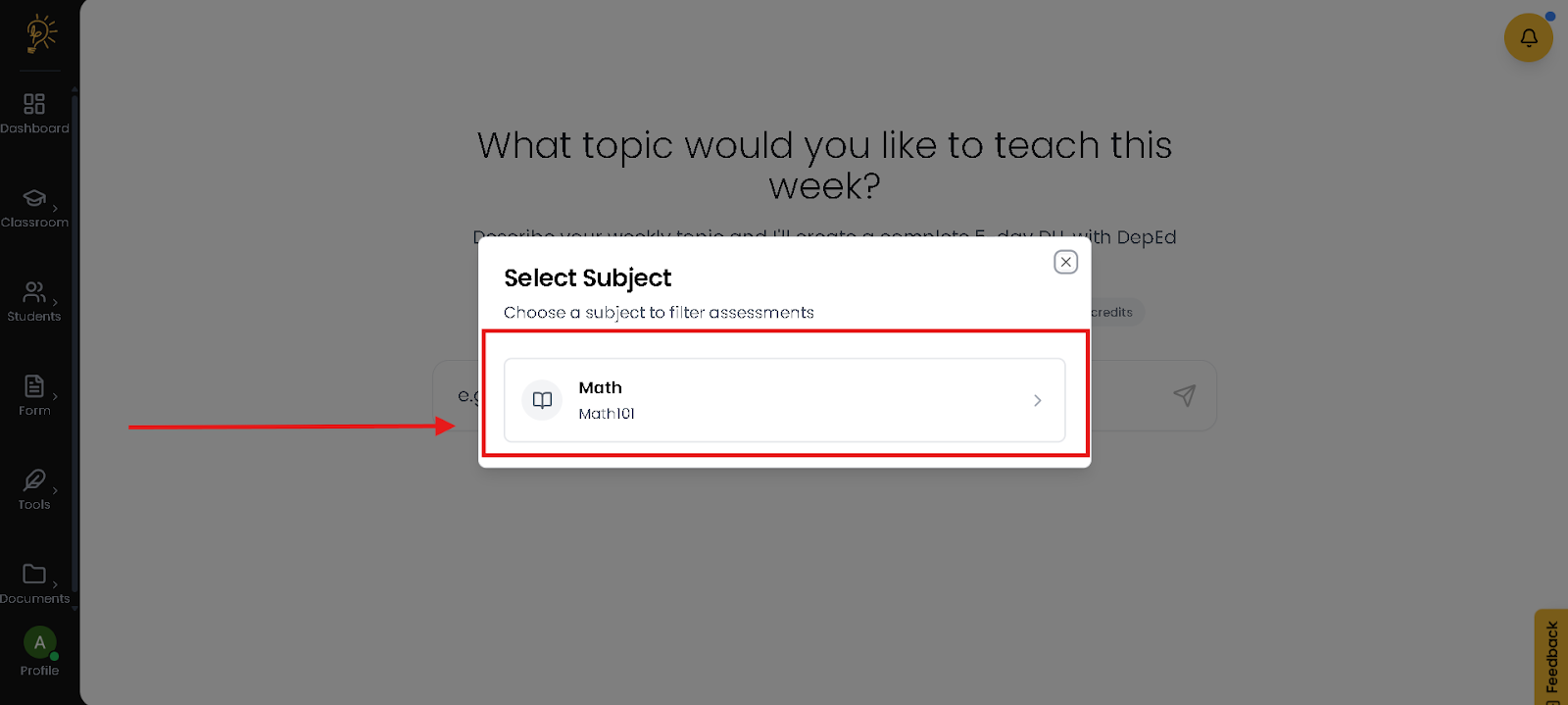
- Choose the appropriate subject (e.g., Mathematics). The DLL will align with this subject’s curriculum.
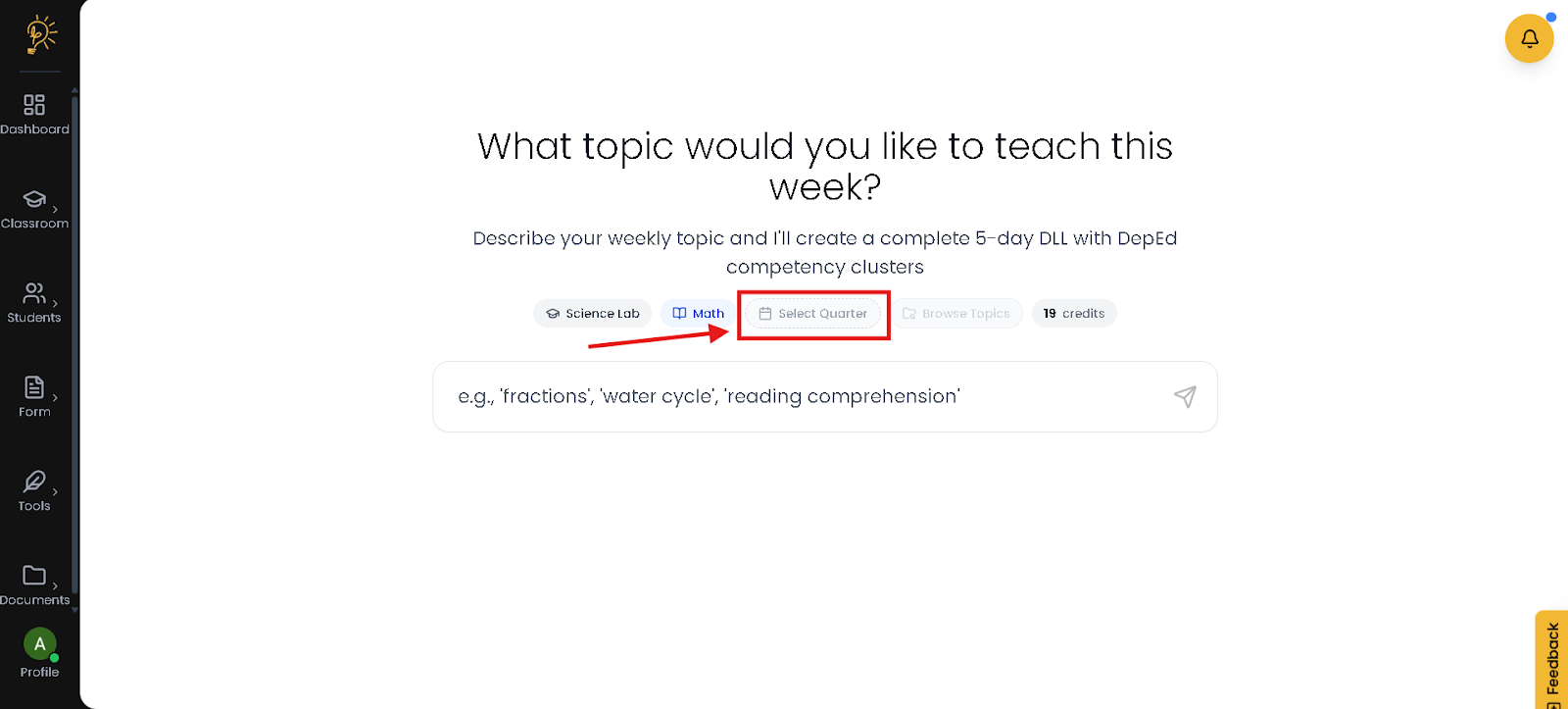
- Click "Select Quarter": specific which quarter this lesson falls under.
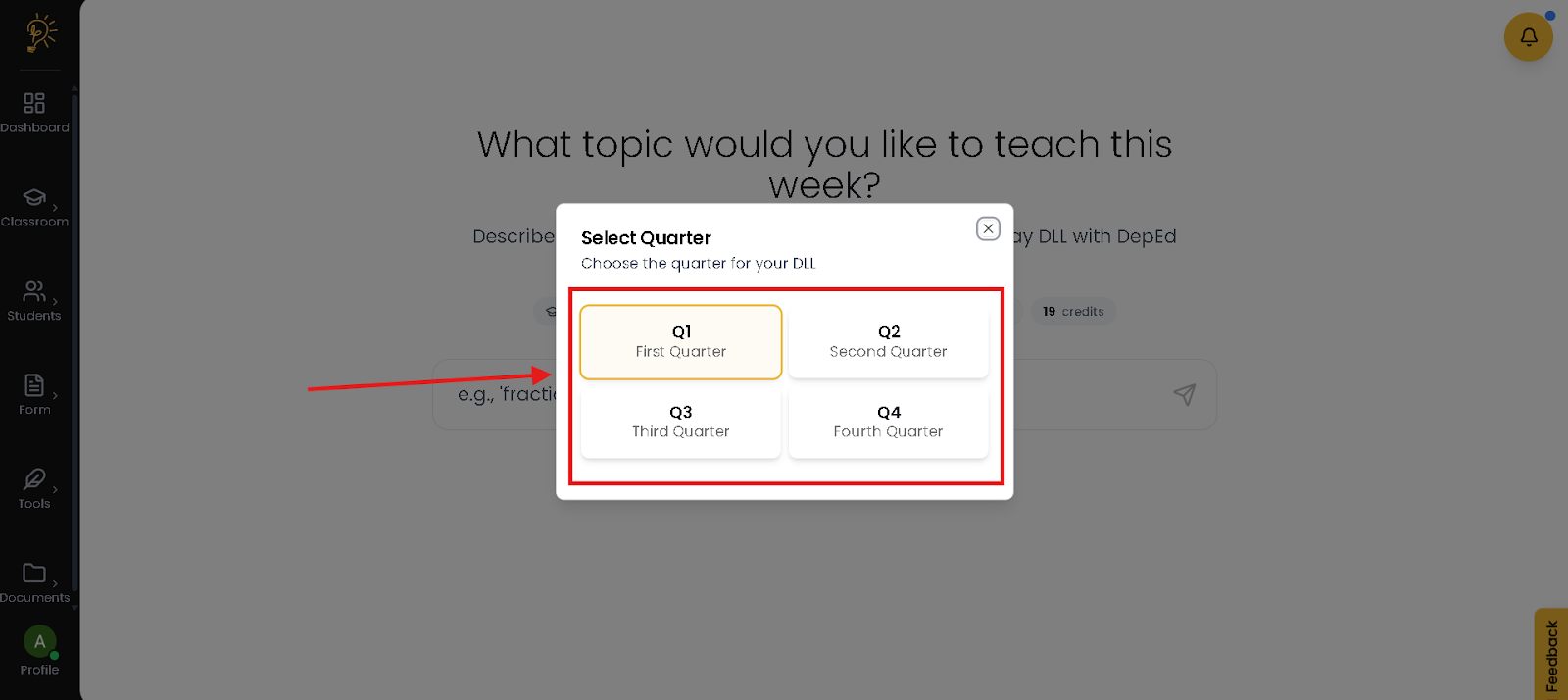
- Select the correct quarter (e.g., Quarter 2). This ensures competencies and tracking align with the right academic period.
Step 2: Enter Your Lesson Topic
Once your Classroom, Subject, and Quarter are selected, you can generate your DLL using one of two methods.
Method A: Type Your Own Topic
- This option is best if you already know the exact lesson you want to teach.
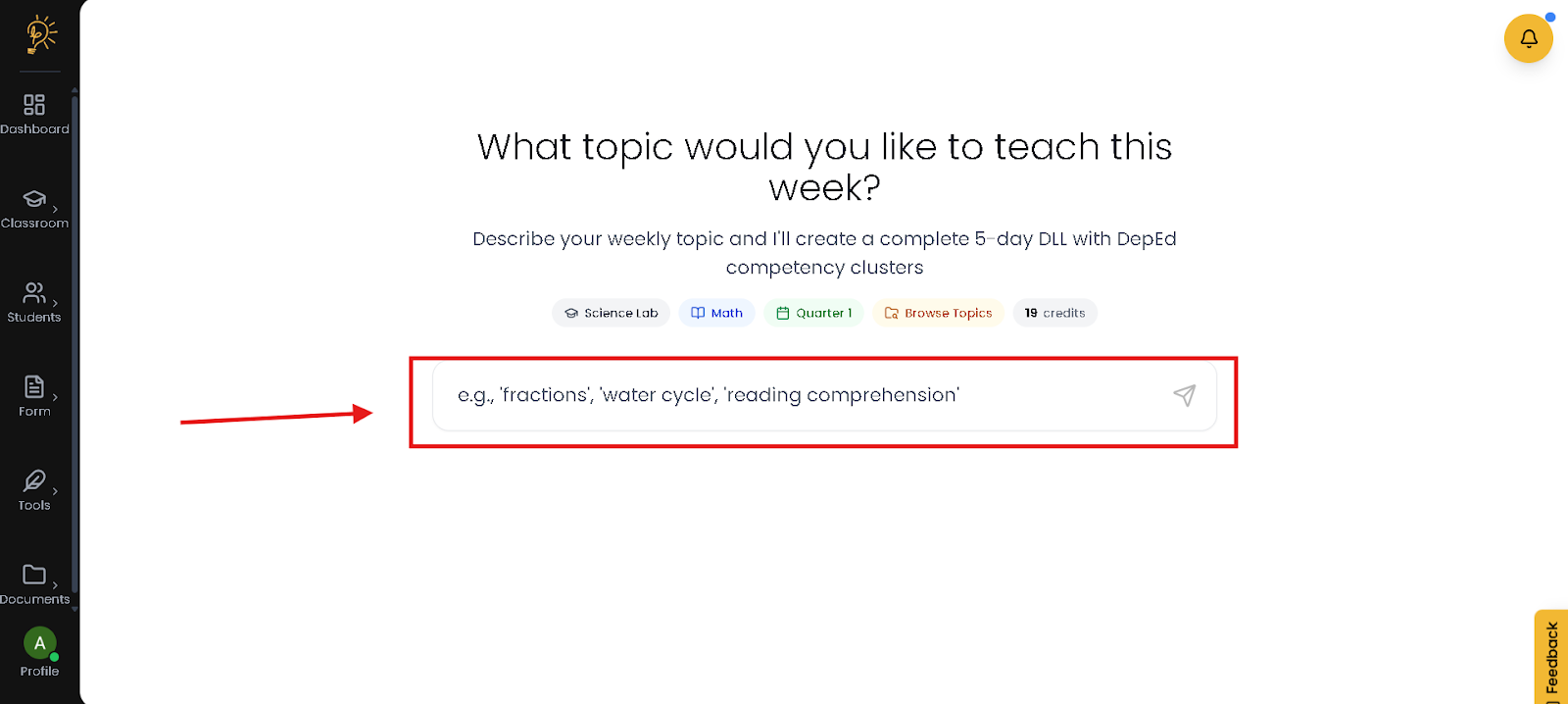
- Type your lesson topic directly into the search field (e.g., “Adding Similar Fractions”).
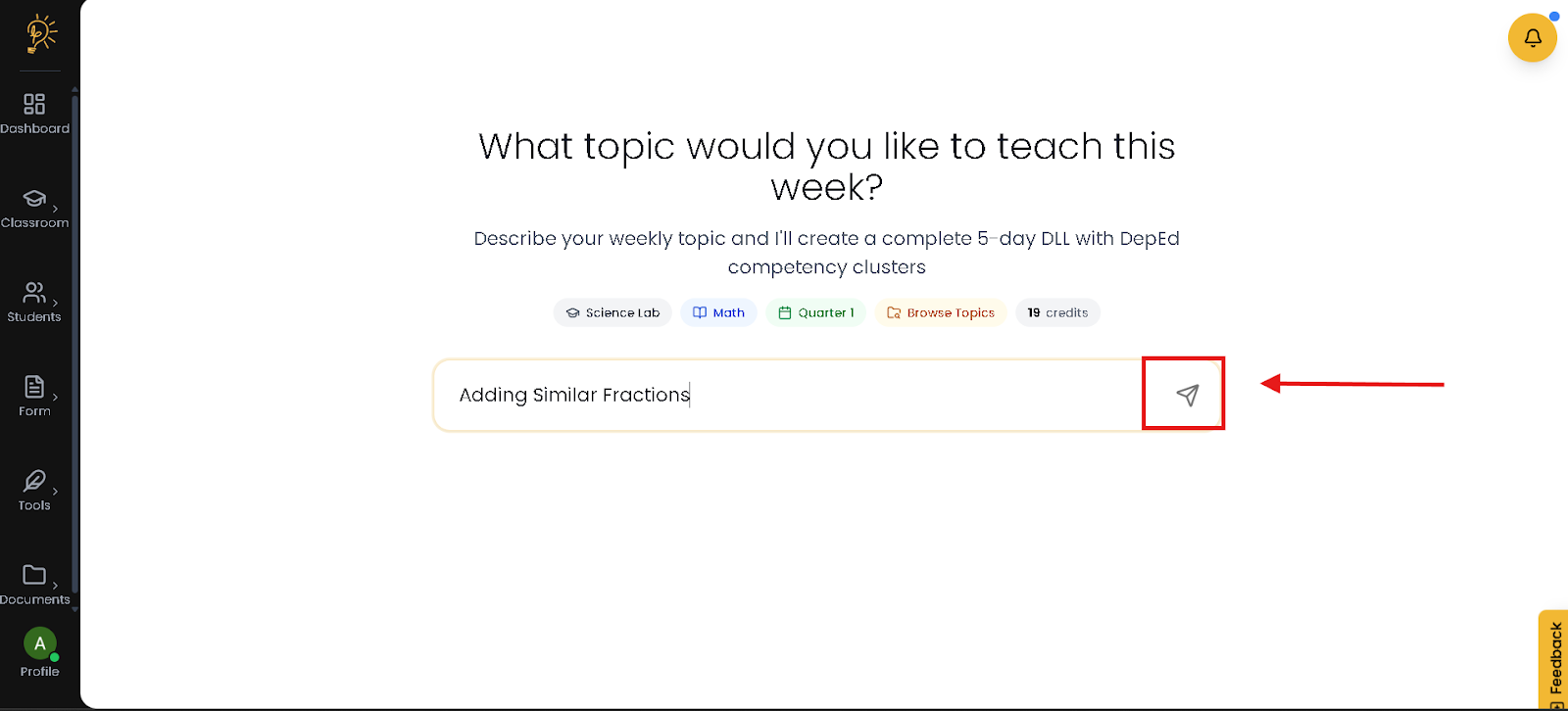
- Press Enter or click the Arrow button to begin generating your DLL.
Method B: Browse Default Topics
- This option is helpful if you want to follow DepEd-aligned competencies for the selected quarter.
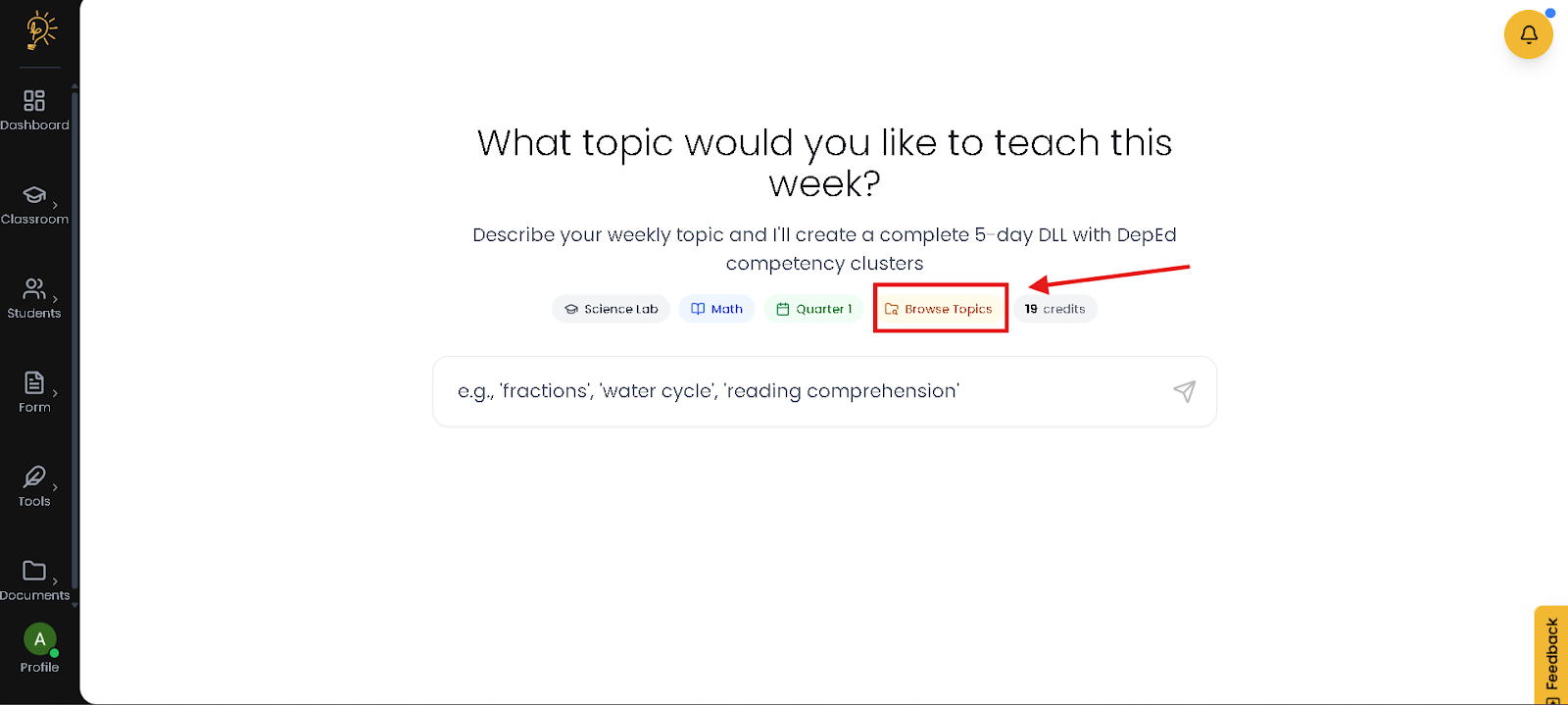
- Click Browse Topics to view the list of available curriculum-based topics.
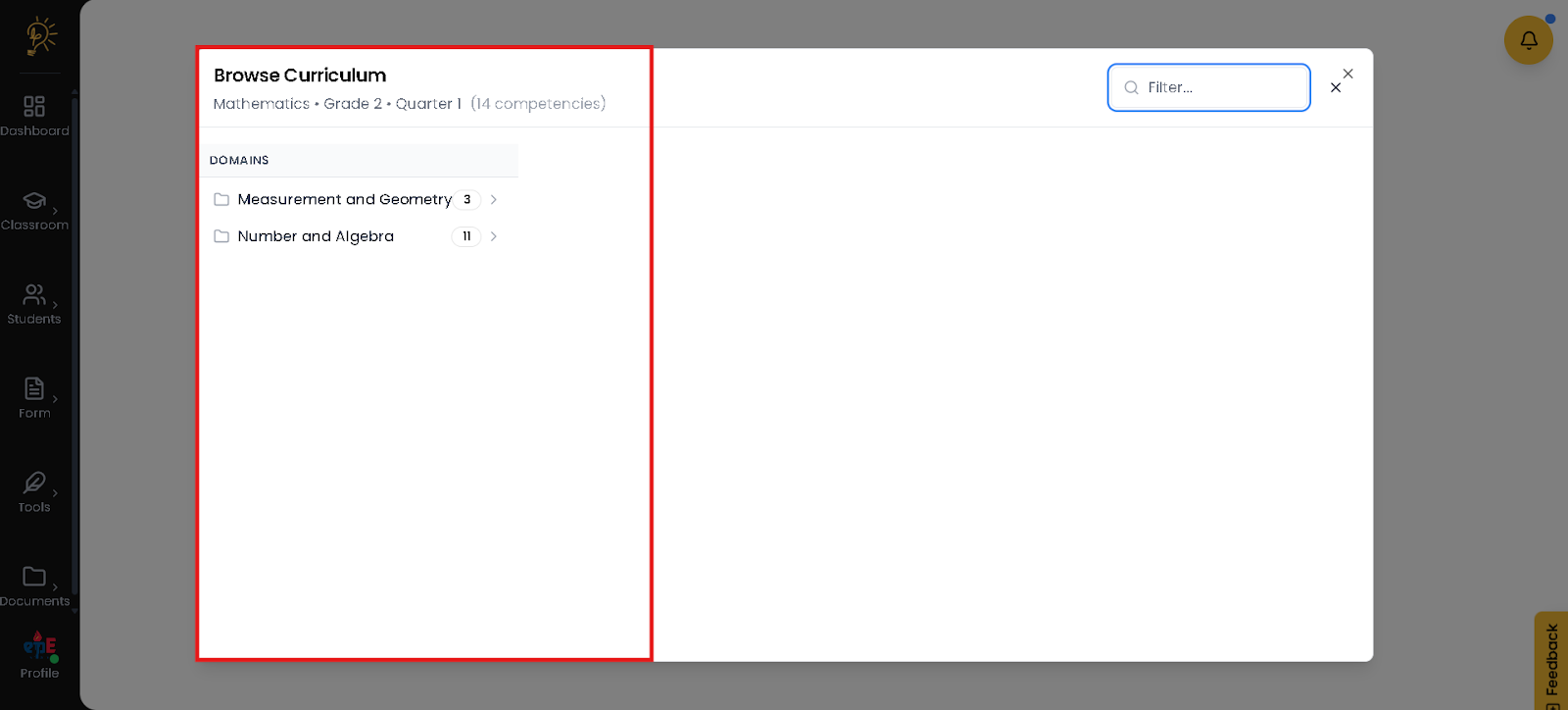
- Use this method when you want structured, curriculum-guided planning. Select a Domain.
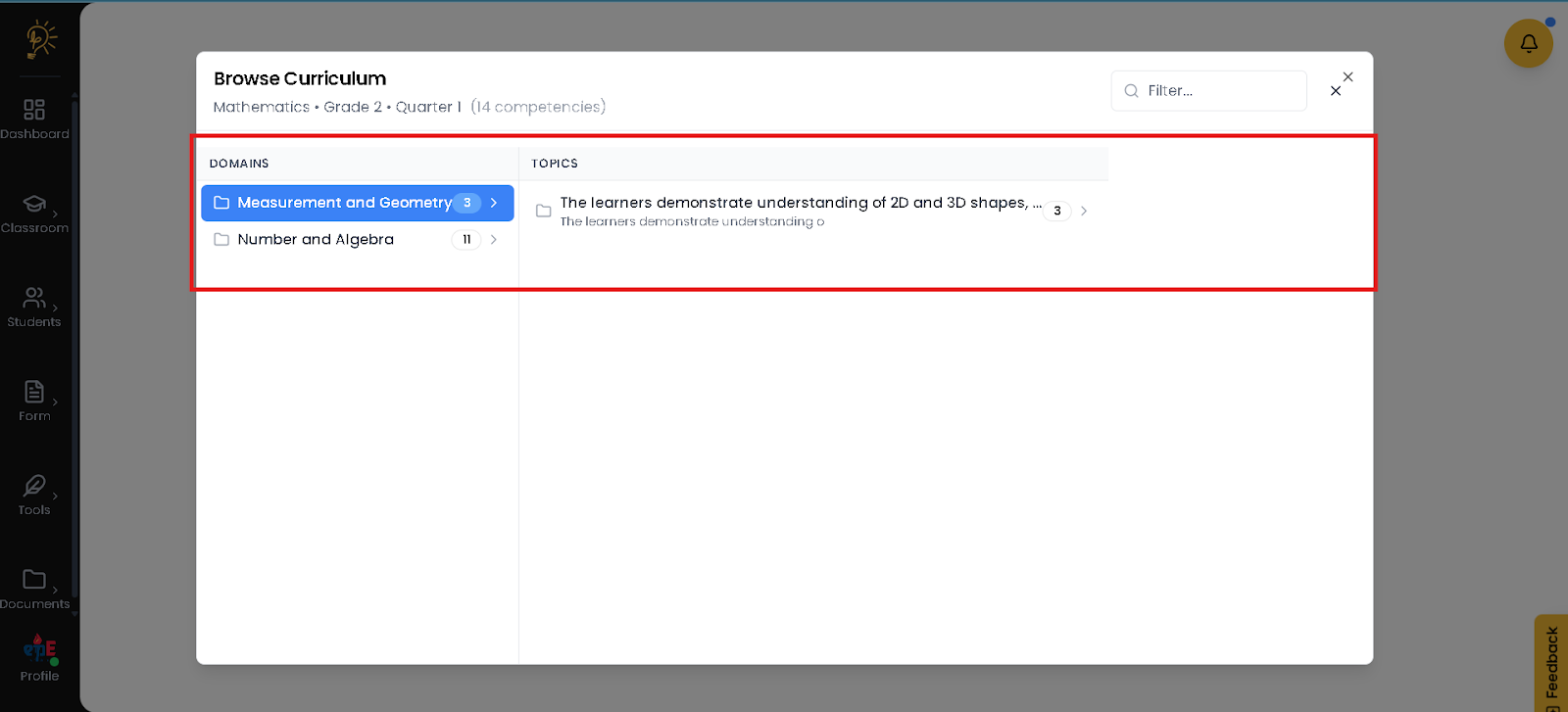
- Select a Topic
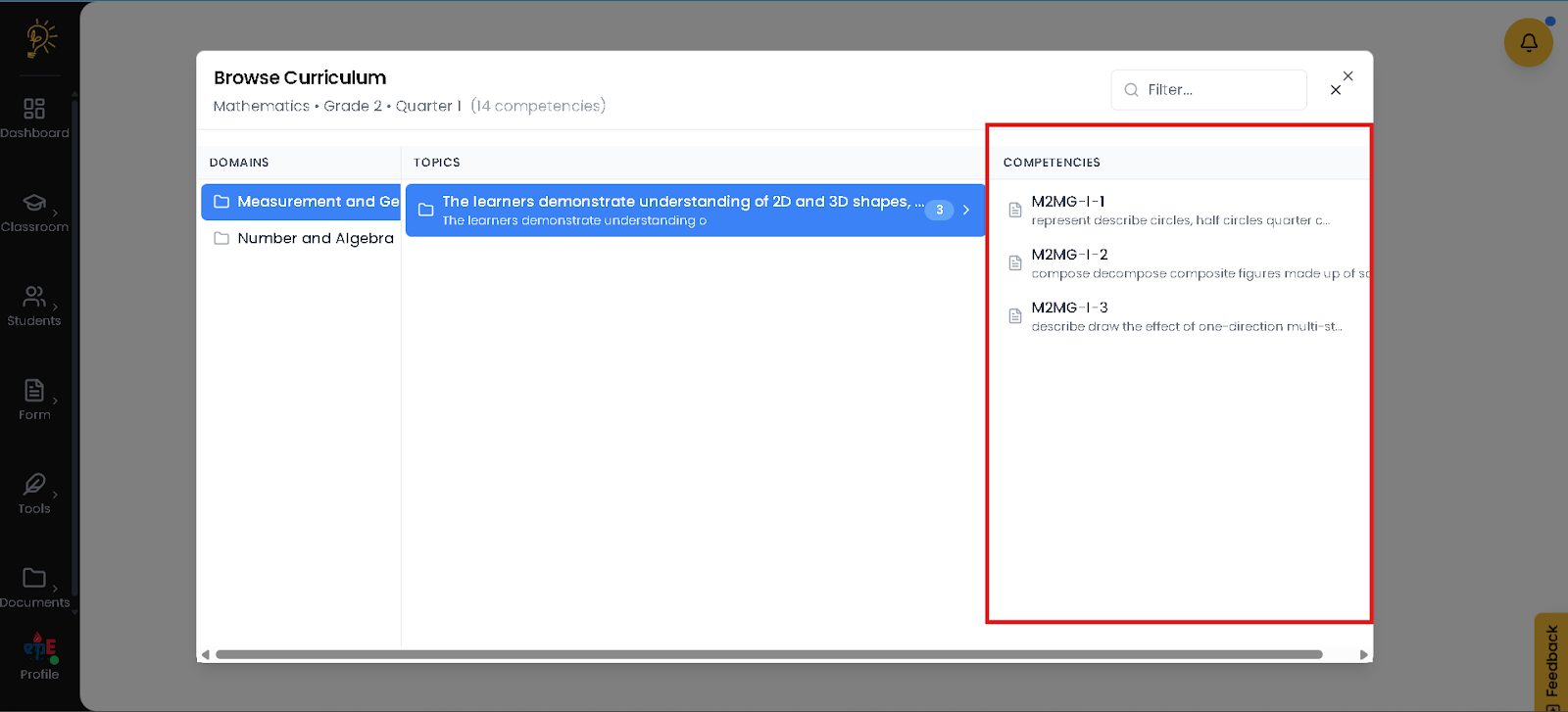
- Select a Competencies And Scroll to the Right
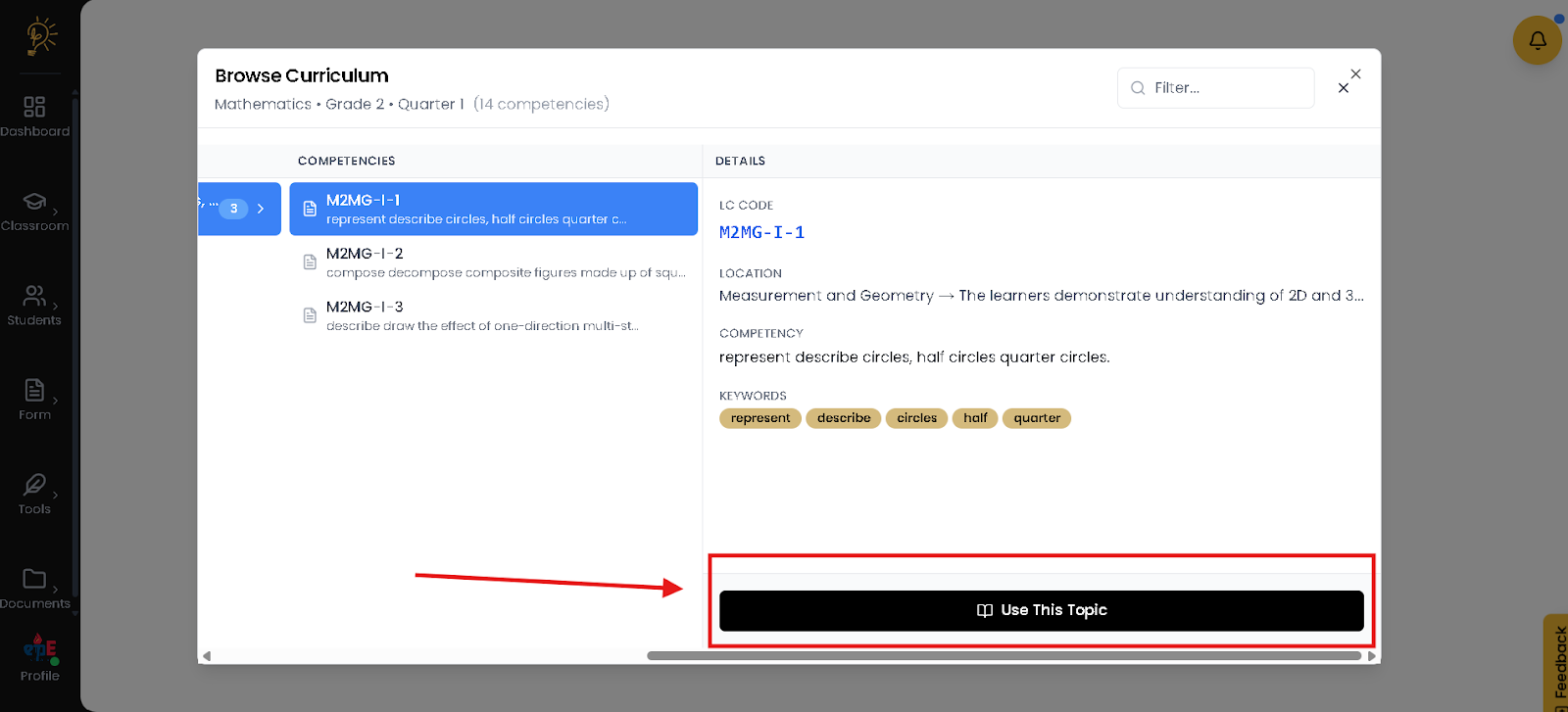
- Click the Use this Topic to Confirm
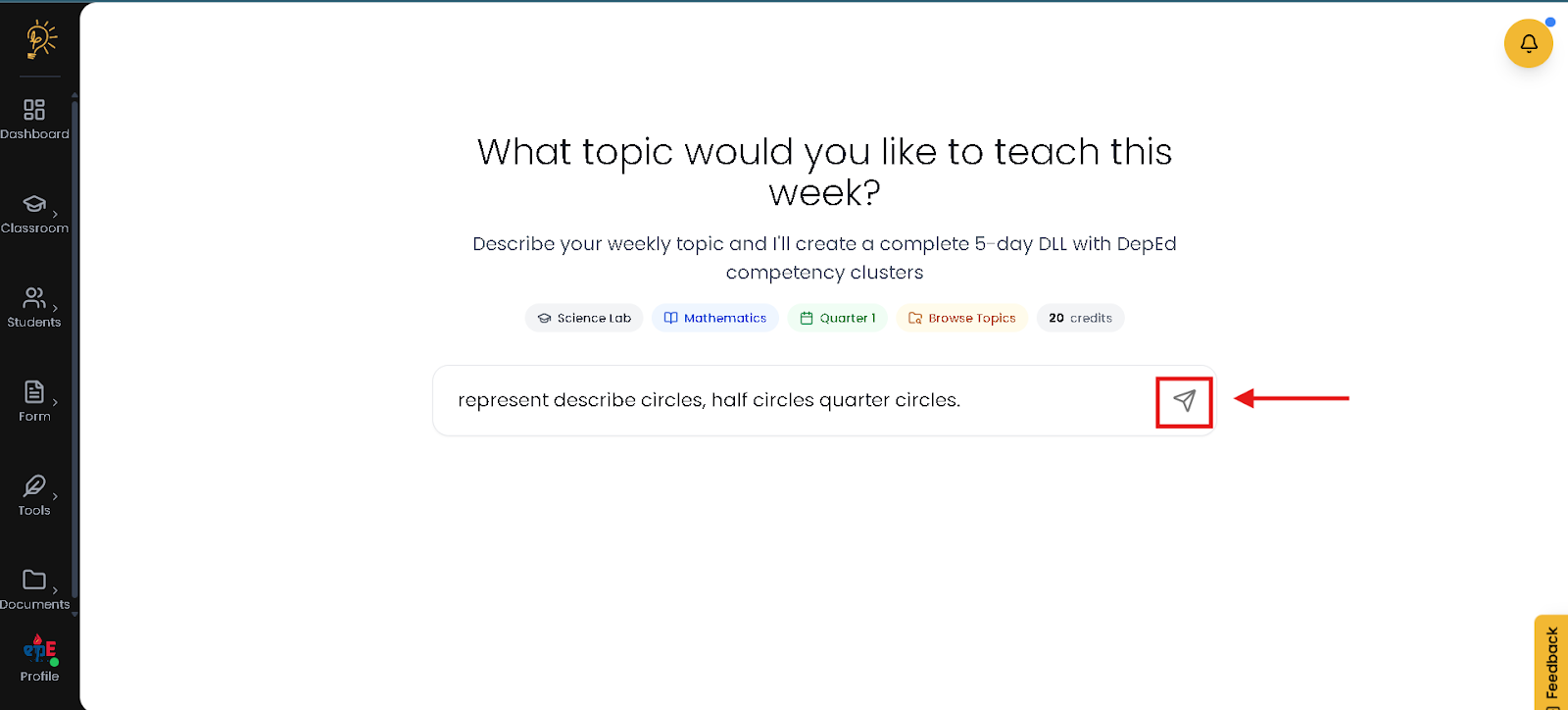
- After confirming your topic, Press Enter or click the Arrow button.
Where to Edit your DLL?
Step 1 - Find the generated DLL
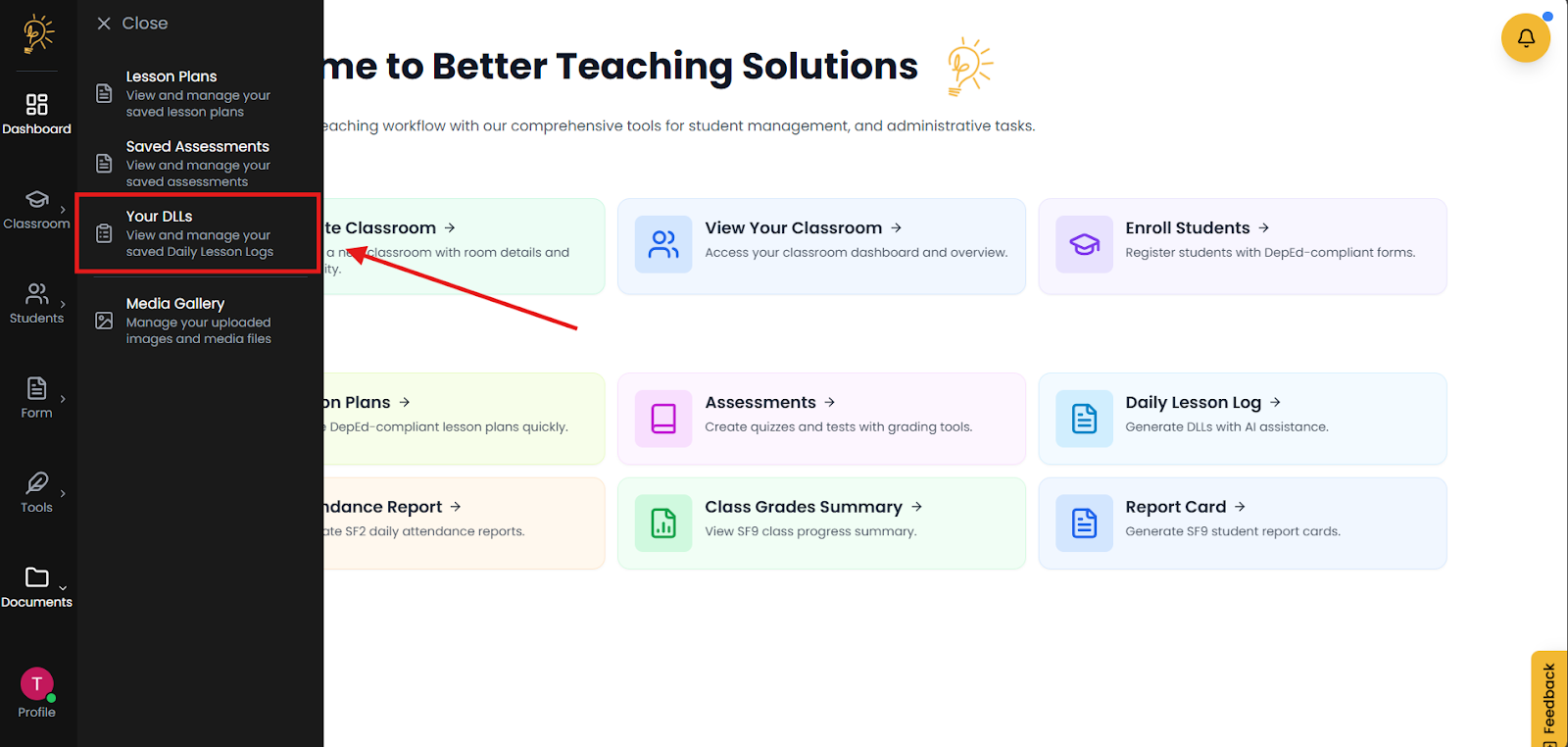
- In the side bar in the left , locate the Documents tab
- In the Documents tab Click Your DLLs
- This should bring you to the DLL list page, where all the DLLs you have generated are stored.
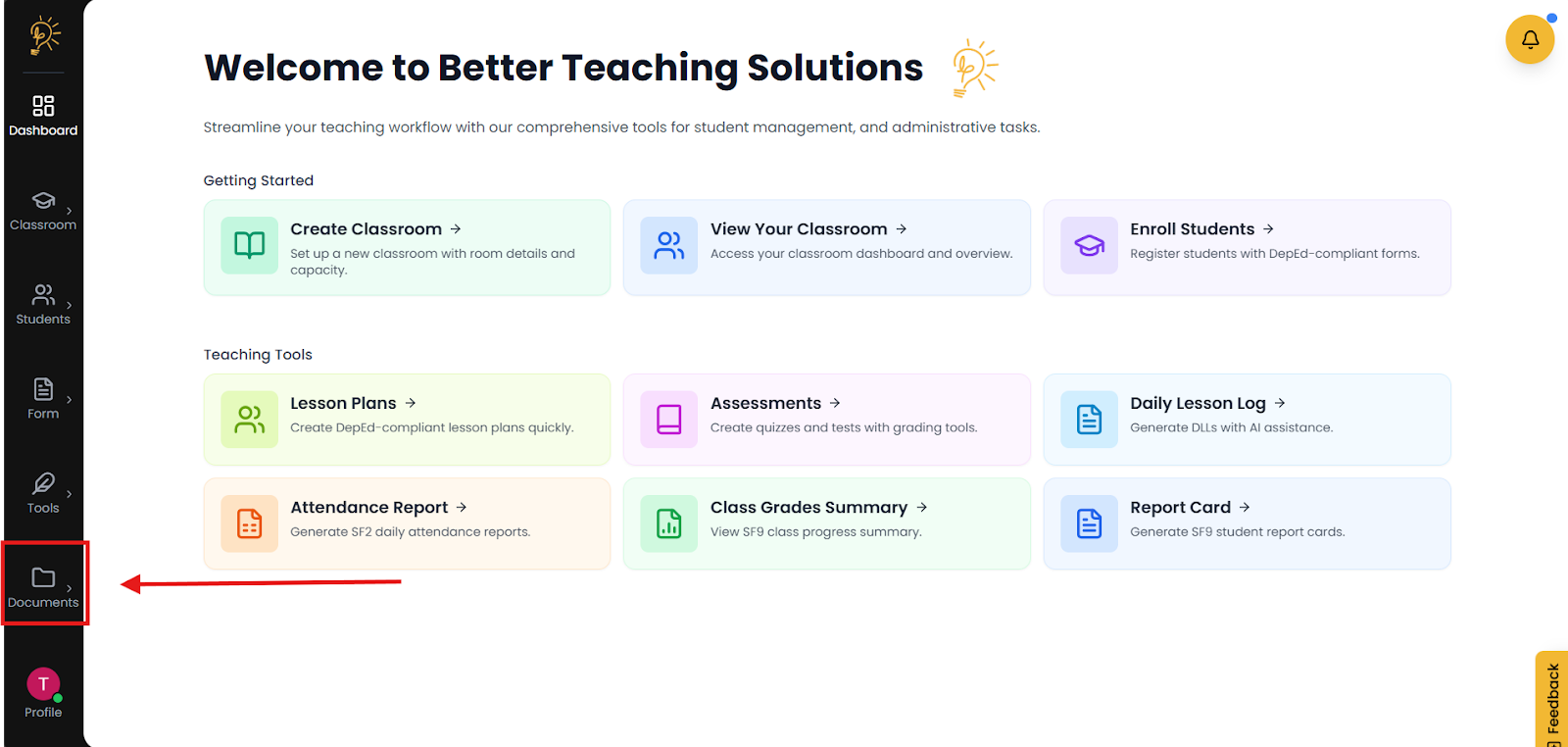
Step 2 - Choose your classroom
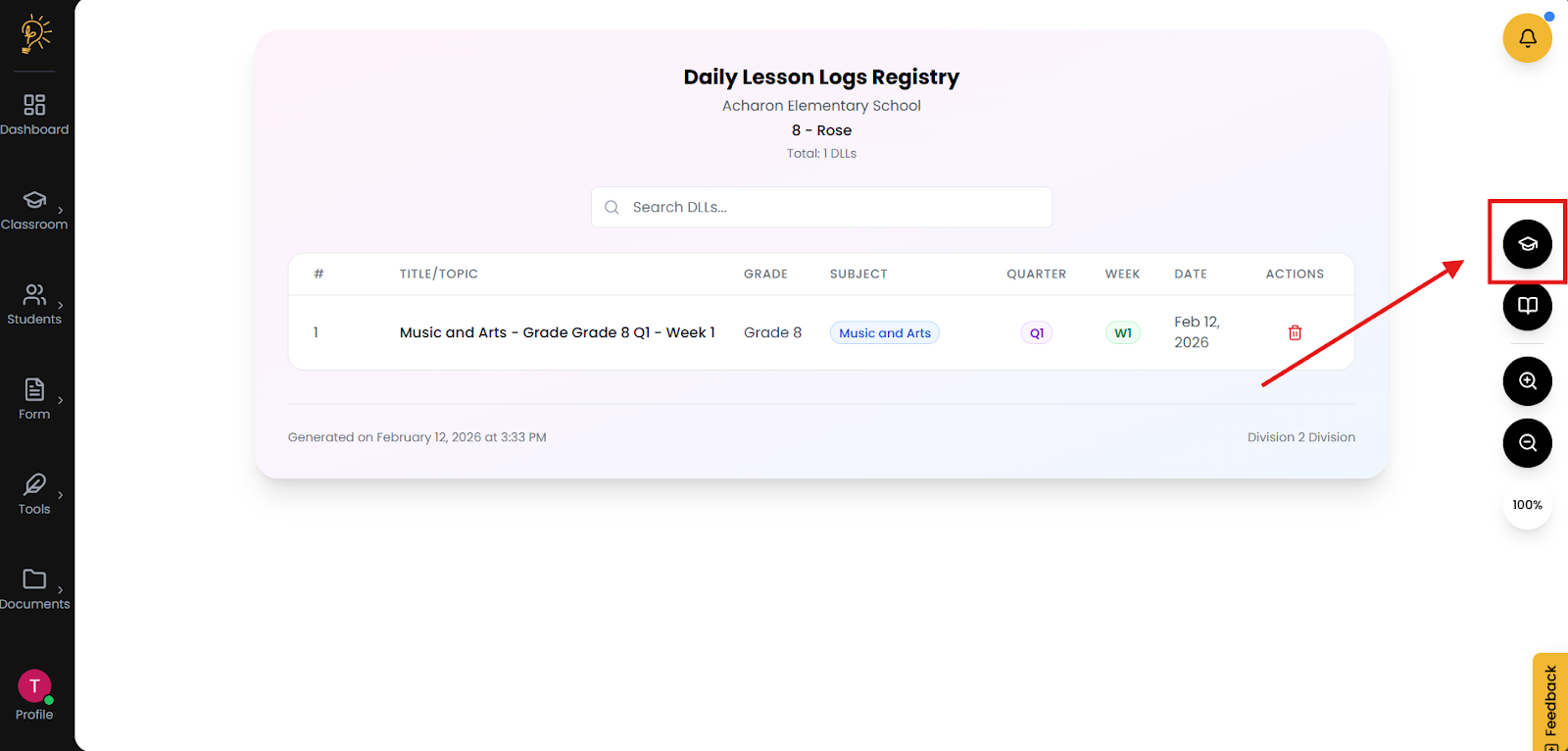
Before you begin editing your DLL’s, please ensure that you have selected the right classroom. Each generated DLL is unique to each classroom. If you couldn't find your generated DLL it might have been in a different classroom.
- Click the 🎓graduation cap icon to open classroom switching located on the right
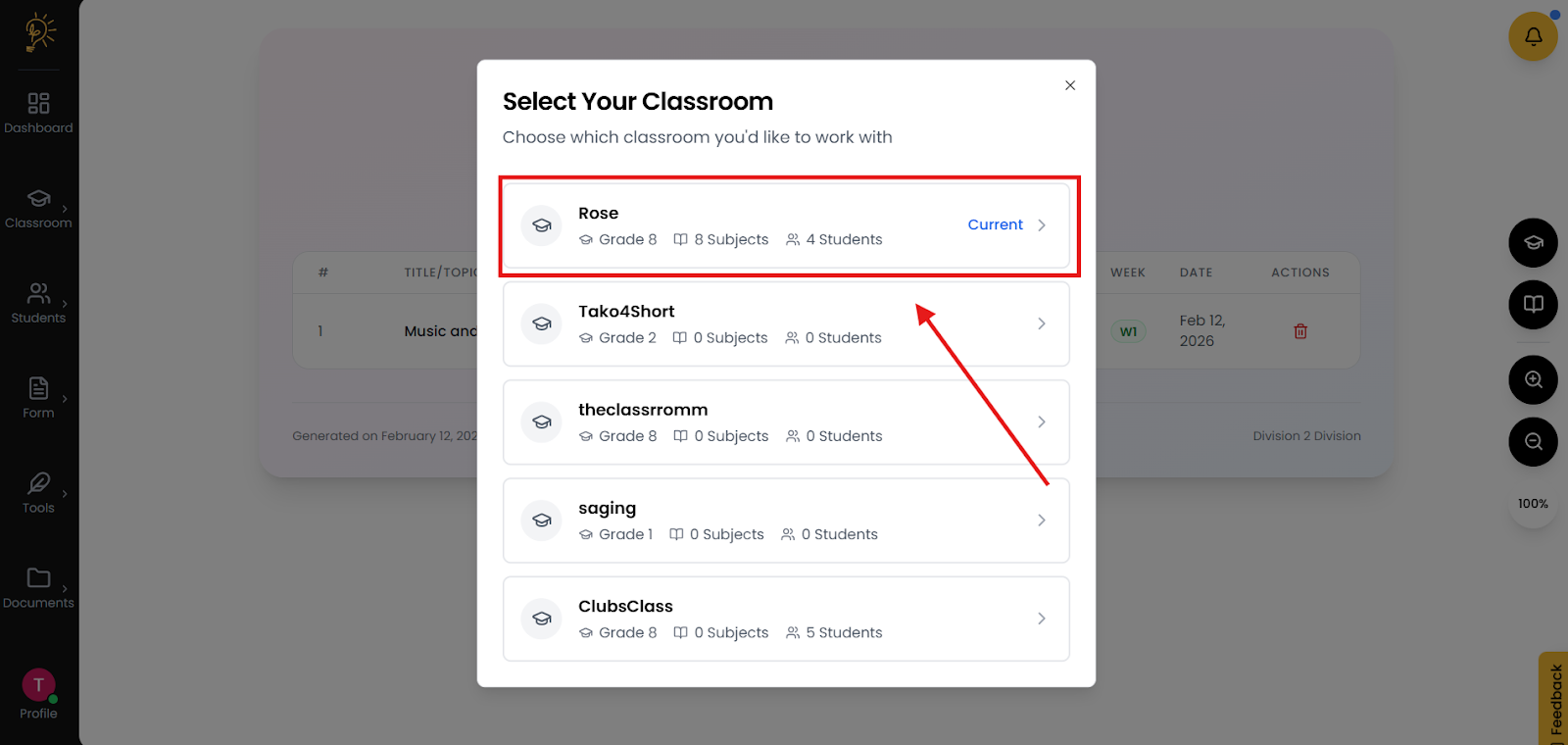
- Select the classroom you want to manage.
- Confirm you’re in the right classroom by checking the displayed classroom name.
Step 3 - Edit your DLLs
Once you have chosen the right classroom, the list of DDL’s you generate should be visible. To edit your DLL follow these steps.
- Click the name of a DLL in the DLL list
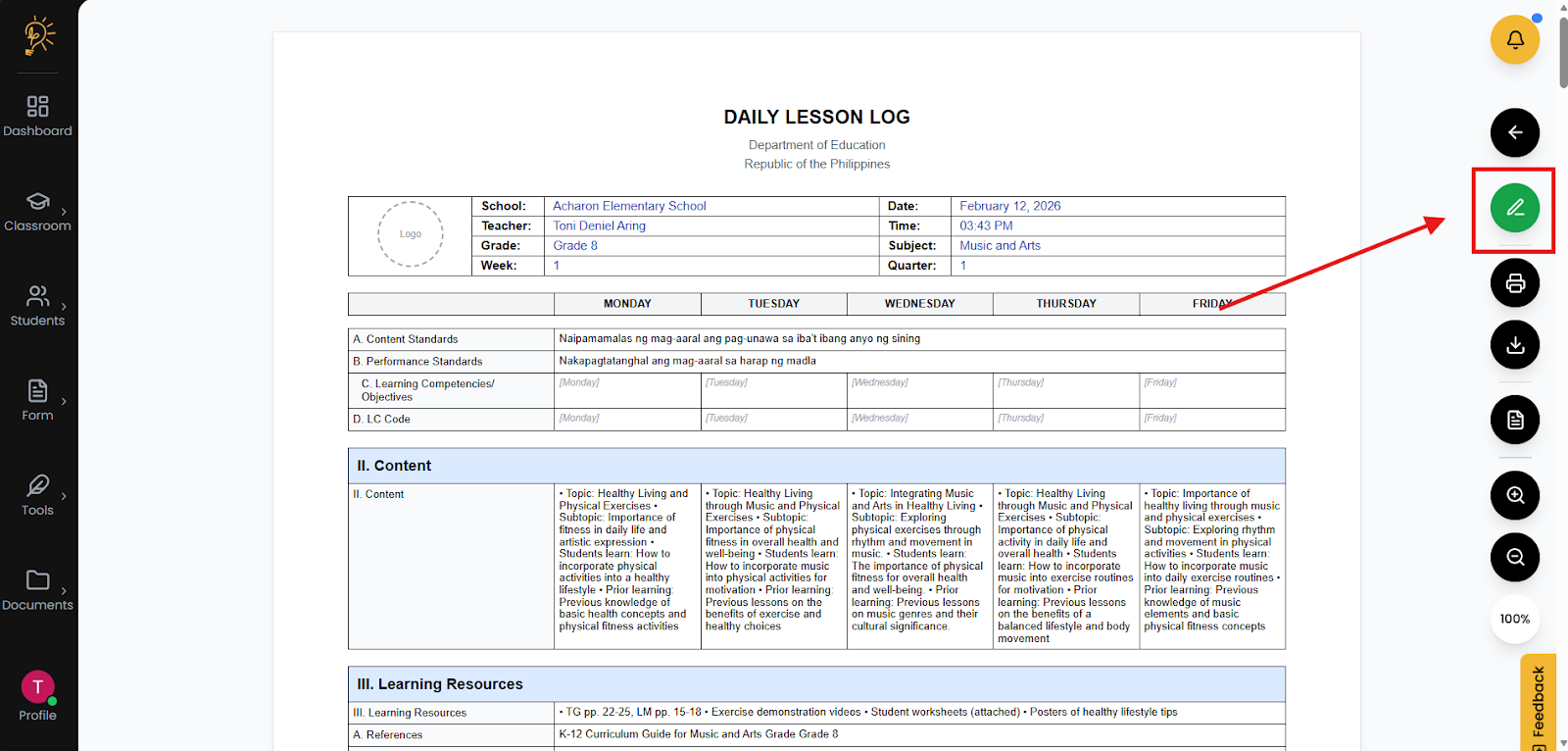
- This should bring you to the DLL View
- On the right side of the DLL View, Click the green button to enable edit mode
- Once in edit mode you are able to change the texts in the DLL
- Once done with editing, Click the green save changes button (Press the x to cancel )
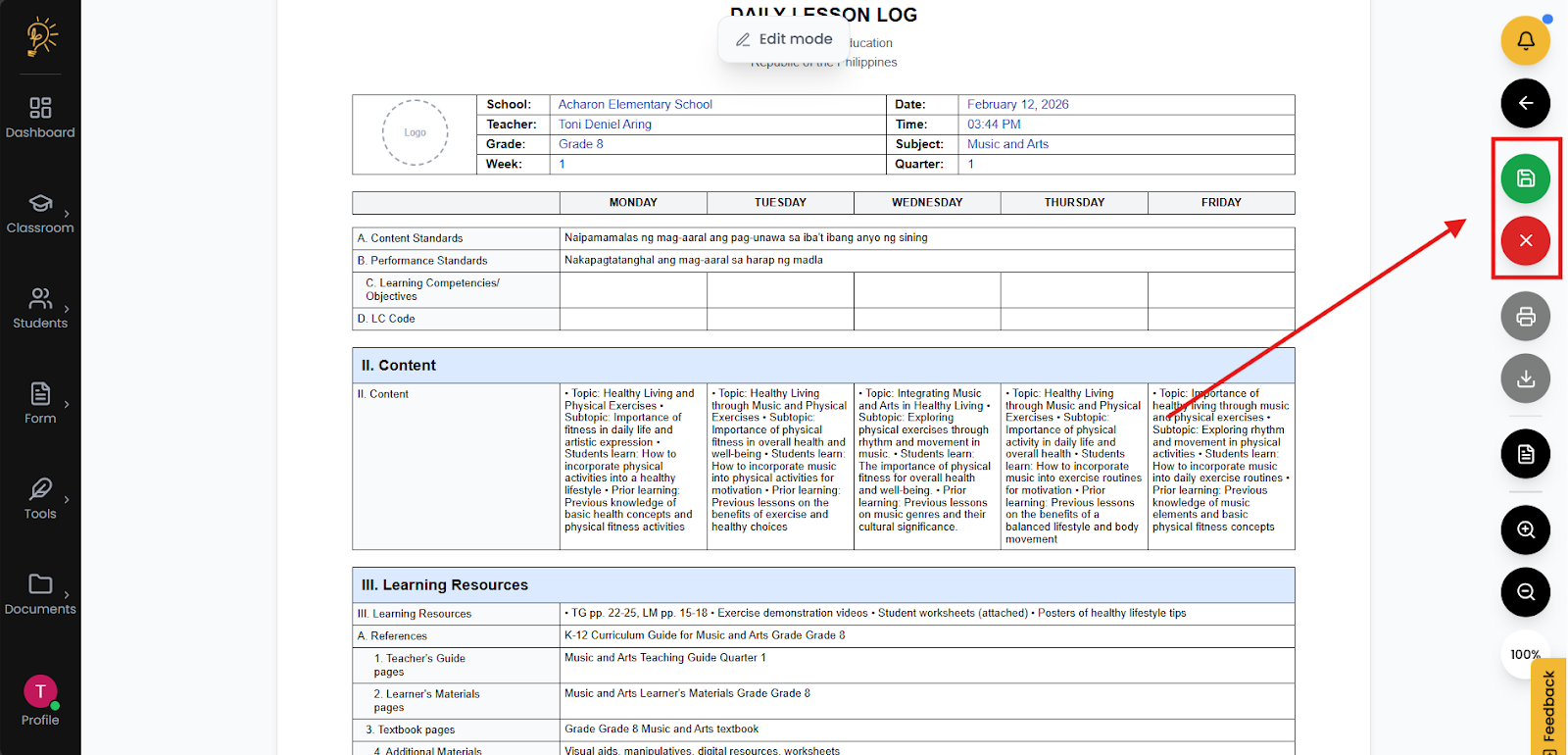
The green save button saves the edit, the red x exits the user from edit mode.
Author
Better Teaching Solutions
Making teaching easier, giving more time for our hard working teachers!