How to use the performance analysis & student management dashboard of Better Teaching Solutions
This guide will walk you through everything you need to know when using the Performance Analysis Dashboard of Better Teaching Solutions (BTS) and its corresponding interfaces.
The Performance Analysis Dashboard provides a centralized view of student academic data, performance trends, risk indicators, and AI-powered insights. By following this guide, you’ll be able to interpret performance metrics clearly and maximize the system’s analytical tools.
Core Features
- Student Overview - Displays a comprehensive summary of a student’s performance
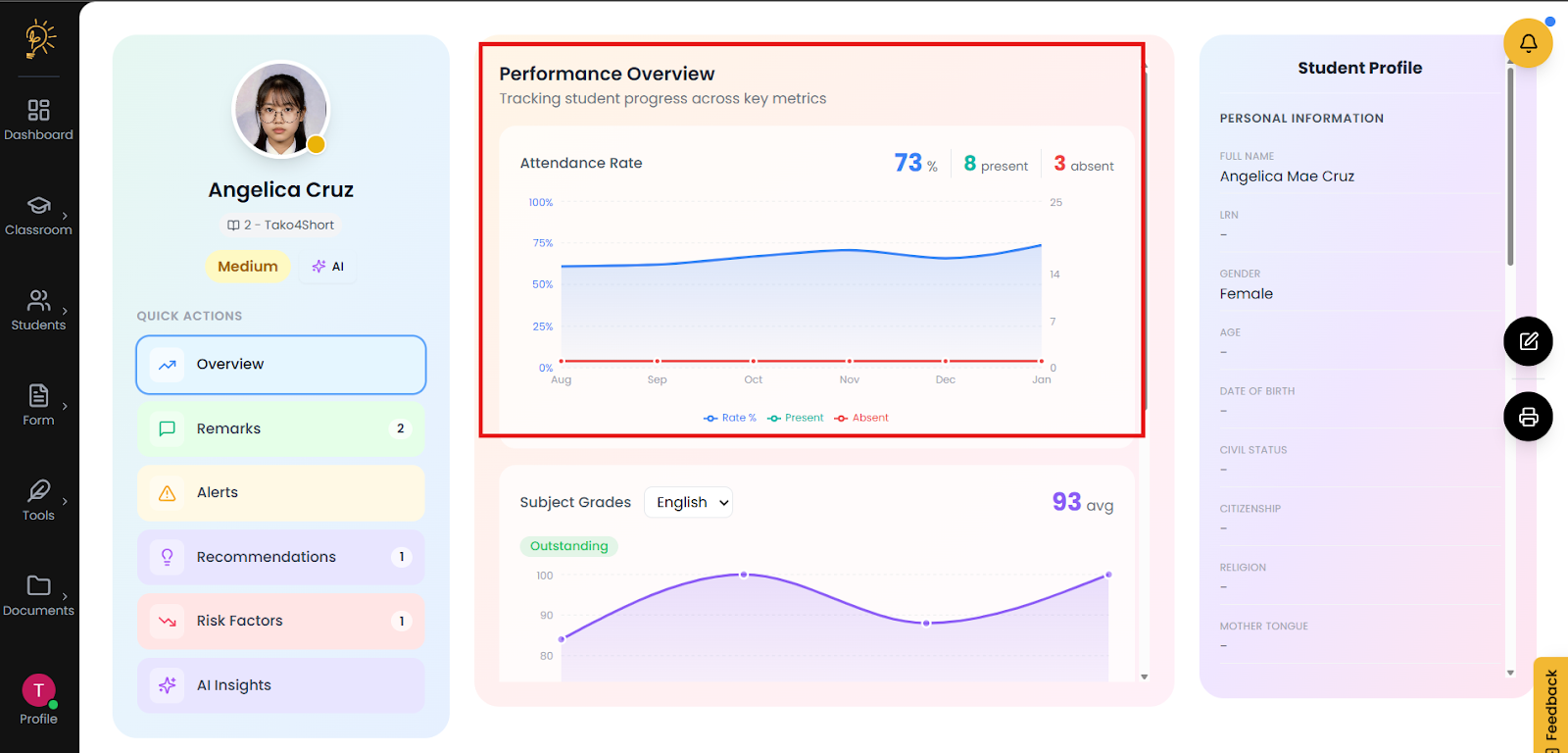
- Attendance Rate - tracking student progress across key metrics
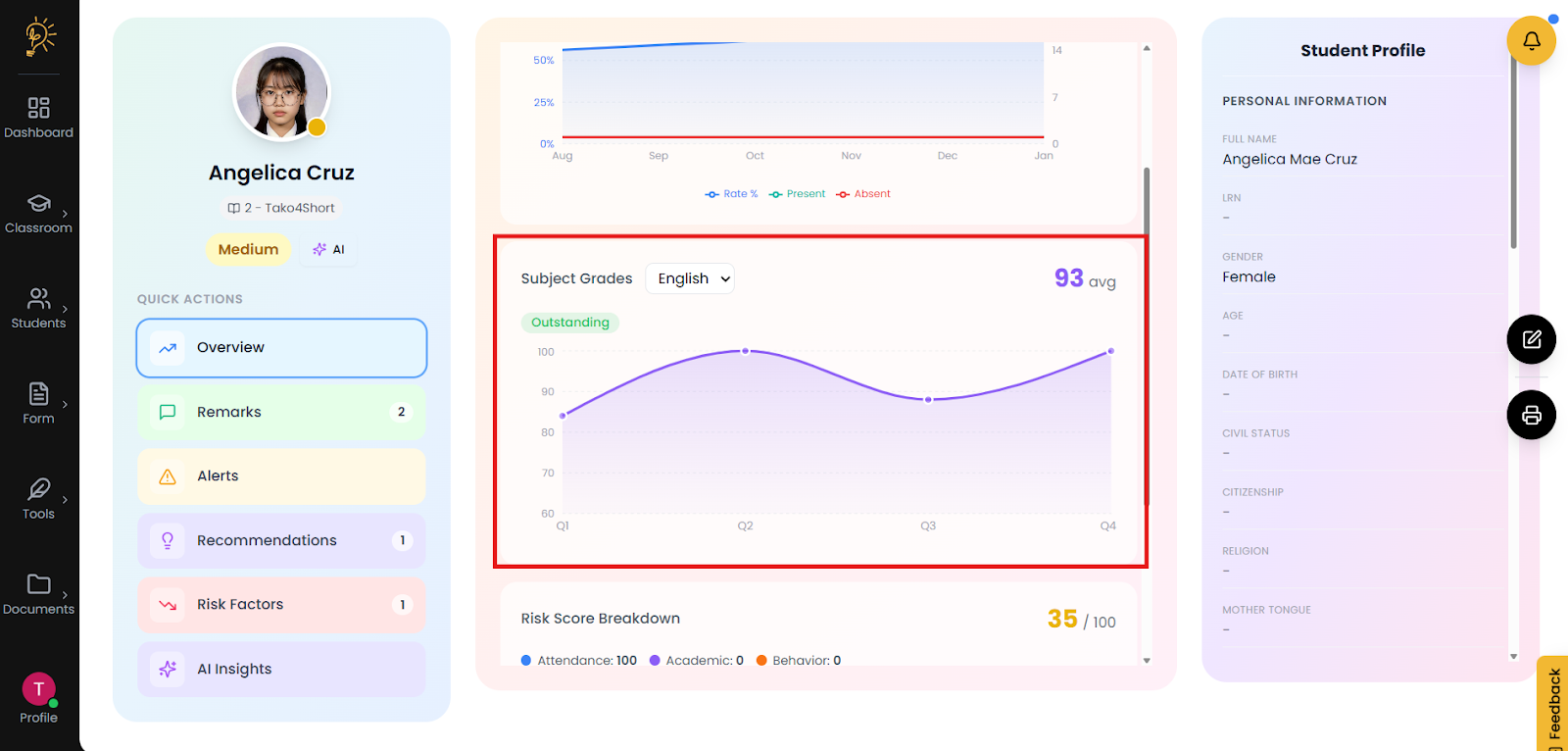
- Subject Grades - track students' general average and grades.
- Risk Score Breakdown - Tracking students performance through attendance, academics, and behavior
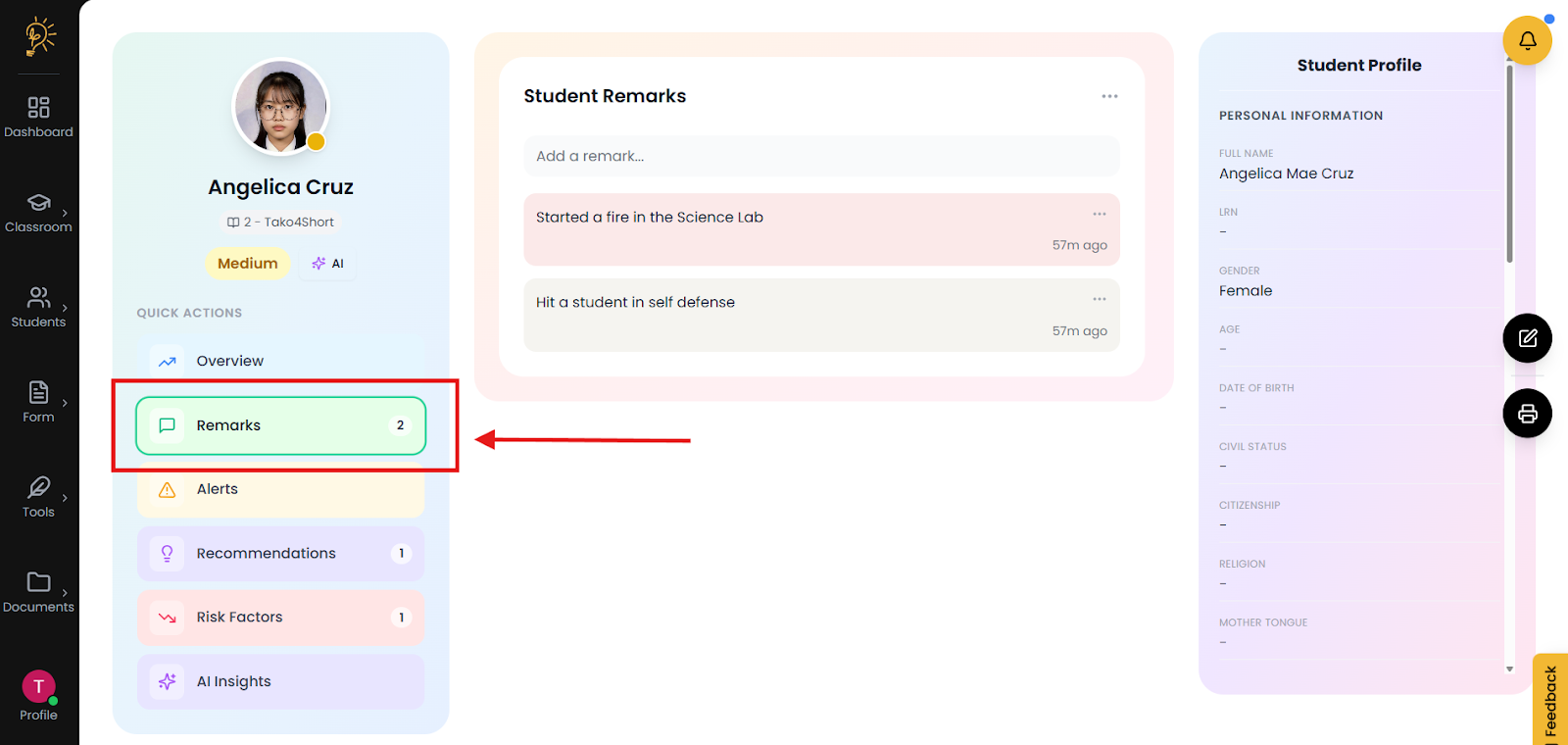
- Remarks - Create student remarks and note student behavior
- Alerts - Be notified of critical student behavior
- Recommendations - Provides data-based suggestions to help teachers apply targeted interventions and improve student outcomes.
- Risk Factors - Receive details regarding student risk factors
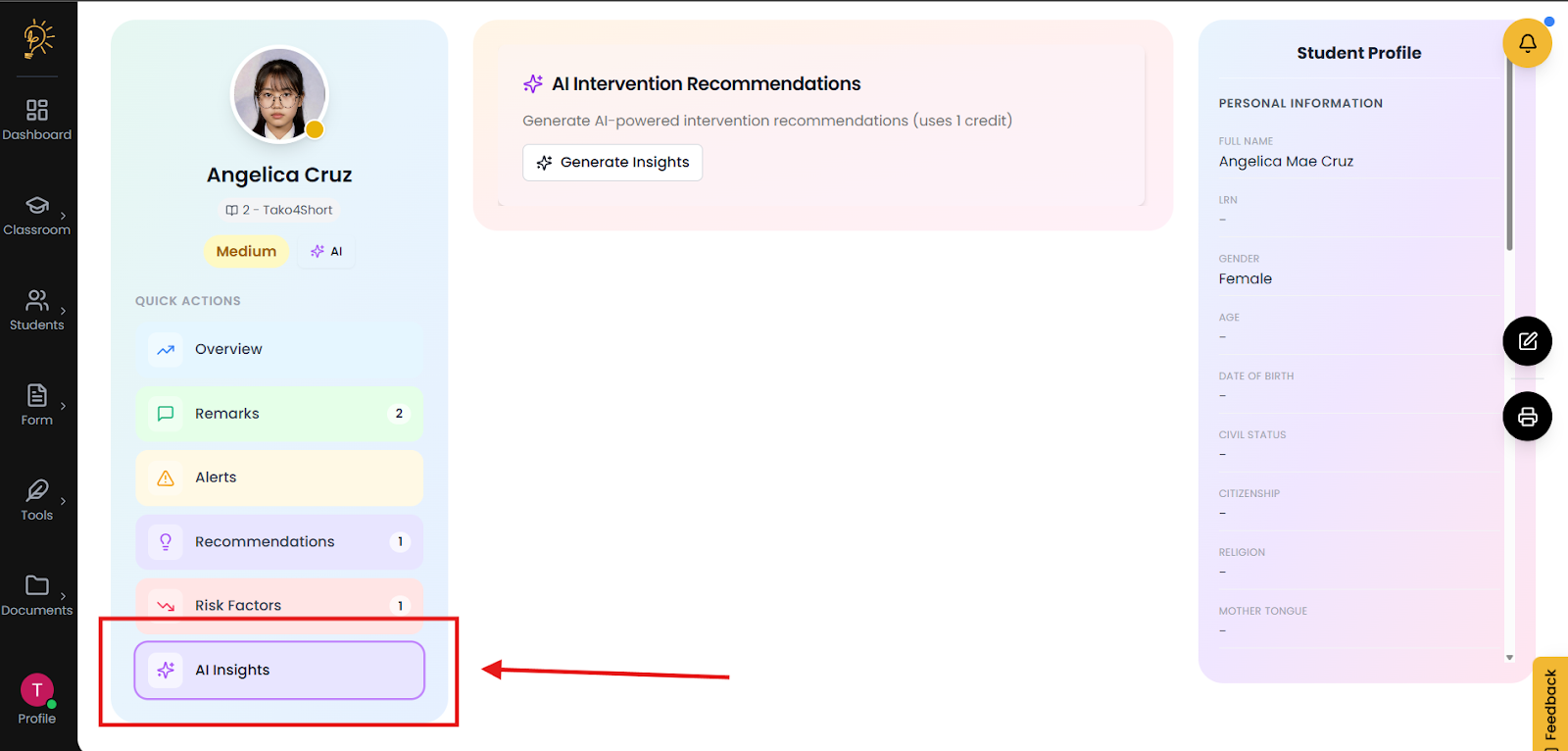
- AI Insights - Analyzes performance data to detect patterns, highlight risks, and generate meaningful academic observations.
- Edit student profile - Compilation of student information
Accessing the performance analysis dashboard
How to access the subject list page:
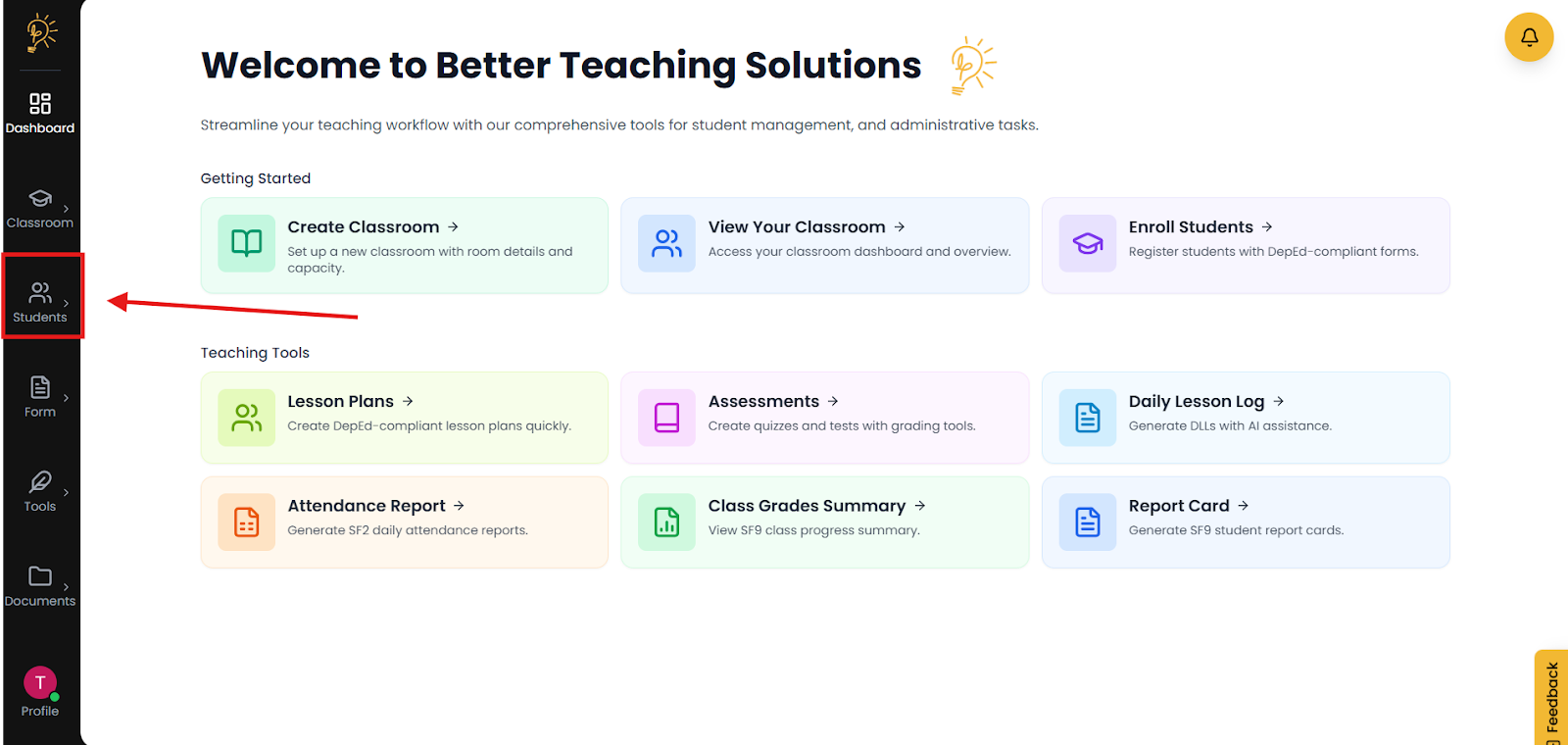
- On the left sidebar, click Students.
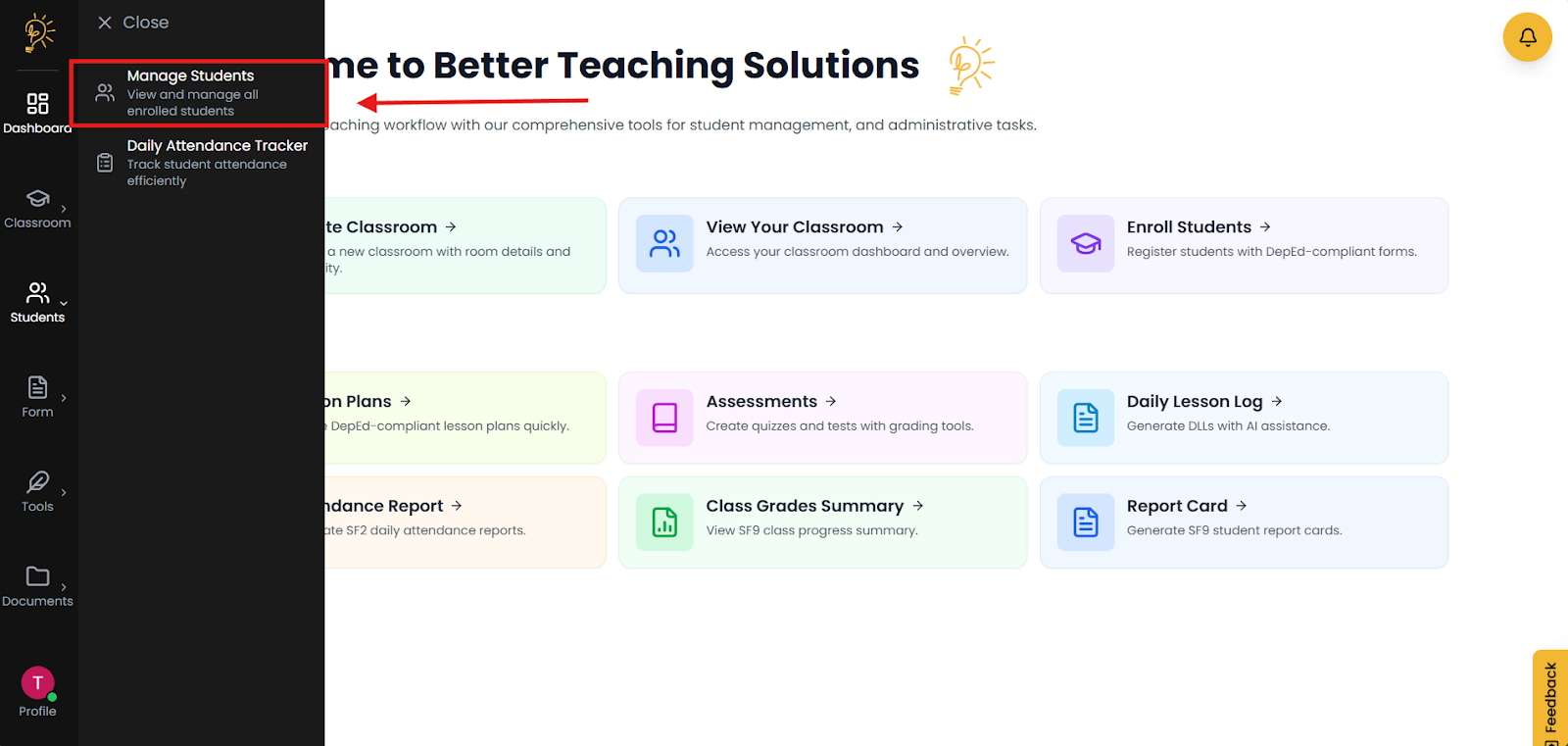
- In the Students menu, click Manage students.
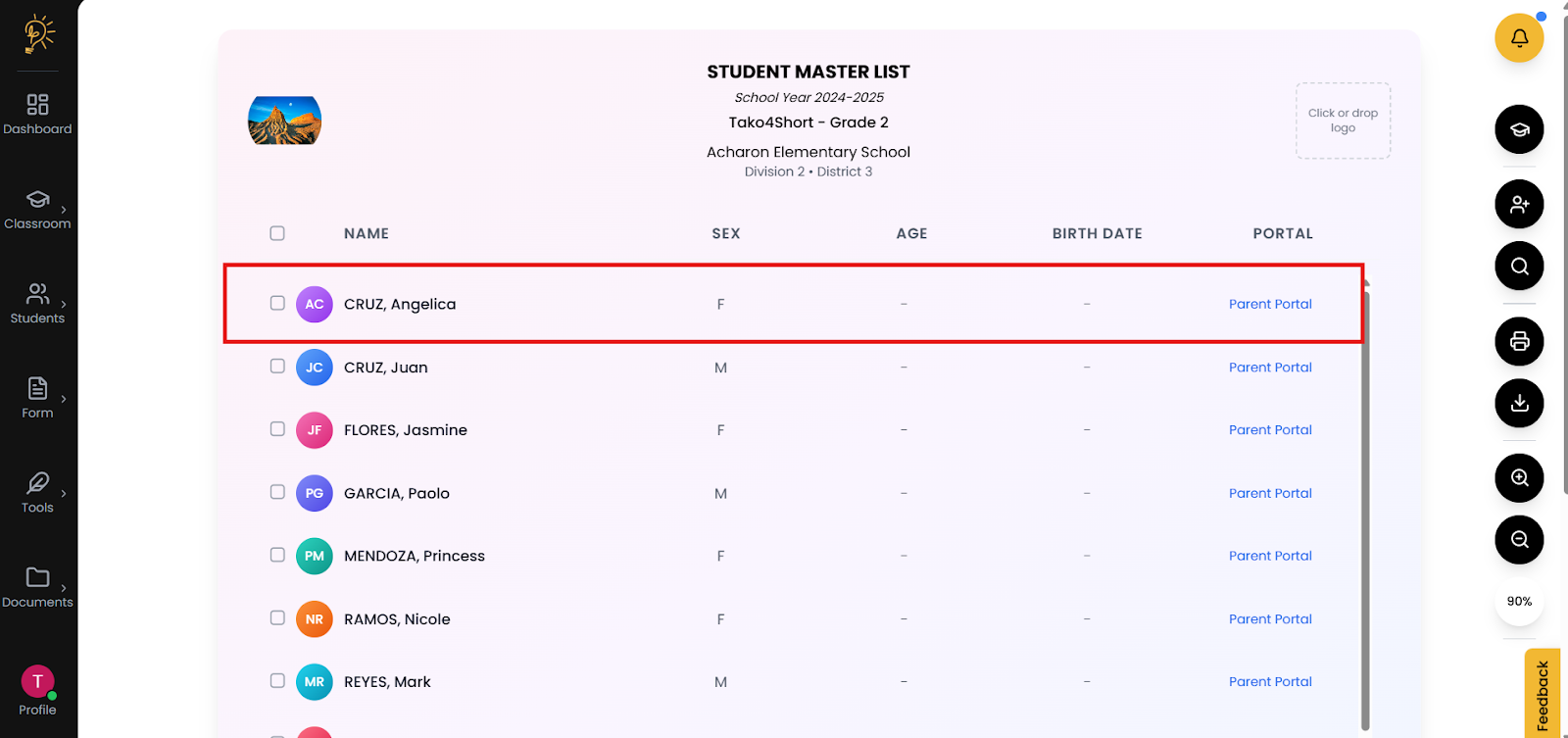
- You should now see the Student Master List (you students should be located here)
Note: if no students are visible, please refer to [ Link to Student Enrollment Tutorial ] for step by step instructions on how to enroll your students.
- In the Student Master List Click on the student of your choice.
- This should bring you to that student's Performance analysis dashboard.
Student Overview
What to expect from the student overview page
- Live student attendance graph
- Live subject and average grade graph
- Live risk score breakdown graph
Attendance Rate
Subject Grades
Risk Score Break down
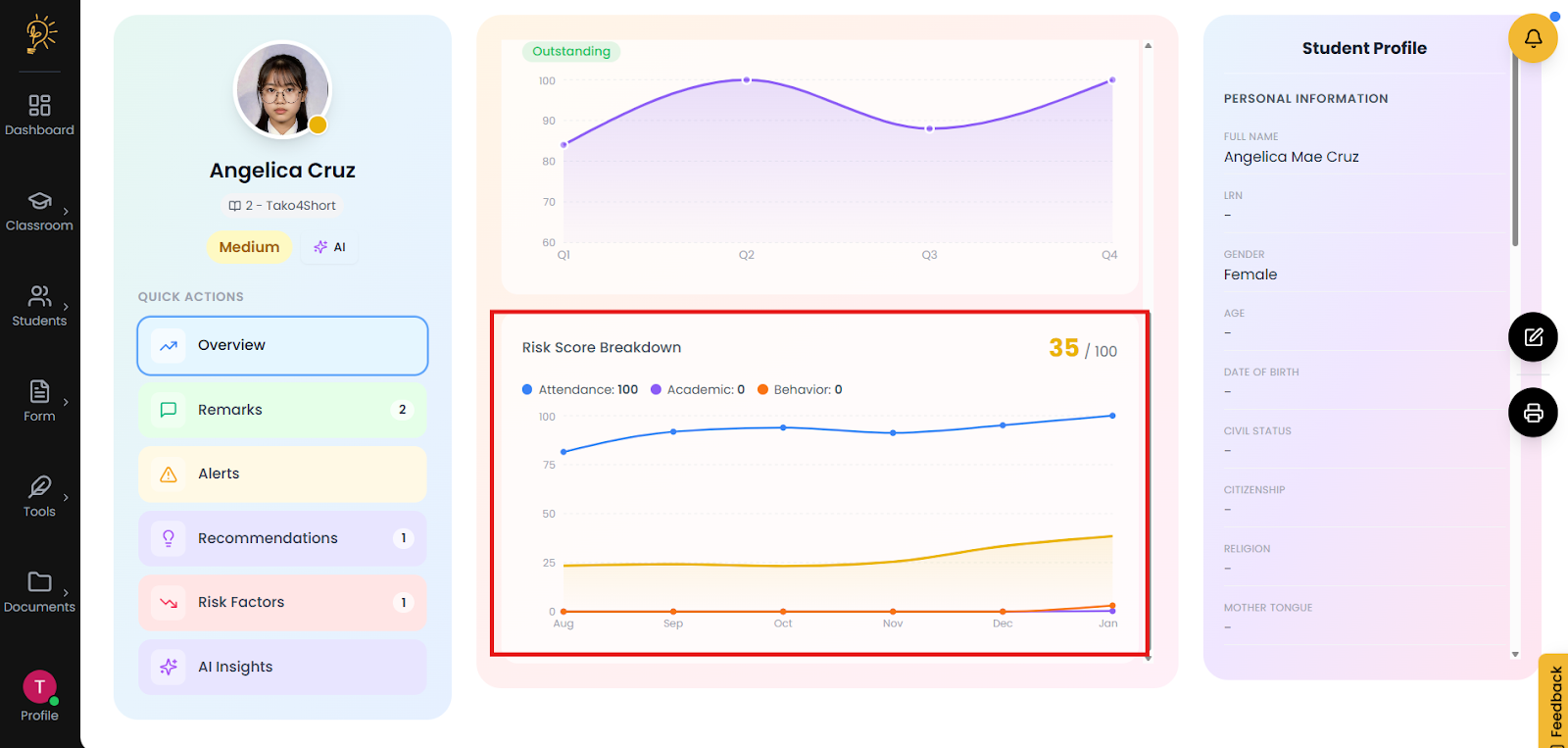
If this tab is not visible, use the scroll button on the right side of the performance overview
Remarks
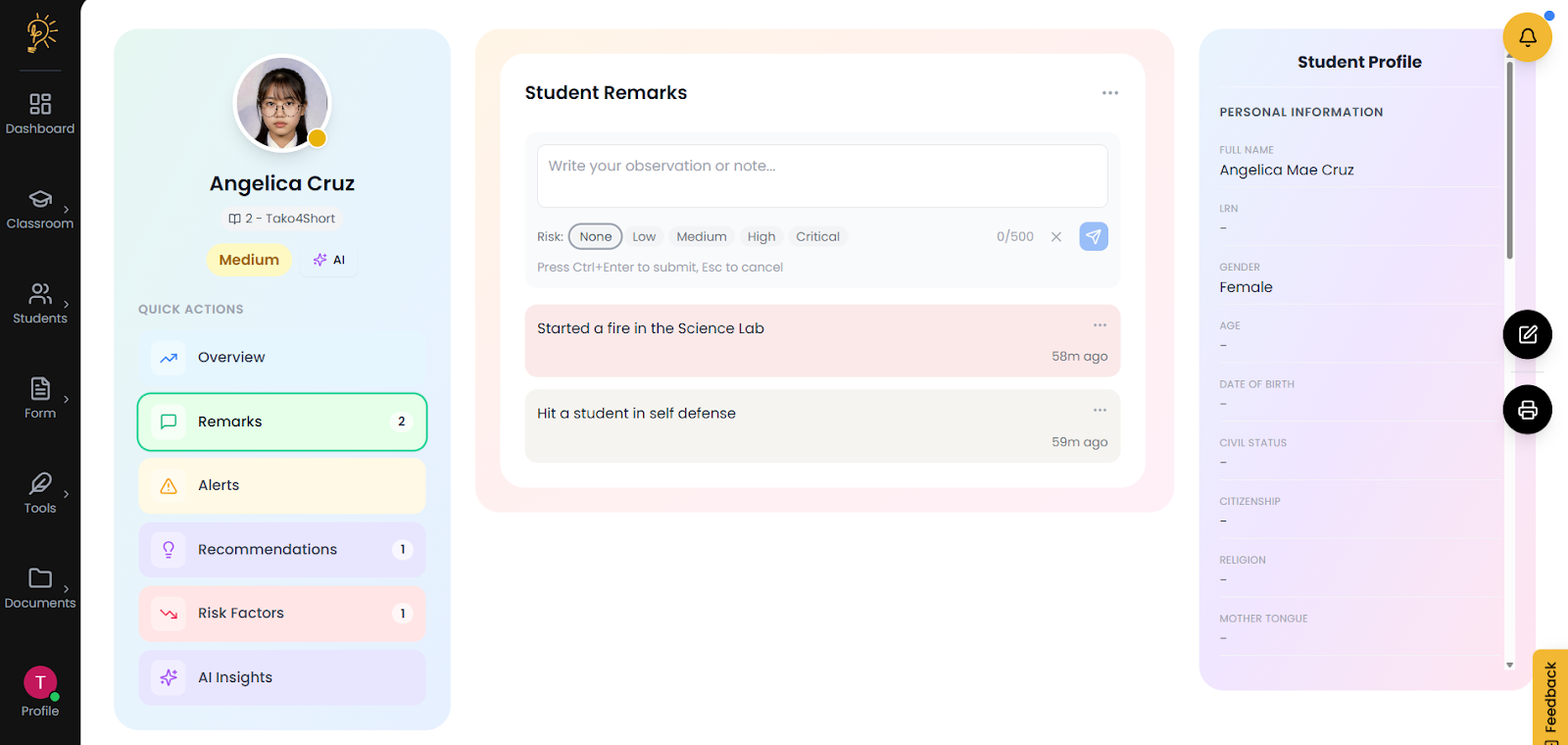
The student remarks page is where you may record a student's unsatisfactory behavior
Located on the left, Click the Remarks button
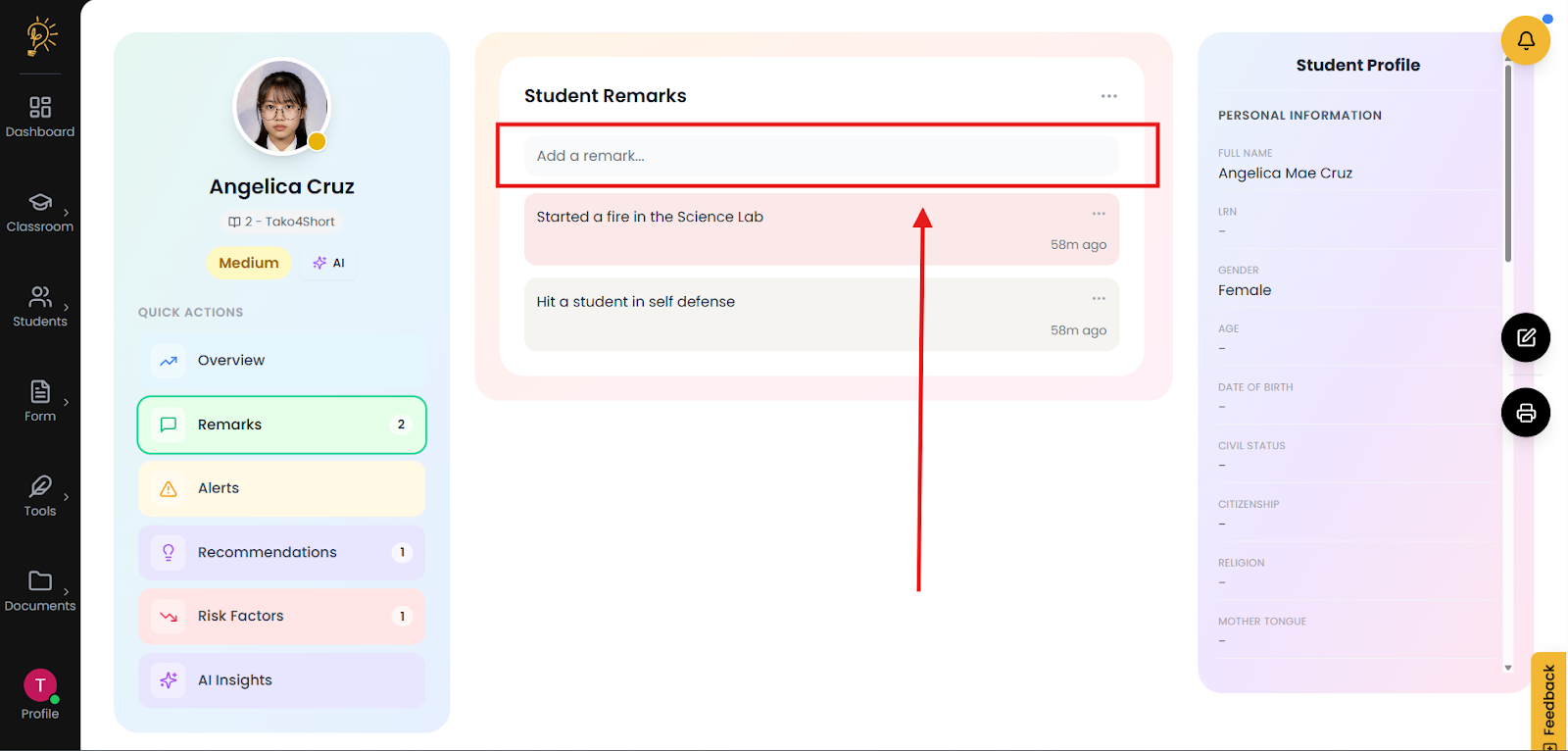
Here are the following steps in creating a Student Remark:
- In the Students Remarks page, Click the “Add a remark…” Text
- You will be prompted with a text box in which you can add your remark.
- At the bottom, you can Click on how severe the risk is for the remark

- When done, press the send button on the right side.
Alerts
The alerts tab is located on the left side of the performance analysis dashboard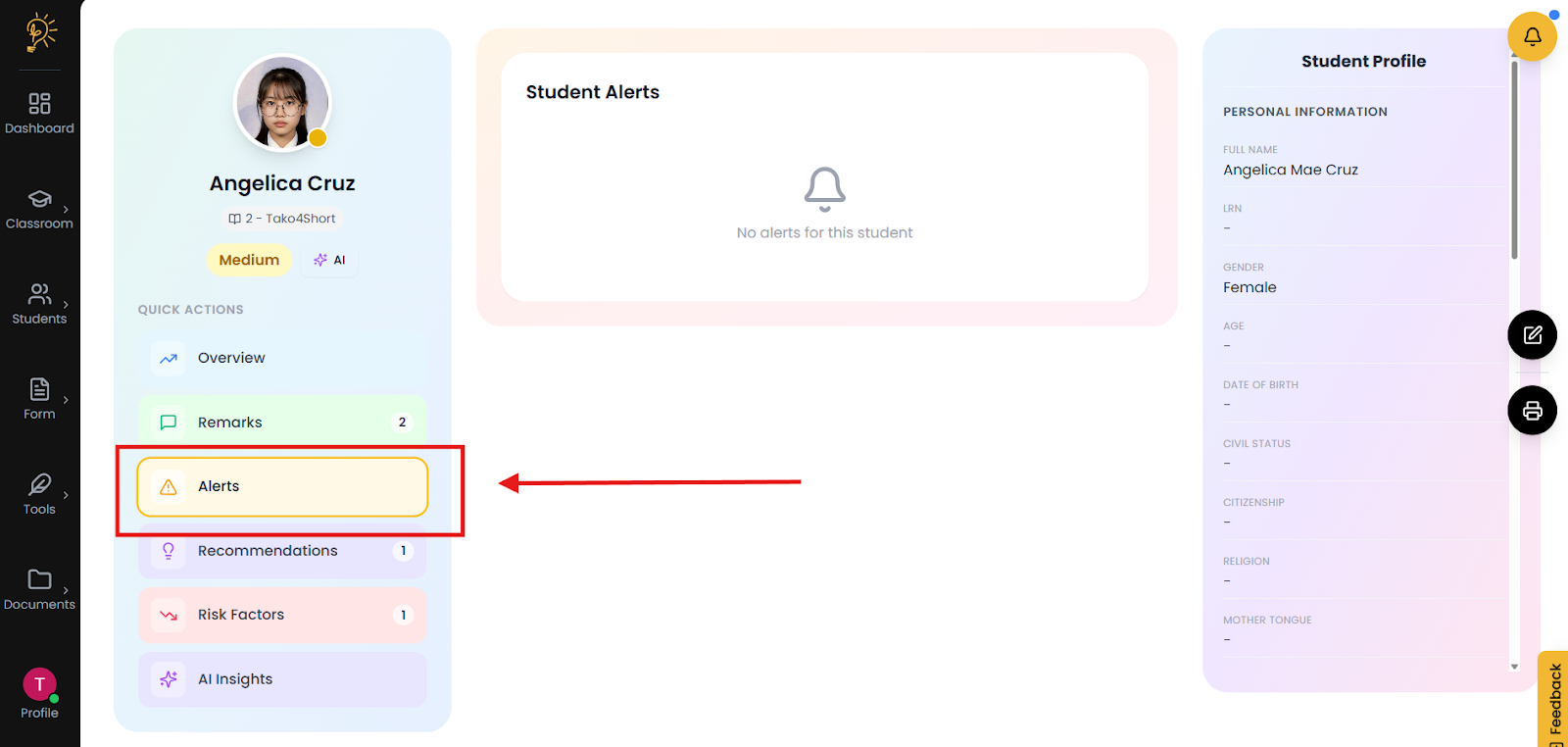
The alert tab will only fill with content if a student requires some form of critical intervention
Recommendations
The recommendations tab is located on the left side of the performance analysis dashboard.
The recommendations tab will only fill with content if a student requires some form of intervention
Risk Factors
The risk factor tab is located on the left side of the performance analysis dashboard.
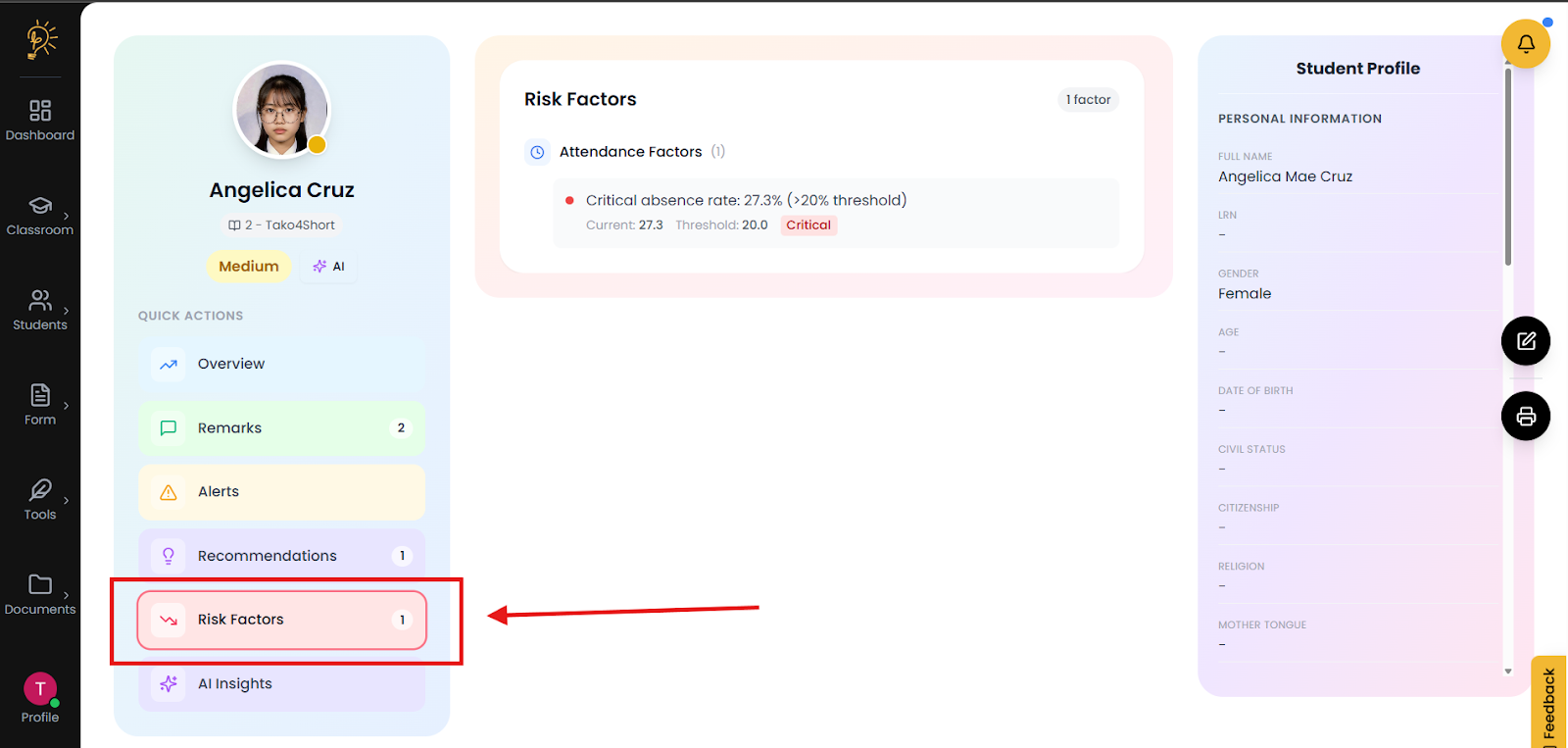
This Risk factor tab contains critical issues that are present on a student's performance.
AI Insights
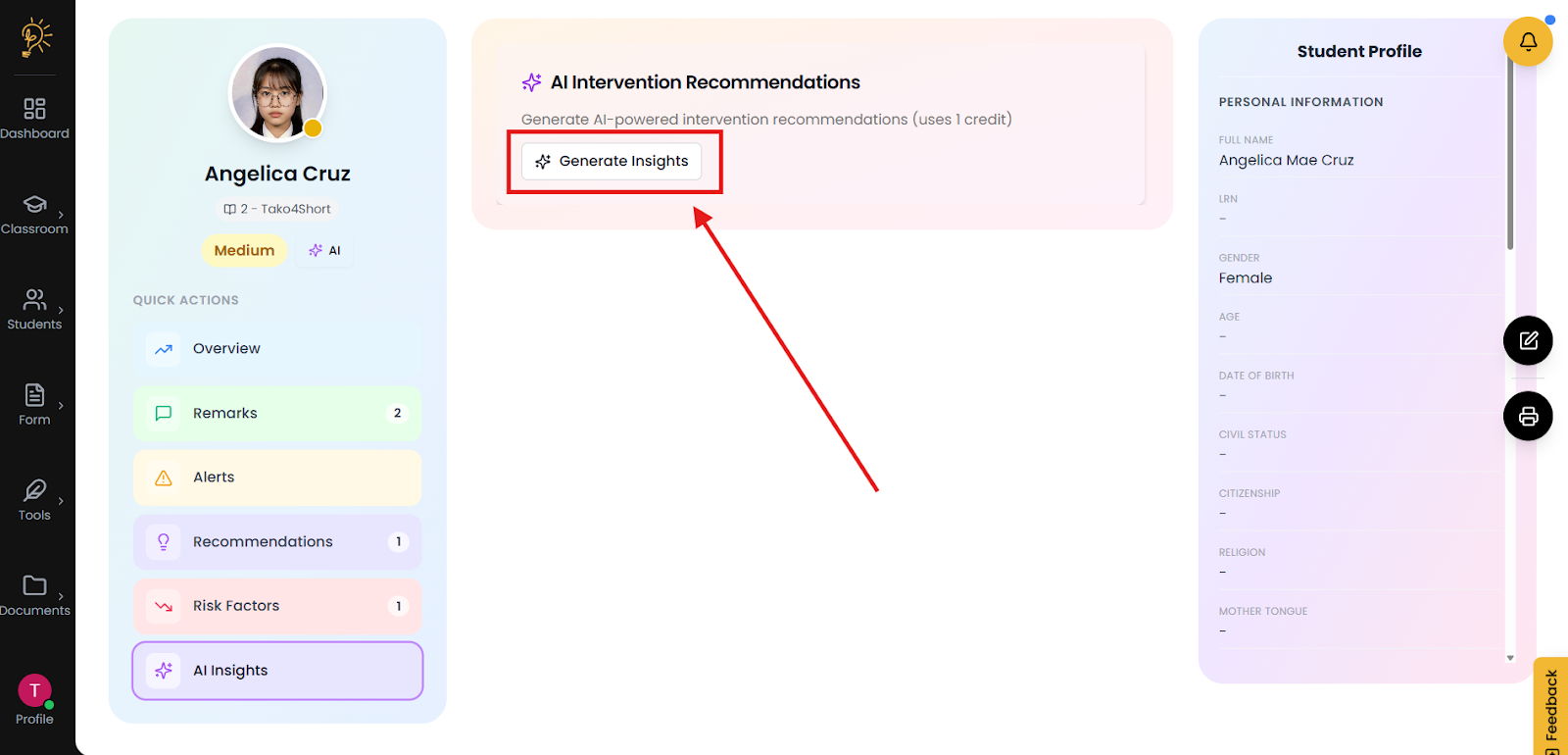
The AI insights tab provides recommended solutions for any student issues. It is as simple as clicking a button to use.
- Go to the AI Insights tab on the left side of the dashboard
- Click Generate Insights
- The AI will generate insights on different student issues or situations based on what risk or struggles the student is currently having.
Edit student profile
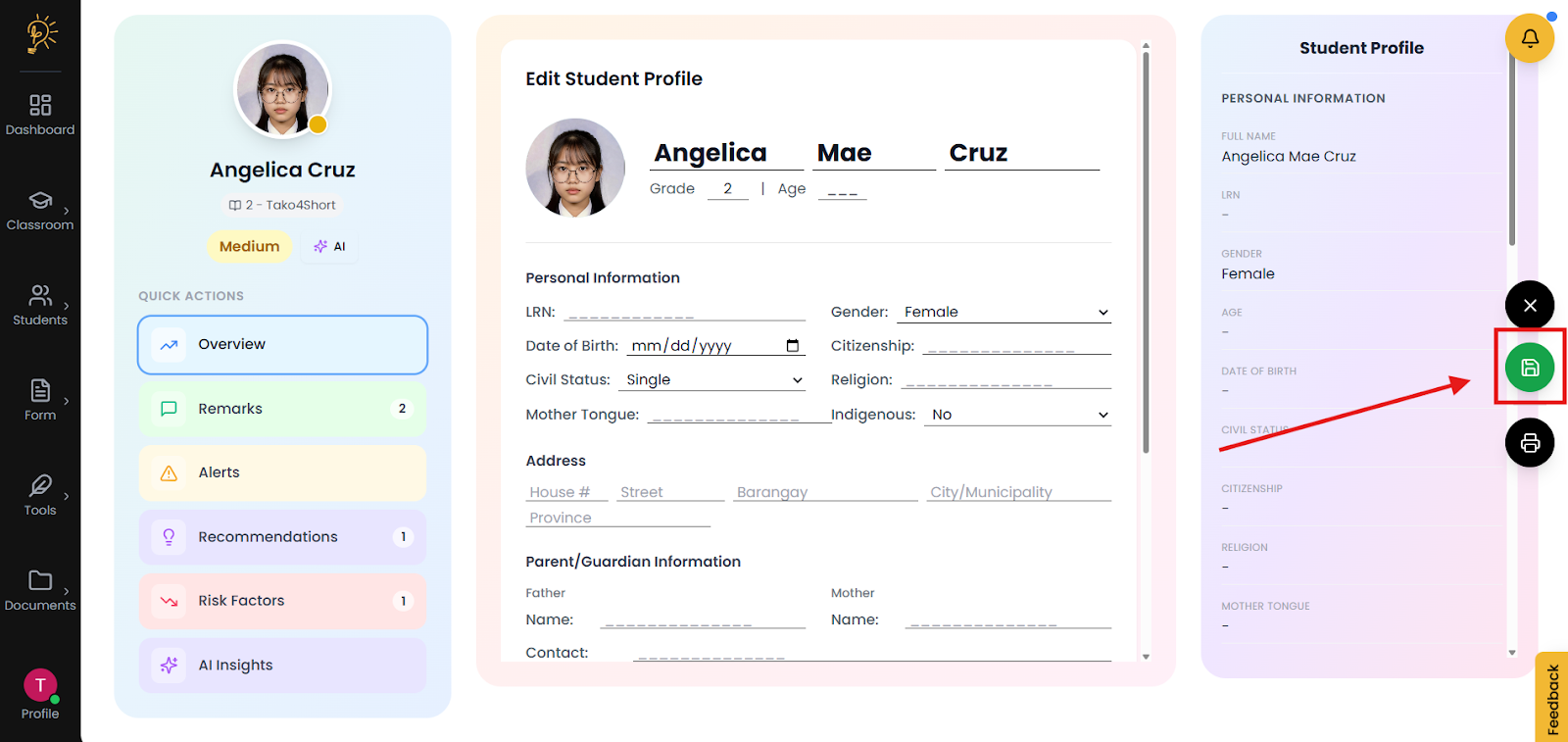
During enrollment, student profiles are usually unfinished and are still missing crucial information, with this tool it is possible to fill out and edit a student's information.
Step 1 - Find the student
- In the Student Master List page, Click on a student you would like to edit.
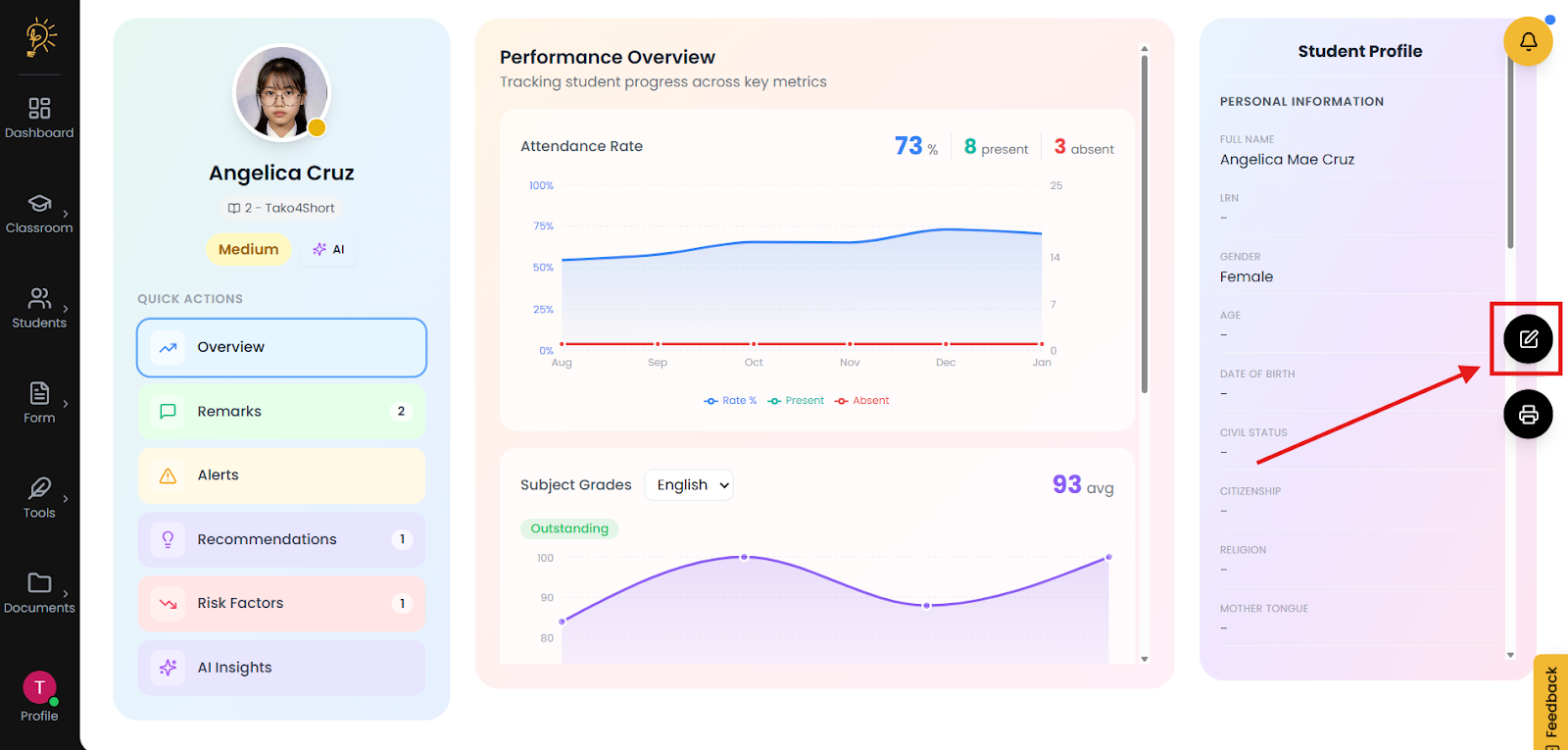
- Once on the Performance Analysis page look to the right side of the page.
- Click on the Edit profile Icon it should be located on the right.
- Fill out or replace the different text boxes.
- When done Click the Save changes Icon located on the right.
Author
Better Teaching Solutions
Making teaching easier, giving more time for our hard working teachers!