How to use Better Teaching Solutions to record DepEd SF2 daily attendance faster?
The School Form 2 (SF2) Daily Attendance Report of Learners in Better Teaching Solutions (BTS) lets you record daily attendance, track patterns, and generate DepEd‑formatted SF2 reports without manual tallying. You open your class, mark who is present, absent, or tardy, review the automatically computed monthly totals, and export SF2 in just a few clicks.
Core Features
- Interactive attendance grid that tracks daily presence, tardiness, cutting classes, and absences in a layout that mirrors the official SF2 form.
- Automated statistics that compute Average Daily Attendance, Percentage of Attendance, and enrollment in real time as you record data.
- Batch actions such as “Mark All Present” and “Clear All Attendance” to update an entire day with one click.
- Remarks system for recording dropout reasons and destination schools for transfers in a dedicated field.
- Built‑in legend and guidelines showing DepEd codes, instructions, gender‑segregated lists, and holiday handling directly inside the form.
- Print‑ready layout with a dedicated Print Mode optimized for landscape printing, including school details and signature sections.
Two ways to record attendance in Better Teaching Solutions
Better Teaching Solutions provides two ways to record daily attendance, so you can choose the workflow that fits your routine:
- Attendance recording via Daily Attendance Record – a simple grid view for quick marking of daily presence, absences, and tardiness.
- Attendance recording via School Form 2 (SF2) view – a DepEd‑style form with diagonal‑split cells, detailed statistics, and print‑ready formatting.
Option 1: Attendance Recording via Daily Attendance Record
Use the Daily Attendance Record to manage daily attendance quickly from a single grid.
Step 1: Navigate dates and switch classes
Move between days and classes without leaving the attendance view.
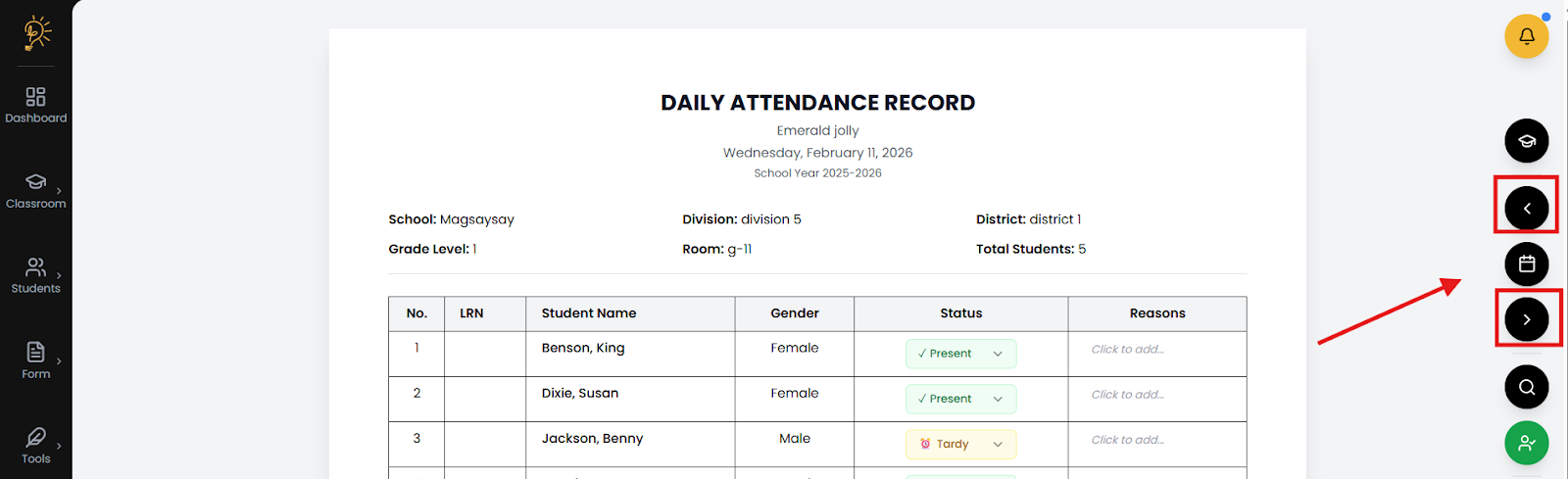
- Use the left and right arrows to move between school days.
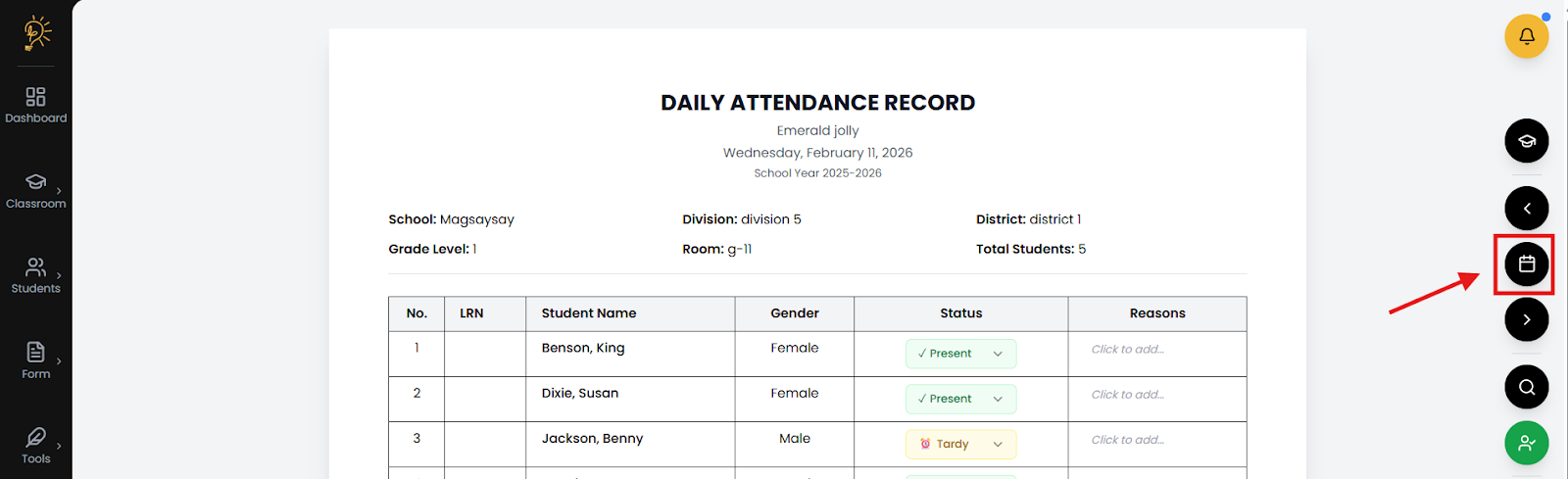
- Use the date picker to jump directly to a specific date.
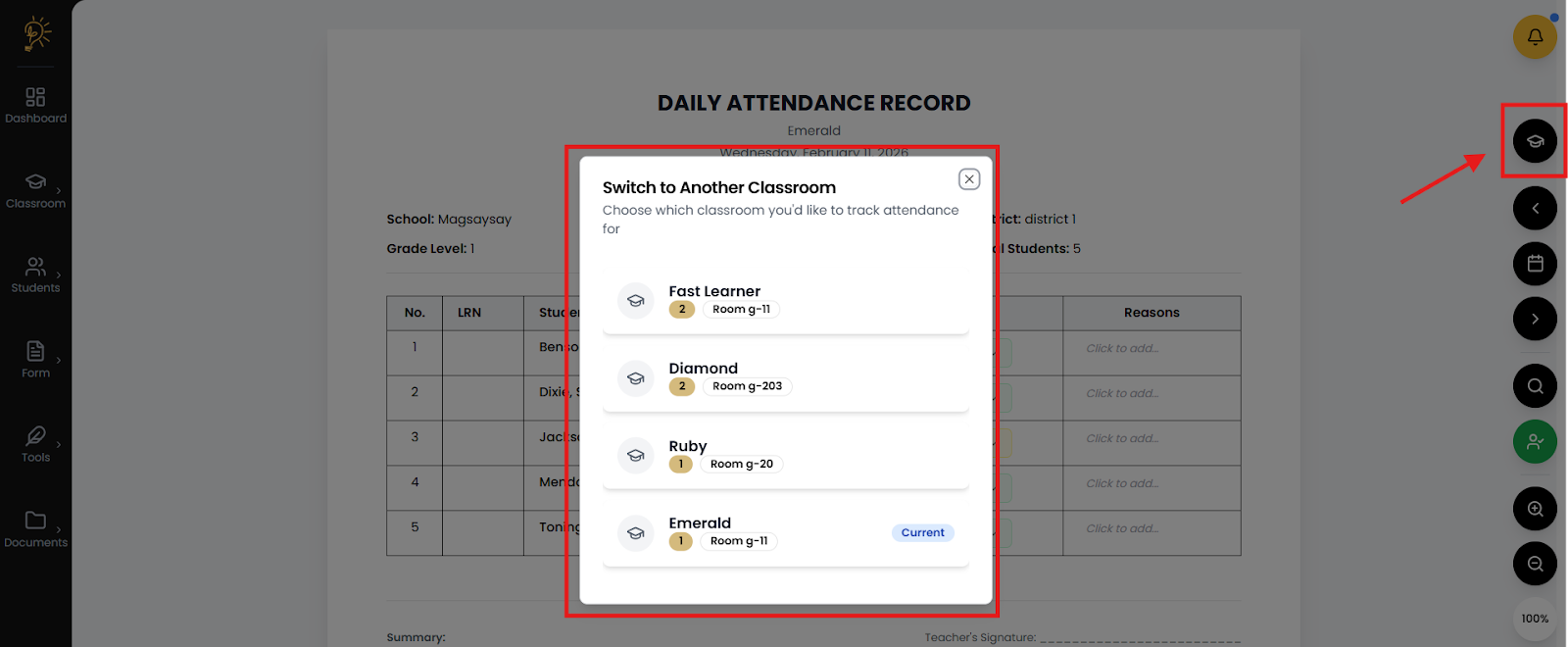
- Use the cap icon to switch classes quickly.
Step 2: Mark all students as present
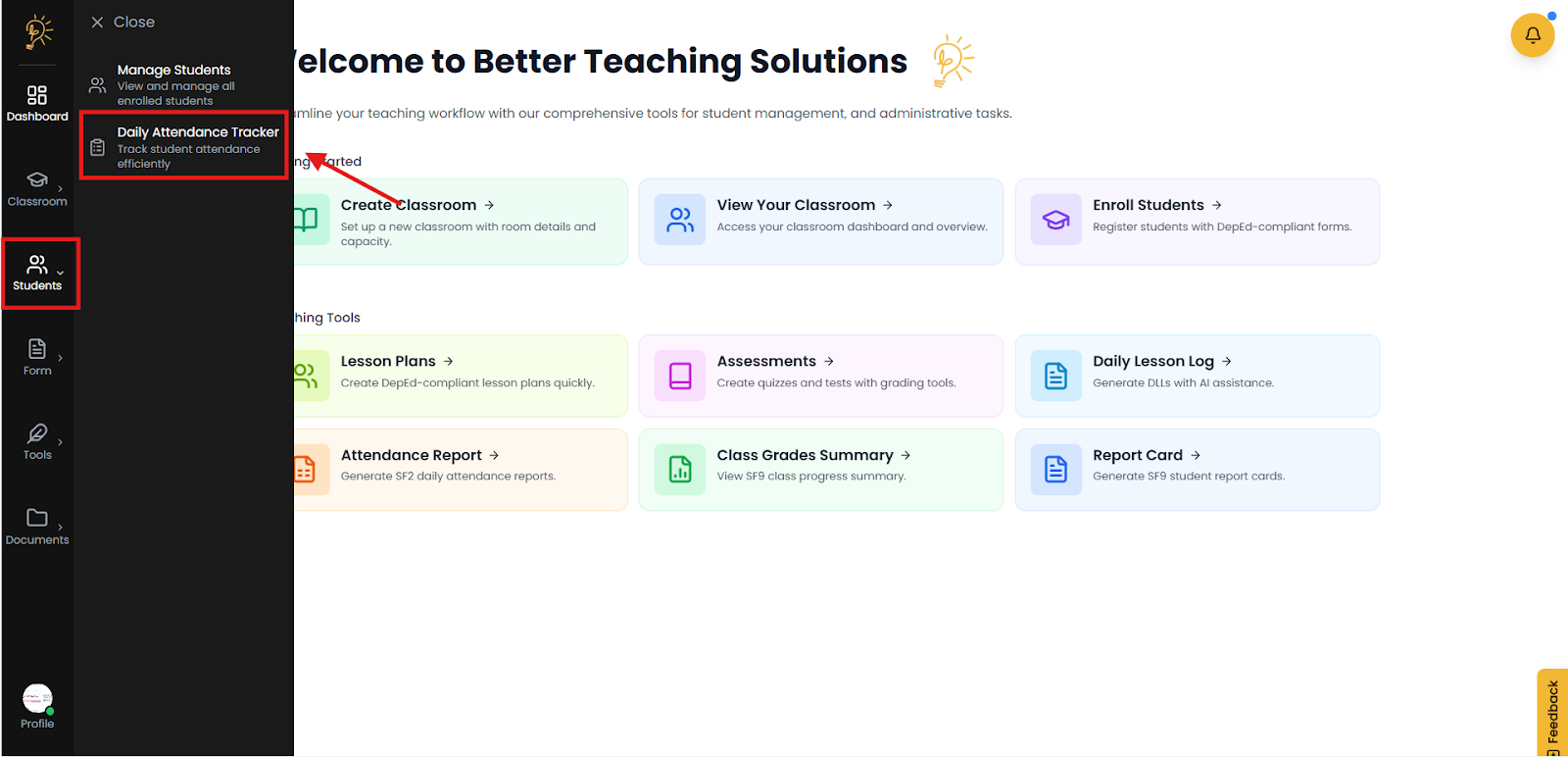
- Open the Daily Attendance Record from the left‑side navigation to see all learners in one view.
- Click the person icon to mark all students present at once instead of updating them one by one.
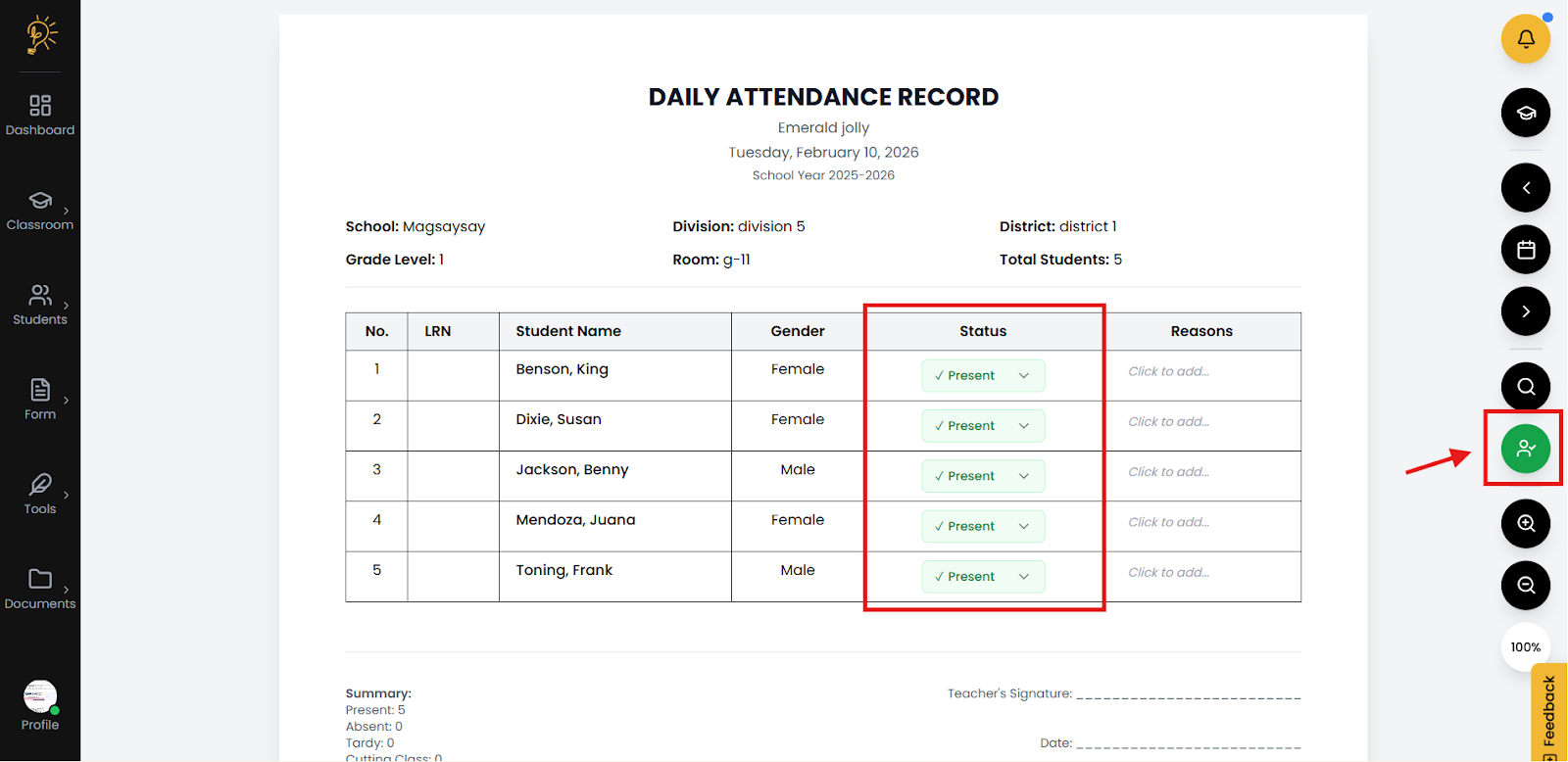
- The system to skip holidays automatically in attendance totals.
Step 3: Change a learner’s attendance status
Update attendance for individual learners directly from the grid when there are absences, tardiness, or corrections.
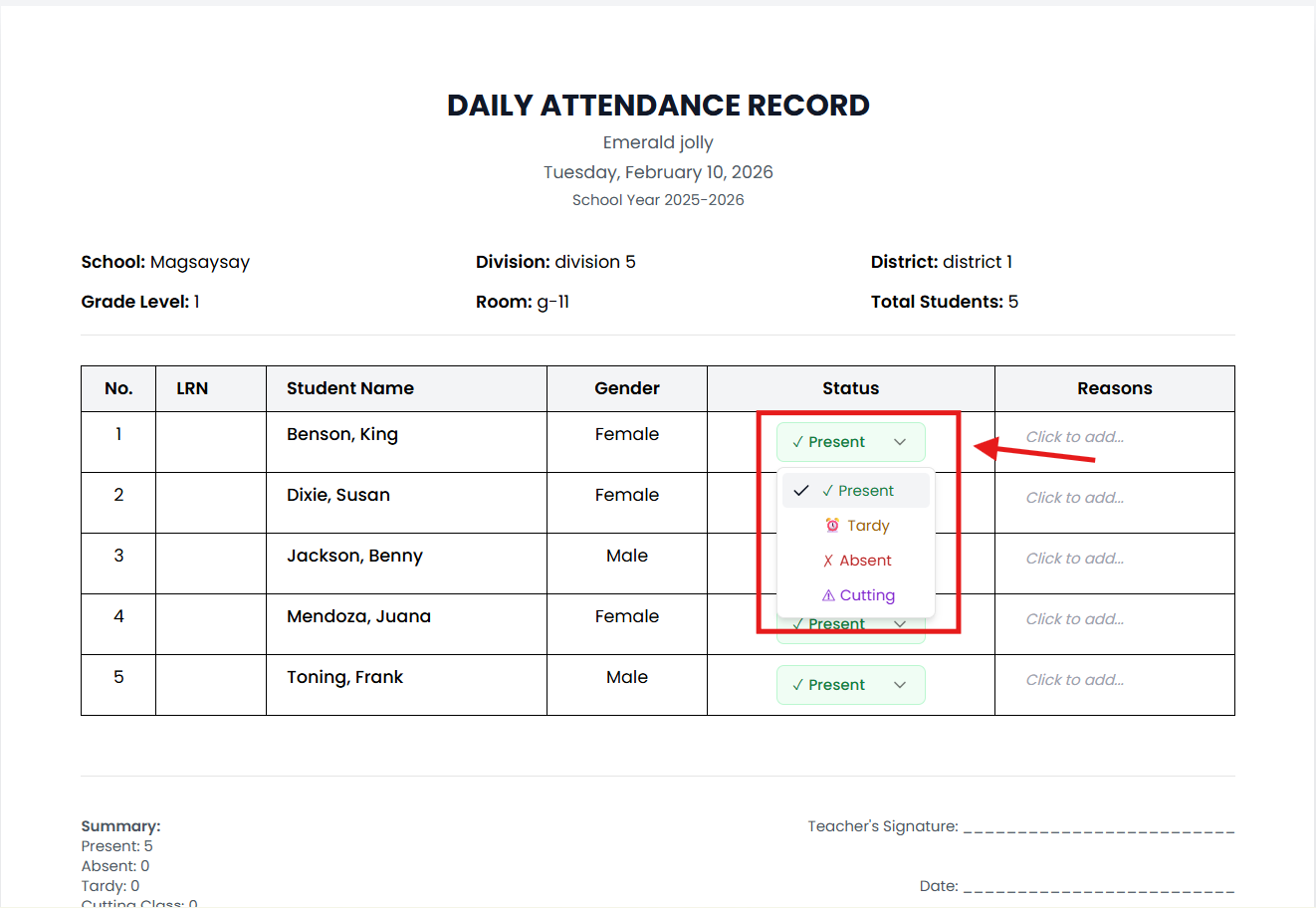
- Click the dropdown in the student’s cell for that day.
- Select the correct status (present, absent, or tardy) to fix errors or reflect late arrivals.
Step 4: Add attendance remarks for a learner
Use remarks to capture important context behind absences or status changes.
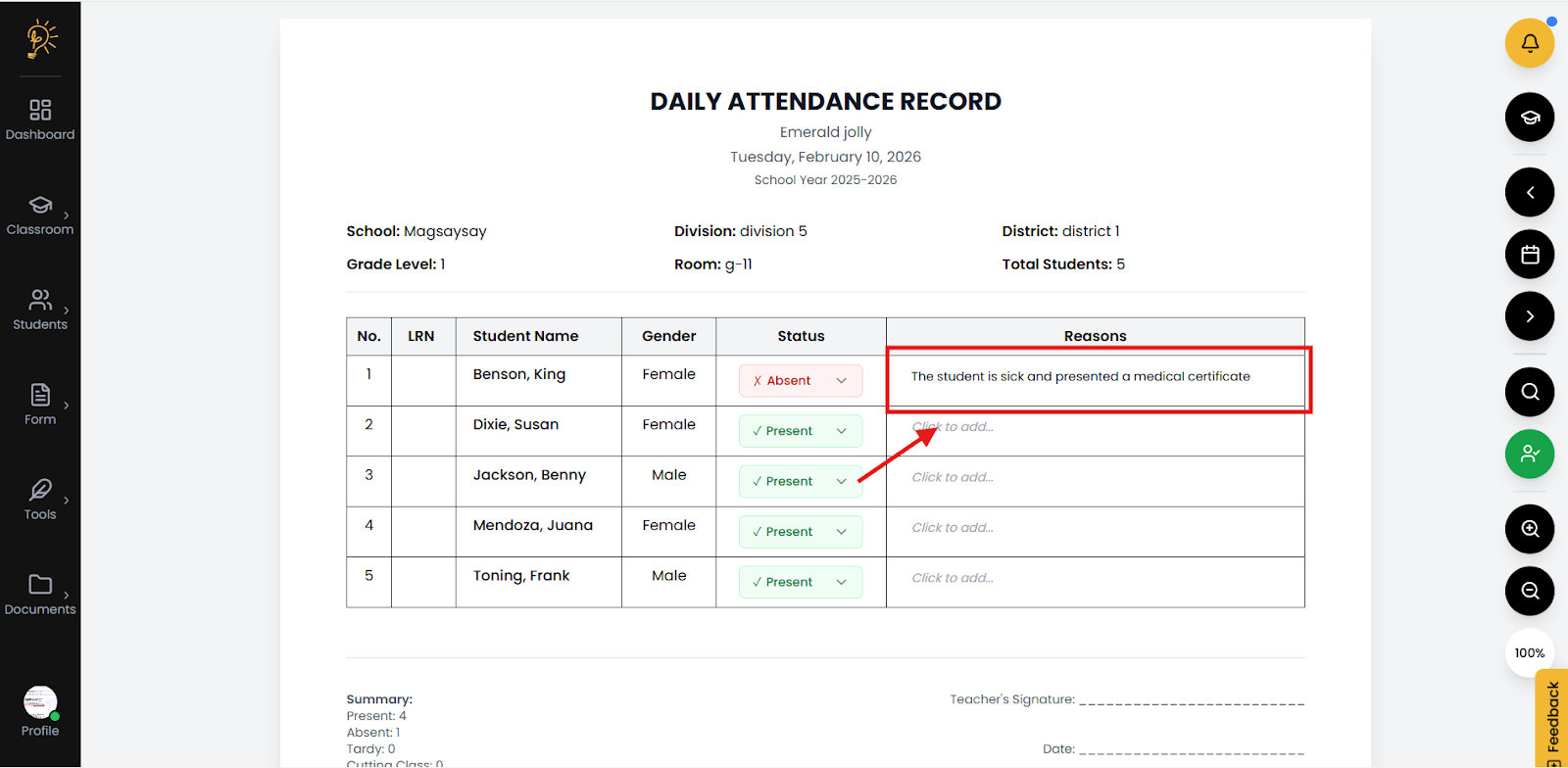
- Enter notes that explain the reason for the absence.
- Keep remarks clear, especially for long absences or learners who are leaving.
Option 2: Attendance Recording via School Form 2 (SF2)
Use the full SF2 view when you want to work directly on the DepEd‑style form with diagonal‑split cells and detailed statistics.
Step 1: Set up your class for SF2 attendance
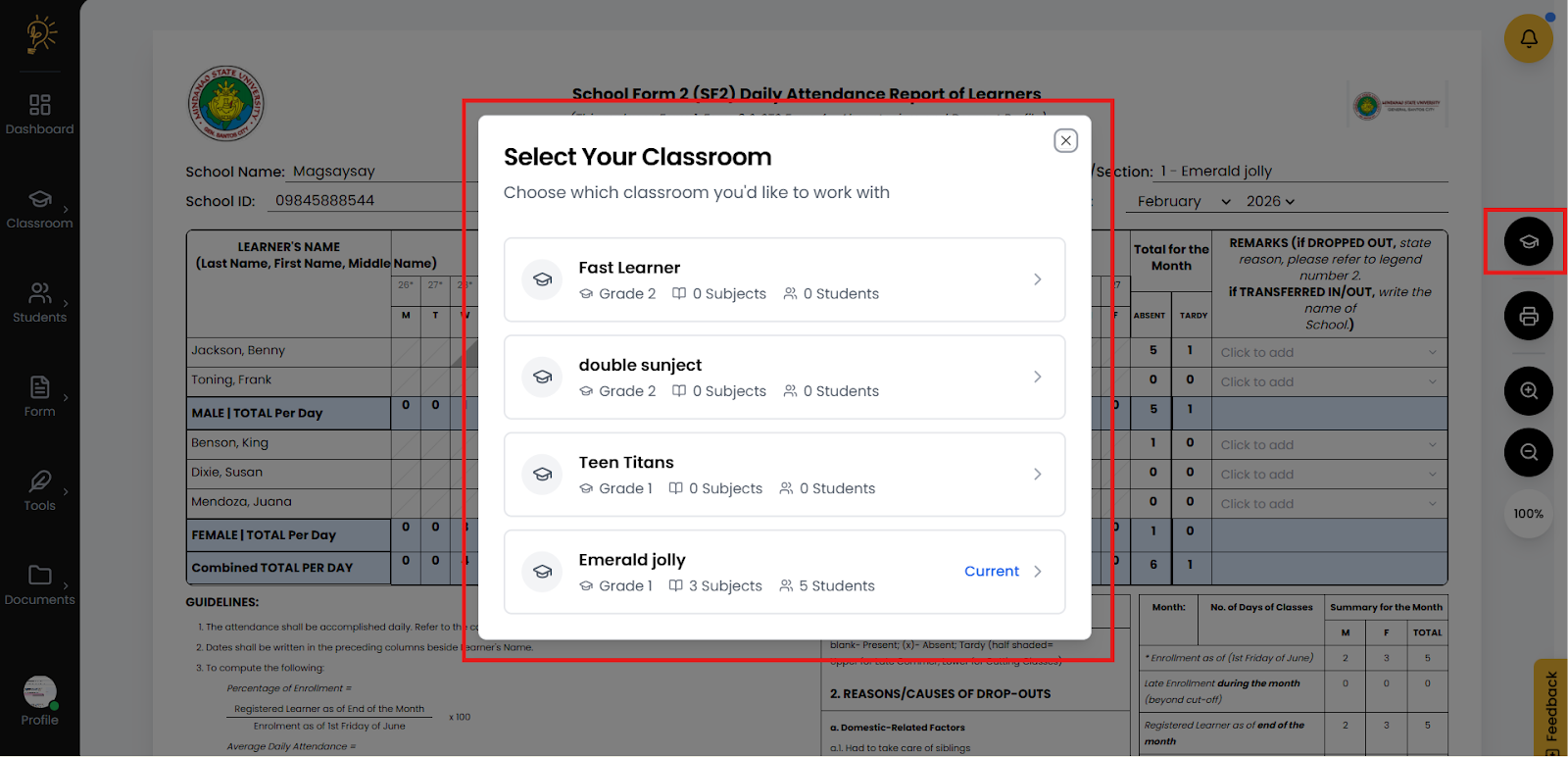
- Select Classroom: Click the graduation cap icon in the floating sidebar and choose the classroom you want to manage.
Step 2: Mark daily attendance in the SF2 grid
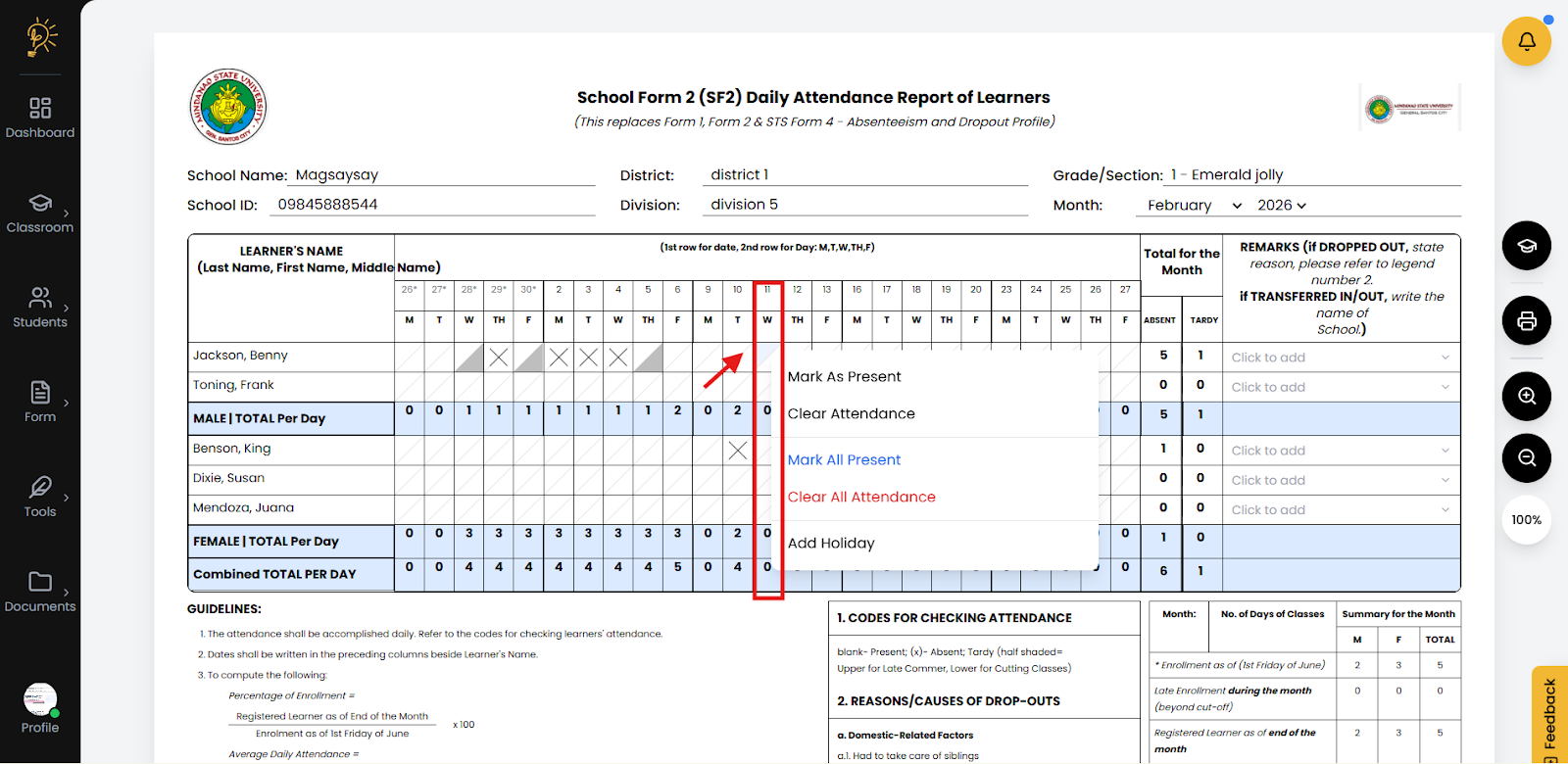
Use the diagonal-split cells to record precise attendance codes for each learner and day.
- Right click the column you want to edit the attendance.
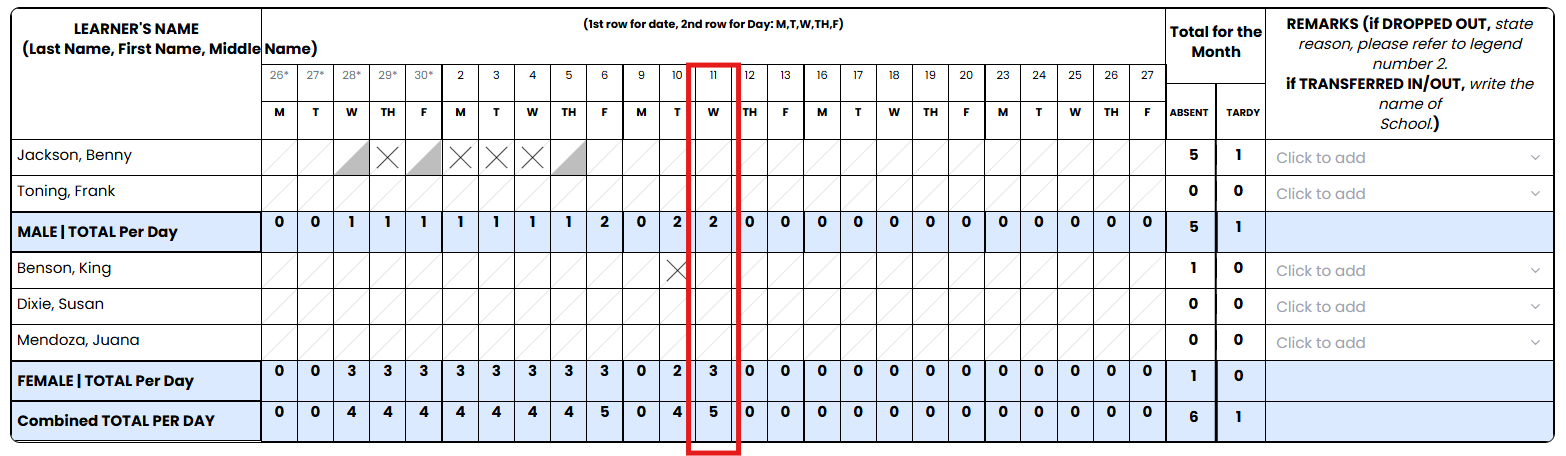
- Present: The cell is blank (white cell) if the student is present. The image below shows the column where all students are present and the cell is left blank. You can click any part of the column for Marking All Present.
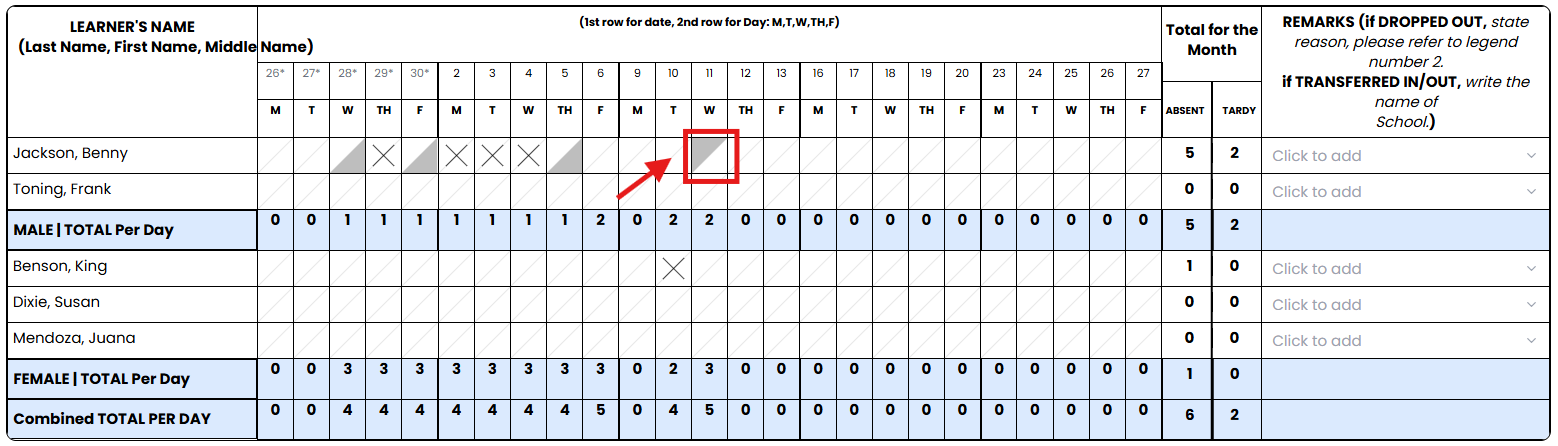
- Late/Tardy: Click the upper triangle of the cell; it becomes shaded to indicate lateness.
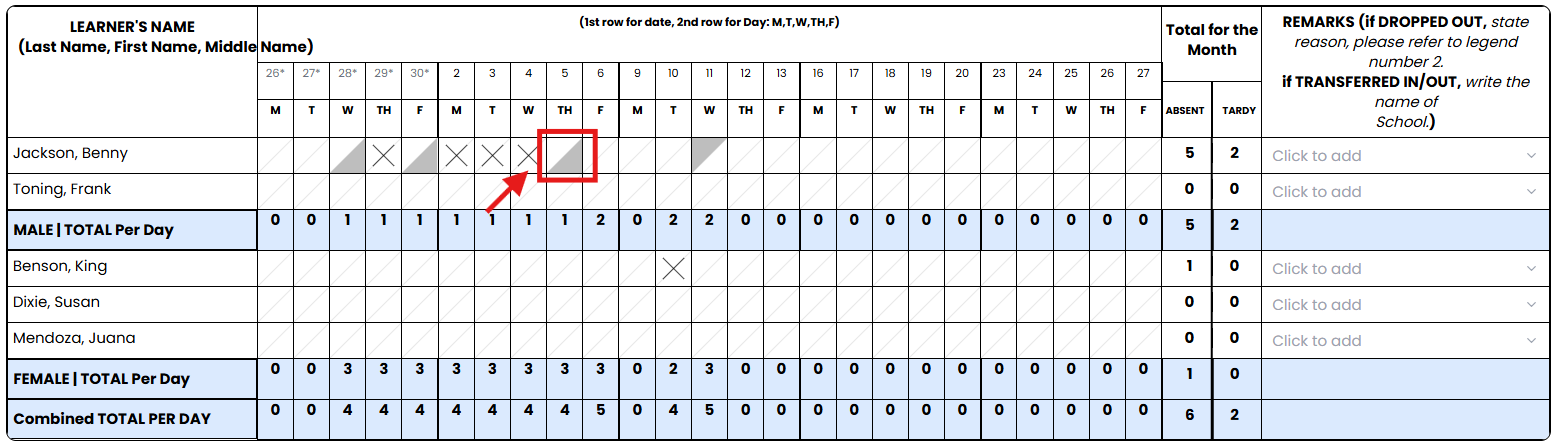
- Cutting Classes: Click the lower triangle of the cell; it becomes shaded to indicate cutting.
- Full Absent: Click both triangles; the system shows an “X” to mark a full-day absence.
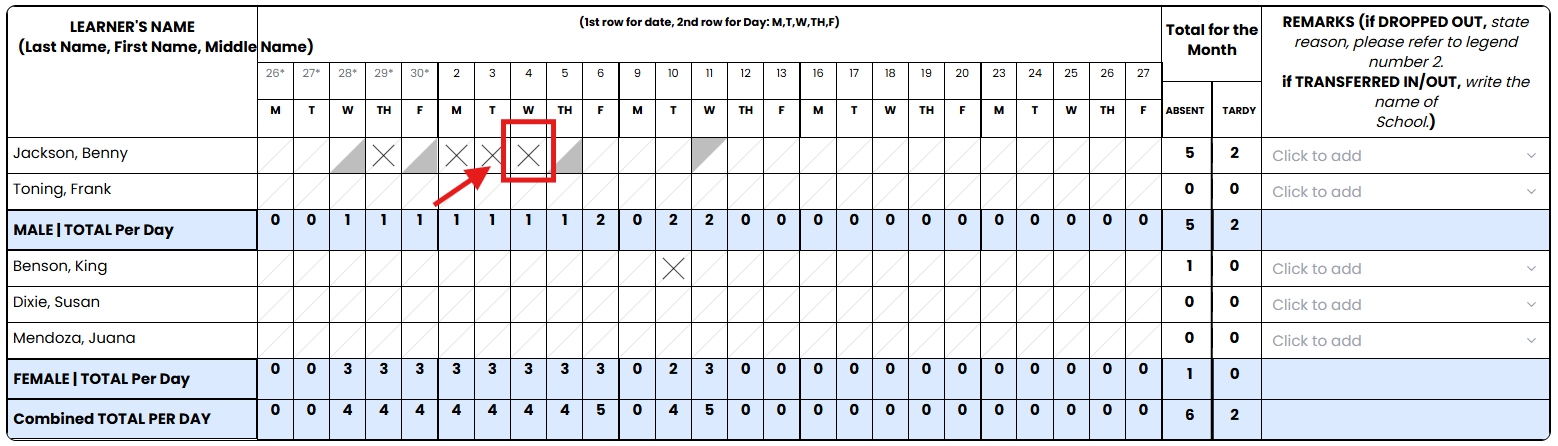
- Clear Entry: Click the shaded area again to remove the mark and reset the cell.
Step 4: Add and manage SF2 attendance remarks
Use the Remarks column to capture critical details for learners who drop out, transfer, or have special cases.
- Click the Remarks cell next to a learner’s name.
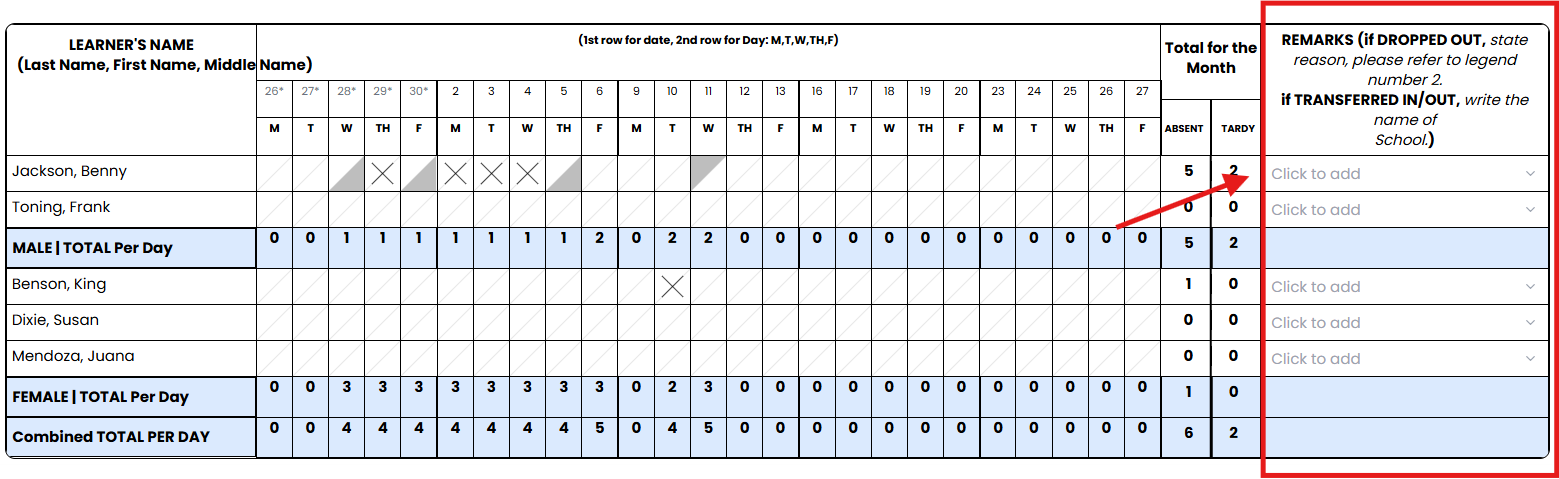
- Enter the appropriate code (such as “a.1” for domestic-related factors) or the name of the receiving school for transfers. Scroll down to view the code for the remark guidelines.
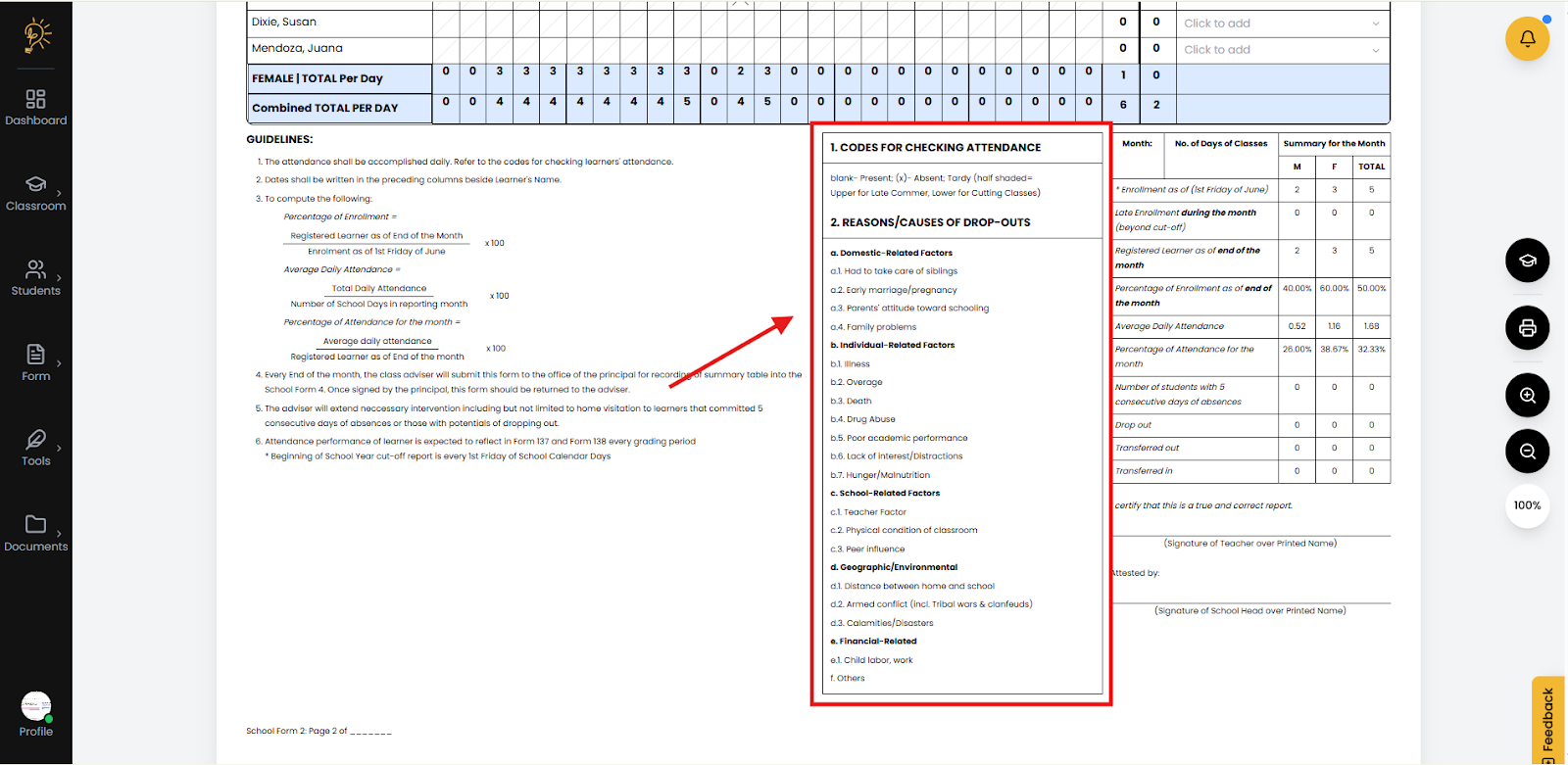
- Make sure remarks are complete for learners marked as Dropped Out or Transferred, as this is required for end-of-month reporting.
Step 5: Print and export your SF2 report
Prepare the SF2 for submission or filing with the built-in print tools.
- Select Month and Year: Use the Month and Year dropdowns at the top‑right of the form to move between periods; the date columns update automatically.
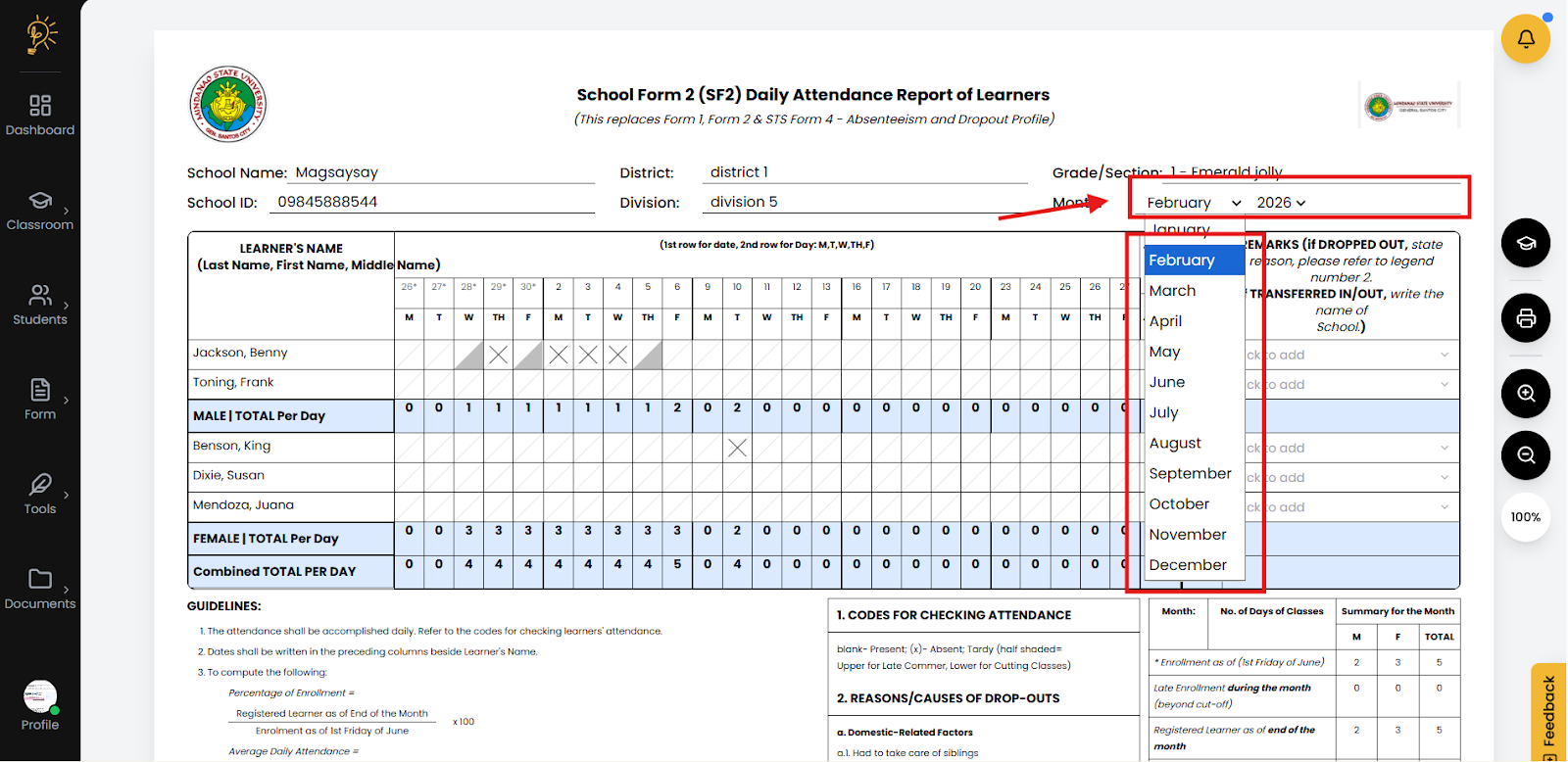
- Click the printer icon in the floating sidebar to open the print dialog.
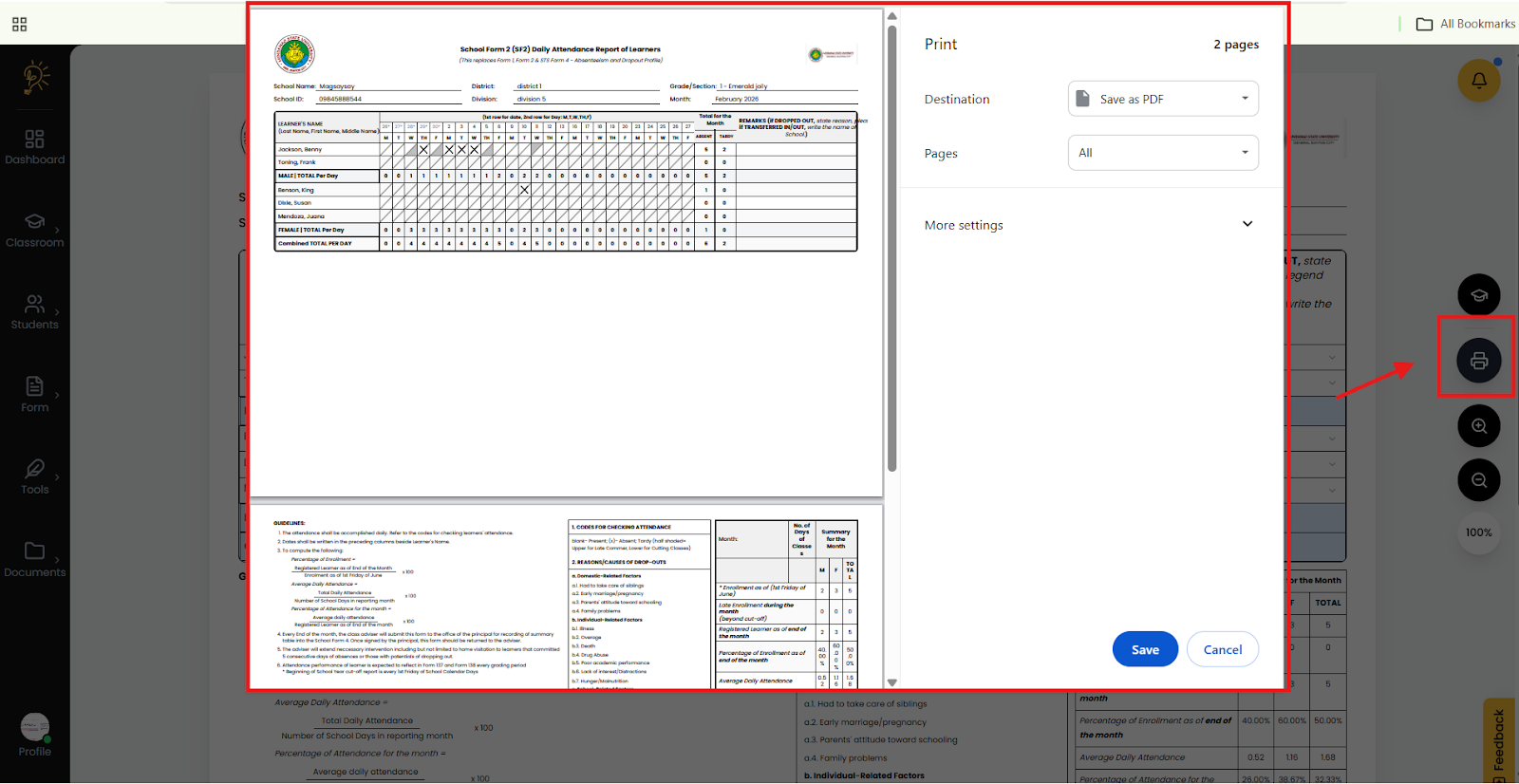
- Print in landscape layout, which includes the school logo and signature lines for the Class Adviser and School Head.
How do I read the SF2 statistics summary?
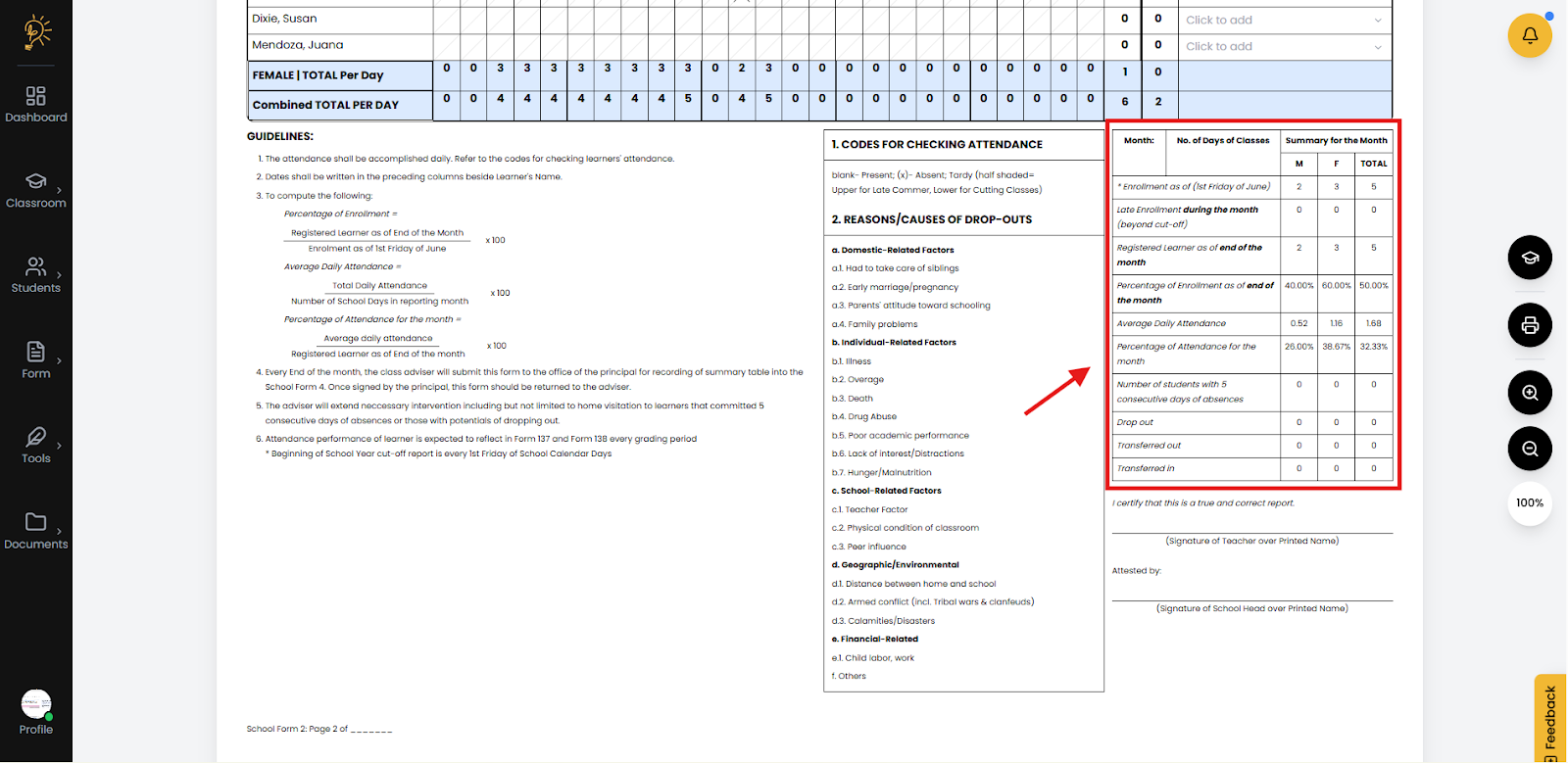
Review the summary row at the bottom of the SF2 to monitor class-level attendance trends.
- Registered Learner as of End of Month: Shows the number of active learners at month’s end.
- Average Daily Attendance (ADA): Computes the sum of daily attendance divided by the number of school days.
- Percentage of Attendance: Calculates attendance rate as (ADA / Registered Learners) × 100.
- Consecutive Absences: Flags learners with five consecutive days of absence to support early intervention, such as home visitation.
Author
Better Teaching Solutions
Making teaching easier, giving more time for our hard working teachers!