How to Use the Class Record in Better Teaching Solutions?
The BTS Class Record is a digital gradebook that helps teachers manage student scores for any class or subject. Instead of doing the math yourself, you just type in the scores and the system automatically calculates the totals and final grades using DepEd rules.
Everything updates instantly, which saves you from having to do manual calculations and helps prevent grading mistakes. By keeping all the information in one place, it ensures that your records stay consistent across all your official school reports and forms.
Core Features:
- Automatic Grade Computation – Instantly calculates Initial and Quarterly Grades as scores are entered.
- DepEd-Compliant Structure – Uses the standard 30% Written Works, 50% Performance Tasks, and 20% Quarterly Assessment by default.
- Customizable Grade Weights – Adjust grading percentages based on school policy.
- Smart Validation – Prevents entering scores higher than the total items.
- Auto-Save with Sync – Saves entries automatically and syncs when connected.
- Real-Time Transmutation – Converts raw scores into final grades automatically.
- Quarter Selection – Switches seamlessly between Q1, Q2, Q3, and Q4.
Where to Access your Class Record?
Here is the steps in accessing your class record using the side panel
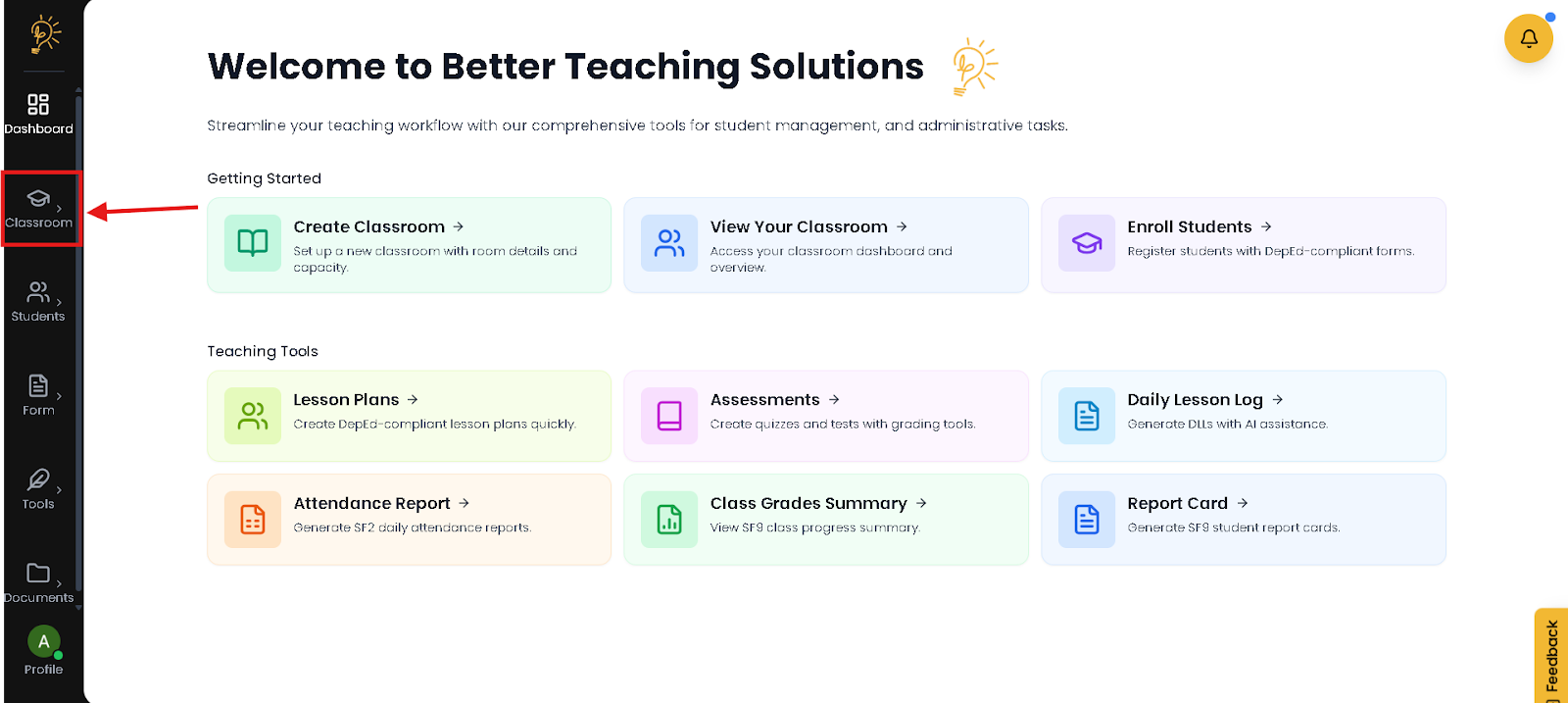
- Open the Side Panel and Click Classroom to expand the menu.
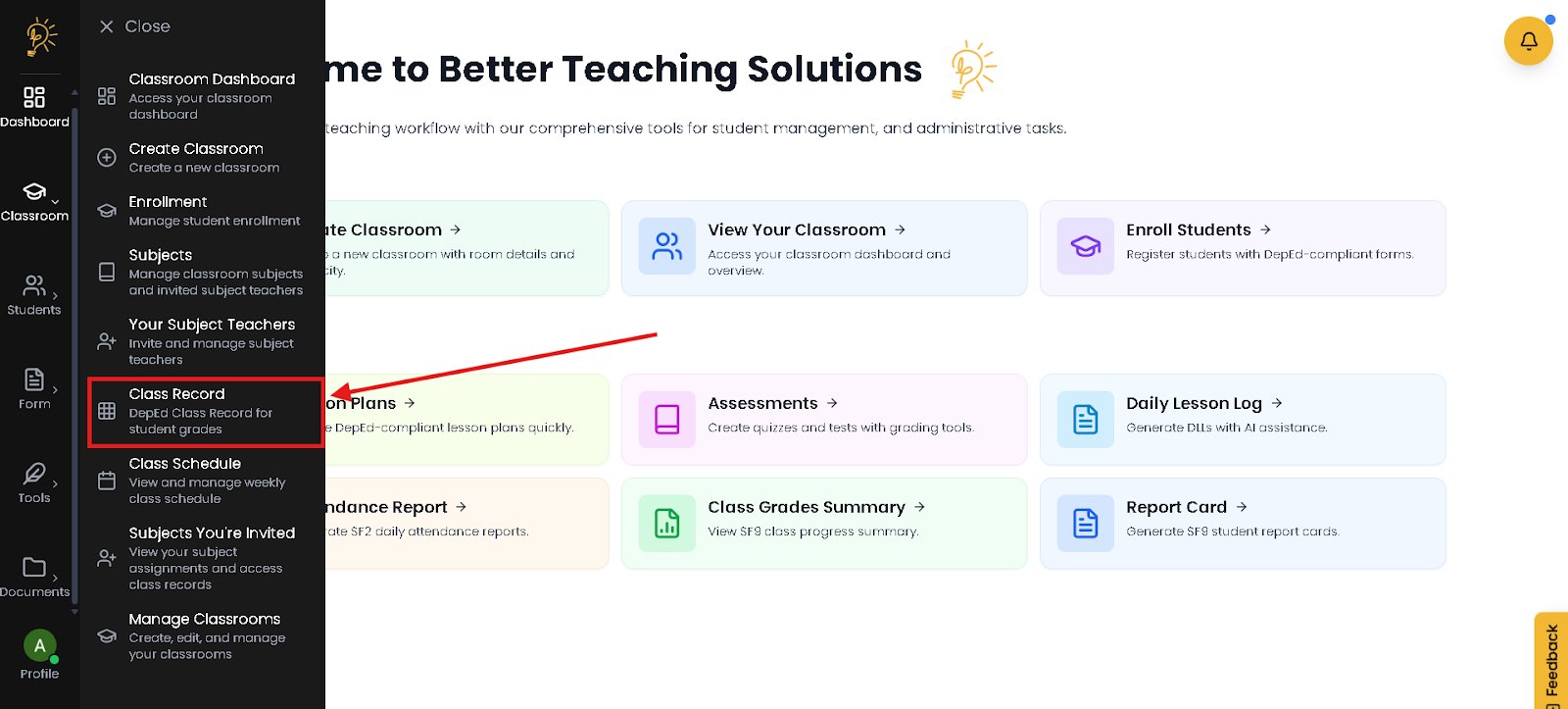
- Select Class Record.
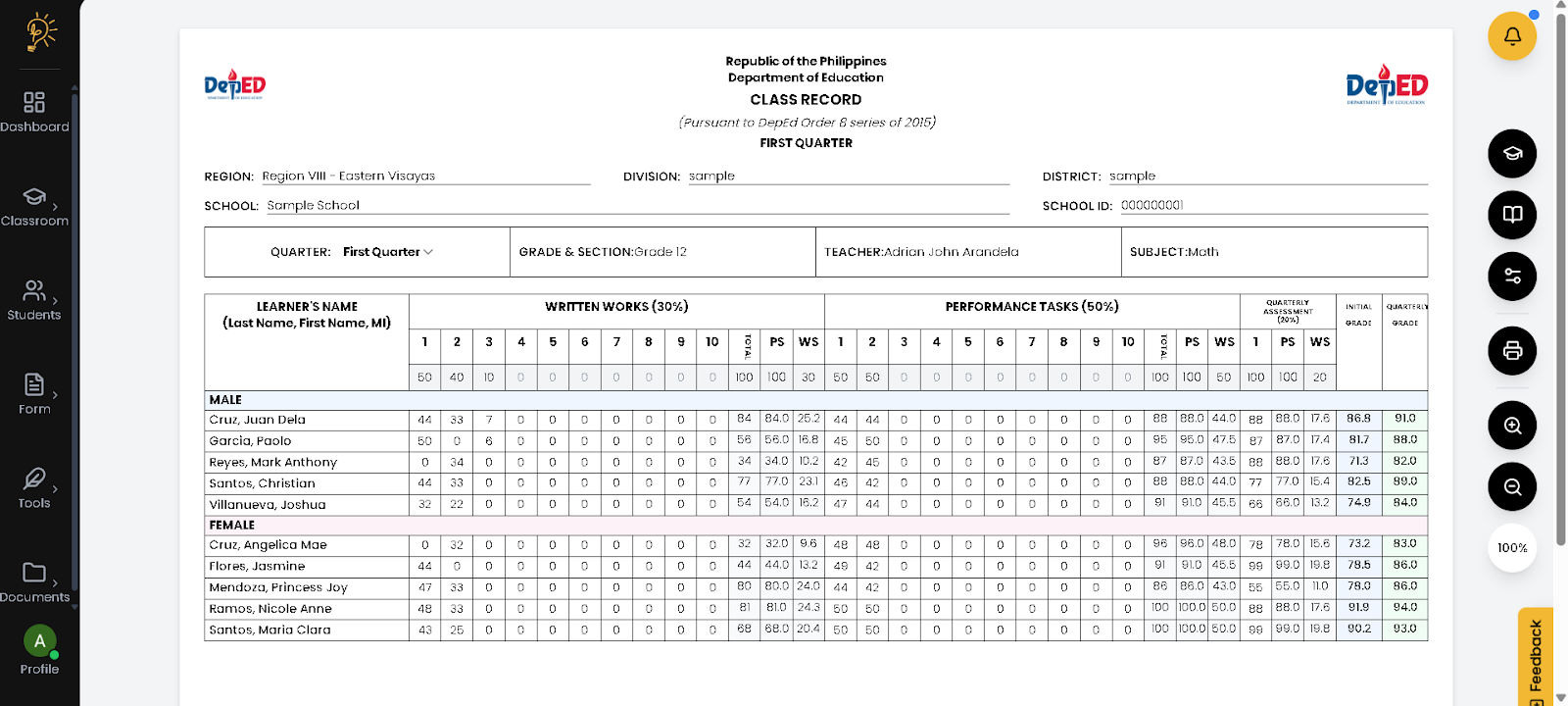
- This will be your workplace for your Class Record
Setting Up Your Class Record
Before encoding grades, make sure you are working in the correct context.
- Click Switch Classroom from the right-side panel and select the appropriate class.
- Click Select Subject to load the correct grading sheet.
- Choose the correct Quarter from the dropdown menu.
- Once these are confirmed, your Class Record is ready for grade entry.
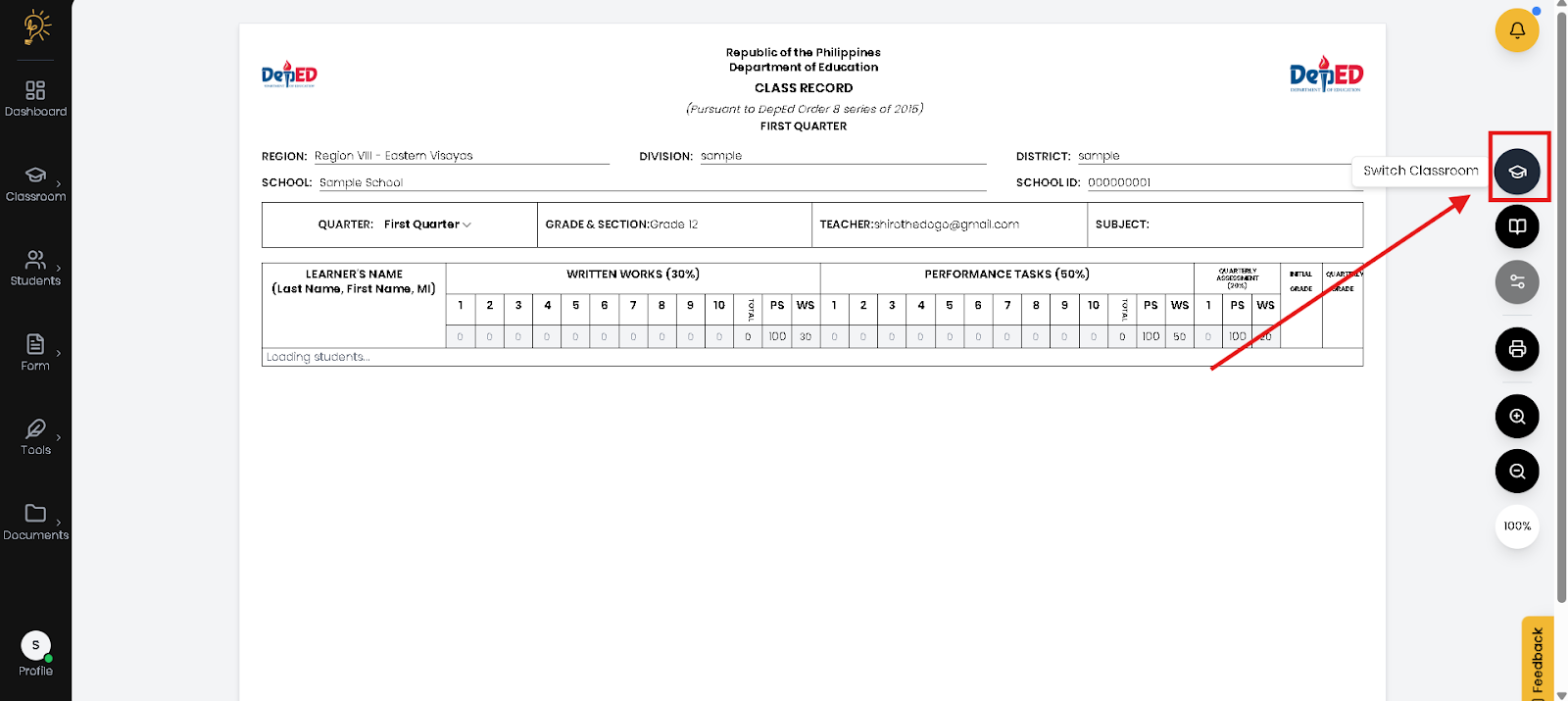
- Click Switch Classroom from the right-side panel.
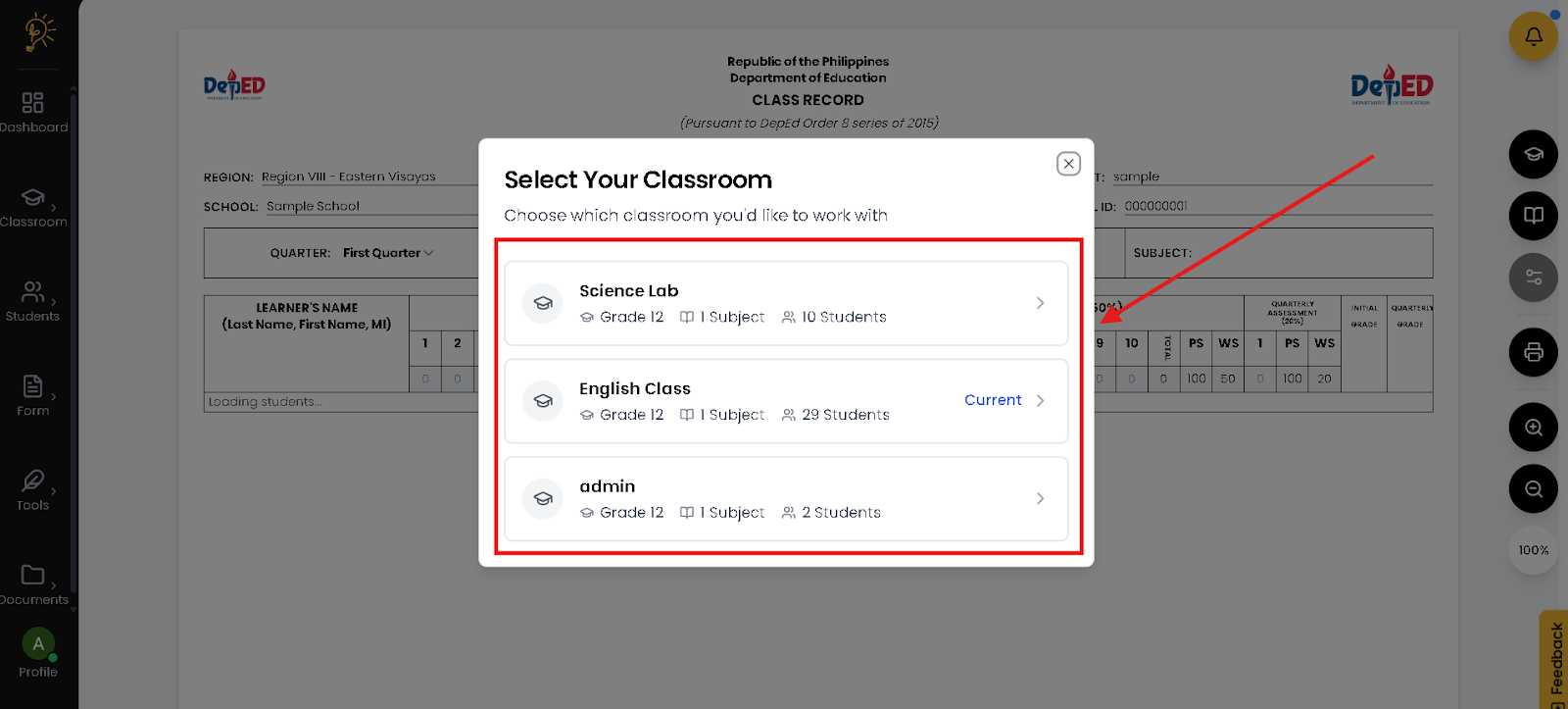
- Select the correct classroom to ensure grades are recorded in the proper section.
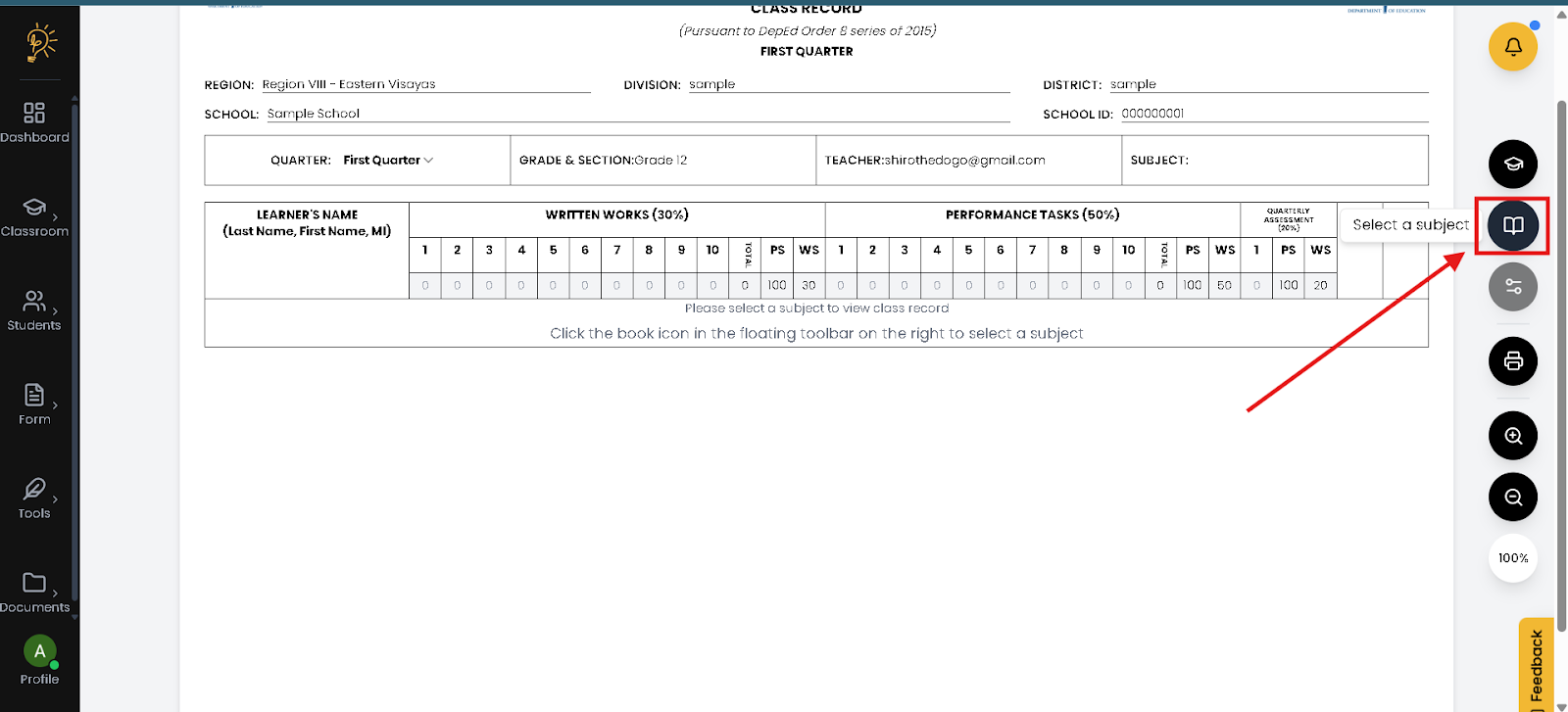
- After selecting your classroom, click the Select a Subject.
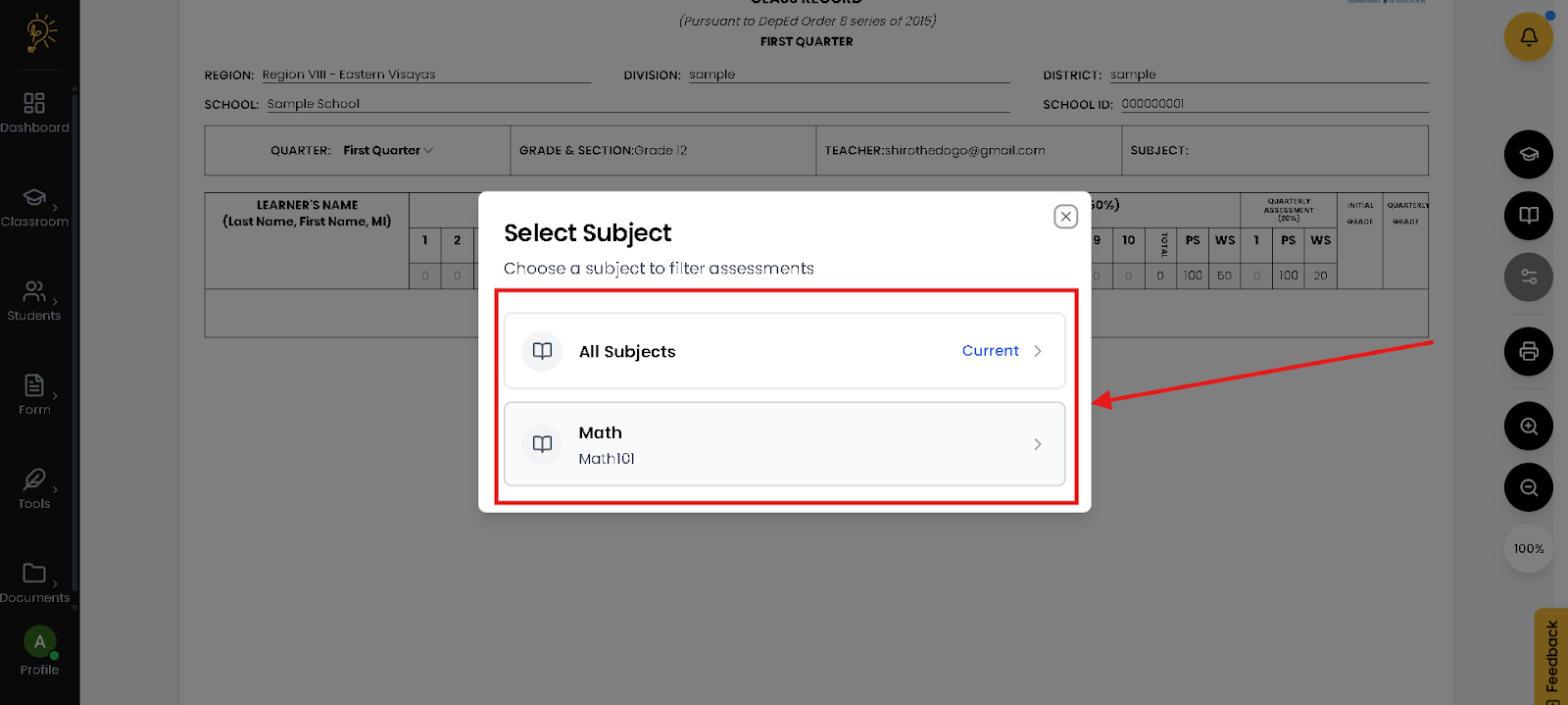
- It will appear in the list of subjects you handle. Select a specific to load the appropriate grading sheet for that class.
Your Class Record Is Now Ready!
When you open the Class Record, you can immediately start entering and managing student scores for the selected class, subject, and grading period. As you input scores, the system automatically applies the correct grading components and updates the results in real time.
You no longer need to compute grades manually or check multiple files. Everything stays organized in one place, helping you save time, reduce errors, and maintain accurate records throughout the school year.
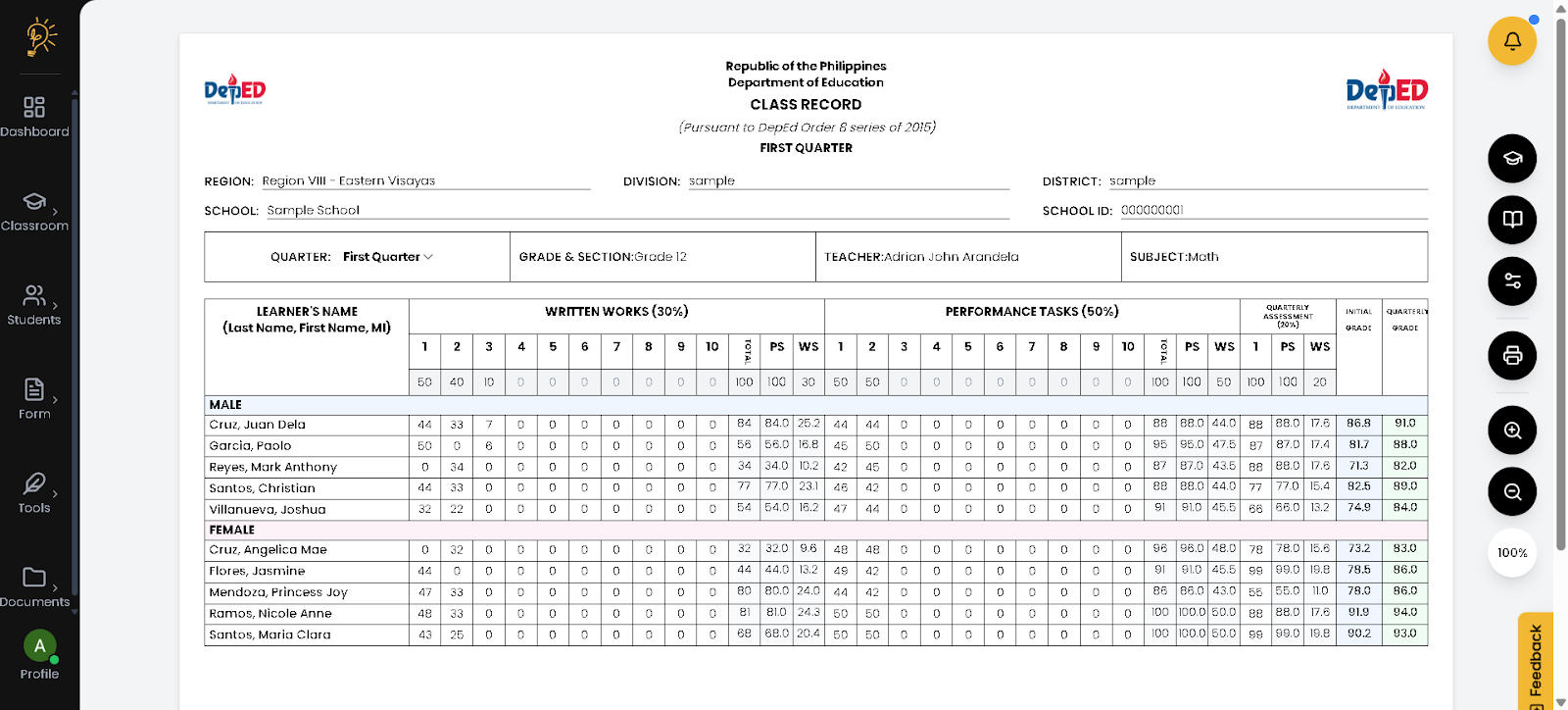
- This will be the Set up for your Class Record
How does the Class Record in Better Teaching Solutions work?
Using the on-screen buttons to switch classrooms and switch subjects, the class record updates instantly with the correct students and grading sheet. You can Configure grade weights, zoom in or out for easier viewing, and click Ready to Print to generate a DepEd-formatted class record—all without leaving the page.
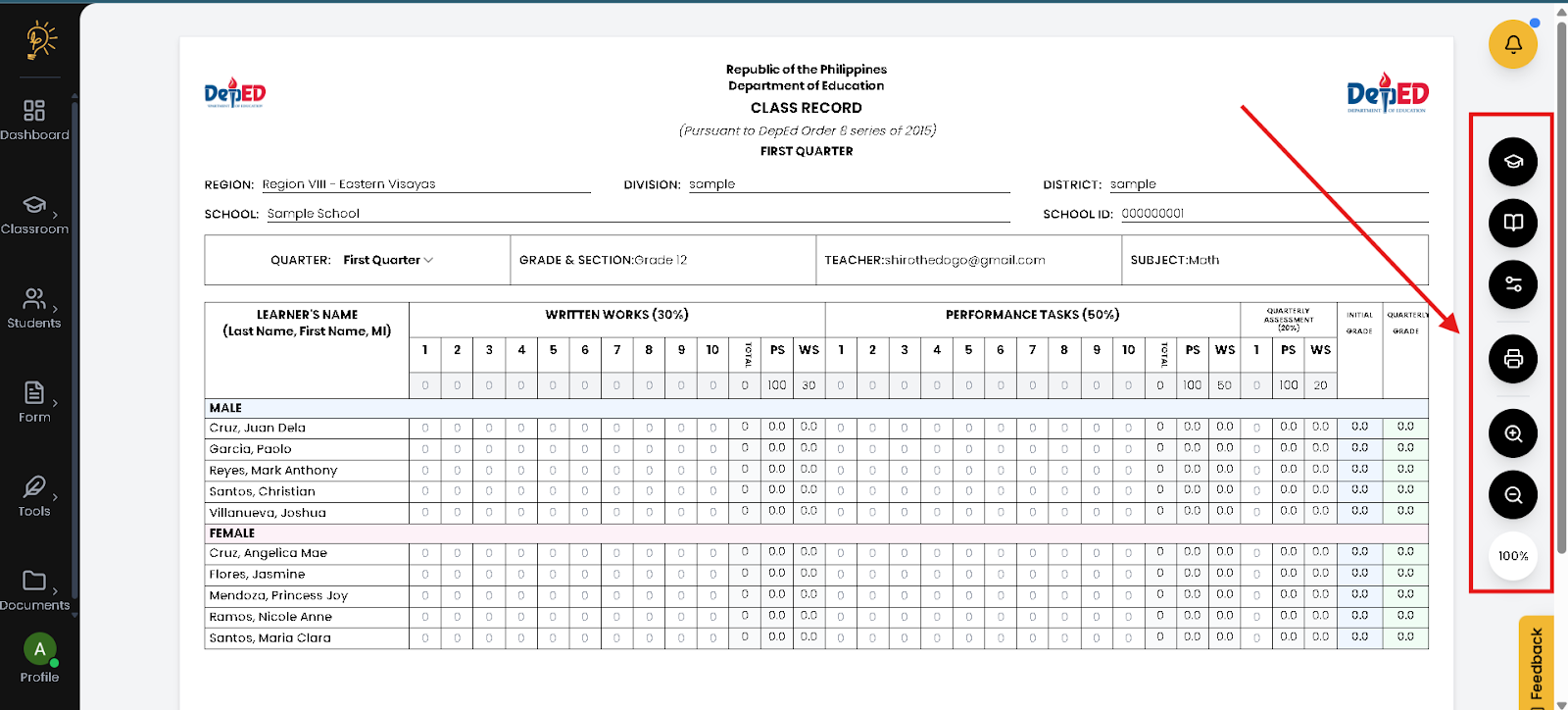
Configuring Grade Weights
From the Class Record screen, click Configure Grade Weight to open the grading setup. Adjust the percentage values for each grading component according to your school’s policy, then save your changes. The class record will automatically recalculate all grades using the updated weights.
Things to Check:
- Review and confirm the grading components and their percentage weights before encoding scores
- Update grade weights if required by your school’s grading policy
- Recheck computed grades after saving to ensure accuracy
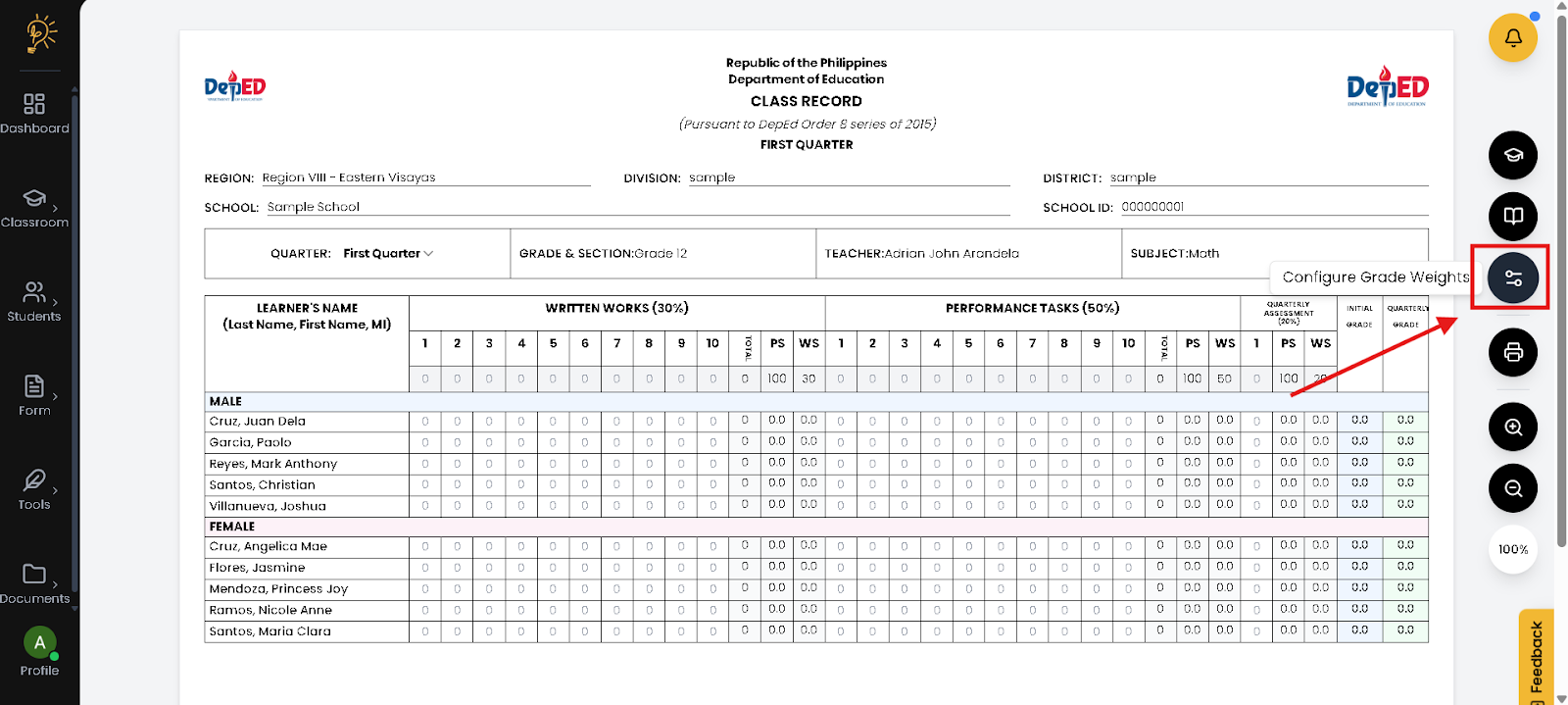
- Clicking this button
 , it will open the grade weight configuration panel.
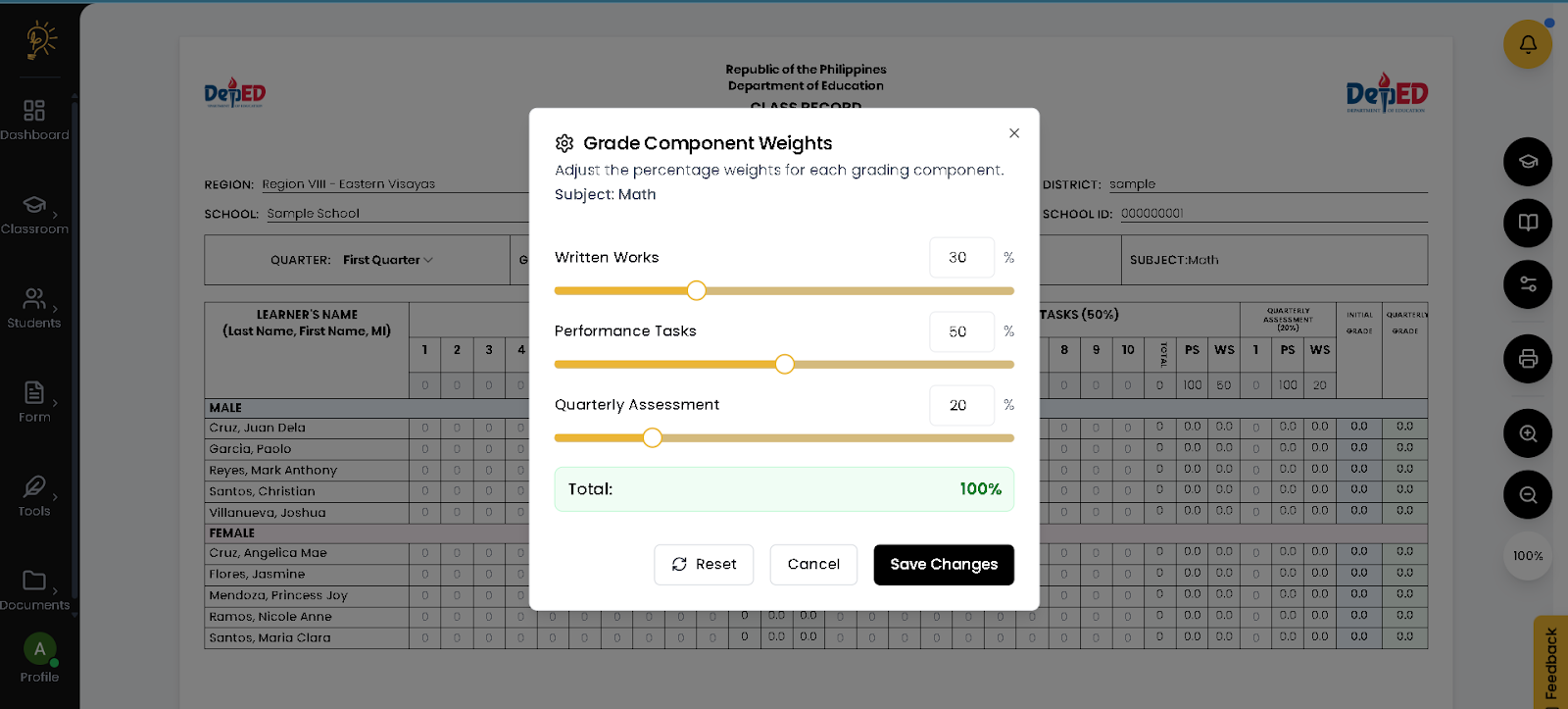
- It shows the default 30%–50%–20% grading setup, and the total must always equal 100%, so adjust the sliders carefully to ensure correct grade computation.
Important Notes
- The total grading weight must always equal 100%.
- Use the default 30–50–20 structure unless your school requires otherwise.
- Click Reset to restore default values.
- Always review computed grades after saving changes.
Entering Student Scores
When you enter student scores in this field, the system automatically computes the grades based on your selected classroom, subject, and grading setup. Once everything is properly configured, you can simply input the scores and the calculations happen in real time. You don’t need to compute anything manually—your grades are generated accurately and aligned with DepEd standards.
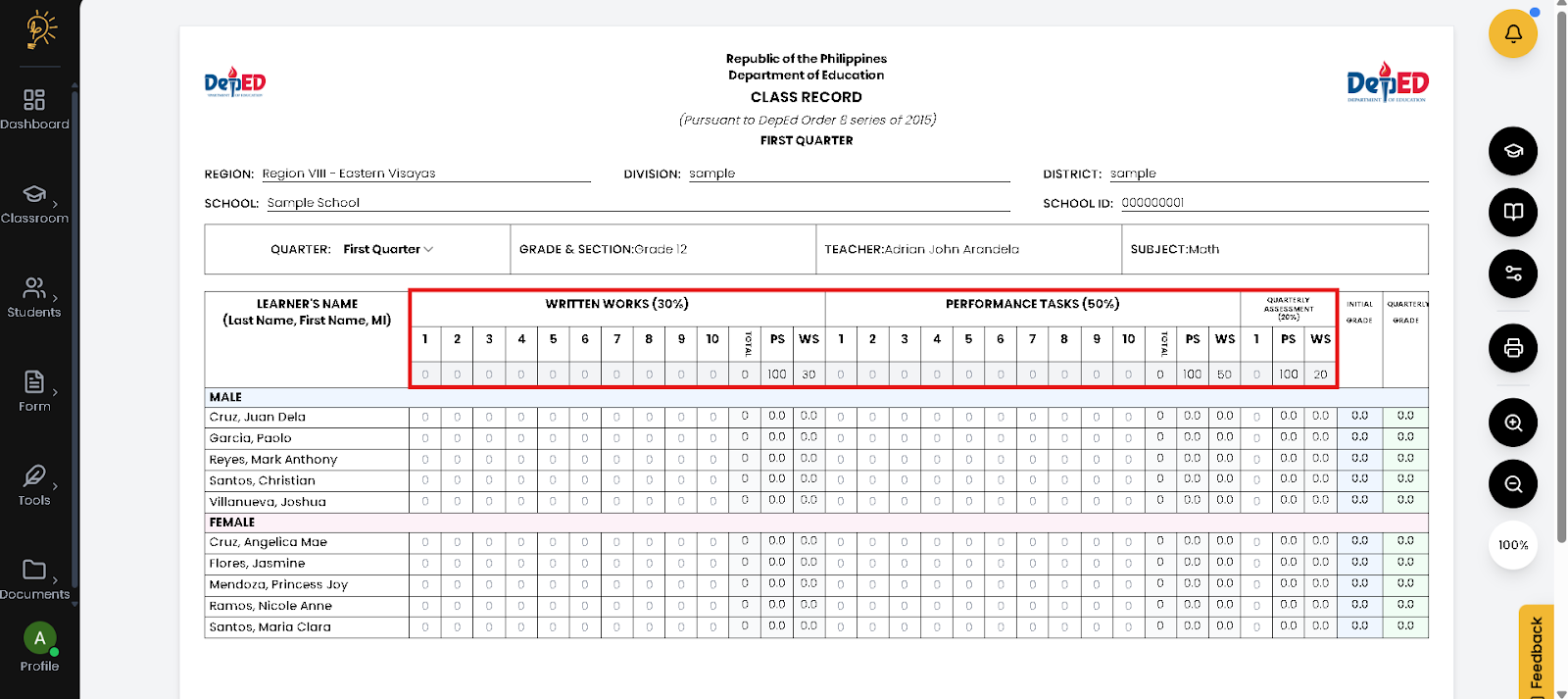 Before entering student scores, make sure the assessment columns at the top are properly set up, just like in a traditional class record, because these columns serve as the basis for computing all grades.
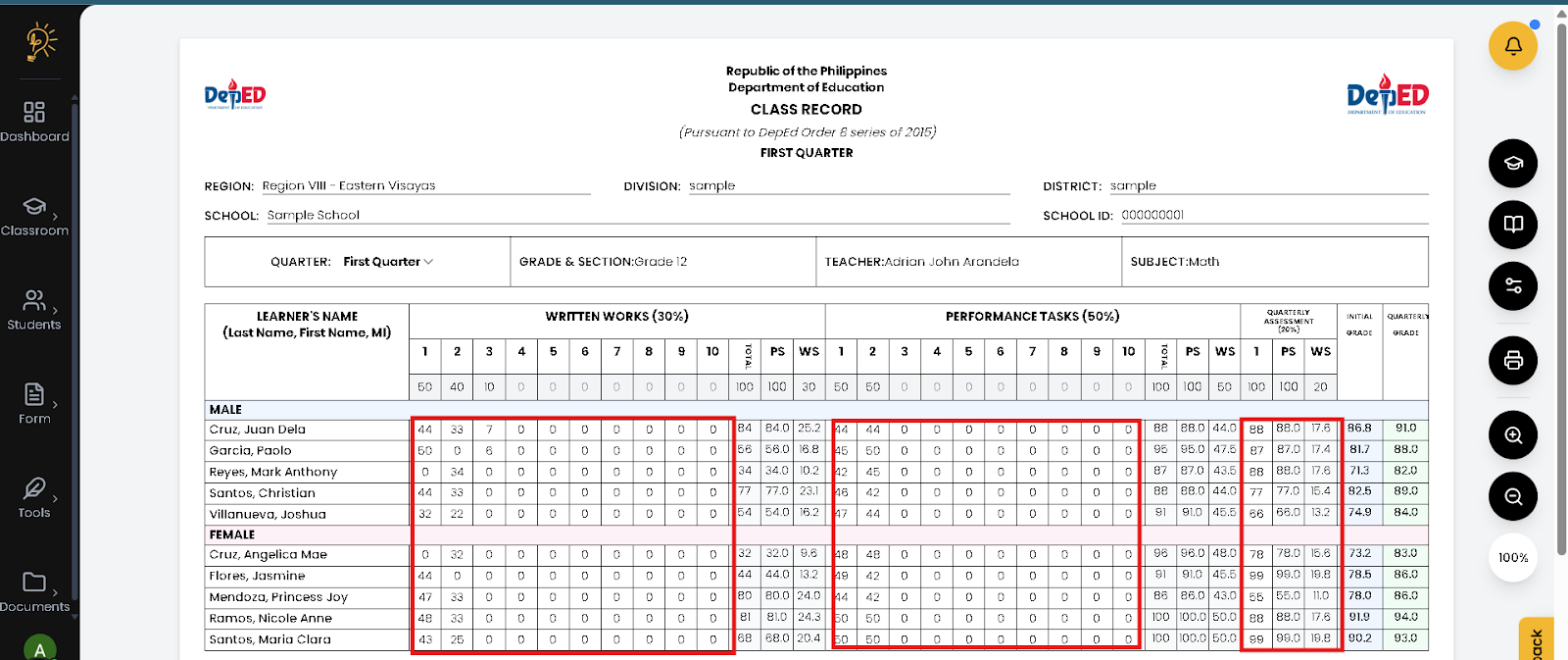
Enter student scores only after the assessment columns are properly set up, as these values are used by the system to automatically compute totals, weighted scores, and final grades—just like in a traditional class record.
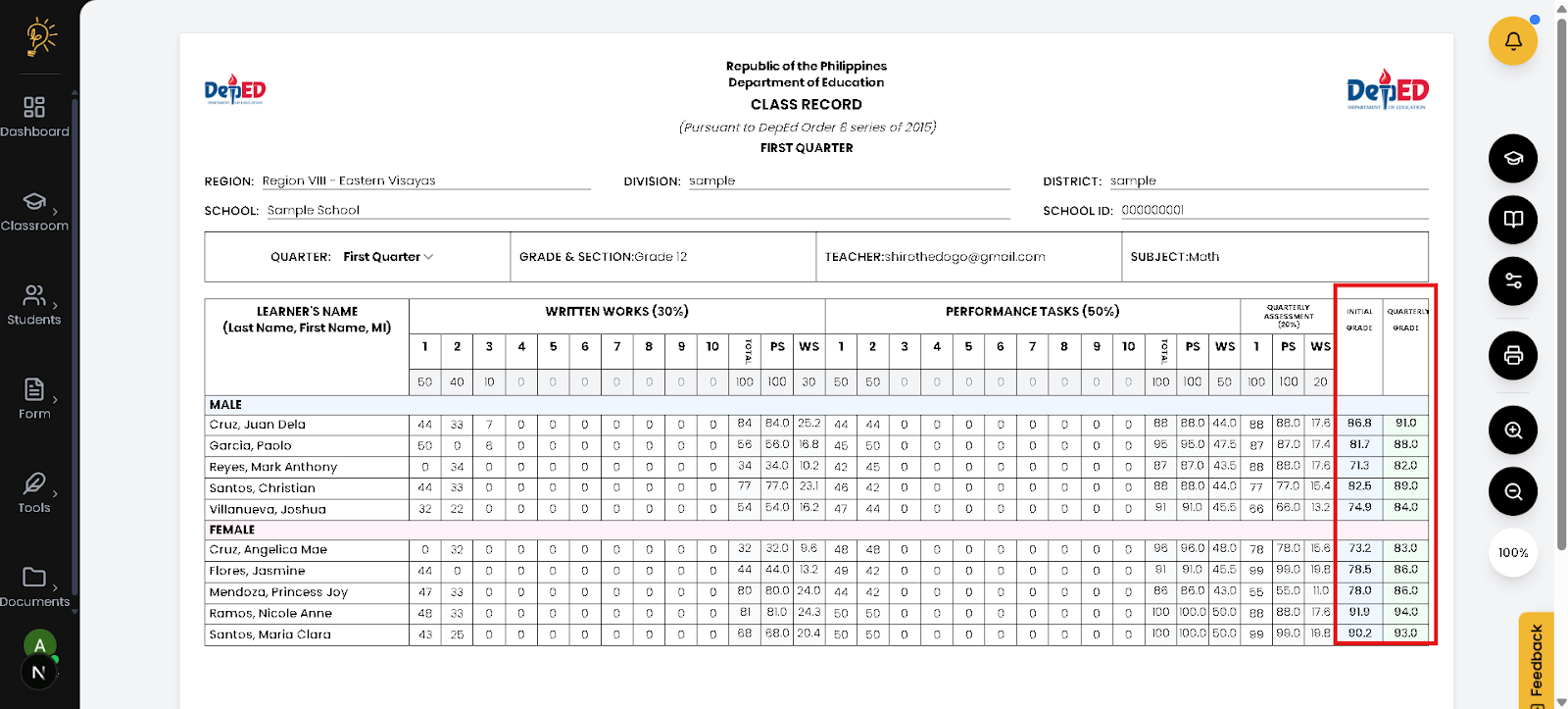
The Initial Grade and Quarterly Grade columns on the right are automatically computed by the system based on the encoded scores and grade weights, so no manual calculation is required.
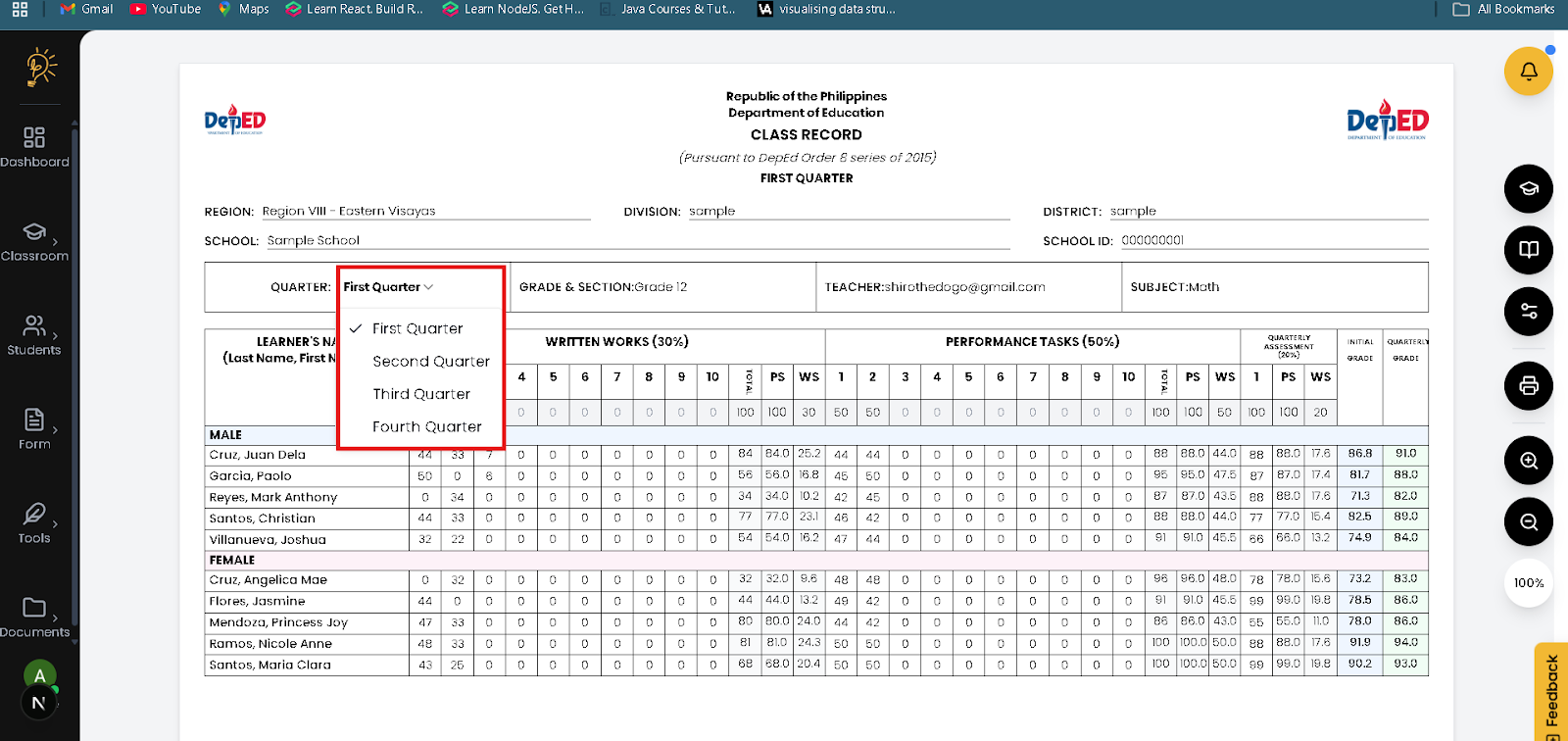
Use the Quarter dropdown to switch between grading periods, and the system will automatically display and compute grades based on the selected quarter.
How to Print Your Class Record
Use the Print feature to generate a clean, properly formatted version of your Class Record that removes menus and buttons, making it ready for submission or hard copy printing.
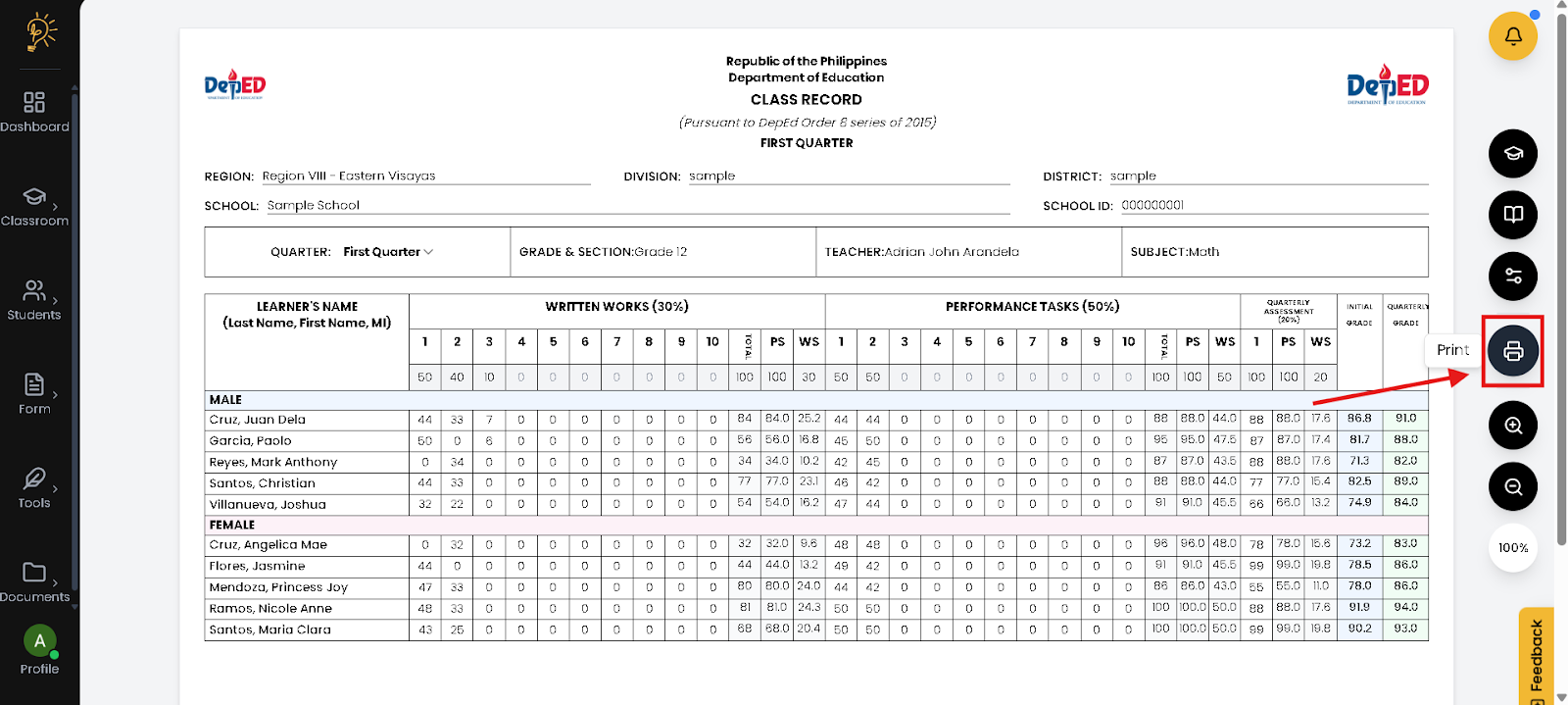
- Click the Print button on your side panel
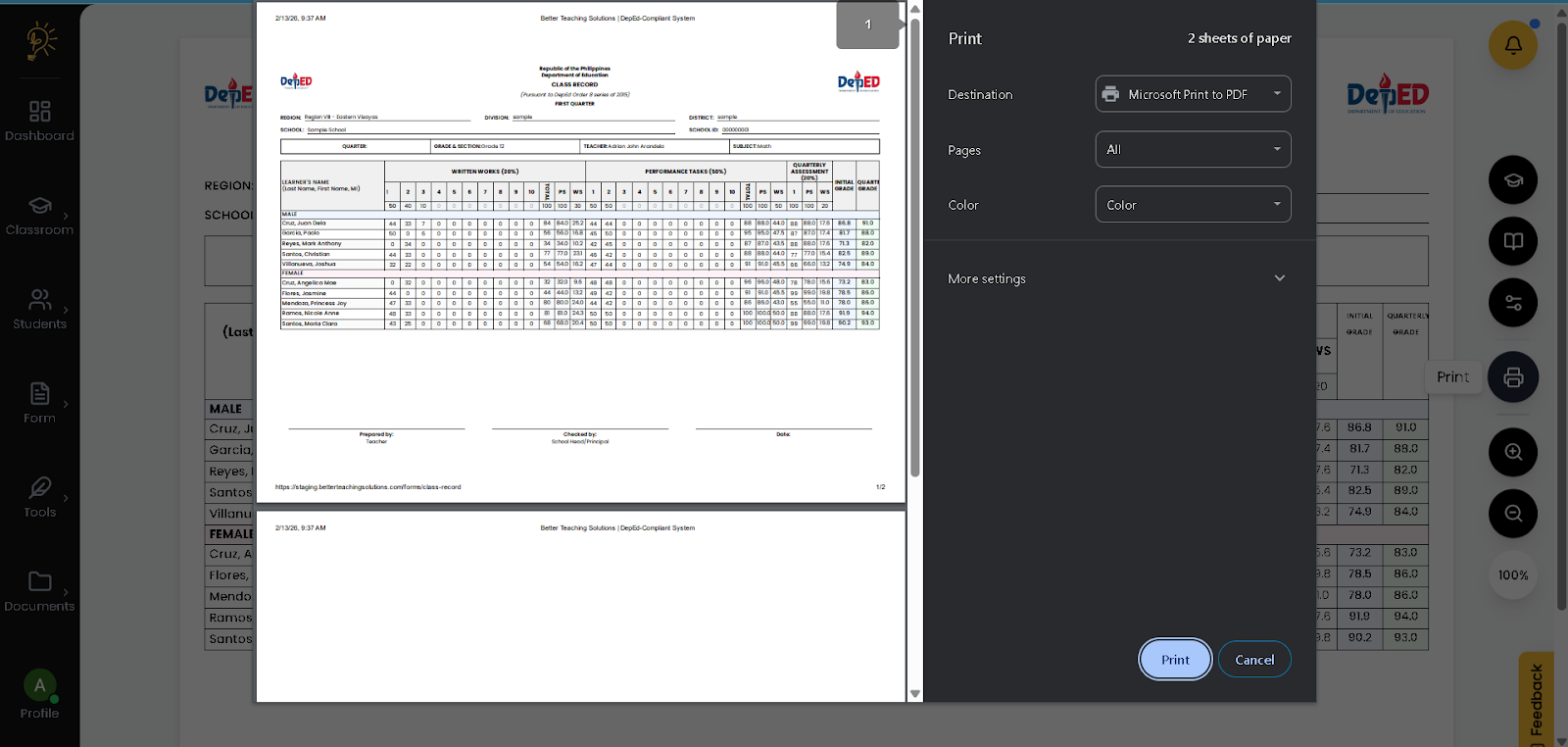
- Double Check and Review your Class Record
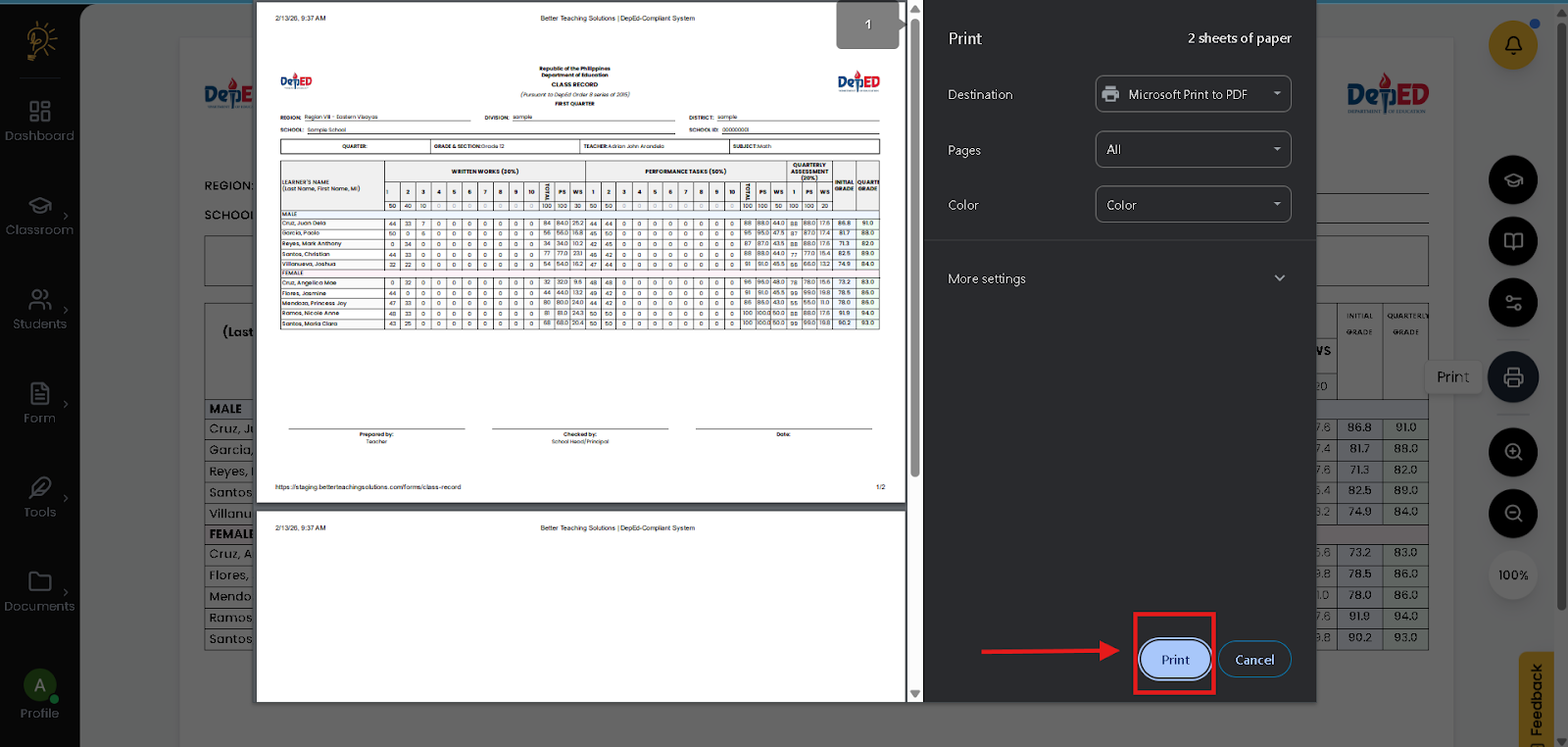
- Click “Print” to start printing
Author
Better Teaching Solutions
Making teaching easier, giving more time for our hard working teachers!