How to manage DepEd classrooms faster in Better Teaching Solutions?
Core features
Classroom creation in BTS
- Logical container for students, subjects, and class records across a school year
- Standardized structure based on DepEd grade levels (Homeroom vs. Departmentalized)
- Easily manage and update classroom information.
- Resource and modality tracking (room, capacity, Blended, Face-to-Face, etc.)
Classroom Dashboard
- Daily Schedule to view your subjects to ensure immediate confirmation of classes without external planners.
- Automated Class Leaderboard the Real-time ranking of students based on General Averages that update instantly as you input grades into the Class Record.
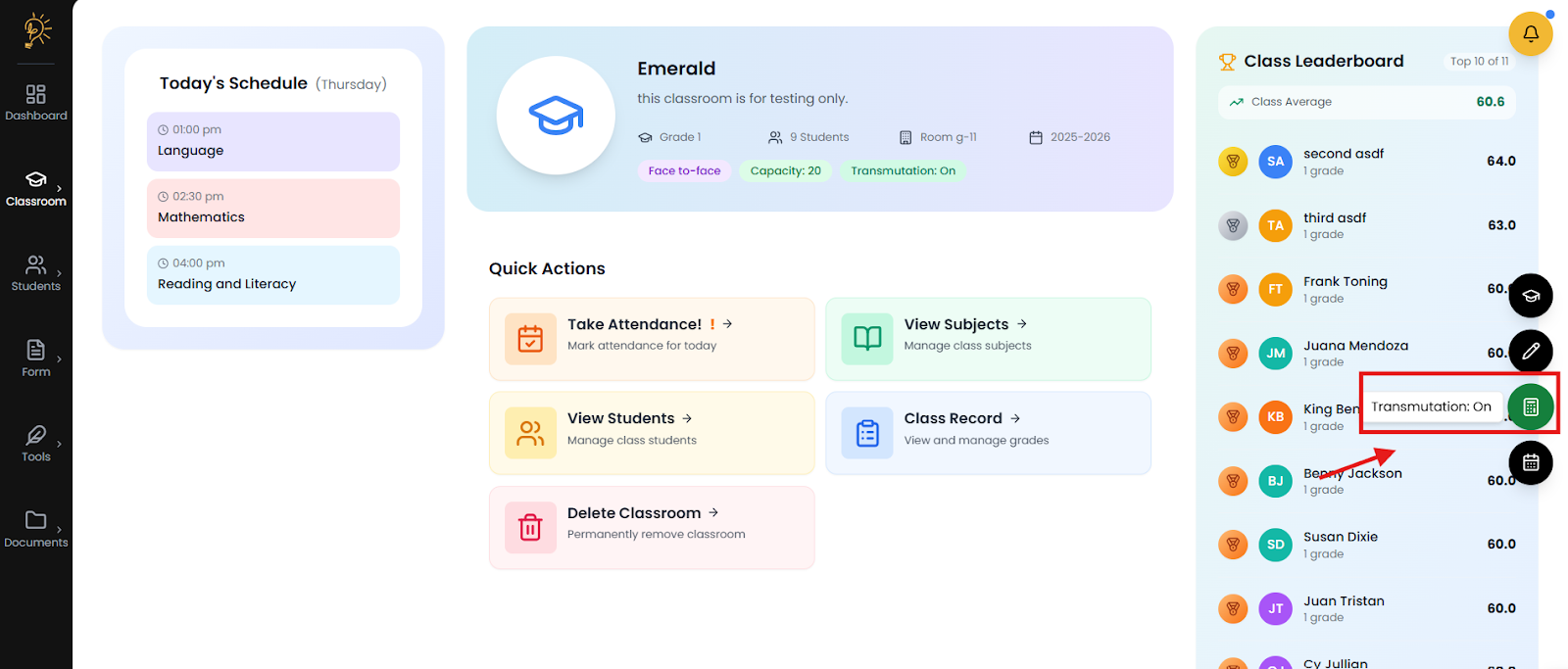
- Grade Transmutation Control manages raw score conversion and automatically updates all grade computations across the class record and leaderboard whenever it is adjusted.
Step 1: Confirm you can create a classroom
Set your school information to enable classroom creation, which is restricted to one instance for Free tier accounts.
- After login in you will see the profile icon at the bottom left of your screen to access user information.
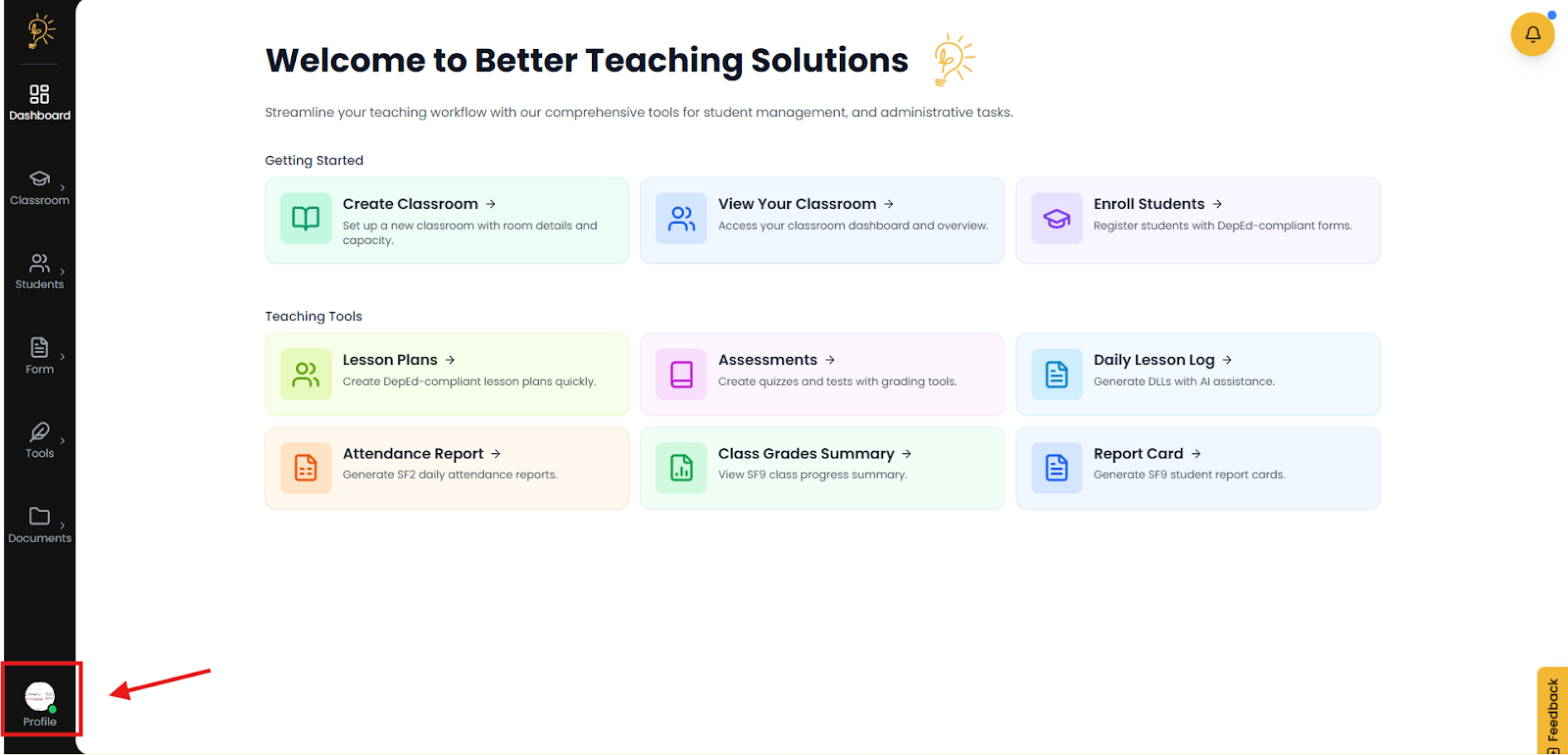
- Select it and go to My Profile option, there you can click School Info to fill out the form and you can also fill out the user information.
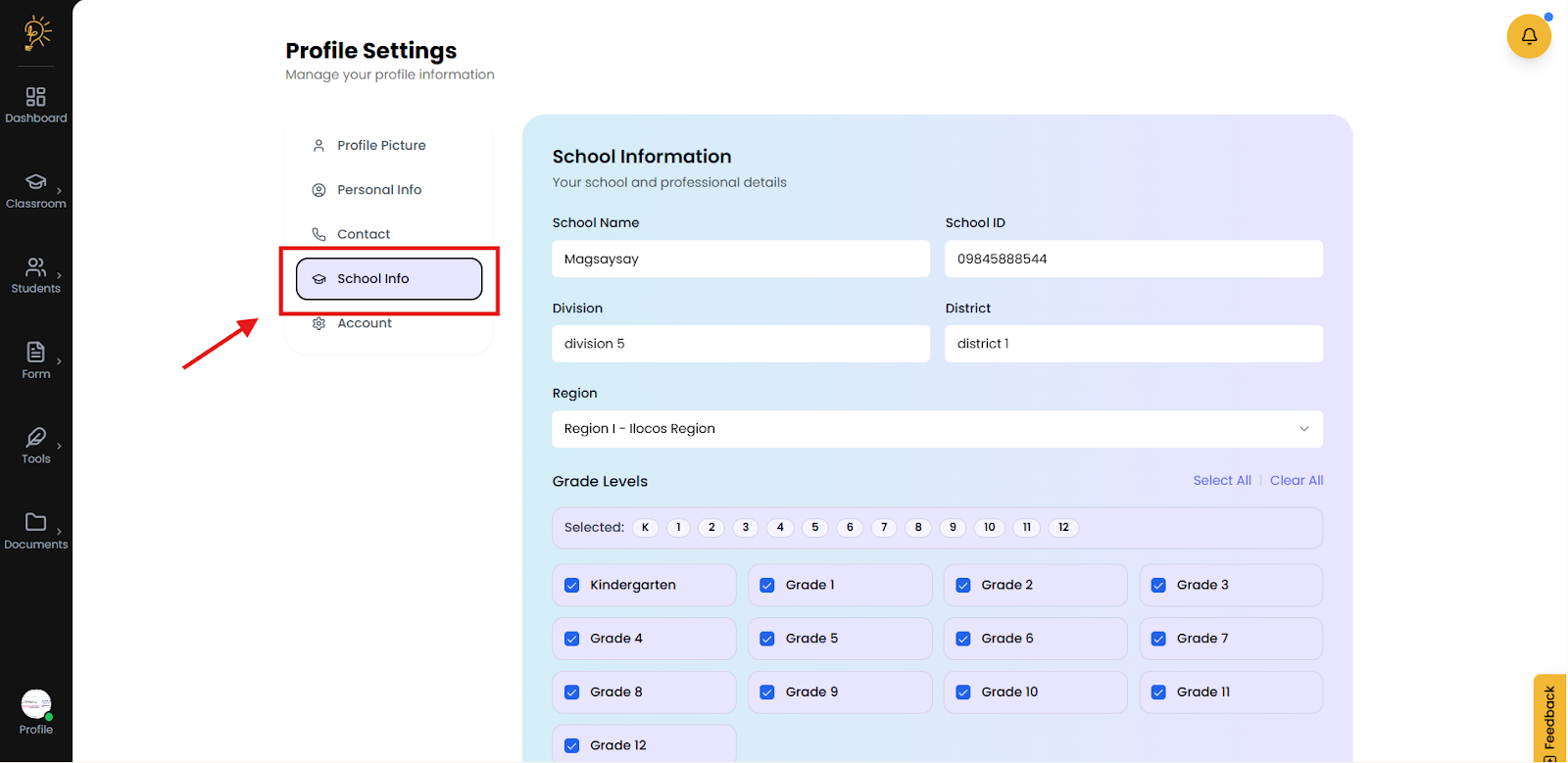
- Check if you have completed filling out the School Information then scroll down and click Save Changes and you are ready to create a classroom.
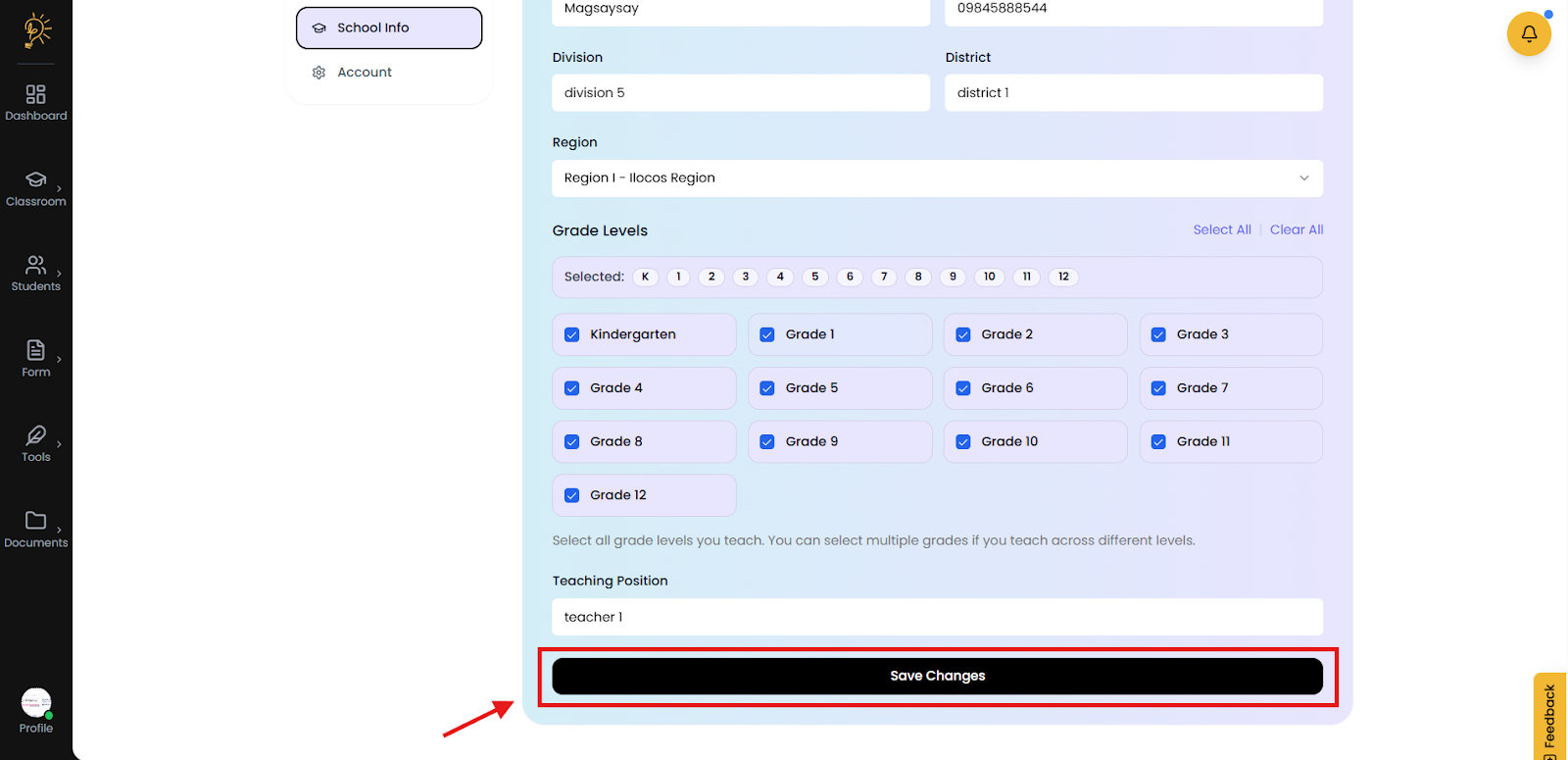
- Note: The system prevents new classroom creation requests if you have already reached your classroom limit and will return an error when the limit is exceeded. You can upgrade your plan to allow more classrooms.
Step 2: Creating a Classroom
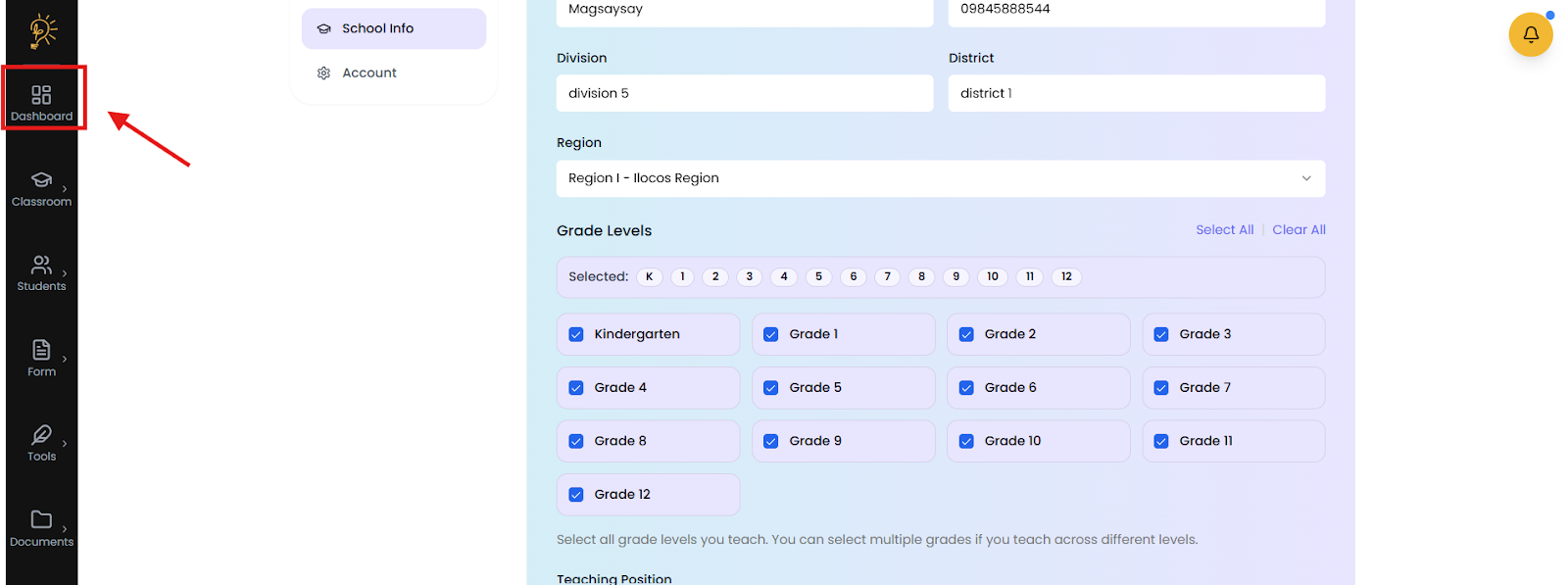
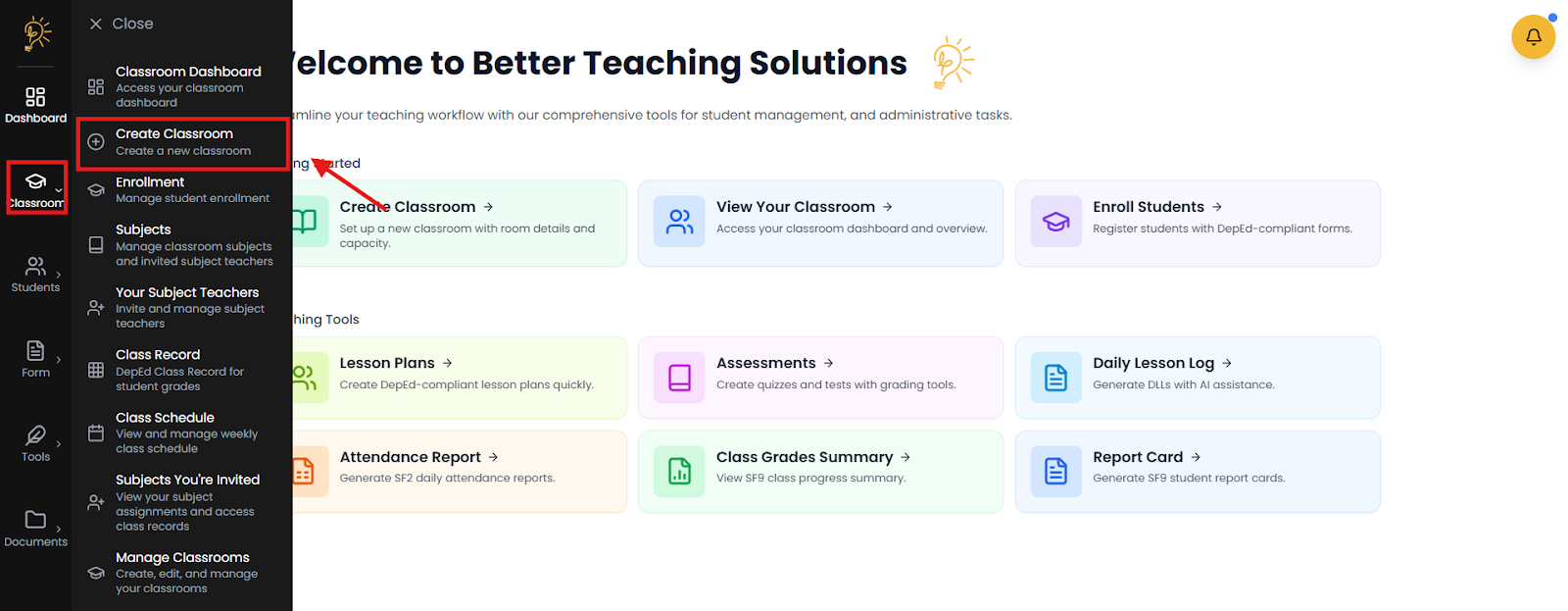
Navigate the Classroom Creation option by going to the Dashboard or from the Classroom icon.
- From the same page you can go to the Dashboard icon and select Create Classroom top left of the screen.
- Or Select the Classroom icon then options will pop up select the second option Create Classroom.
Step 3: Filling Out the Classroom Information
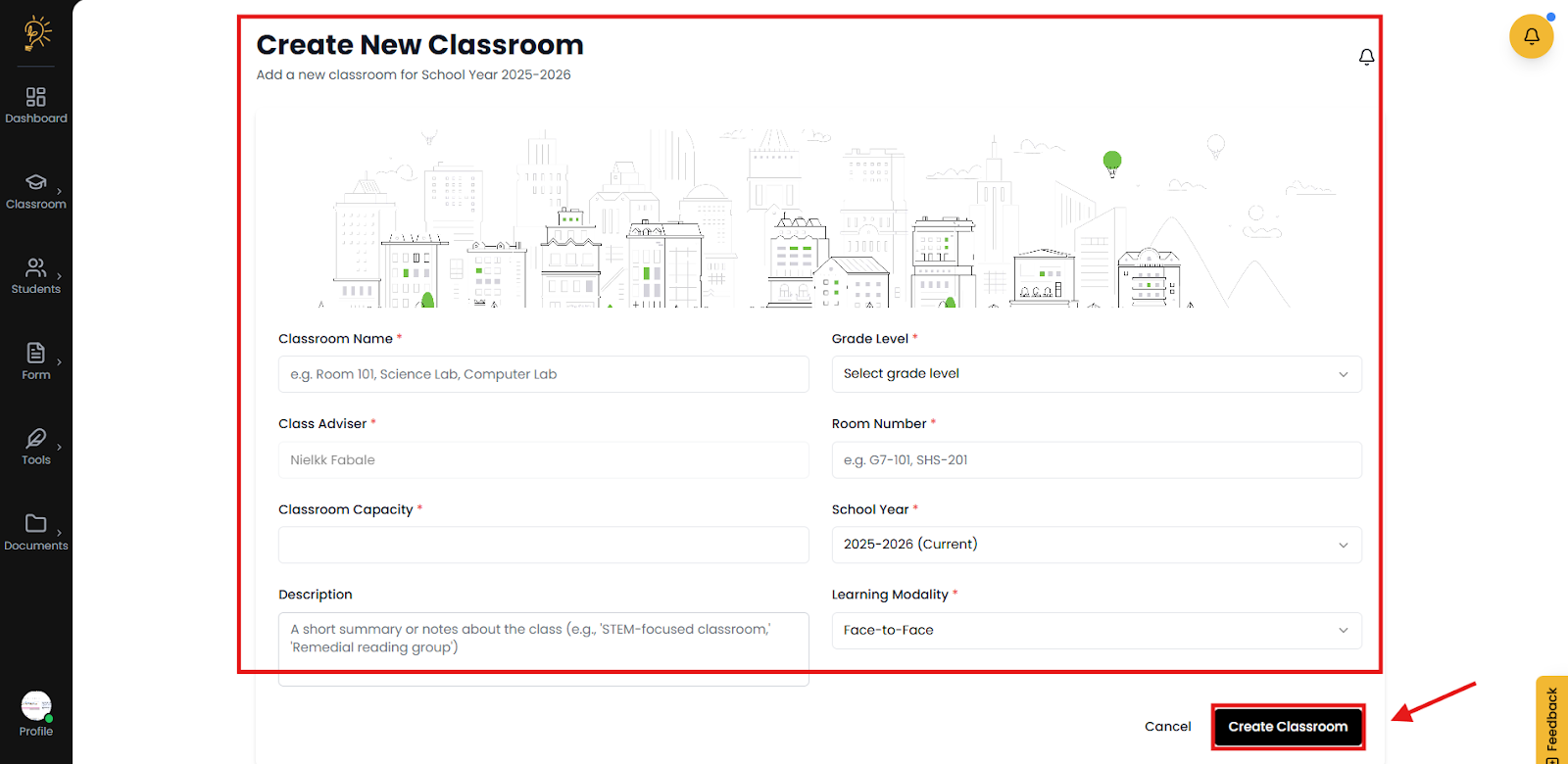
Use the instructional identity fields to name and classify the classroom clearly.
- Collect the classroom Name, Section, Grade Level (K–12) and etc. then click create classroom. Ensure naming is consistent for reporting and search.
Step 4: Navigate Your Way to the Classroom Dashboard
After you finish setting up your classroom—adding students, class subjects, school records, attendance, and class schedules—the Classroom Dashboard becomes your central hub for that class. It shows students, subjects, schedules, attendance, and grades in one view, with every action affecting only that classroom.
- Select the Classroom Icon and then the option Classroom Dashboard.
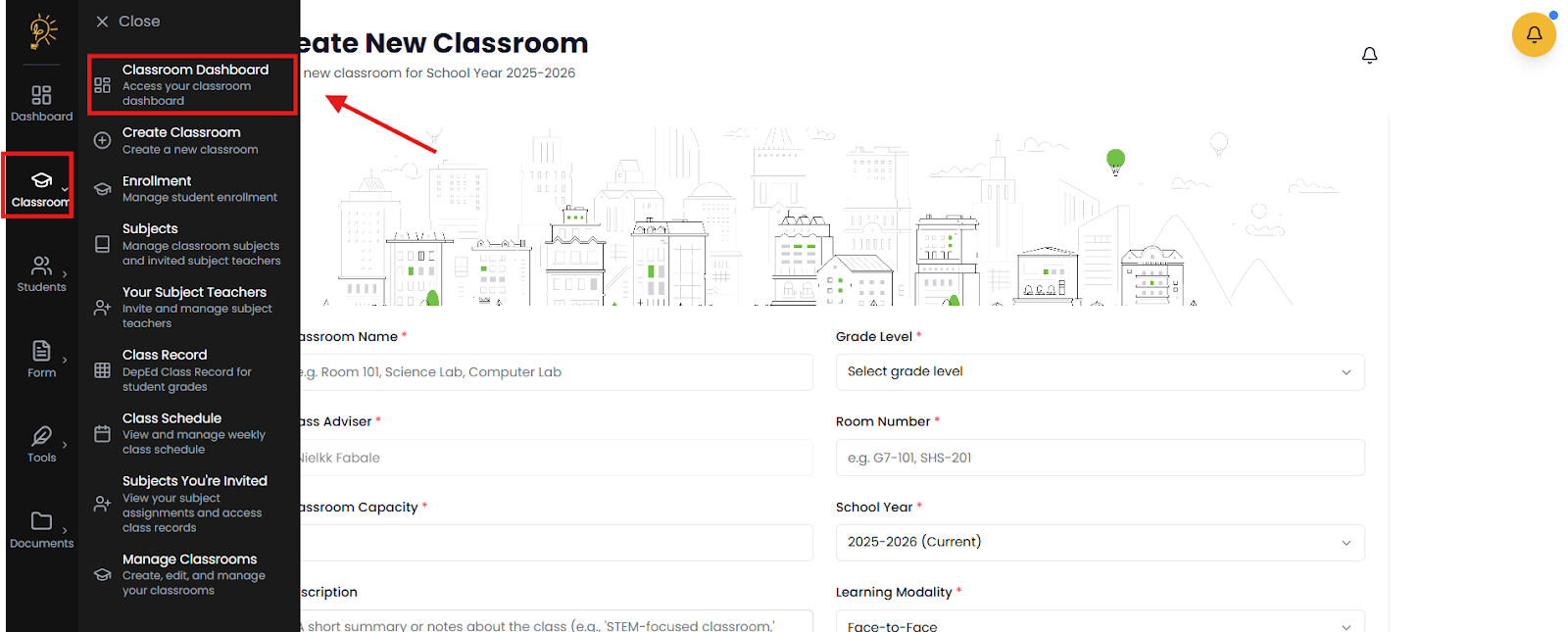
- When you open a classroom, you work inside a focused space for that specific class only. All students, subjects, attendance, and grades are shown in one place, and every update you make applies only to that classroom—no mixing across sections or school years.
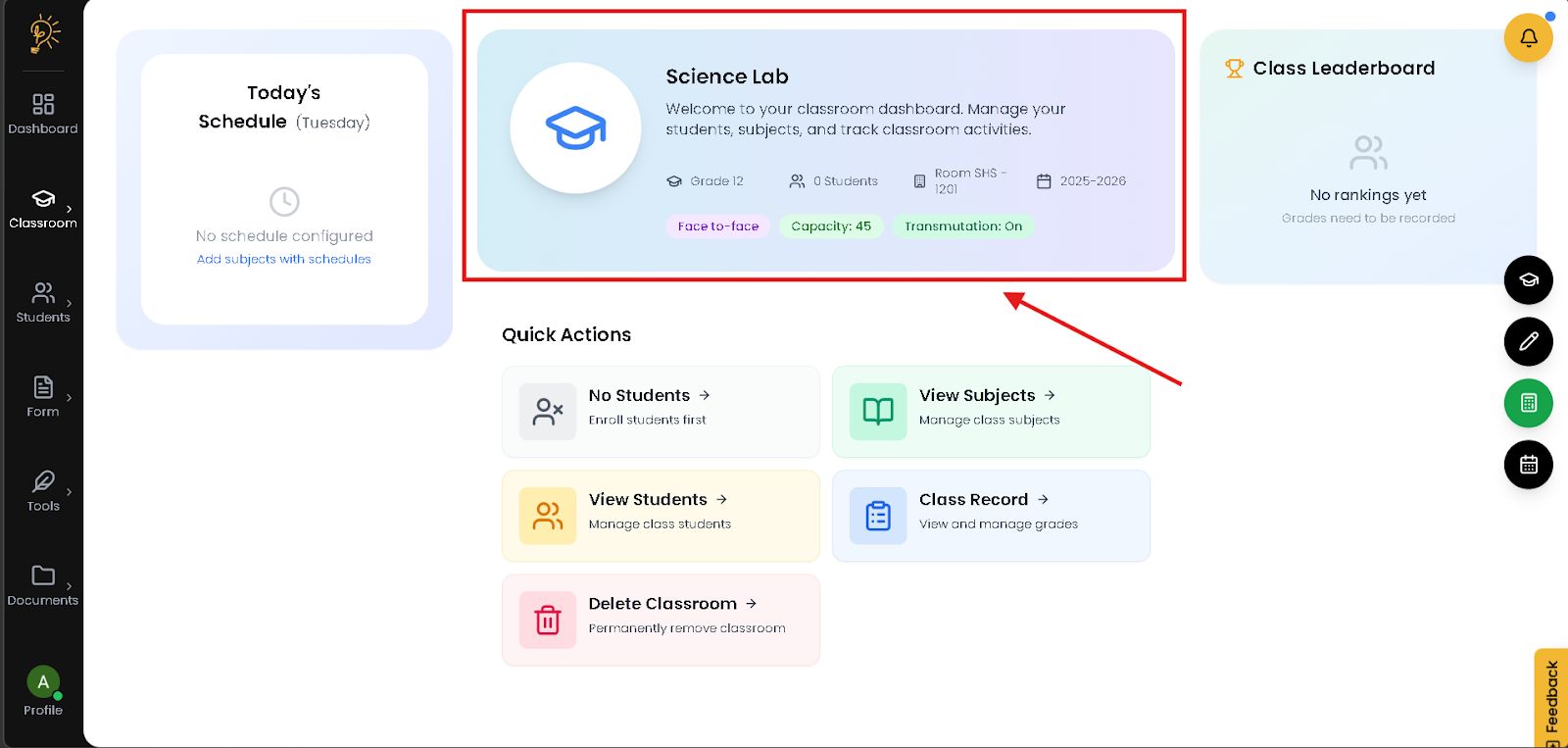
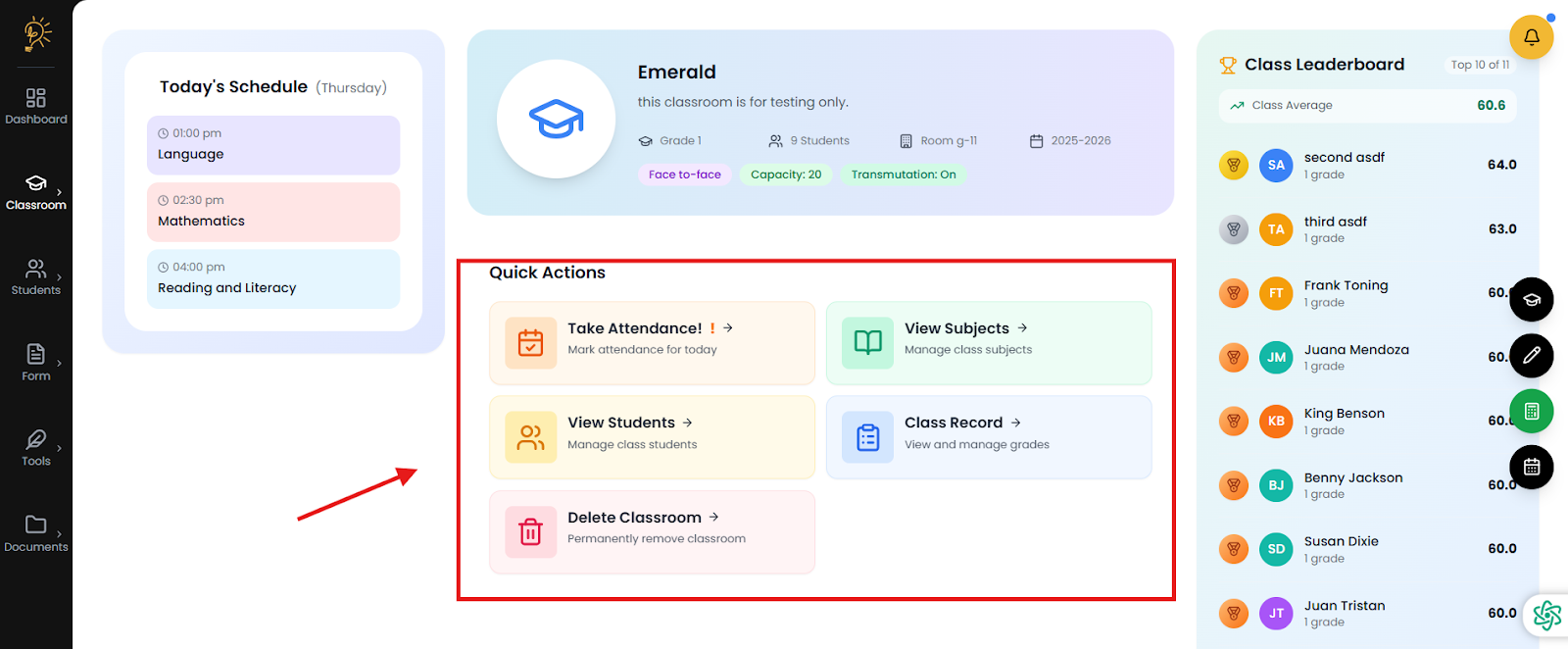
- When you open the Classroom Dashboard, you immediately see which subjects you are scheduled to teach for the day, already arranged in order so you can confirm your classes at a glance. If you have no scheduled classes, the dashboard clearly shows this, helping you stay organized and avoid missed sessions without switching between other tools.
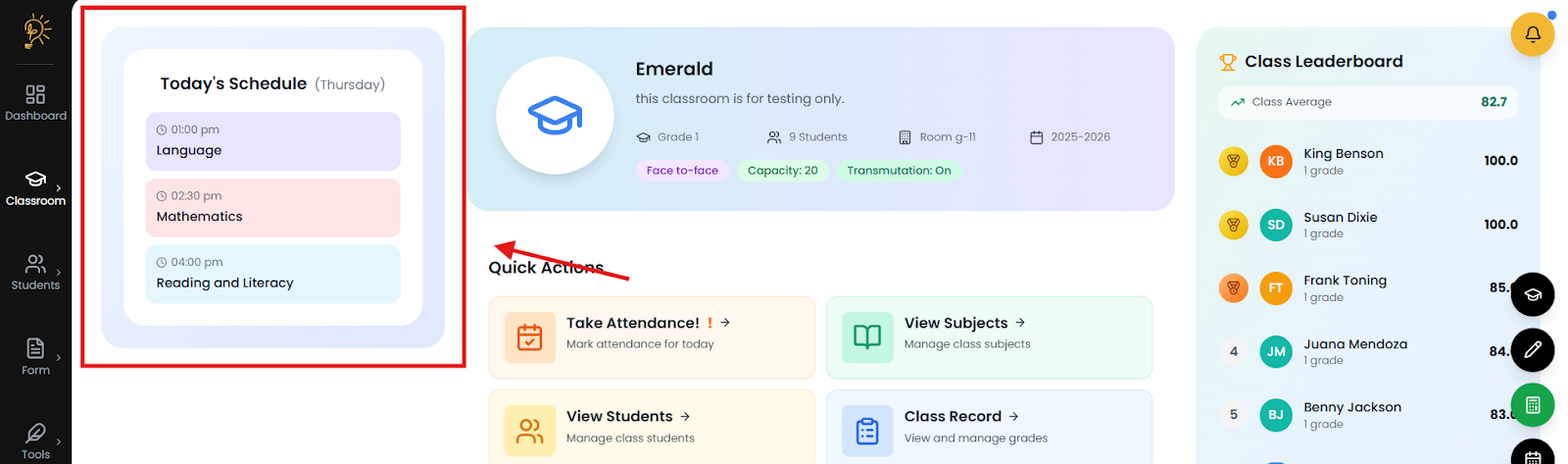
- When you enter grades in the Class Record, the Class Leaderboard automatically updates each student’s General Average and ranks them in real time. You immediately see overall class performance as scores change, without computing anything manually.
- Instead of checking multiple grade sheets, you can quickly spot trends and students who may need support, helping you respond faster and make informed instructional decisions.
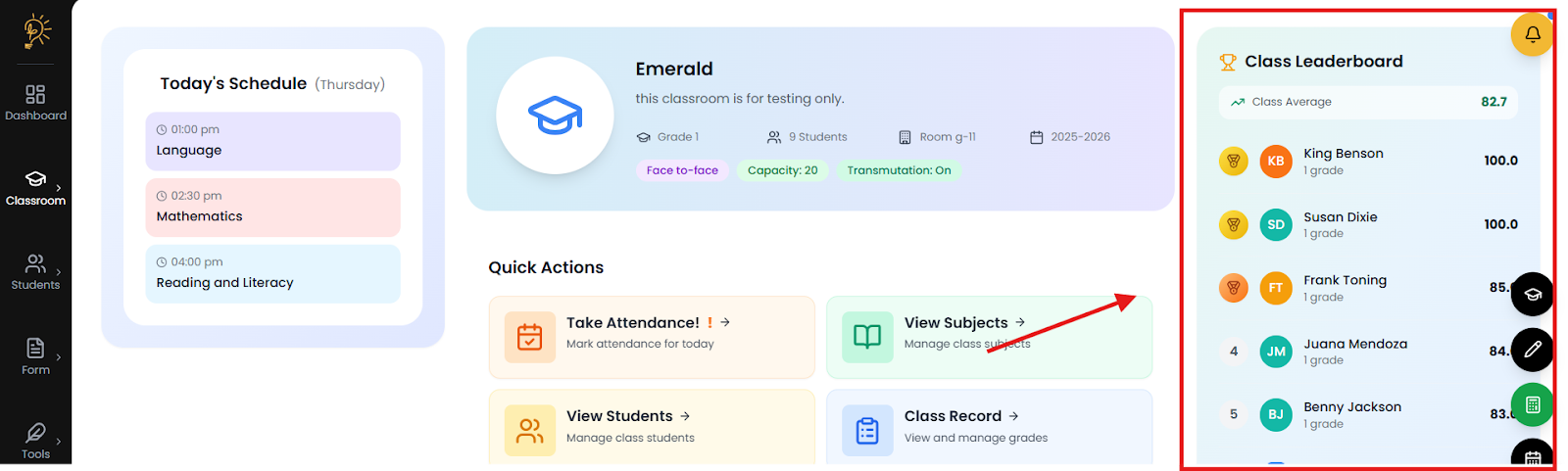
- Use Quick Actions to reach key classroom tools—students, subjects, attendance, and class record—with one click. The options adjust to your classroom setup so you can finish daily tasks from one central area, faster and with fewer missed steps.
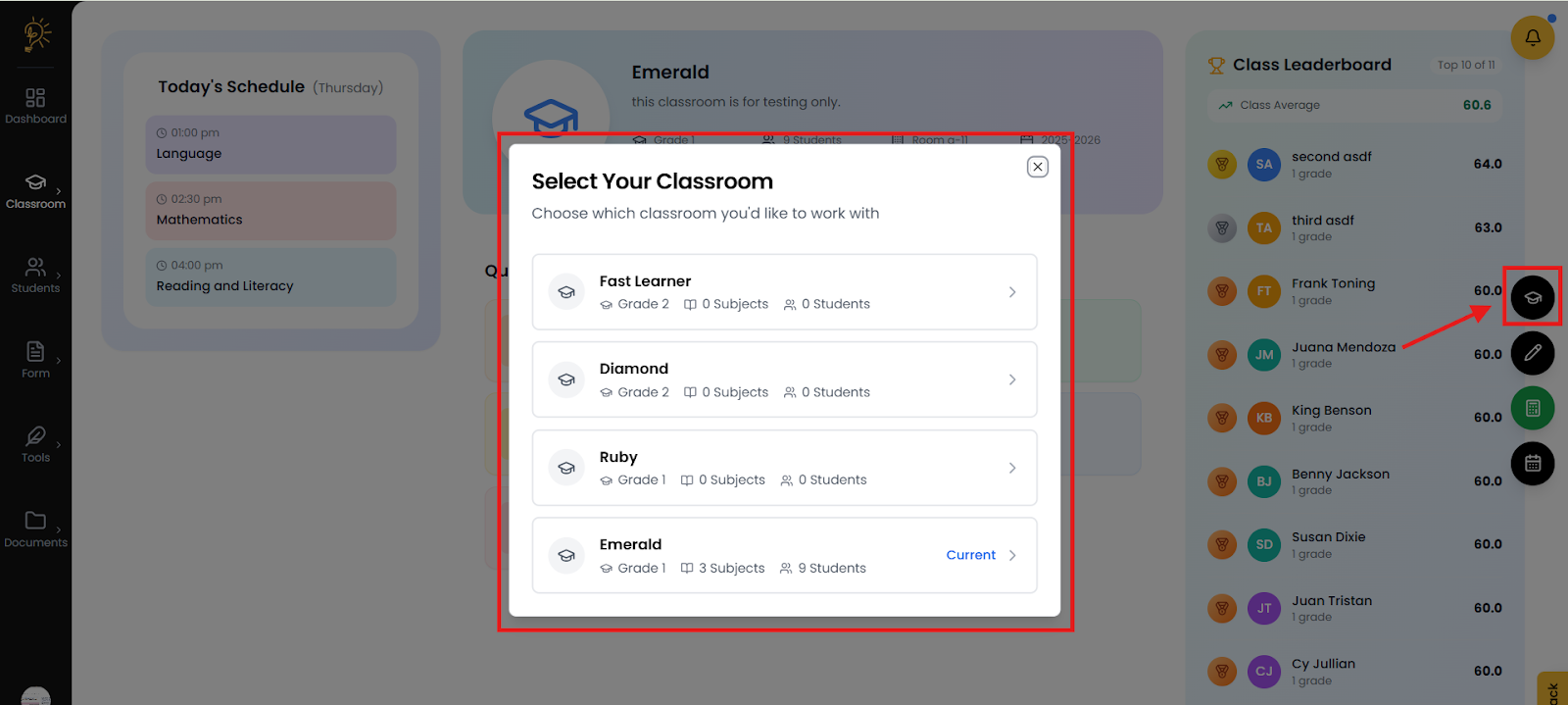
- Switch Classroom: Use this to move between your classes instantly while staying on the same page. When you switch, the dashboard loads the correct students, subjects, grades, and settings for that class.
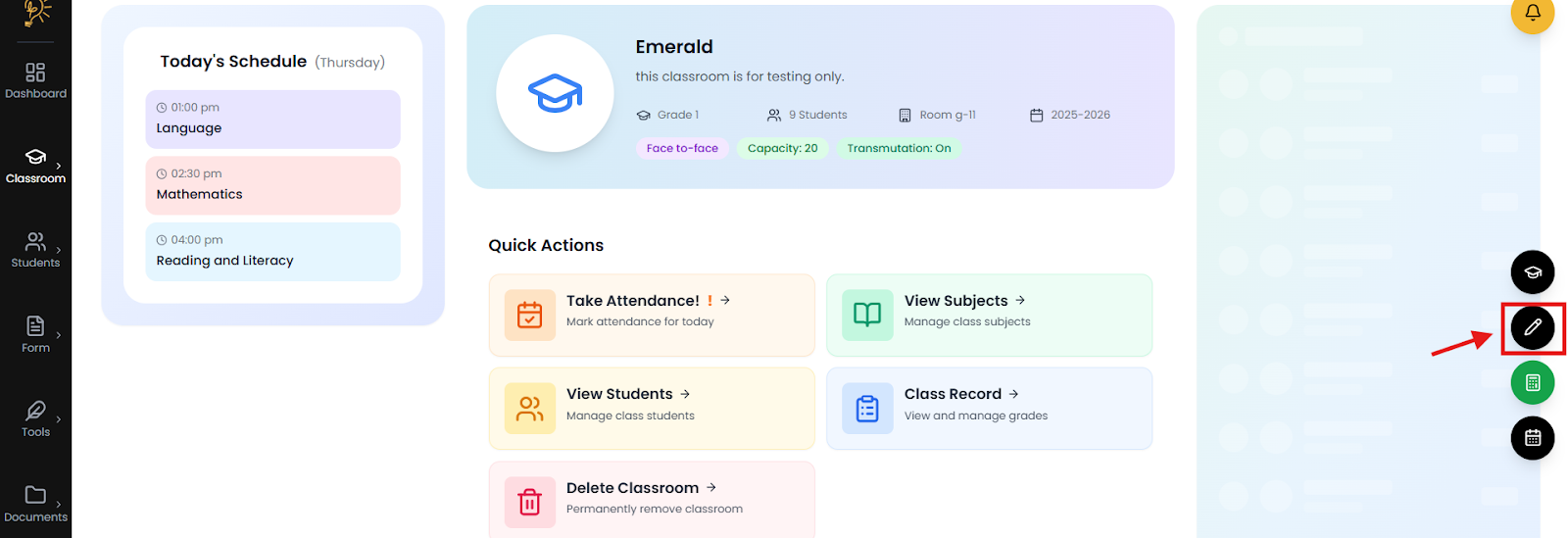
- Edit Classroom: Use this to update classroom details such as grade level, section, or room. Any changes you make are reflected immediately across schedules, records, and reports.
- Grade Transmutation: Use this to control how raw scores are converted into final grades. When adjusted, all grade computations update automatically across the class record and leaderboard.
DepEdclassroom managementBetter Teaching Solutionseducation technologydigital classroomgrade systemteaching toolsteacher productivityPhilippine education
Author
Better Teaching Solutions
Making teaching easier, giving more time for our hard working teachers!