How to set up Parent Portal on Better Teaching Solutions?
Use the Parent Portal tools in Better Teaching Solutions (BTS) to generate secure, time-limited links so parents can view their child’s grades, attendance, and performance insights without needing a full account, while keeping all records read-only and protected.
Core features of the Parent Portal
- Teacher-generated access so only advisers and classroom teachers can invite guardians.
- Password protection with a parent-specific password and optional password hint.
- Time-limited access tokens designed with a 30-day expiration (TTL) for security.
- Live performance sync that shows the same PerformanceTracking and Early Warning System (EWS) data teachers see.
- Read-only integrity so parents can view but never modify grades, attendance, or records.
Step 1: Generate parent access from a student
To create a Parent Portal link for a specific student.
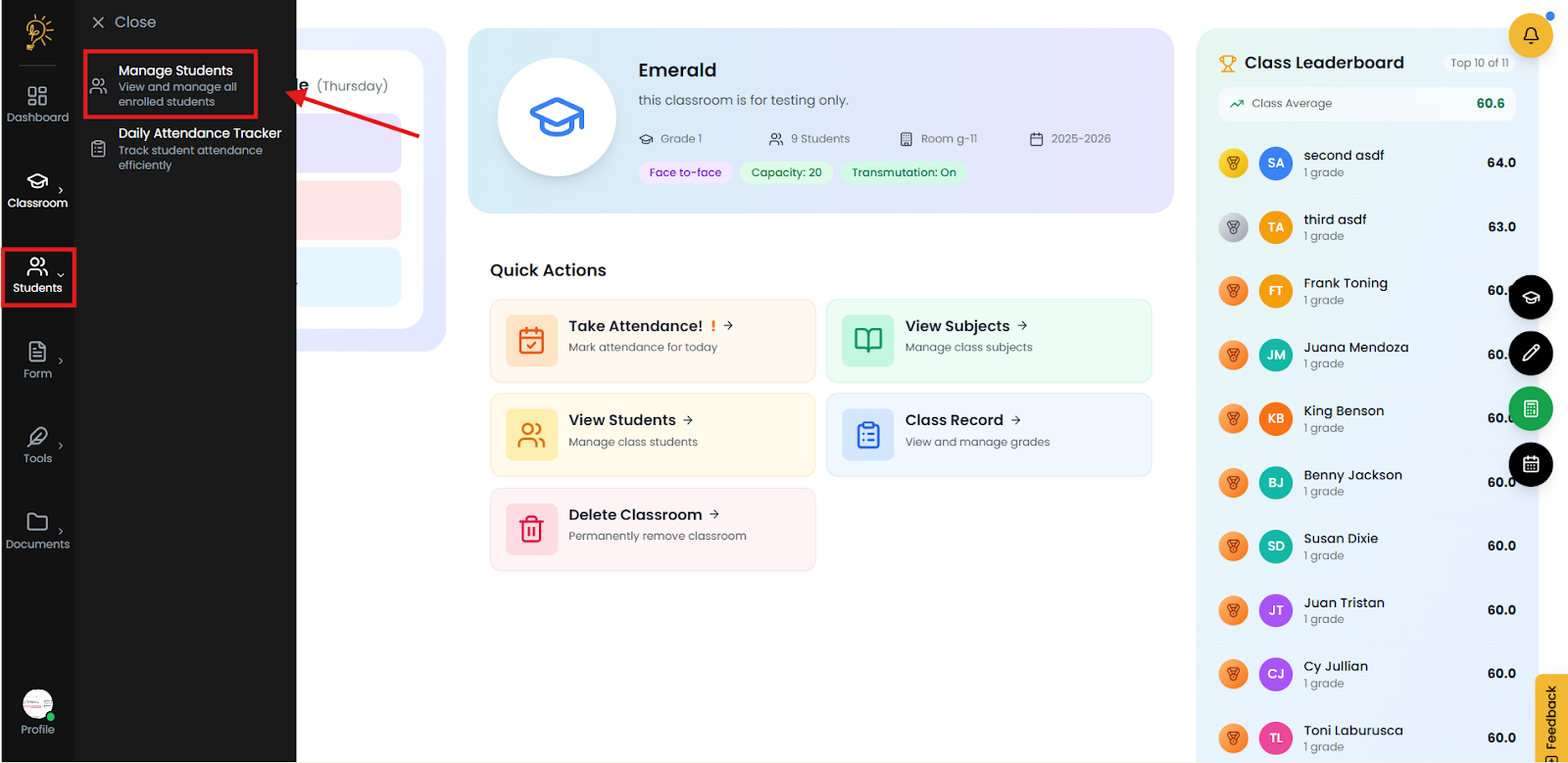
- Locate the student from the navigation panel on the left. Select the Manage Student to view and find the learner you want to share with.
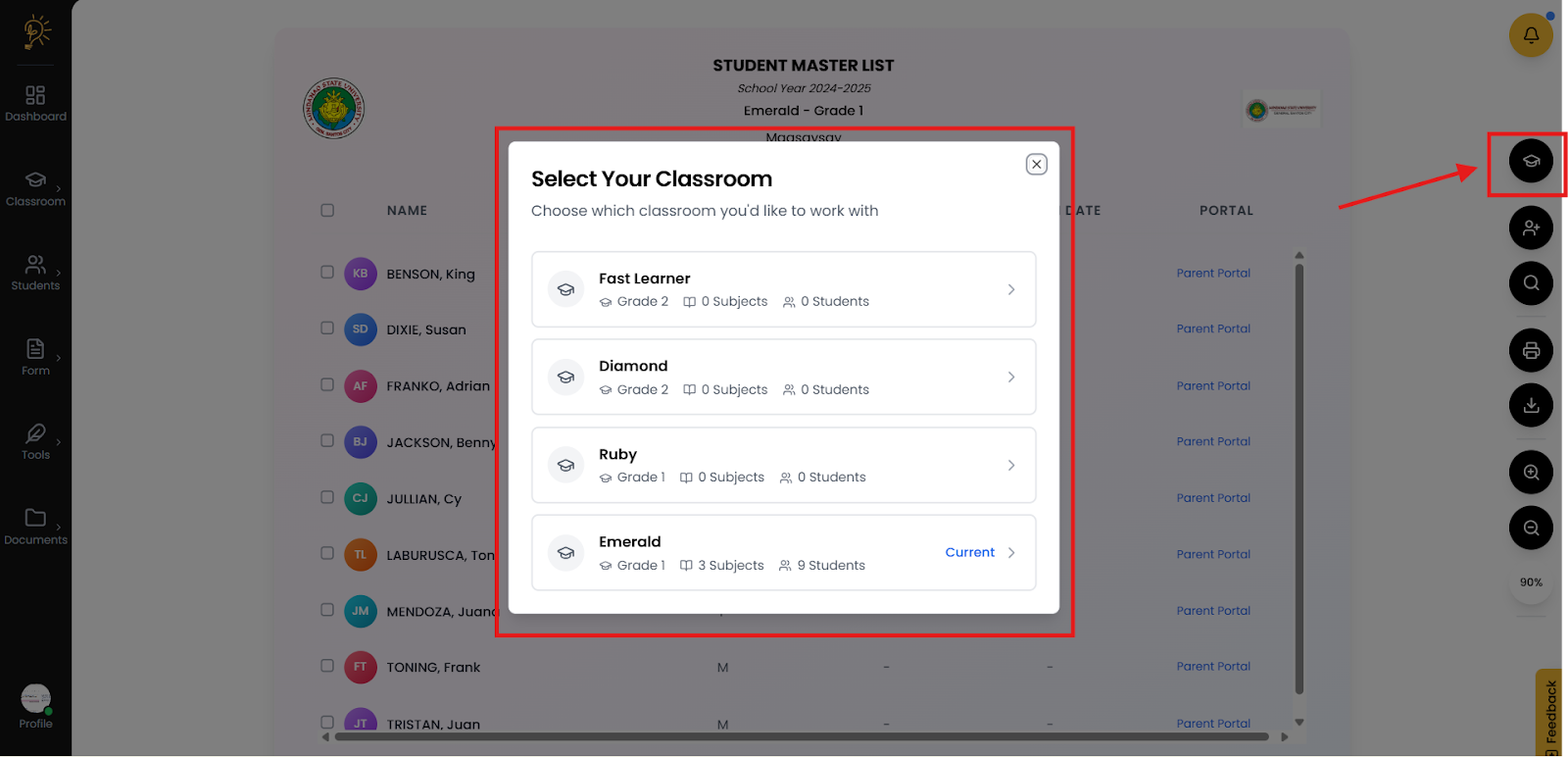
- Select the Classroom the student is enrolled in.
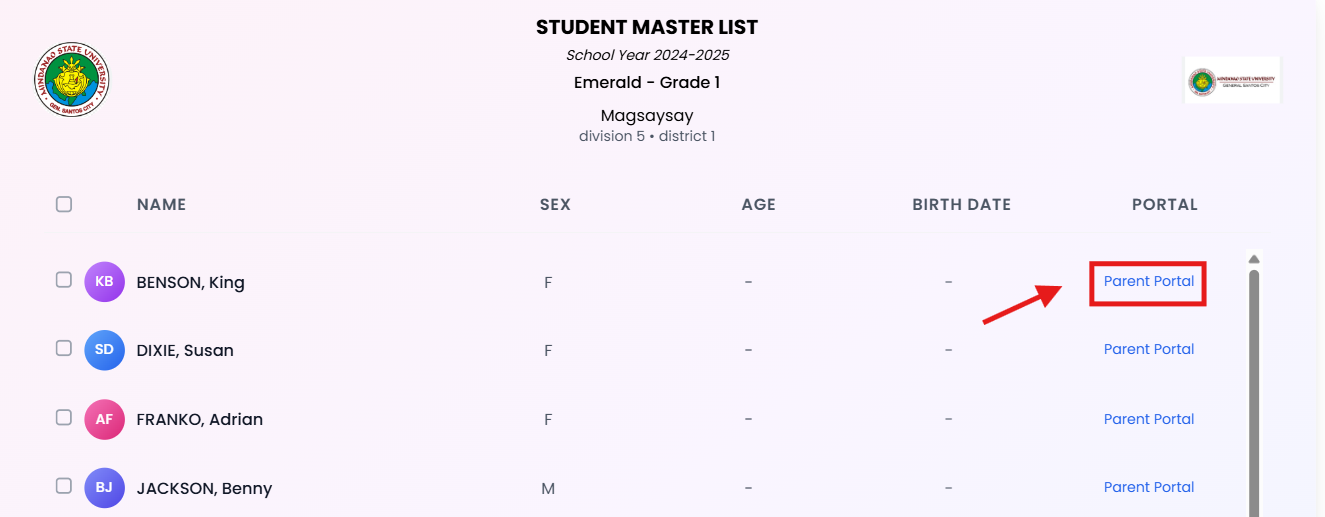
- Find the correct student and look for the “Parent Portal” option on their Student Card. Click the Parent Portal link to open the access window.
Step 2: Configure password and share the access link
Configure whether to use a password or not for the parents portal to help parents see their child performance and keep access secure.
- In the Parent Portal window, type an optional password such as “Child’s birthday” or leave it blank and let the system generate the password.
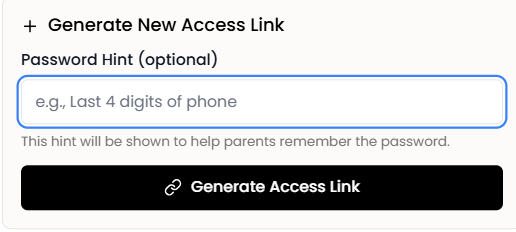
- Select generate link. After generation, review the shareable Parent Portal link and the one-time password.
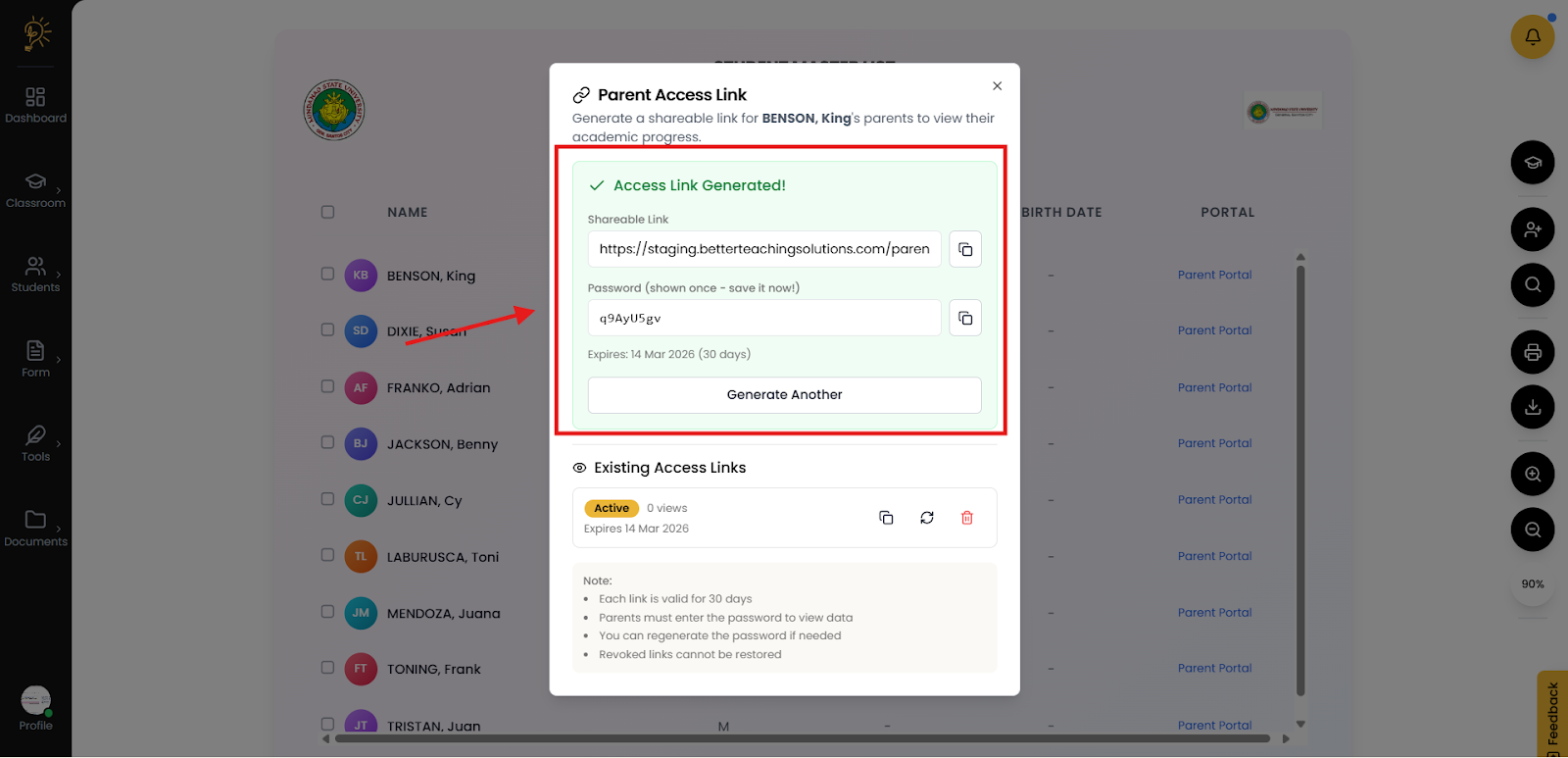
- Copy the link using the Copy icon and send it to the parent via email, SMS, or a messaging app.
- The link will bring the parents to the Student Progress Report portal.
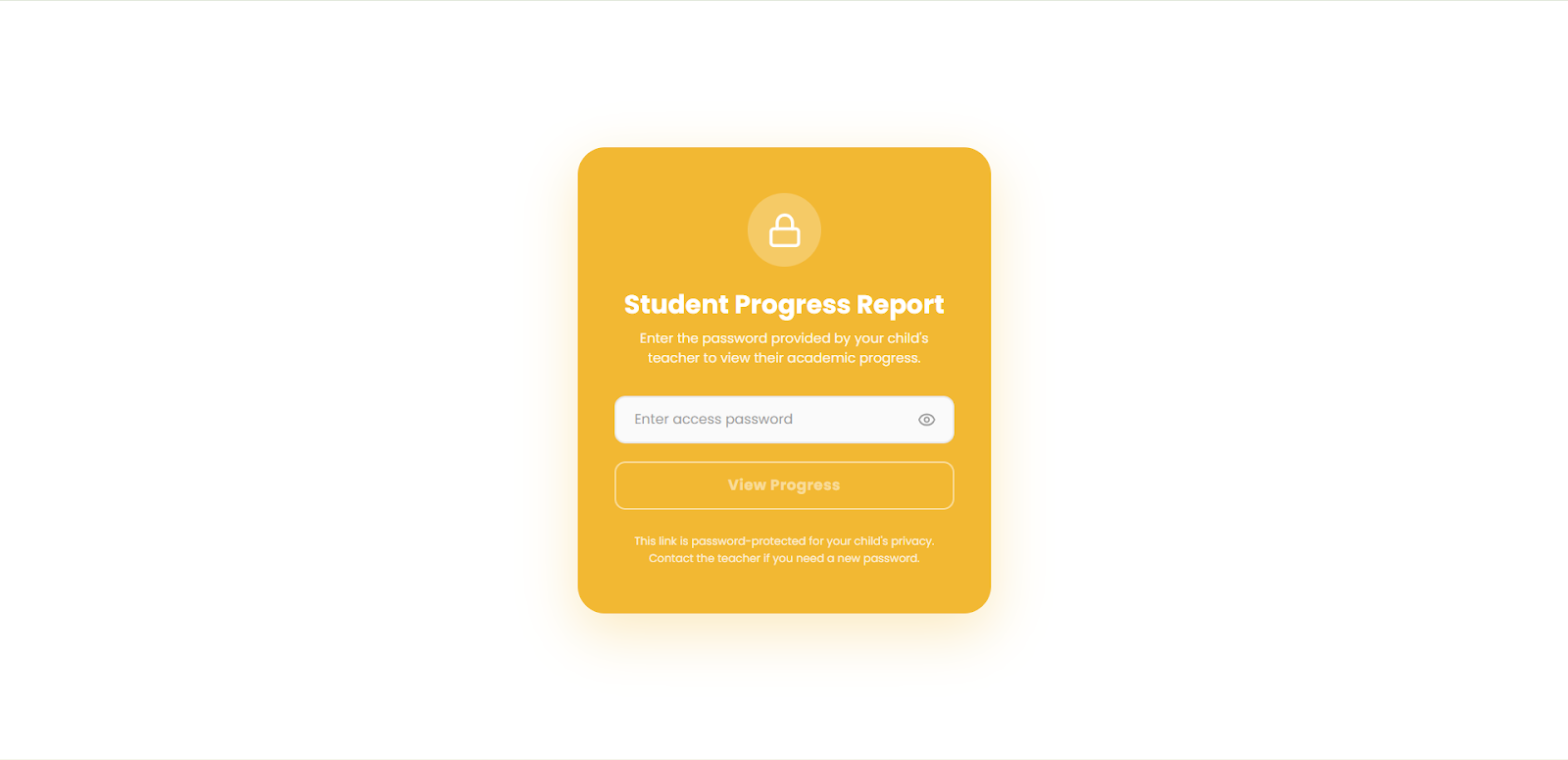
- Input the generated password to login the parents. Then click view progress.
- From the Parent Portal they can go to the Academic Grades tab and switch quarters for the students' grades.
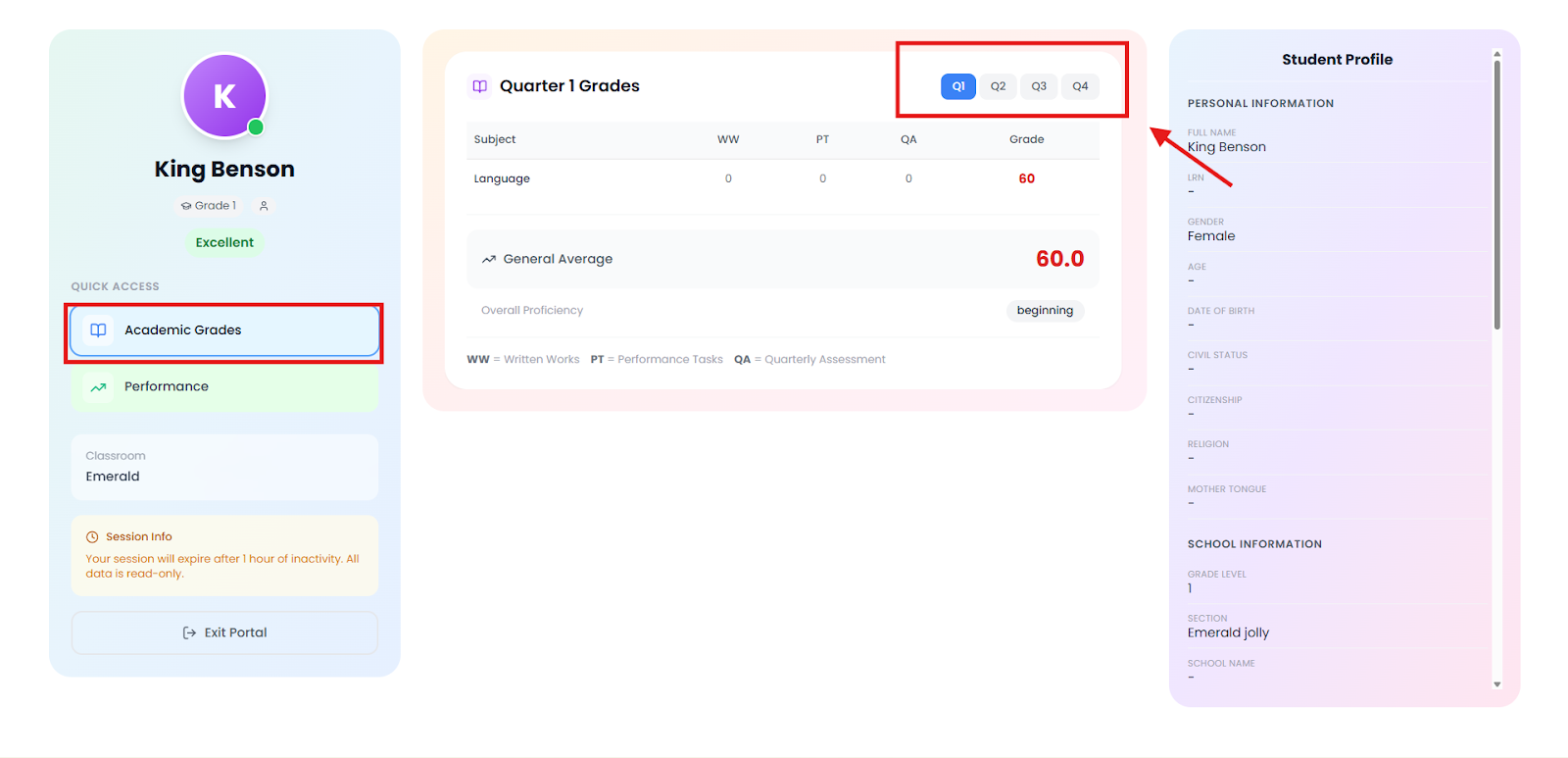
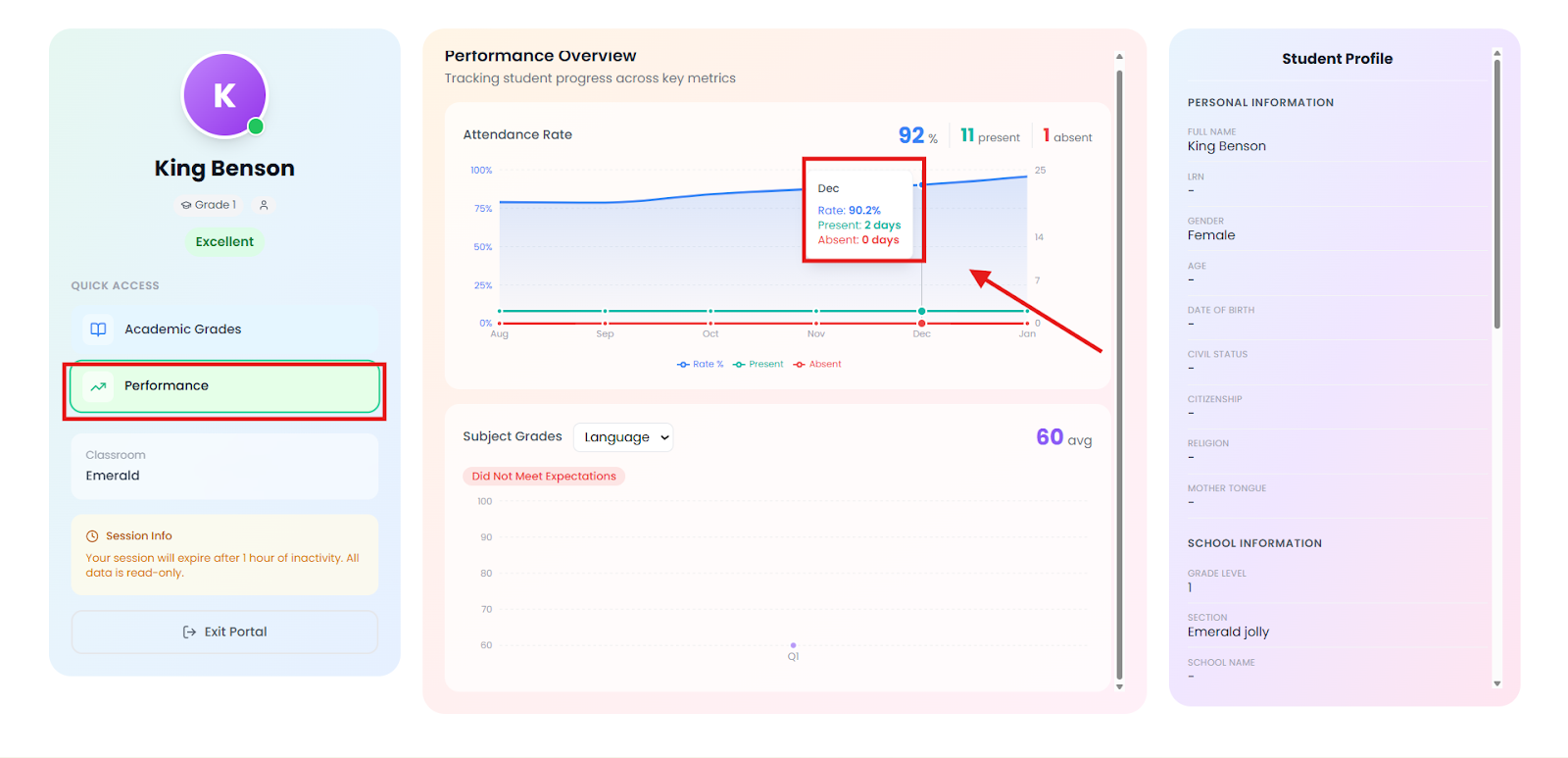
- Or go to the Performance tab and view the students' attendance each quarter and you can hover on each date to see how many times that student is present each month.
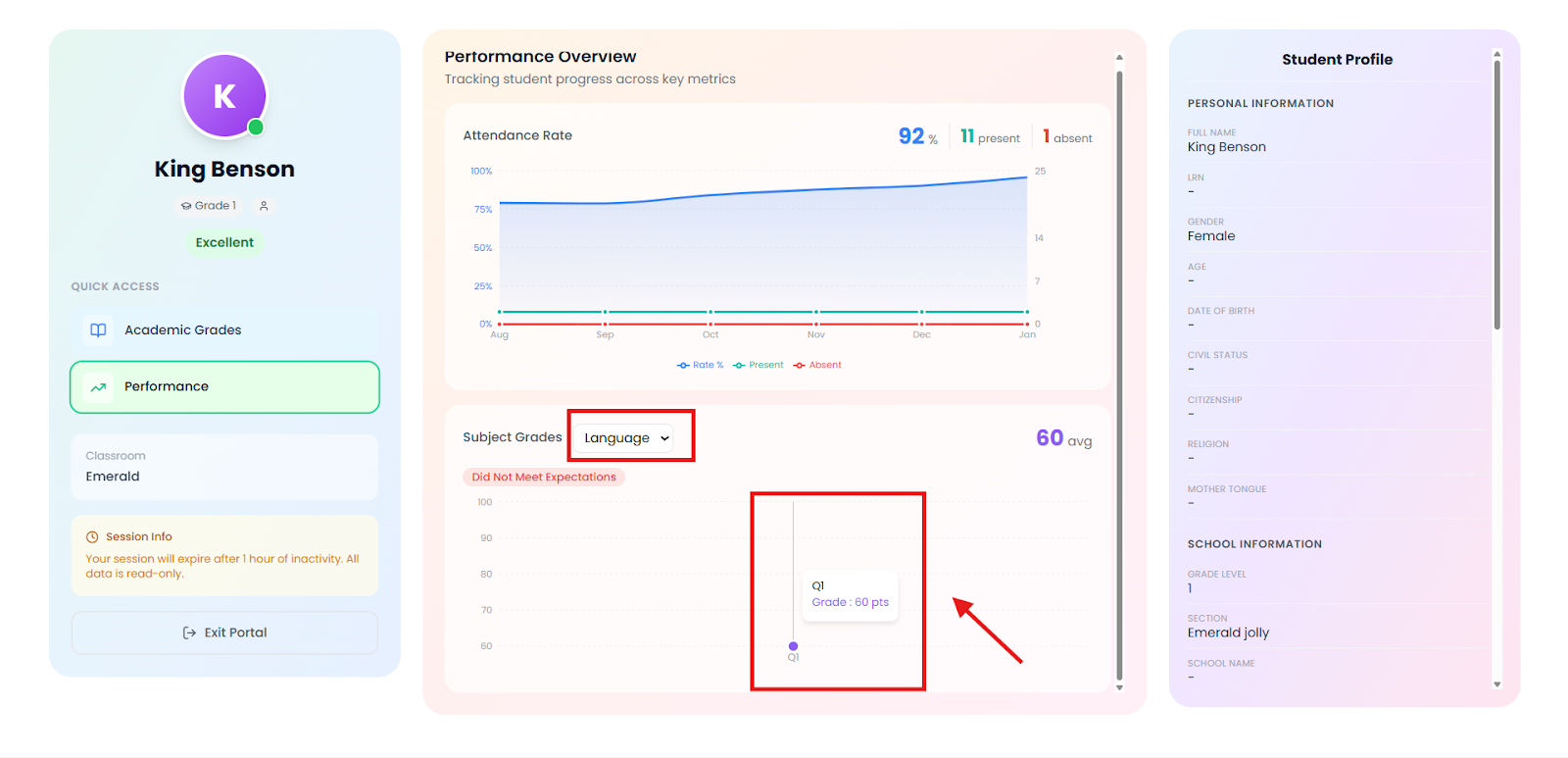
- Then a subject grade will show the subjects the student is taking or use the dropdown button to choose the subject. You can also hover the graph to see the specific grade average.
Parent PortalBetter Teaching SolutionsDepEd parentsstudent gradesattendance trackingsecure accessteacher toolsguardian portal
Author
Better Teaching Solutions
Making teaching easier, giving more time for our hard working teachers!