How to Use DepEd School Forms (SF9, SF1, SF5, and More)?
E. School Forms Overview
The School Forms section gives you access to the official DepEd forms you use every day — digitized so you can fill them out faster, reduce errors, and print or export clean copies whenever you need them.
Your student data, school information, and grades flow into these forms automatically, so you spend less time copying information by hand and more time on what matters.
Available DepEd School Forms
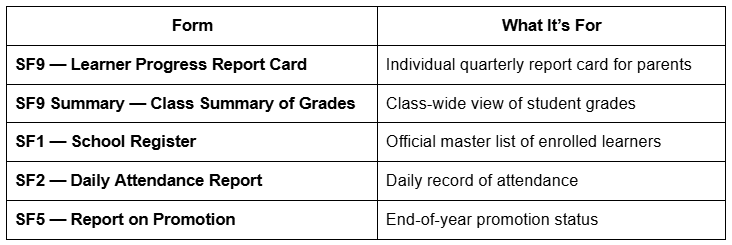
Tip: Your school information (School ID, School Name, Region, Division, District) is automatically filled in across all forms from your profile.
Before You Start
Before using any school form, make sure the following are set up:
- Complete school profile. Fill in your School Name, School ID, Region, Division, and District in your profile settings.
- At least one classroom created. Most forms pull data from your classroom.
- Students enrolled. Learner names and LRNs come from enrollment records.
- Grades entered (for SF9 and SF5). Quarterly grades must be completed in the Class Record.
SF9 — Learner Progress Report Card
The SF9 is the individual report card given to parents or guardians each quarter.
How to Open SF9
- Go to Forms → SF9 Report Card from the sidebar.
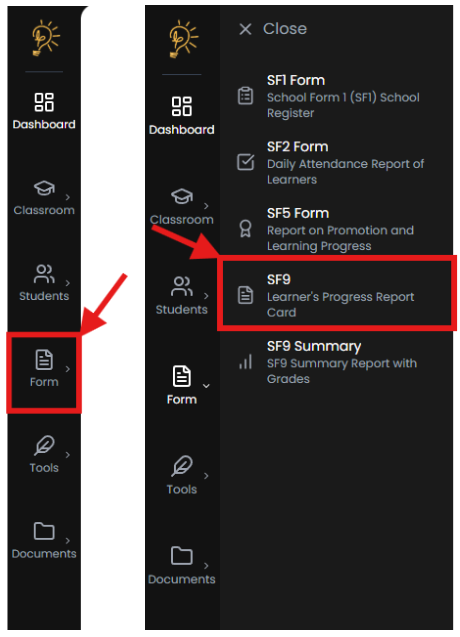
- The report card opens in a blank state.
Selectin a Classroom and Student
- Click 🎓 Select Classroom in the floating toolbar.
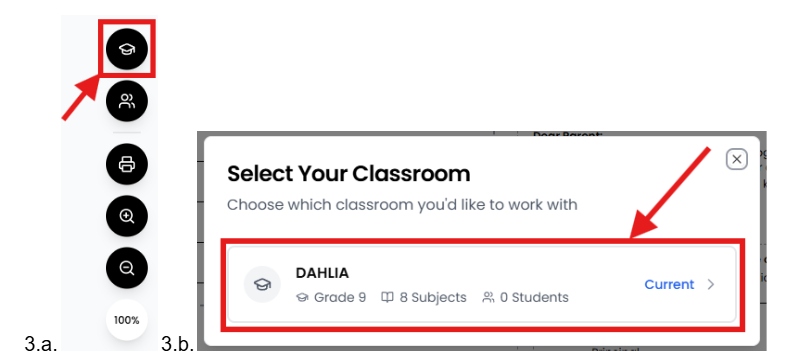
- Click 👥 Select Student, then choose a learner from the list.
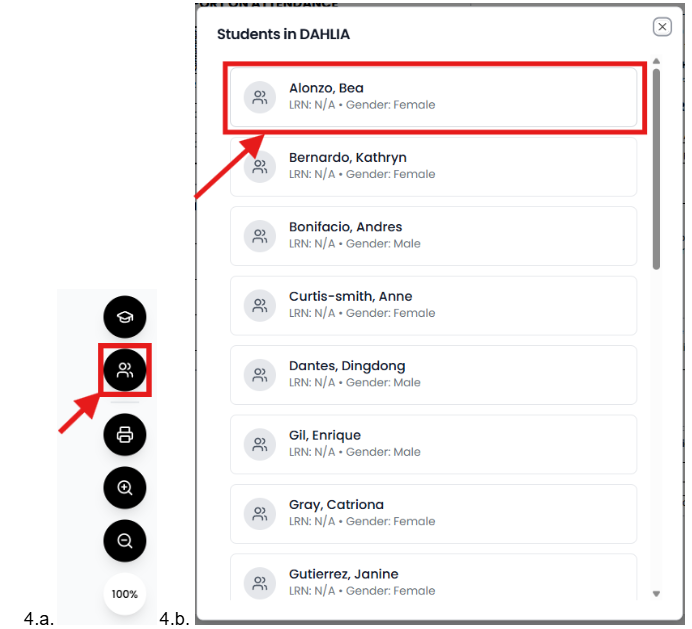
Understanding the SF9 Pages
- Front Page — Attendance and Student Information
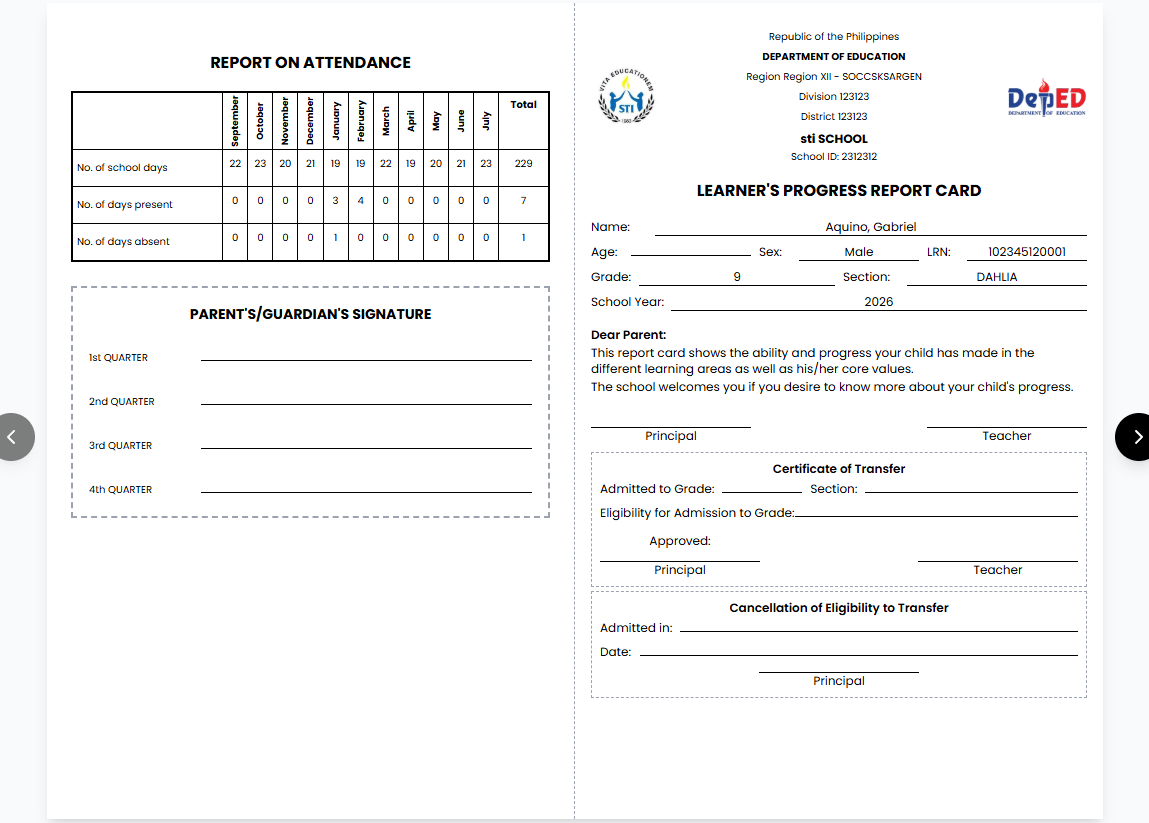
- Monthly attendance summary
- Student details and school header
Inside Page — Learning Progress and Values
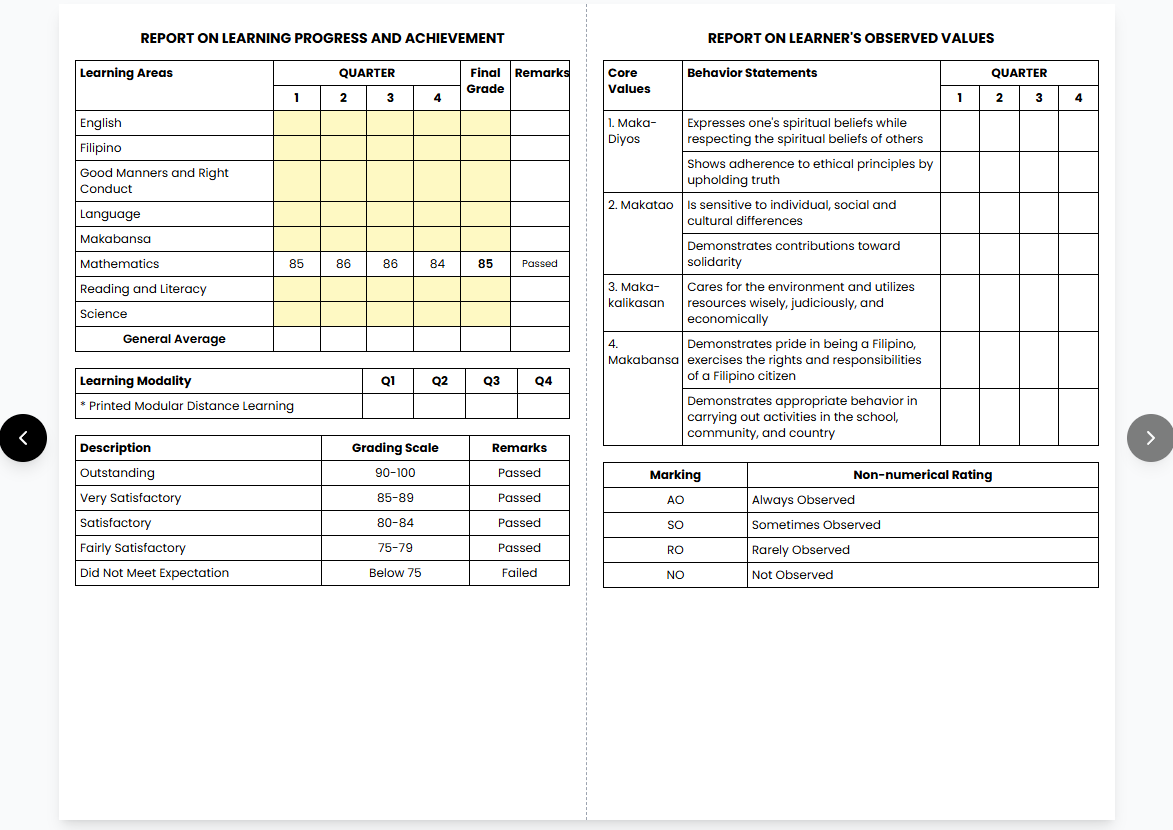
- Quarterly grades per subject
- Final grade and general average
- Core values assessment (Maka-Diyos, Makatao, Makakalikasan, Makabansa)
Navigating Between Pages
- Use the ← / → arrows or keyboard arrow keys.
- Page dots indicate your current view.

Where SF9 Data Comes From
- Grades: Class Record
- Attendance: SF2
- Subjects: Assigned classroom subjects
Missing grades are highlighted in yellow.
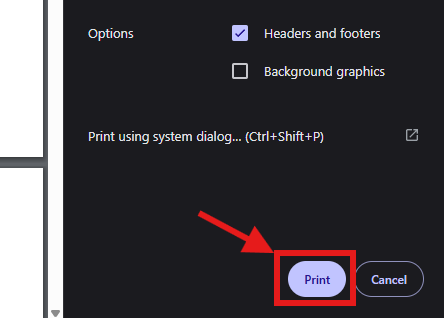
Printing the Report Card
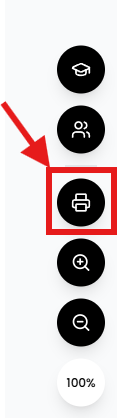
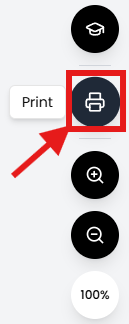
- Click 🖨️ Print.
- Use landscape orientation, letter size (8.5" × 11").
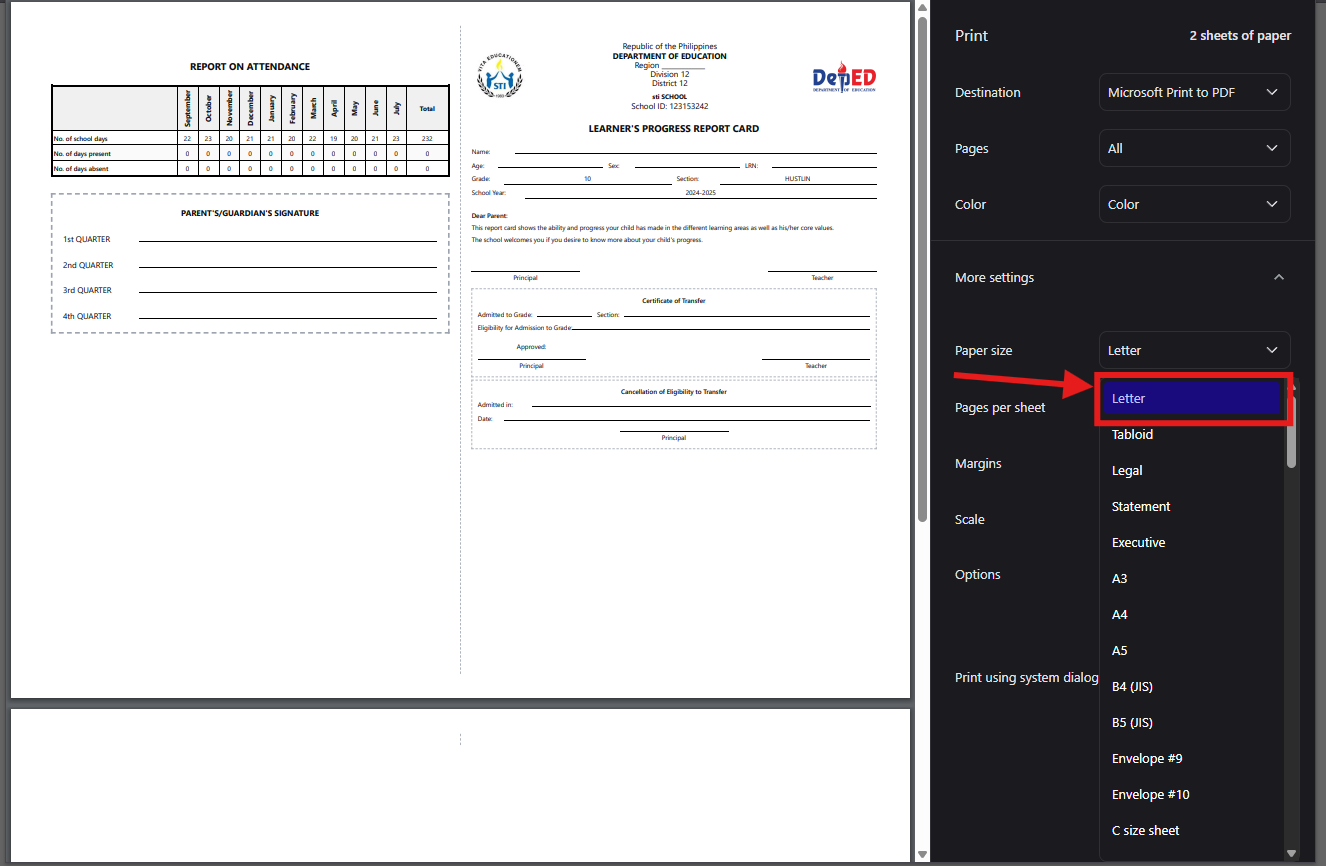
- Print from your browser dialog.
Uploading and Managing School Logos
- Click the left placeholder for your school seal.
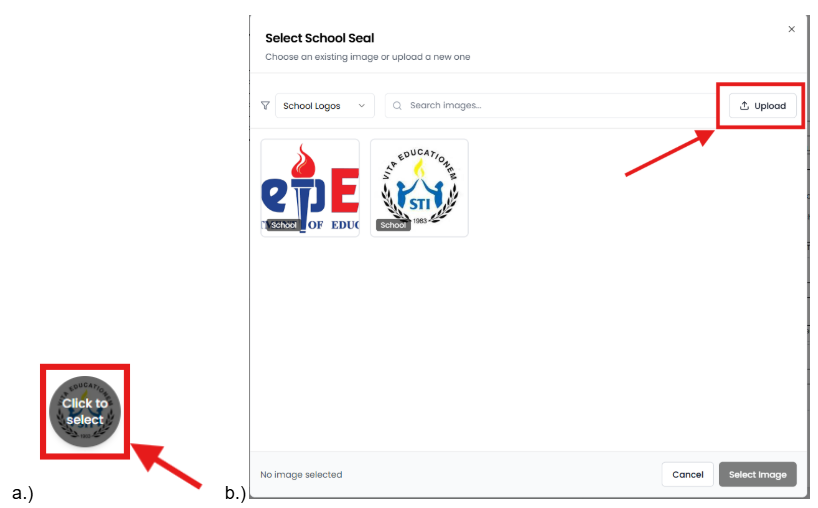
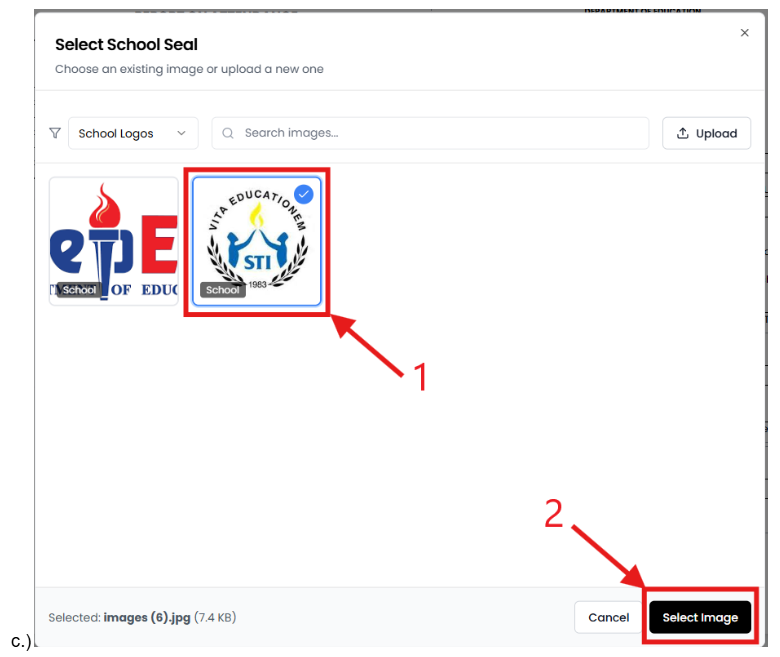
- Click the right placeholder for a horizontal logo or DepEd banner.
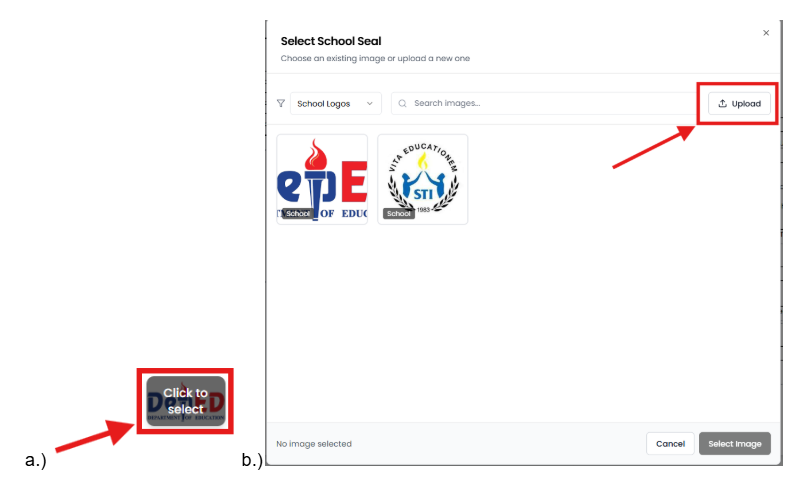
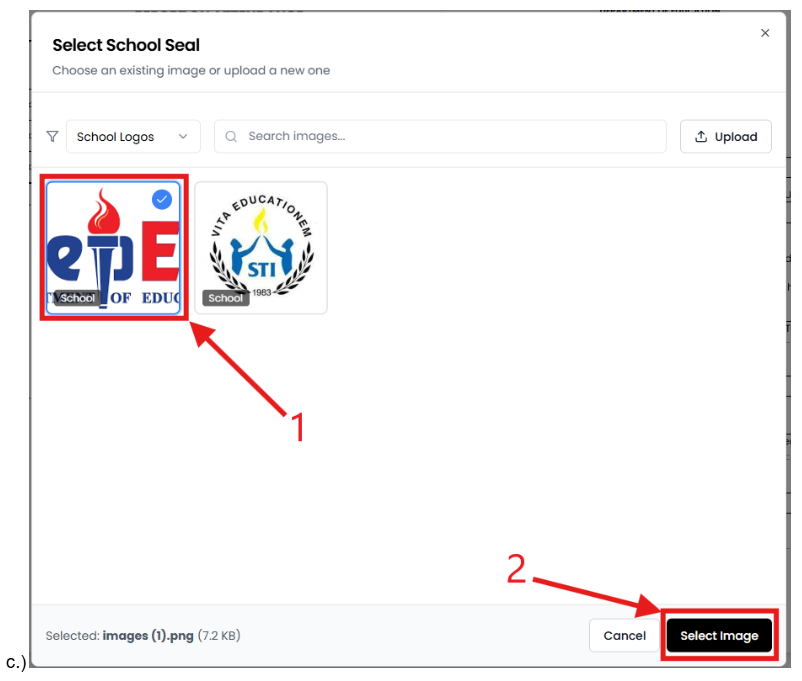
- Logos apply to all forms automatically.
Zoom Controls
- Use 🔍+ / 🔍- to adjust on-screen size (50%–150%).
- Zoom does not affect printing.
SF9 Summary — Class Summary of Grades
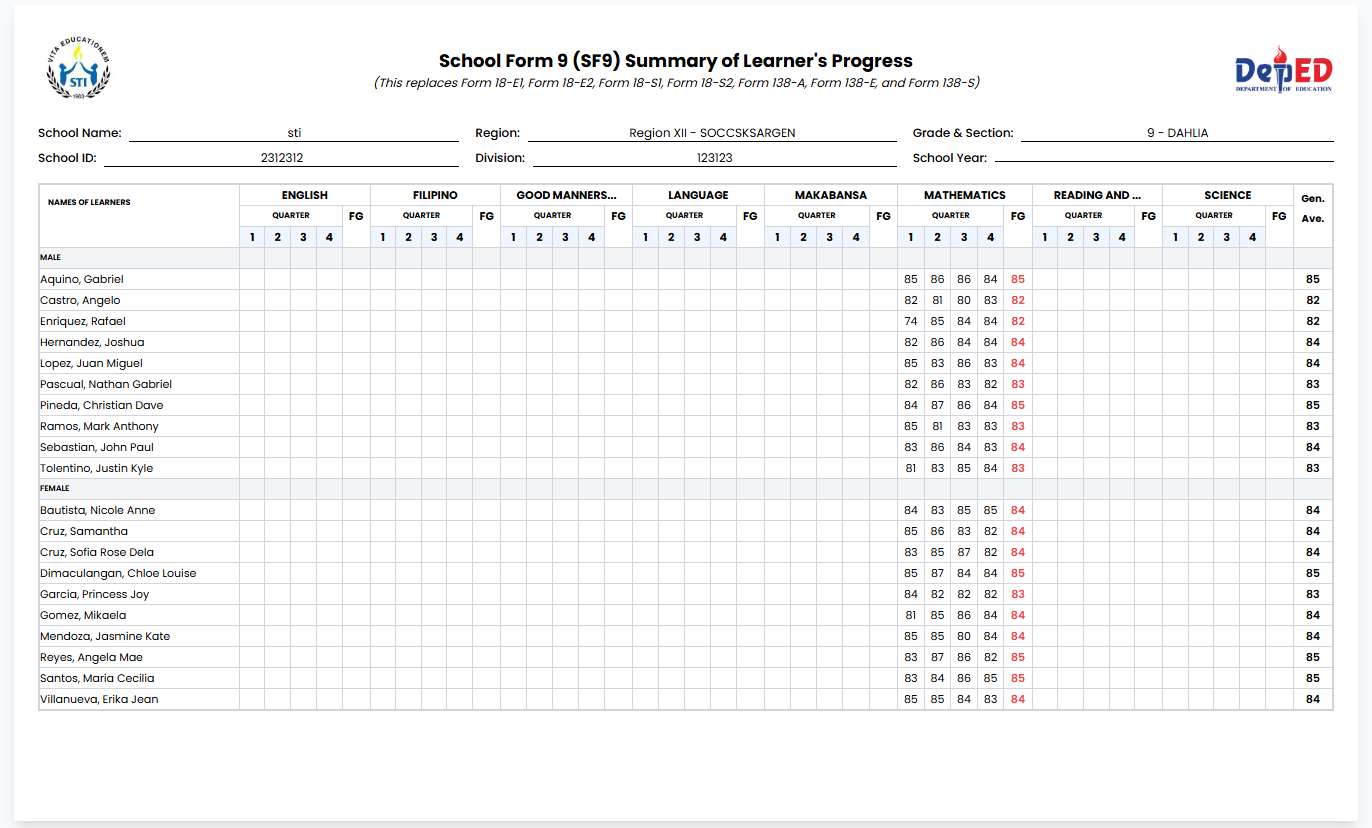
A class-wide table showing all students’ grades.
How to Open SF9 Summary
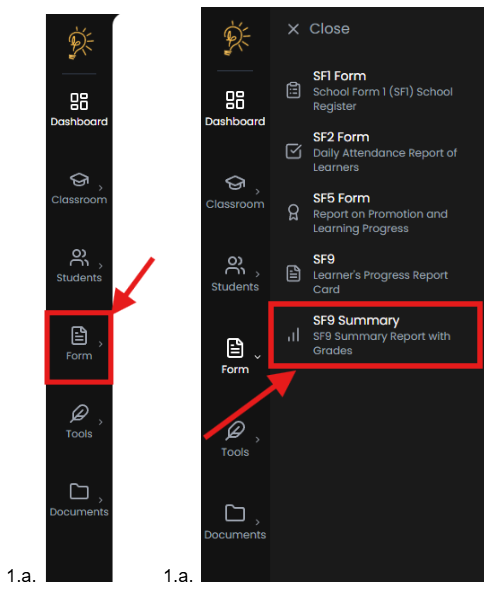
- Go to Forms → SF9 Summary.
- Click 🎓 Select Classroom.
Understanding the Summary Table
- Rows: Students
- Columns: Subjects and quarterly grades
- Supports multi-page navigation
Exporting and Printing
- 📥 Download — PDF export
- 🖨️ Print — Landscape format
SF1 — School Register
The official master list of enrolled learners.
How to Open SF1
- Go to Forms → SF1 School Register.
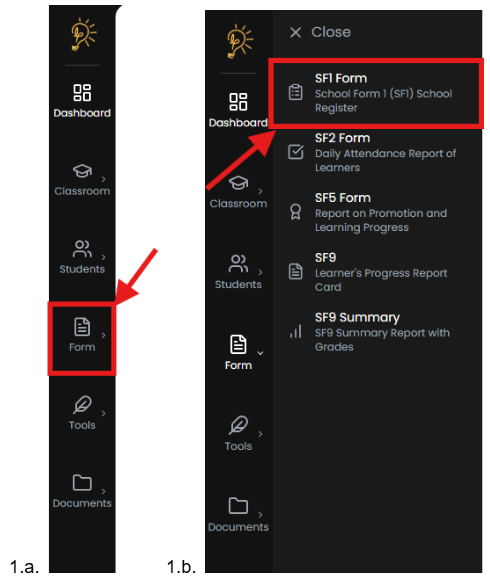
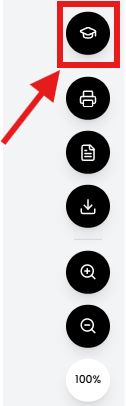
- Select your classroom.
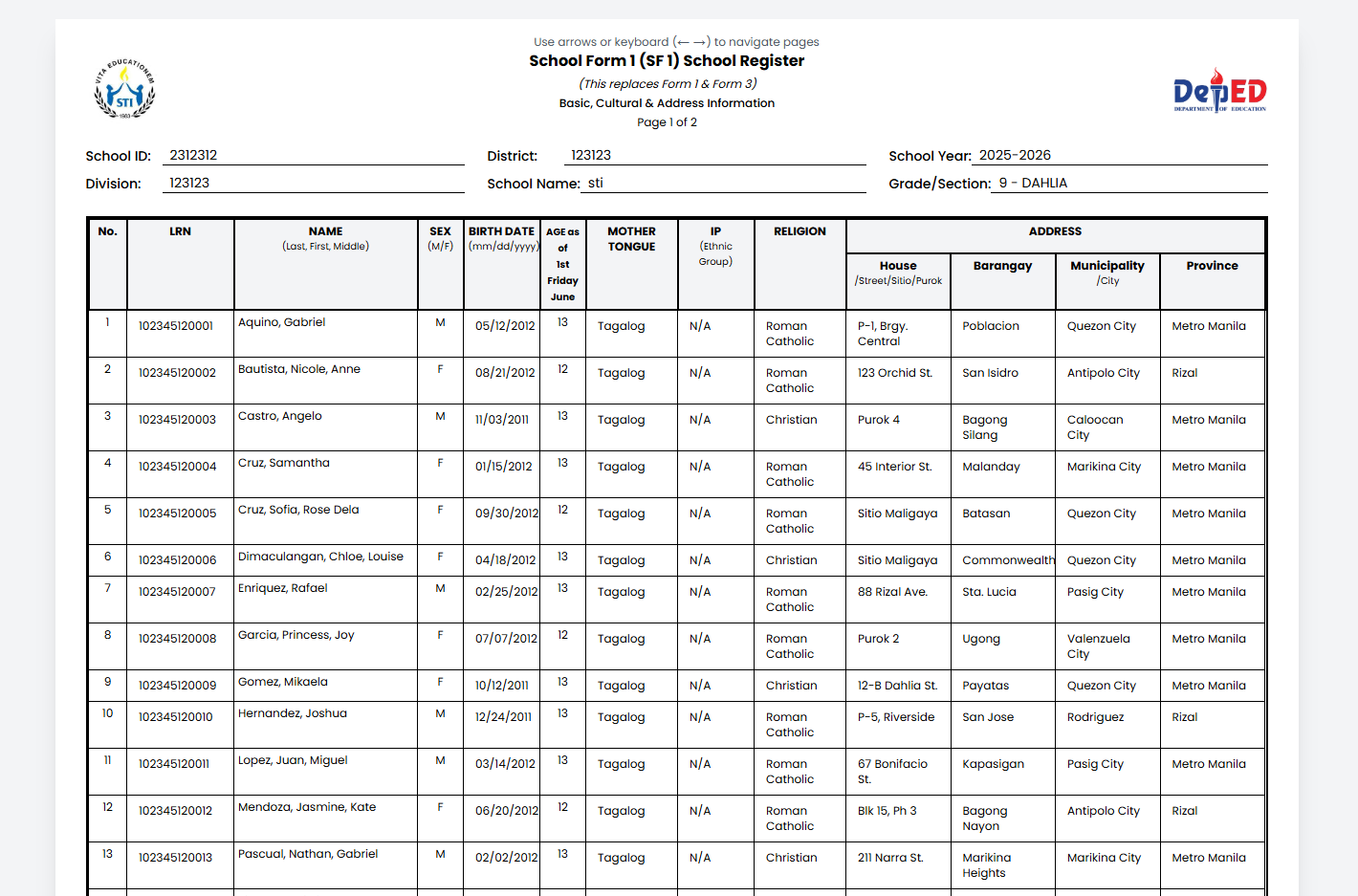
SF1 Page Structure
Page 1 — Student Information
Includes LRN, name, sex, birth date, age, language, IP group, religion, and address.
Page 2 — Family and Guardian Information
Includes parents’ names, guardian details, contact number, and remarks.
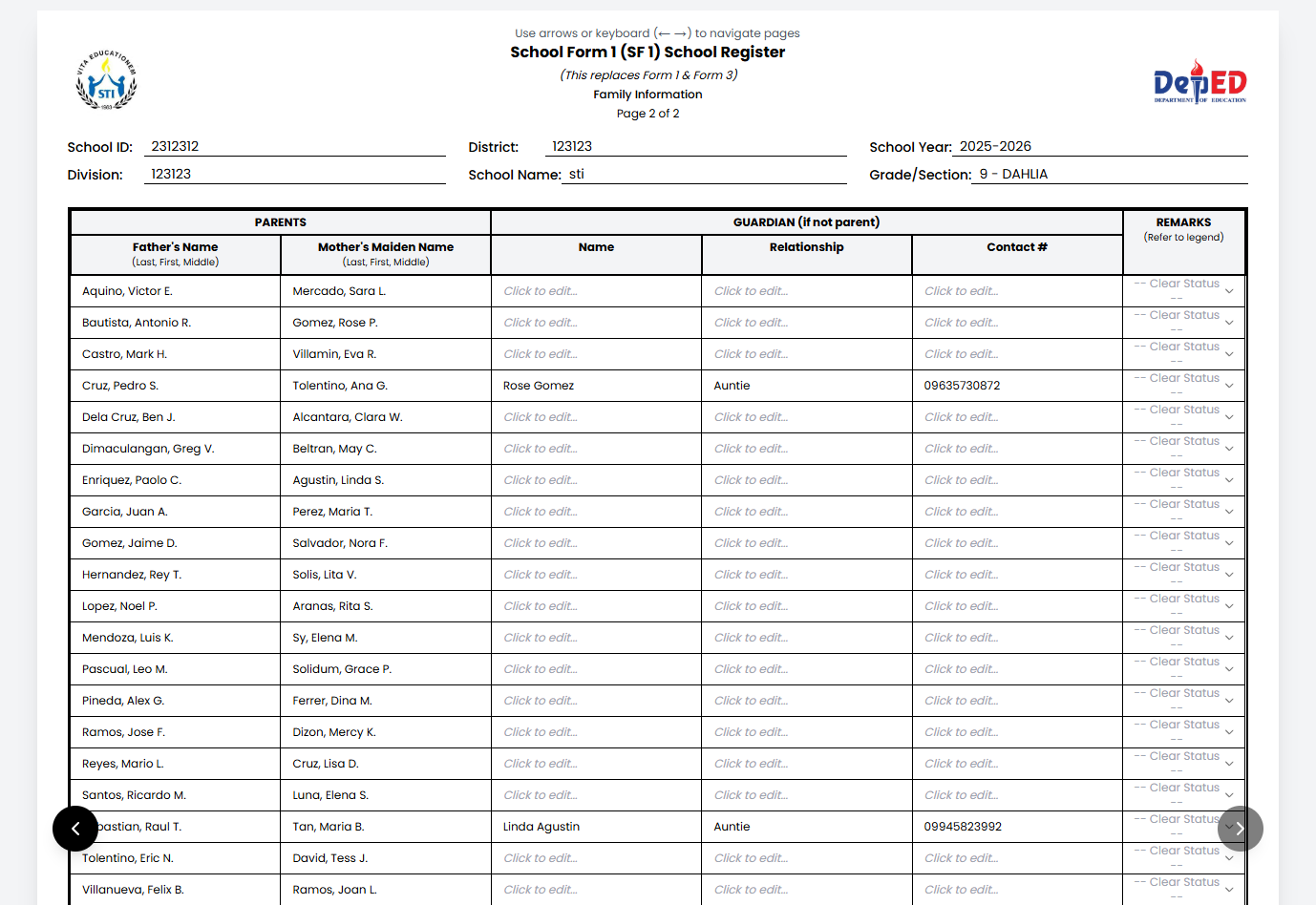
Navigating Between SF1 Pages
- Use arrow buttons or keyboard arrows.
- Page dots indicate the current page.
Editing Student Information
- Click editable fields to update data.
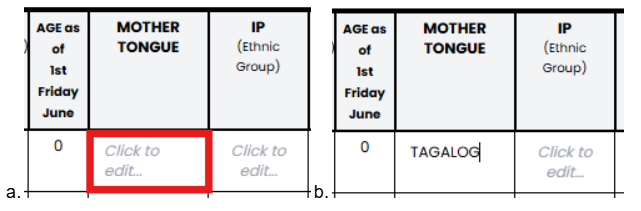
- Changes save automatically.
- Name, sex, and age must be updated in enrollment records.
Enrollment Status (Remarks)
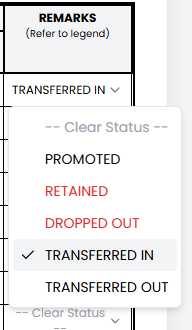
Select standard DepEd statuses such as:
- Transferred In / Out
- Dropped Out
- Late Enrollment
Exporting and Printing SF1
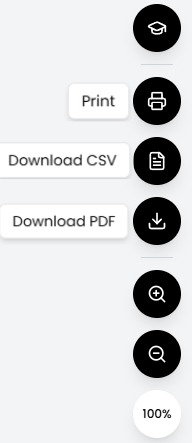
- Excel (.csv) export
- PDF export
- Print (landscape)
SF2 — Daily Attendance Report
Records daily attendance per month.
How to Open SF2
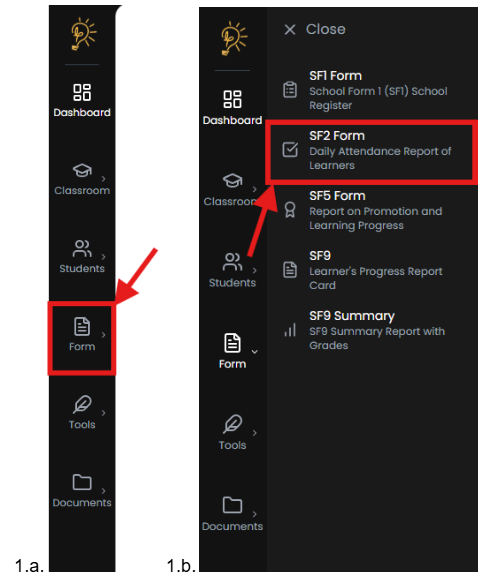
- Go to Forms → SF2 Daily Attendance.
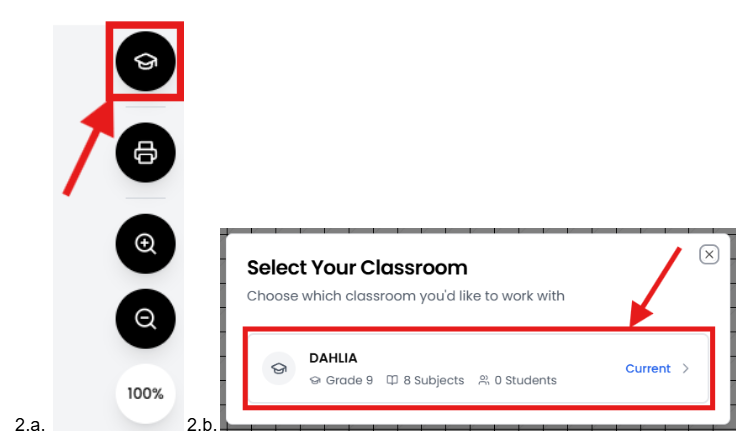
- Select your classroom.
Selecting Month and Year
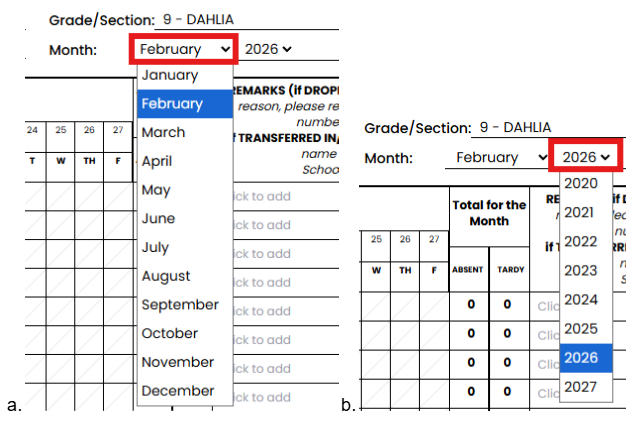
Use the month and year selectors at the top of the form to choose the period you want to work on.
The attendance grid updates automatically based on your selection.
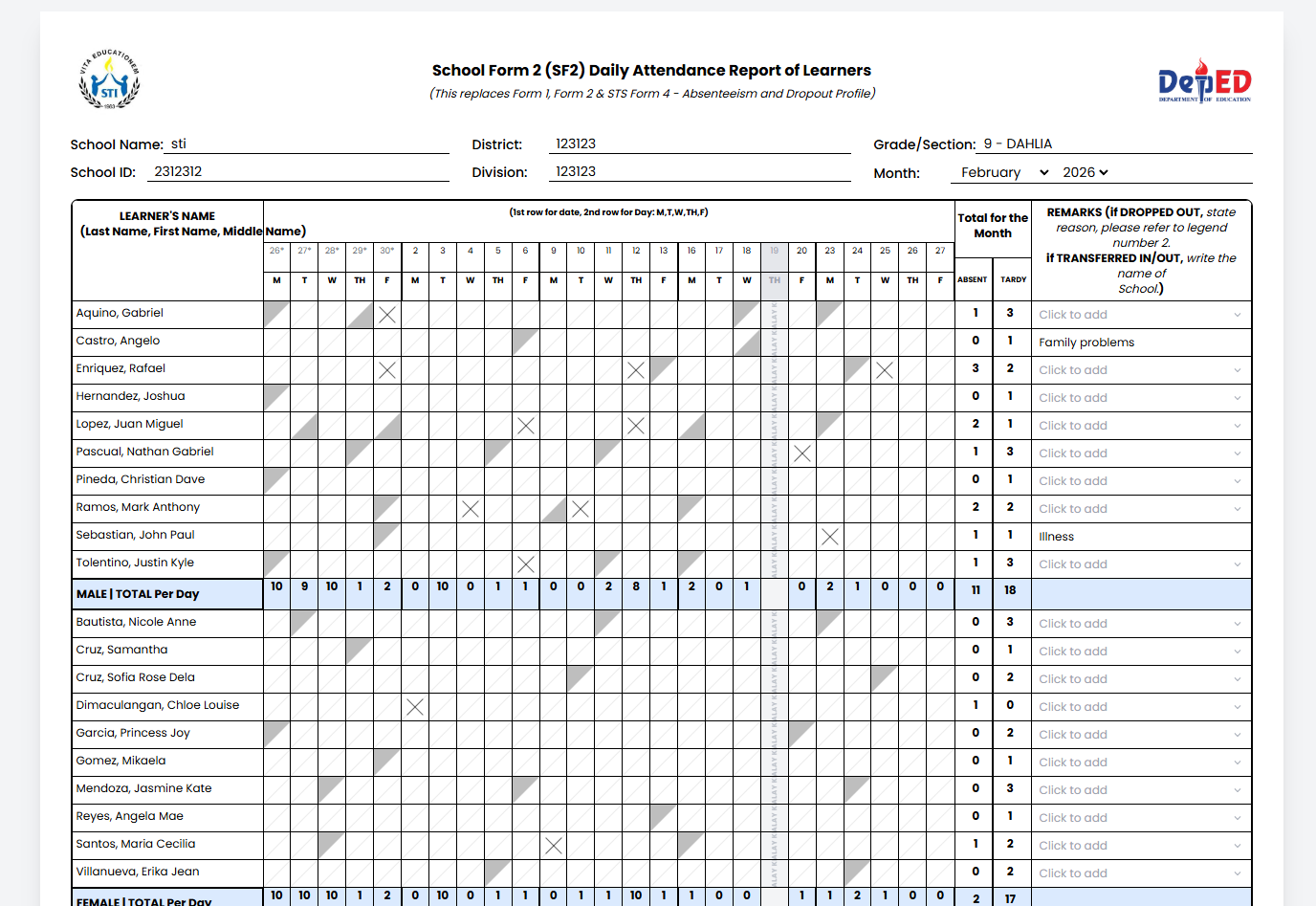
Understanding the Attendance Grid
The attendance table is structured as follows:
- Rows represent each student in your class.
- Columns represent each school day of the selected month.
- Each cell contains two clickable triangles used to mark attendance exceptions.
Students are Present by default, so blank cells require no action.
Marking Attendance
Each attendance cell is divided diagonally into two clickable triangles. You only interact with the cell when a student was late, cutting, or absent.
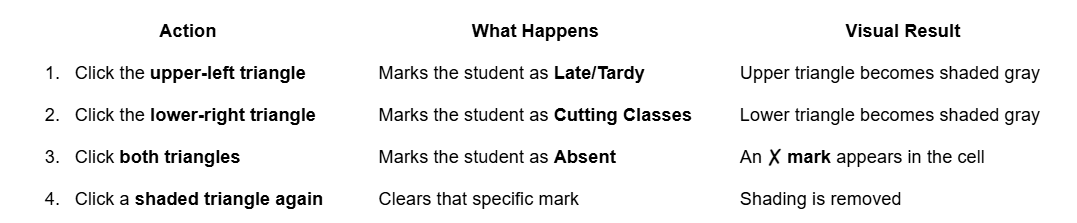
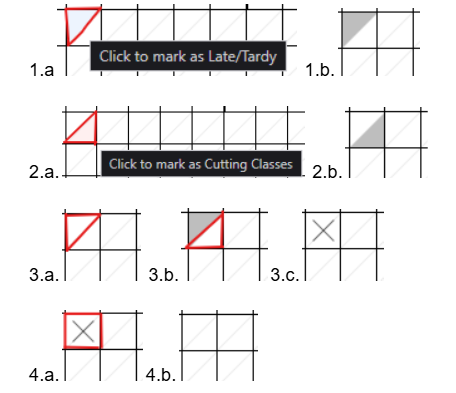
Important: A blank cell means the student was present. Only mark cells when there is an attendance exception.
Using the Right-Click Context Menu
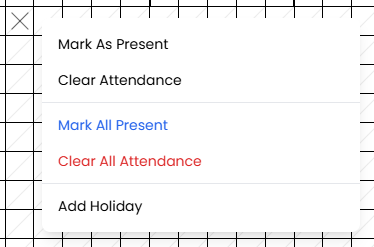
Right-click on any attendance cell to open additional options:
- Mark as Present — clears all attendance marks for that student on that day
- Clear Attendance — removes attendance markings from the selected cell
- Mark All Present — clears attendance marks for the entire class on that day
- Clear All Attendance — resets attendance for the entire date column
These options help you quickly correct or reset attendance data.
Marking Holidays and No-Class Days
When there is no class:
- Right-click the date column header.
- Select Mark as Holiday.
The column will be visually shaded to indicate no attendance is required.
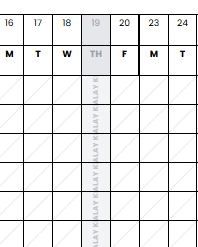
To undo this action:
- Right-click the same column header.
- Select Clear Holiday.
Attendance Summary and Auto-Calculations
The system automatically calculates attendance totals at the bottom of the form, including:
- Total days present per student
- Total days absent per student
- Monthly totals for the entire class
- Attendance percentages
These values update instantly as attendance is marked.
Exporting SF2
Click 📥 Export to download the attendance report as a properly formatted PDF ready for printing or submission.
SF5 — Report on Promotion
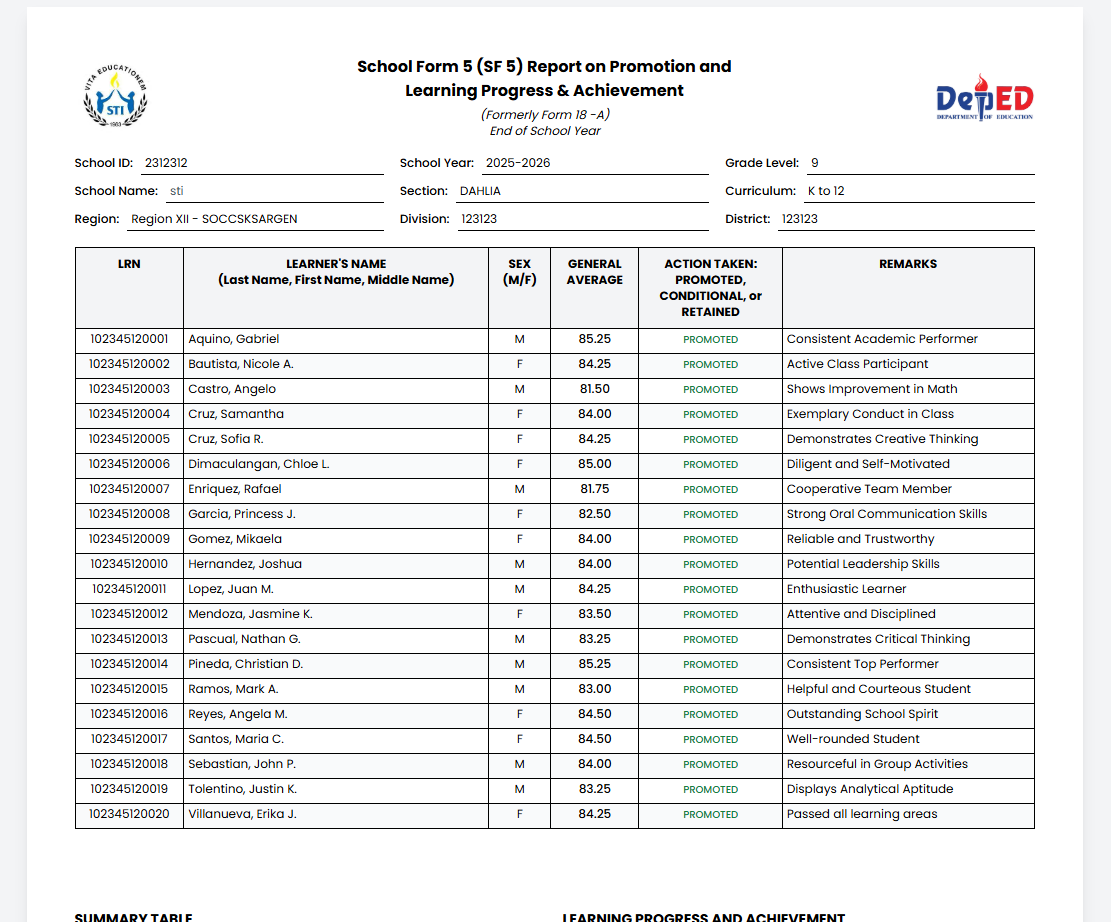
The SF5 records each student’s final grades, general average, and promotion status for the school year.
Promotion status is automatically calculated from the student’s Class Record. You do not need to compute or select it manually.
How to Open SF5
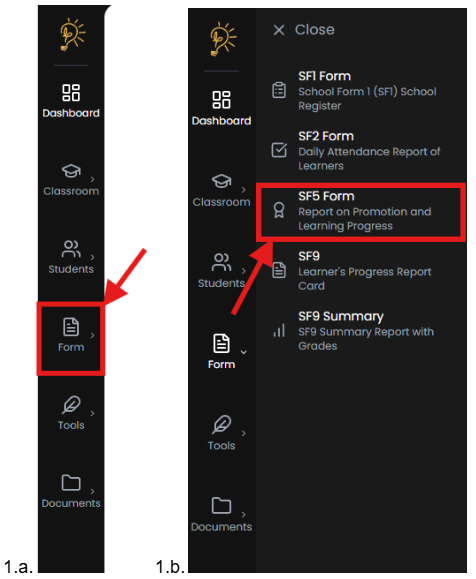
- Go to Forms → SF5 Report on Promotion.
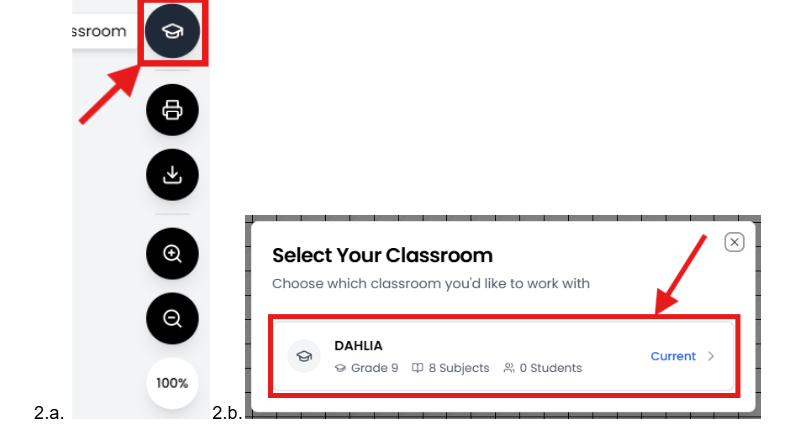
- Select your classroom.
Understanding the SF5 Table
Each row represents one student, and each column displays their academic performance and promotion result.
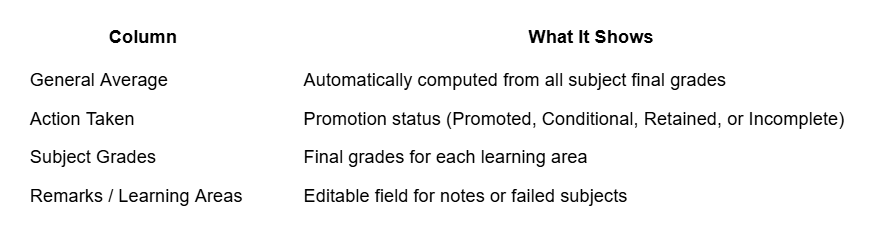
How Promotion Status Is Calculated
The Action Taken column is automatically determined based on official DepEd promotion rules. The system evaluates each student’s final subject grades and applies the following criteria:
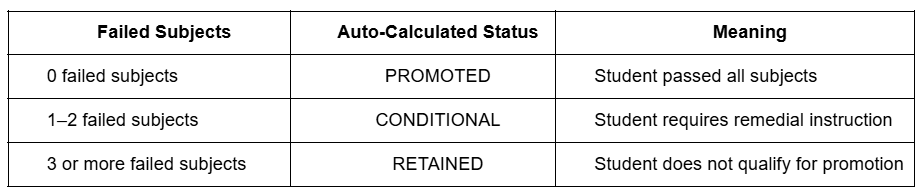
This ensures consistent and accurate promotion decisions based on official grading policies.
Requirements for Promotion Calculation
For the system to calculate the promotion status correctly, the following must be complete:
- All quarterly grades must be entered. Grades for Q1, Q2, Q3, and Q4 must be present in the Class Record.
- Passing grade standard is 75%. Any subject below 75% is considered failed.
If grades are missing, the Action Taken field will show Incomplete or remain blank until all required grades are entered.
Editing the Remarks / Learning Areas Column
While promotion status is automatic, you can manually enter additional information in the Remarks / Learning Areas column.
To edit:
- Click the cell in the Remarks / Learning Areas column.
- Type the relevant learning areas the student failed, or any required notes.
- Click outside the cell to save.
This is commonly used for:
- Listing failed subjects for Conditional students
- Providing required remedial notes
- Adding school-required remarks
Tip: If promotion status appears incorrect, return to your Class Record and verify all grades are complete. The SF5 updates automatically when grades are corrected.
Promotion Summary and Proficiency Levels
At the bottom of the form, automatic summaries provide an overview of your class performance.
Promotion Summary
Shows the total number of students who are:
- Promoted
- Conditional
- Retained
Includes breakdown by:
- Male
- Female
- Percentage of total students
Proficiency Levels
Students are grouped by their General Average:
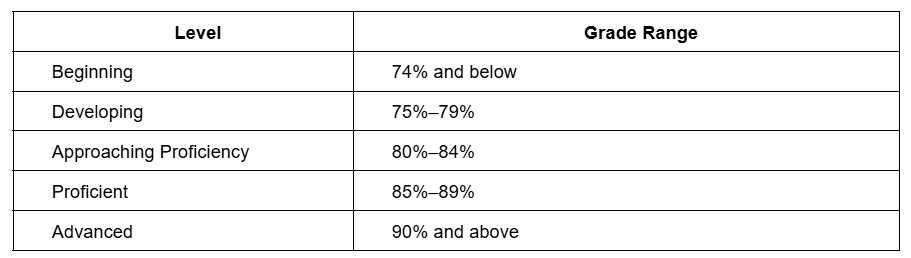
These summaries help school heads review overall class performance.
Where SF5 Data Comes From
All SF5 data is automatically pulled from your Class Record:
- Student names and LRNs come from enrollment data
- Subject grades come from final recorded grades
- General Average is computed automatically
- Promotion status is determined from subject results
No manual calculations are required.
Exporting and Printing SF5
- 📥 Export as Word (.docx)
Quick Tips for Teachers
- Start with the Class Record for grades.
- Set up your school profile once.
- Upload logos once for all forms.
- Yellow highlights mean missing data.
- SF2 attendance feeds into SF9 automatically.
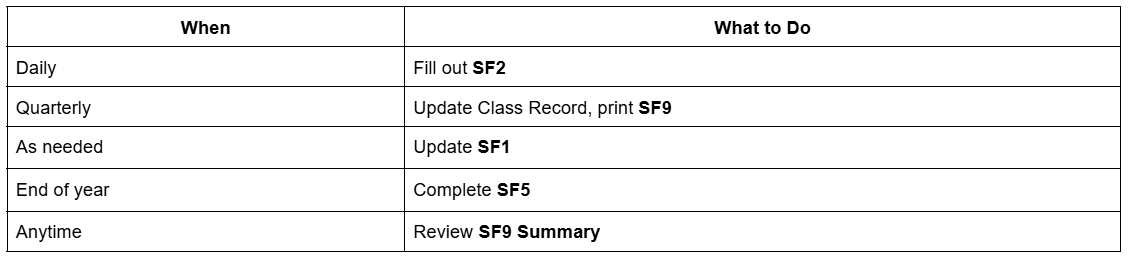
Recommended Workflow
Author
Better Teaching Solutions
Making teaching easier, giving more time for our hard working teachers!