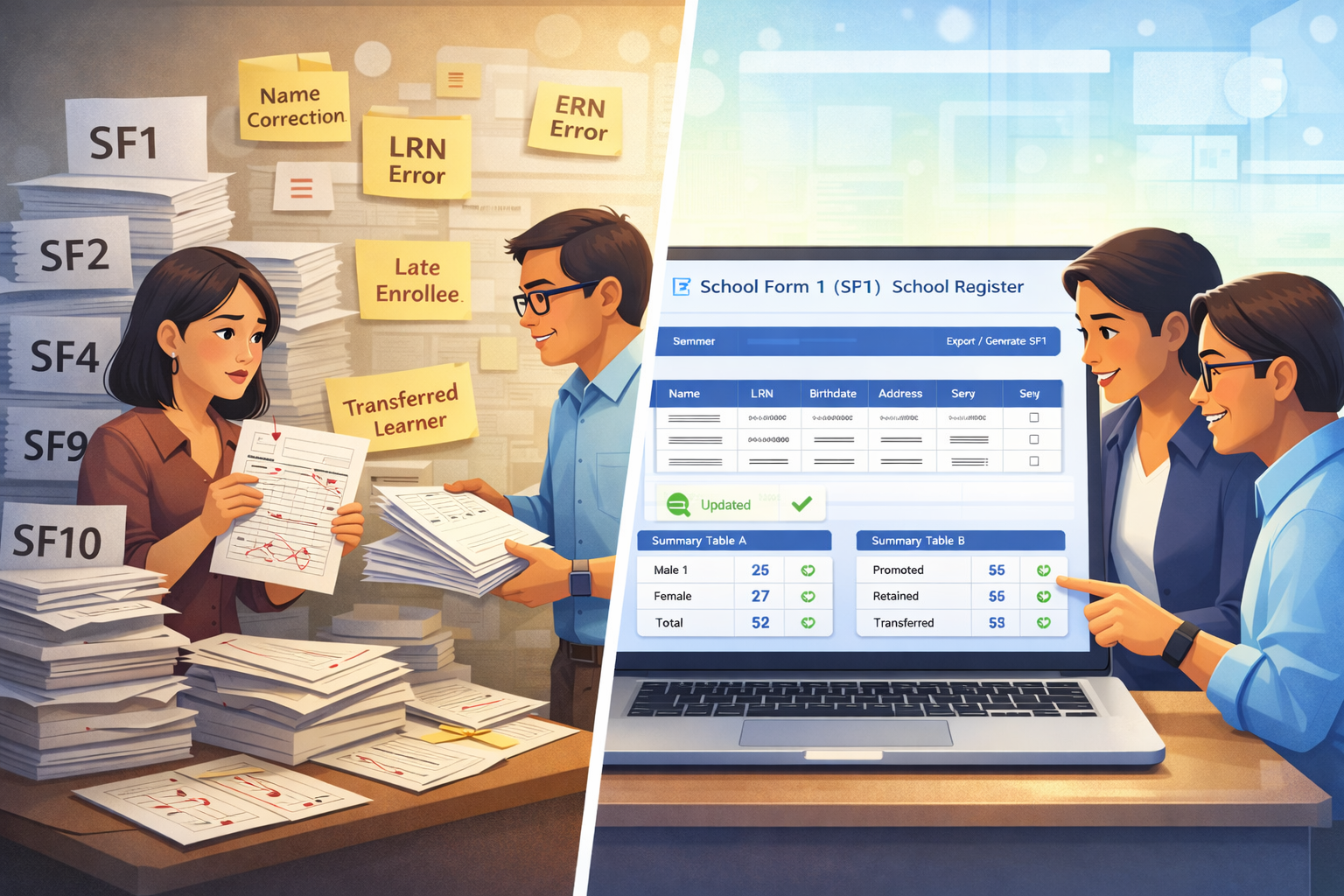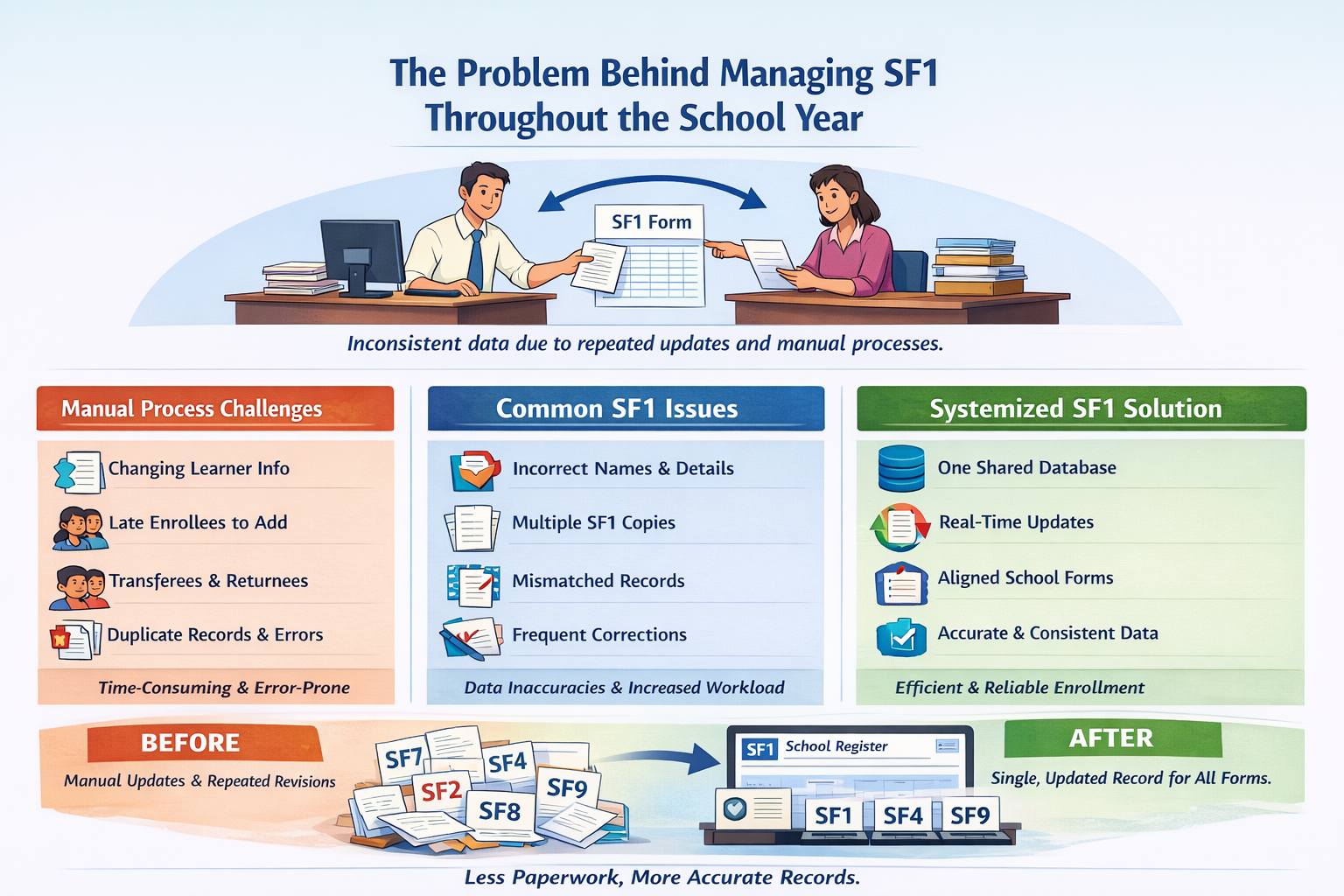
The Problem Behind Managing SF1 Throughout the School Year
SF1 becomes difficult not because teachers or registrars do not understand the process, but because enrollment data must remain accurate while learner information continues to change.
During enrollment, learner details are encoded by the registrar’s office and included in SF1. Once enrollment is completed, the same SF1 is passed to teachers for use in attendance, grading, and reporting.
At this stage, the form is often treated as complete. However, once teachers begin using SF1 in the classroom, inconsistencies persist.
Names require correction, details need updating, and learner information may not match actual classroom records. Because SF1 feeds many other School Forms, every correction affects multiple documents.
When SF1 is handled manually, updates require repeated coordination between the registrar and the teacher.
The form becomes static—passed back and forth as revised copies—rather than a record that remains up to date. Over time, this increases workload and raises the risk of inconsistent data across school records.
The Actual Pain Points With SF1 in Daily School Work
- Learner information changes after enrollment
- Names, birthdates, addresses, and LRNs require correction after SF1 has already been prepared.
- Late enrollees must still be reflected in class records
- Learners who enroll after initial registration need to be added to the SF1 used by teachers.
- Transferees and returning learners require updates throughout the year
- Enrollment becomes an ongoing task rather than a one-time activity.
- Teachers and registrars work on separate copies of SF1
- Corrections made by teachers must be sent back to the registrar, creating multiple versions of the same form.
- The same learner data is entered repeatedly across School Forms
- Enrollment details are manually copied into attendance, grading, and reporting documents.
- Small errors create larger issues later
- A single incorrect entry in SF1 can appear as mismatched data in SF2, SF4, SF9, or SF10.
- Time is spent coordinating corrections instead of teaching or processing records
- Teachers and registrars spend hours validating enrollment information.
Why SF1 Needs to Be Systemized, Not Reworked Repeatedly?
SF1 problems do not come from non-compliance or lack of effort. They happen because enrollment data is shared across many School Forms, but is often maintained in separate files.
In a manual setup, SF1 behaves like a static document that must be revised repeatedly, rather than a living record that stays accurate.
Systemizing SF1 means treating enrollment data as shared information rather than isolated files.
When enrollment details are maintained in a single place, corrections no longer require multiple versions or repeated data entry.
How Is SF1 Handled in a Systematized Setup?
In Better Teaching Solutions, SF1 is generated from a centralized learner record shared by both the registrar and the teacher. There is only one version of each learner’s enrollment information.
When a learner’s details are updated—whether during enrollment or classroom validation—the change is applied immediately to the same record.
SF1 and all other School Forms that rely on this data will automatically reflect the update.
This removes the need to exchange revised files and reduces the risk of outdated information being used elsewhere.
What Changes When SF1 Is Dynamic Instead of Static?
When SF1 is managed dynamically:
- Teachers and registrars see the same learner information
- Corrections are applied once and reflected everywhere
- Related School Forms remain aligned automatically
- Data consistency is maintained throughout the school year
Instead of fixing discrepancies at reporting time, accuracy is maintained as learner information changes.
The Impact on Daily Work
With a systemized SF1:
- Enrollment data is entered once and reused
- Corrections no longer require repeated coordination
- Validation happens during work, not after submission
- Time spent on paperwork is reduced
SF1 becomes a stable foundation for attendance, grading, promotion, and permanent records—making everyday school work easier to manage.
Before working with SF1 in the system, it helps to understand how the SF1 workspace is structured and how enrollment data is handled inside the app.
What does SF1 mean in the App?

The SF1 workspace in Better Teaching Solutions is designed to closely follow the official DepEd School Form 1 layout and adds system controls to help teachers manage enrollment data accurately and efficiently.
Please refer to the image above while reading this section.
The screen is organized into four major functional areas, each corresponding to a specific DepEd requirement or teacher task:
- Form Header and Navigation Controls
- School and Class Information Section
- Learner Information Table
- Summary Tables (A and B)
Each area is explained below.
SF1 Workspace — UI Overview
The SF1 workspace in Better Teaching Solutions is designed to closely follow the official DepEd School Form 1 layout and adds system controls to help teachers manage enrollment data accurately and efficiently.
Please refer to the image above while reading this section.
The screen is organized into four major functional areas, each corresponding to a specific DepEd requirement or teacher task:
- Form Header and Navigation Controls
- School and Class Information Section
- Learner Information Table
- Summary Tables (A and B)
Each area is explained below.
1. Form Header and Navigation Controls
At the top center of the screen, you will see the title:
“School Form 1 (SF1) School Register”
with a subtitle indicating "Basic, Cultural & Address Information" and the current page number.

This header confirms:
- the specific School Form being viewed (SF1),
- the scope of information on the current page, and
- that the layout follows the official DepEd format.
Above the title, you will notice navigation instructions indicating that you may use arrow keys or on-screen arrows to move between pages. This is useful when SF1 spans multiple pages due to the number of learners.
On both the left and right sides of the header are placeholders labeled “Click or drop logo.” These allow schools to upload official logos when required for printing or submission, without affecting learner data.
2. School and Class Information Section
Directly below the header is the school and class identification area.

(Please refer to the image above to locate this section.)
This area includes the following fields:
- School ID
- Division
- District
- School Name
- School Year
- Grade / Section
These fields define the SF1 context and apply to all learners listed on the form.
In the BTS system:
- These details are either pre-filled based on school settings or selected during setup.
- Once set, they are reused across related forms such as SF4, SF6, and summary reports.
- Teachers do not need to re-enter this information for every learner.
This ensures consistency across all generated School Forms.
3. Learner Information Table (Main Enrollment Area)
The largest portion of the screen is occupied by the learner information table, which mirrors the official SF1 columns.

(Please refer to the image above.)
Each row represents one enrolled learner, while each column corresponds to a required SF1 data field, including:
- Learner Number
- LRN
- Learner Name (Last Name, First Name, Middle Name)
- Sex
- Birth Date
- Age as of the 1st Friday of June
- Mother Tongue
- IP (Ethnic Group)
- Religion
- Complete Address, broken down into:
- House / Street / Sitio / Purok
- Barangay
- Municipality / City
- Province
When no learners are yet enrolled, the table displays a message indicating that no students are currently listed. This confirms that the class or section is active but awaiting learner data.
This table replaces manual encoding in spreadsheets or printed forms. All required fields are visible at a glance, making it easier to check completeness and accuracy.
4. Summary Table A — Beginning of School Year
Below the learner table, on the left side, is Summary Table A.

(Please refer to the image above.)
This table reflects the Beginning of School Year (BoSY) enrollment totals and includes:
- Registered learners
- Male count
- Female count
- Total count
In the BTS system:
- These values are automatically calculated based on the learners entered in the table above.
- Teachers do not manually compute or encode these totals.
- Any change in learner records is immediately reflected in this summary.
This helps prevent mismatched totals during checking and monitoring.
5. Summary Table B — End of School Year Status
On the right side is Summary Table B, which tracks End of School Year (EoSY) learner status.

(Please refer to the image above.)
This table includes:
- Enrollment (EoSY)
- Promoted
- Retained
- Dropped Out
- Transferred In
- Transferred Out
Male, female, and total counts are shown for each category.
These fields are populated based on learner movement and status updates recorded throughout the school year.
Teachers do not need to manually reconcile these figures at year-end, as they are derived from the same learner records used in other forms.
Step-by-Step to fill Class and Section Details
At the top of the SF1 screen, you’ll set the:
- School Year
- Grade Level
- Section
- Adviser Name
These details apply to all learners in the current view.
Please refer to the image above to locate this panel.
Once saved, this information will be carried over to related forms such as SF4 and SF6.
Learner List Table — Key Fields in View
In the main table, you will see columns that correspond to required SF1 data:
- Learner’s Full Name
- Learner Reference Number (LRN)
- Sex
- Birthdate
- Age
- Mother Tongue
- Religion
- Address
- Parent/Guardian Information
- 4Ps Status
- Disability / Special Needs
- IP Classification (if applicable)
Each row represents one learner.
Please refer to the image above for how the table appears.
These columns match DepEd’s required fields for SF1 and help you verify completeness at a glance.
Adding a New Learner
To add a learner, click Add Learner in the Learner Table. A detail panel will open on the side or below the table.
In the Learner Information Form:
- Required fields are marked with an asterisk (*)
- Error messages appear if anything is missing or invalid
- LRNs are automatically checked for format and duplication
Please refer to the image above when entering a learner record.
This approach helps avoid common problems such as:
- missing LRNs
- inconsistent name formats
- incomplete addresses
Working with Returning Learners
For learners who were enrolled in previous years:
- The BTS app will show matching records when you begin typing a name or LRN
- You can select the existing record instead of retyping
- Once selected, the profile populates automatically
Please refer to the image above for how the auto-suggest feature works.
This saves hours of work during enrollment and eliminates the need to re-enter unchanged data.
Reviewing and Correcting Learner Details
Selecting any learner in the table opens their full detail panel.
In this panel, you can:
- Verify that all fields are complete
- correct spelling or formatting errors
- Update contact numbers or address changes
Any updates you make here automatically carry forward to DepEd reports and related forms.
Please refer to the image above to identify where corrections are made.
Common SF1 Problems the App Helps Prevent
Because the system uses shared learner records, many errors that occur in manual workflows are prevented in BTS:
- Inconsistent name formats between forms
- differing date formats
- missing or invalid LRNs
- blank addresses or guardian information
These issues are flagged upon entry.
Generating Official SF1 Output
Once all entries are complete, you can generate the official SF1 in DepEd-compliant format by selecting Export / Generate SF1 from the toolbar.
This produces:
- a printable version of the School Enrollment Register
- correct placements of all required fields
- totals that match related forms
Please refer to the image above for where to click.
Why Accurate SF1 Matters
Accurate learner data in SF1:
- eliminates inconsistencies in SF2, SF4, SF9, and SF10
- reduces errors during monitoring or audit
- minimizes corrections later in the year
- saves you time and stress
Impact on Teacher Workload
With BTS:
- Learner information is entered once and reused
- returning learners’ profiles are carried forward
- Validation occurs as you work, not after encoding
- Much of the repetitive work is handled by the app
Instead of spending hours retyping and checking forms, you can focus on validation and review.
Frequently Asked Questions
Author
Better Teaching Solutions
Making teaching easier, giving more time for our hard working teachers!